

Deploying FortiTIP Cloud
Before deploying FortiTIP Cloud ensure that you have a valid product entitlement for FortiCloud and note your account ID number from the FortiCloud portal.

|
If you have created a new FortiCloud account, wait 30 minutes before proceeding to the next step. |
- Click Services in the FortiCloud portal and select FortiTIP Cloud from the
Cloud Managementsection to access your FortiTIP Cloud instance.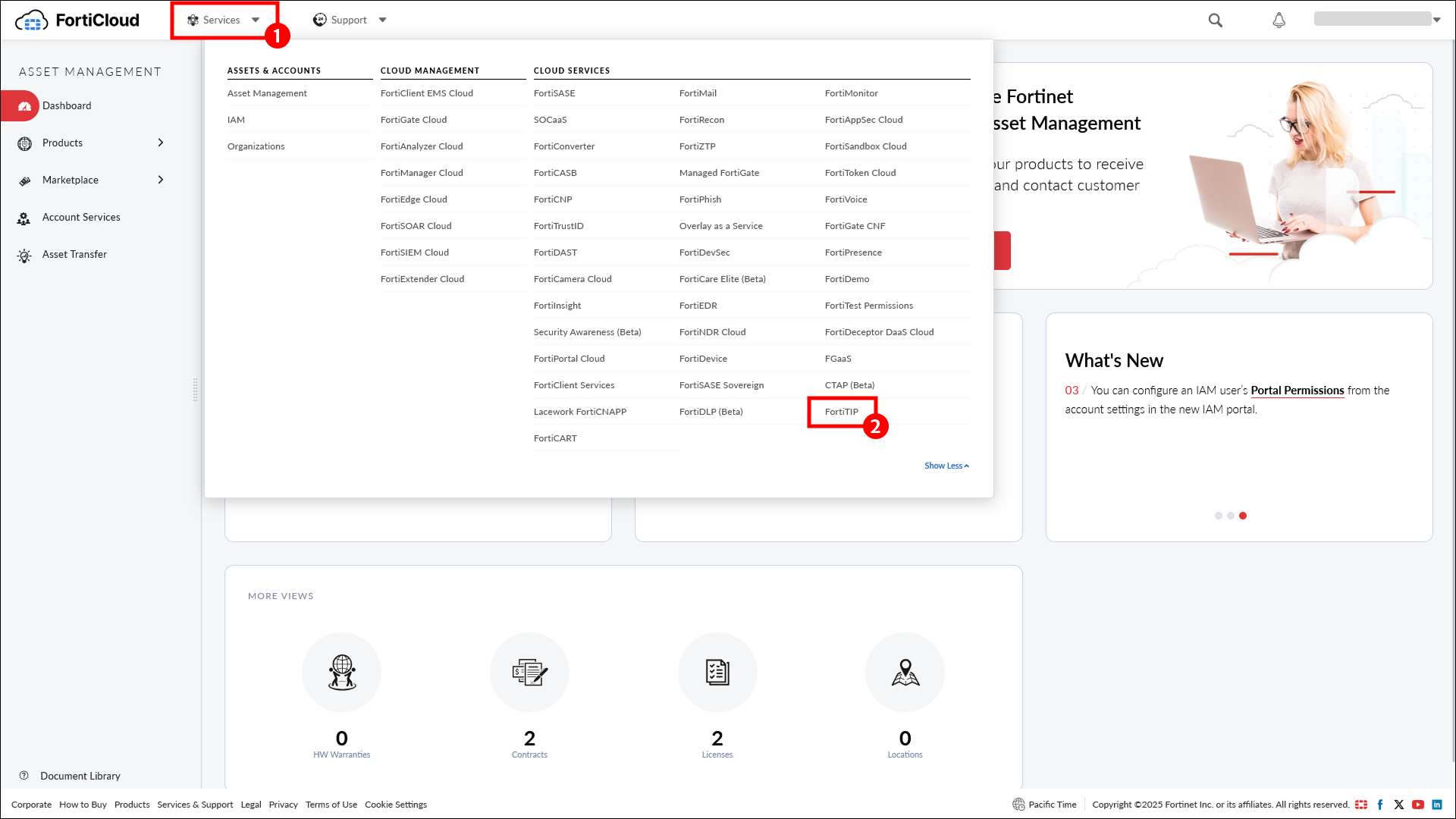
- Select the Master FortiTIP Cloud account after logging in FortiTIP Cloud, to view the account information, including the account ID and the list of associated assets.
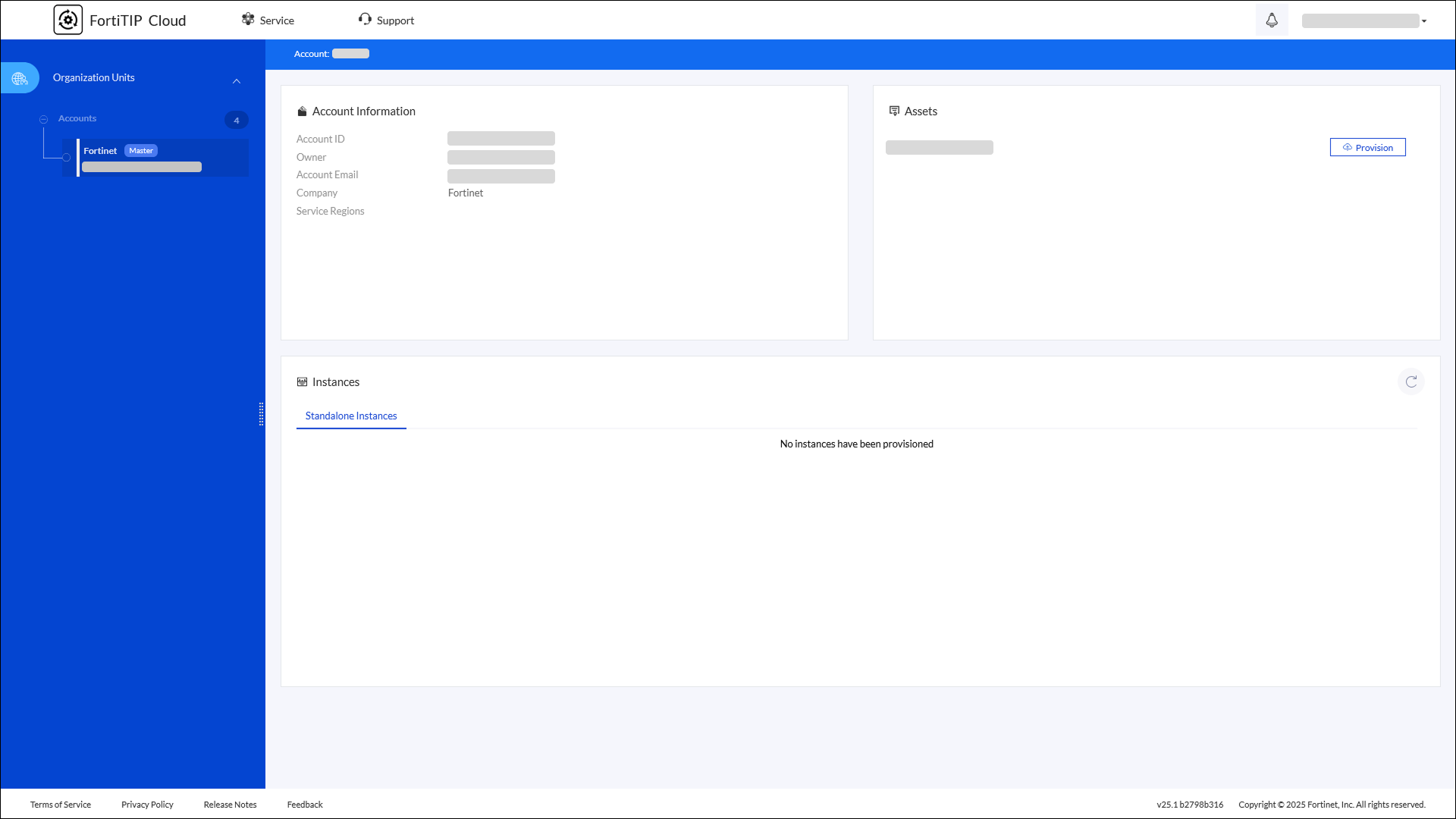
- Click the Provision button, under the
Assetssection, next to the license serial number for the FortiTIP Cloud instance you wish to provision: - Verify the license serial number and select the Region where the instance has to be provisioned.
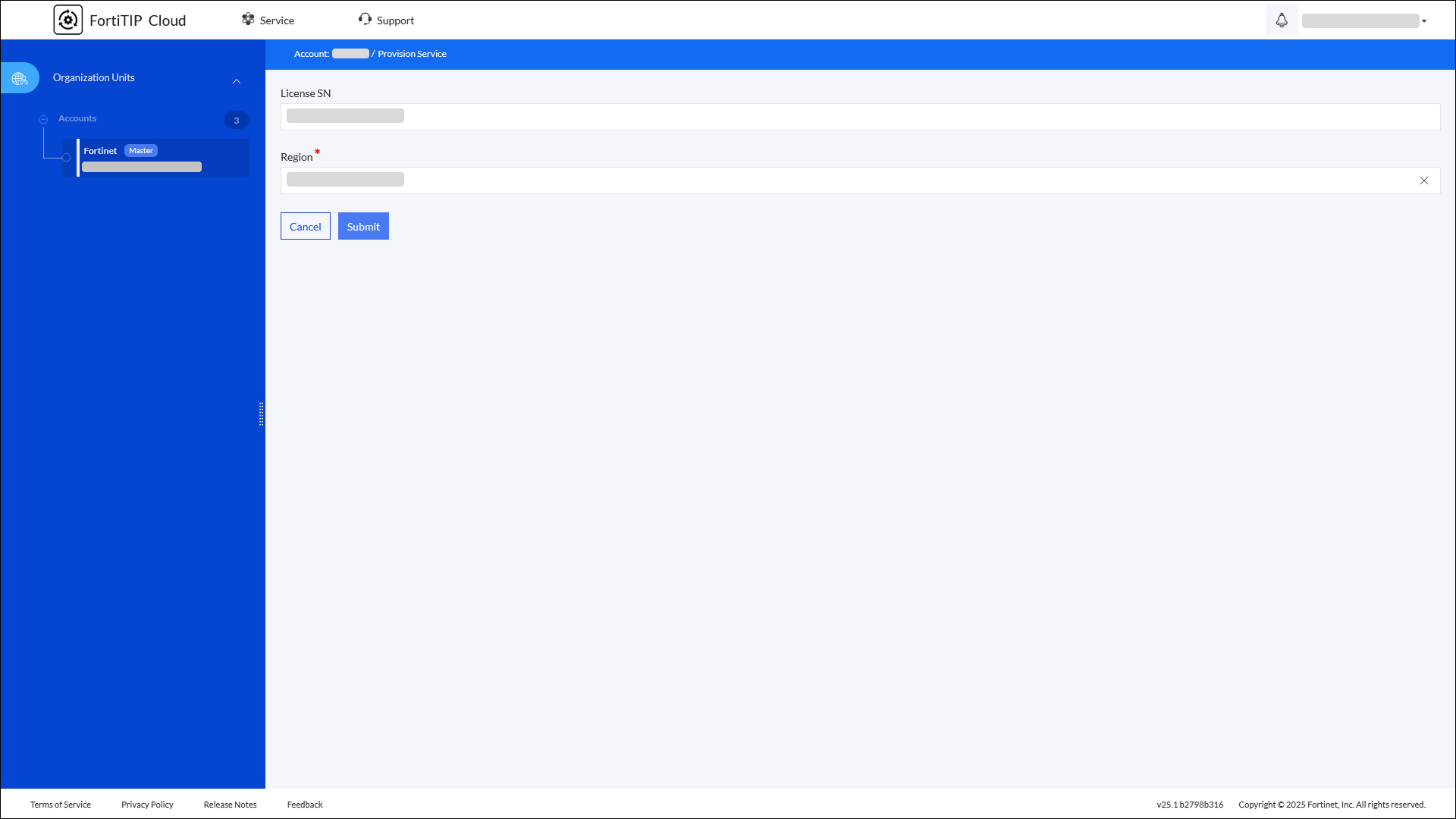
- Click Submit to open a pop-up displaying your selections.
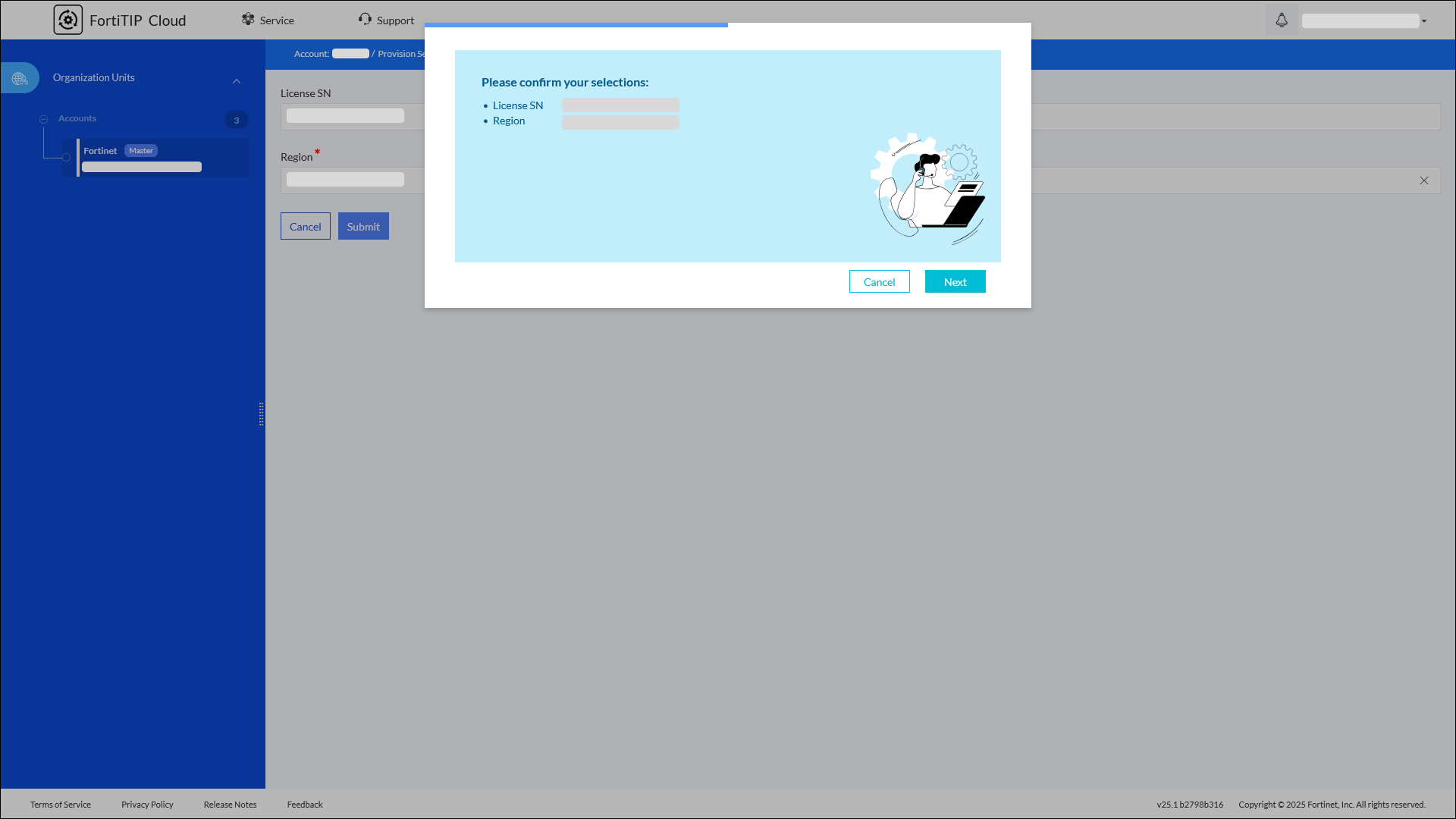
- Click Next to open the Acceptance of Terms and Policies dialog.
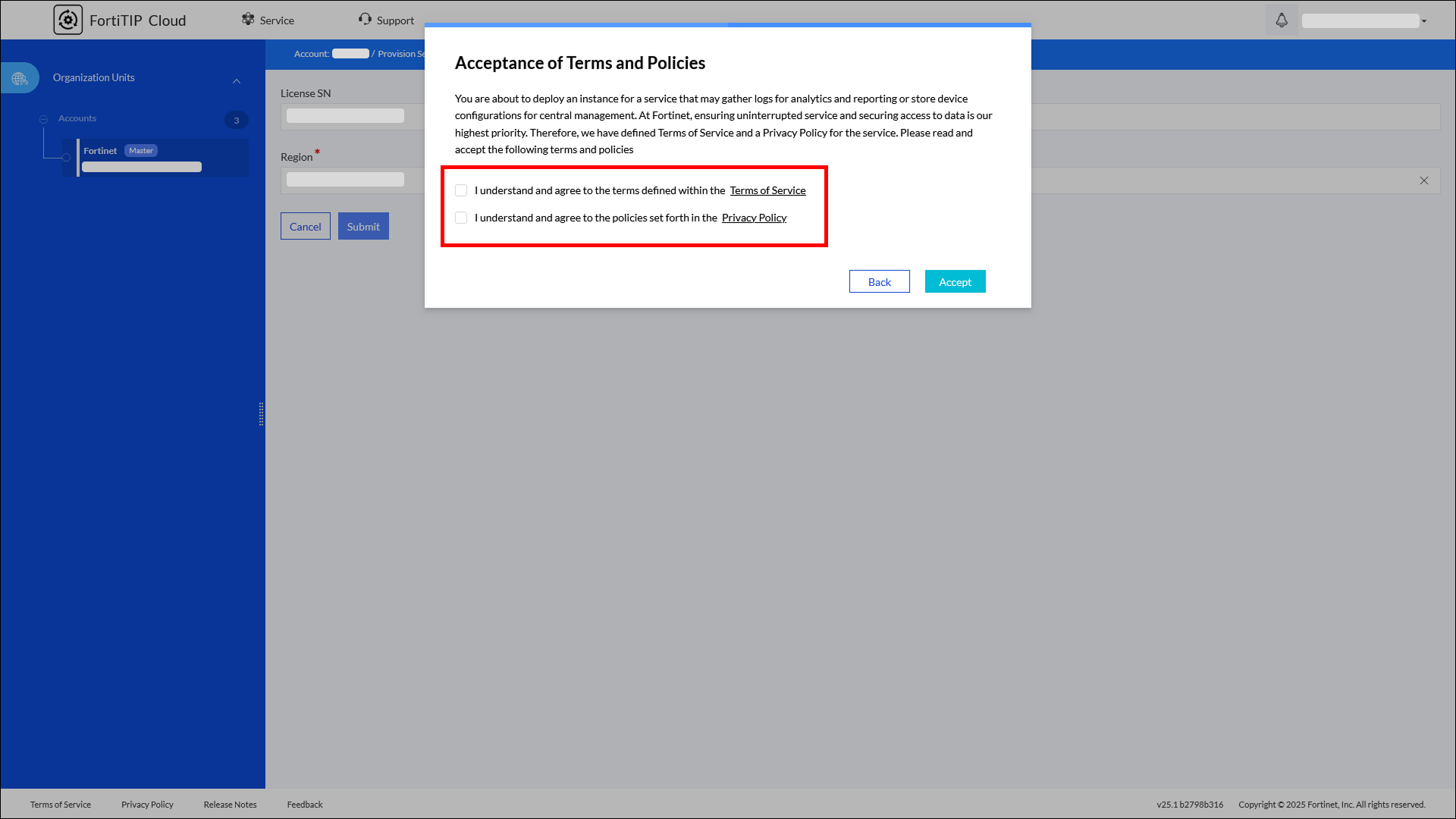
- Select the Terms of Service and Privacy Policy checkboxes and click Accept to initiate the provisioning of the FortiTIP Cloud instance. The provisioning process takes a few minutes.
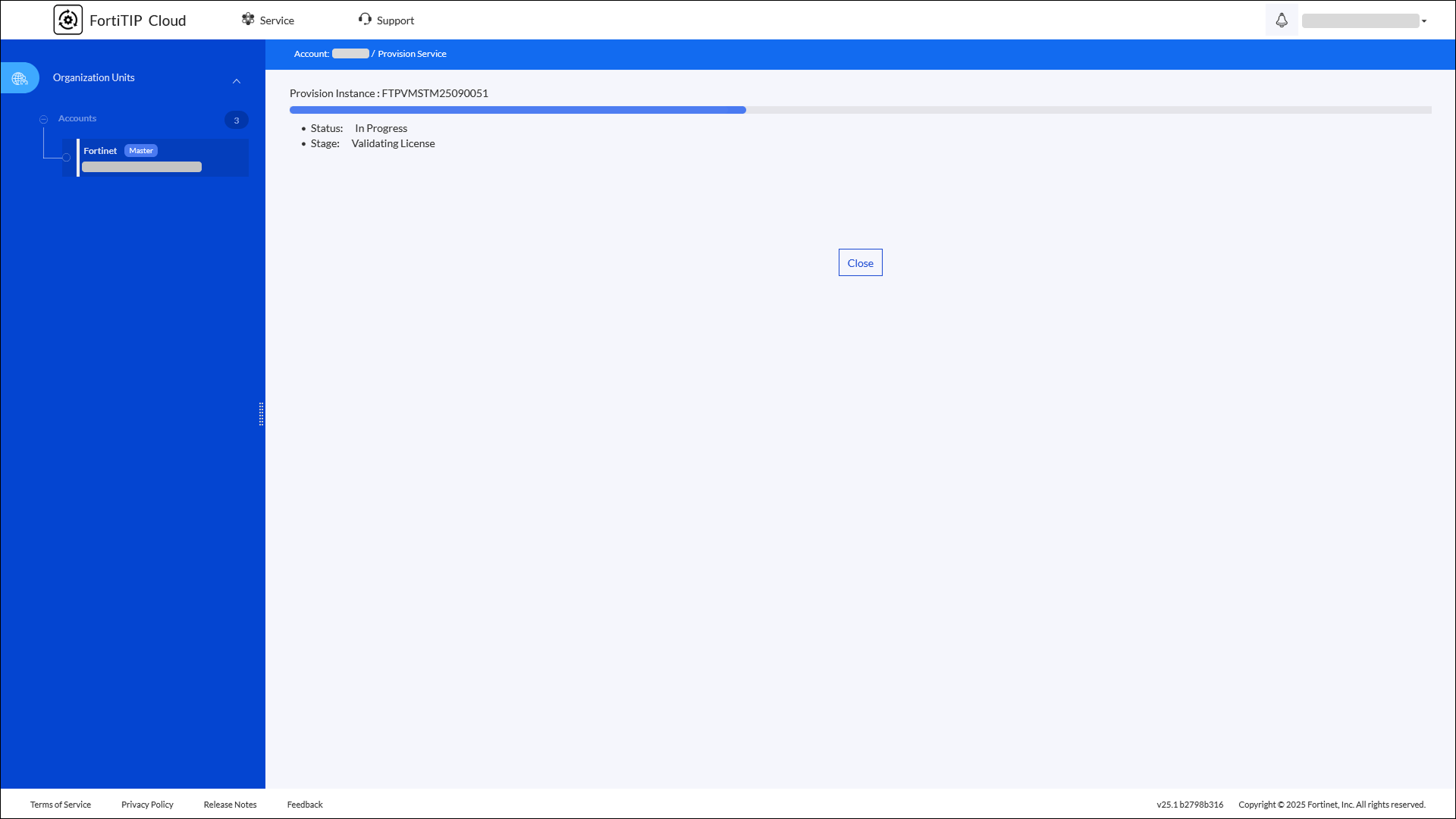
During provisioning, initial configuration steps for FortiTIP Cloud are performed. These steps include running the automated, non-interactive FortiTIP Cloud configuration wizard, enabling the embedded Secure Message Exchange, triggering the heartbeat between FortiCloud and FortiTIP Cloud, and installing the license.
|
|
FortiTIP Cloud VM provisioning is considered successful once FortiCloud receives the first heartbeat from FortiTIP Cloud. |
If there are any provisioning issues, such as failures during the initial configuration phase using the automated non-interactive FortiTIP Cloud configuration wizard, including failures while configuring the embedded Secure Message Exchange, then a failure screen detailing the status of each configuration step is displayed, making it simpler to identify the issue. Before using FortiTIP Cloud, you must use WebSSH to resolve the issue before proceeding. If you choose to continue without fixing the issues, FortiTIP Cloud functionality may be impaired. A Proceed Anyway button allows you to continue, acknowledging the configuration failure:
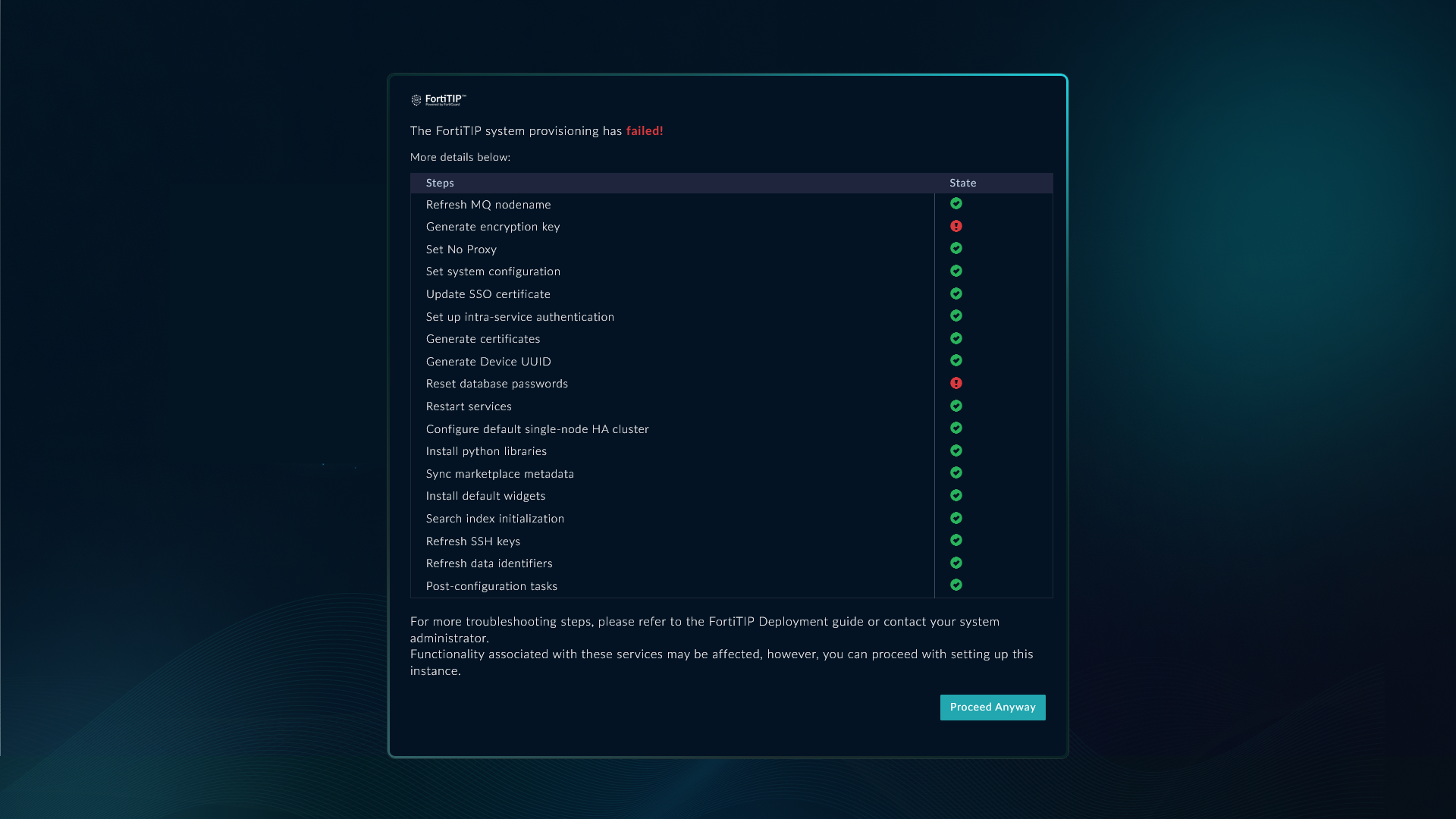
If your instance is still not accessible after clicking Proceed Anyway, you can try the following steps to fix the issues:
- Restart all the services using the following command.
csadm services --restart
- Manually install ansible in the case of an ansible installation error using the following command:
sudo -u nginx /opt/cyops-workflow/.env/bin/pip install ansible==7.4.0 --extra-index-url https://repo.fortisoar.fortinet.com/prod/connectors/deps/simple/
- If the failure screen keeps appearing on the FortiTIP Cloud UI, even after you have attempted to resolve all the backend issues, you can try to update the
fsr-boot.jsonto update its state fromfailedtoconfig_vm_failure_acknowledged.
Contact support if failures persist even after troubleshooting.
After successful provisioning, access the FortiTIP Cloud web GUI by clicking Login or click WebSSH to access the FortiTIP Cloud console.
Important Notes before using FortiTIP Cloud:
-
After provisioning, it is strongly recommended to log into the WebSSH interface and immediately change the default password for the '
csadmin' user. This improves the security of your FortiTIP Cloud instance. -
Only the primary account holder can create secondary account holders in FortiCloud. Secondary account holders can log into the same instance as 'restricted'. The primary account holder can modify the secondary user's admin profile. For more information, see the Adding a secondary account chapter.
-
It is highly recommended to set up a backup user for the FortiSOAR appliance. This ensures access to the CLI in case the '
csadmin' CLI password is forgotten or thecsadminuser gets locked. For the steps to create a backup user, see the Creating a backup user for the FortiSOAR appliance to allow access to the CLI topic in the Deploying FortiSOAR chapter of the "FortiSOAR Deployment Guide." -
To restrict access to your FortiTIP Cloud instance, contact the FortiCloud team to add IP addresses to the allowlist. Only the listed IP addresses will be able to access your FortiTIP Cloud instance.