Fortinet white logo
Fortinet white logo

User Guide

Manage annotations

Manage annotations

Annotations let you add meaningful context to entities such as IP addresses, domains, URLs, and usernames, making it easier to interpret and organize data during investigations. The Manage Annotations page provides a centralized view where you can create, edit, and manage all annotations in your environment. You can also use annotations to enrich event data, support faster filtering, and improve entity categorization across FortiNDR Cloud.

Viewing annotations in the portal

Annotations appear throughout the FortiNDR Cloud portal wherever supported entities (such as IP addresses) are shown. When you hover over an annotation, a tooltip displays the annotation name and description. Clicking the annotation opens a pop‑up with the full details. Annotations can also be searched using IQL when annotation data is present in event records.

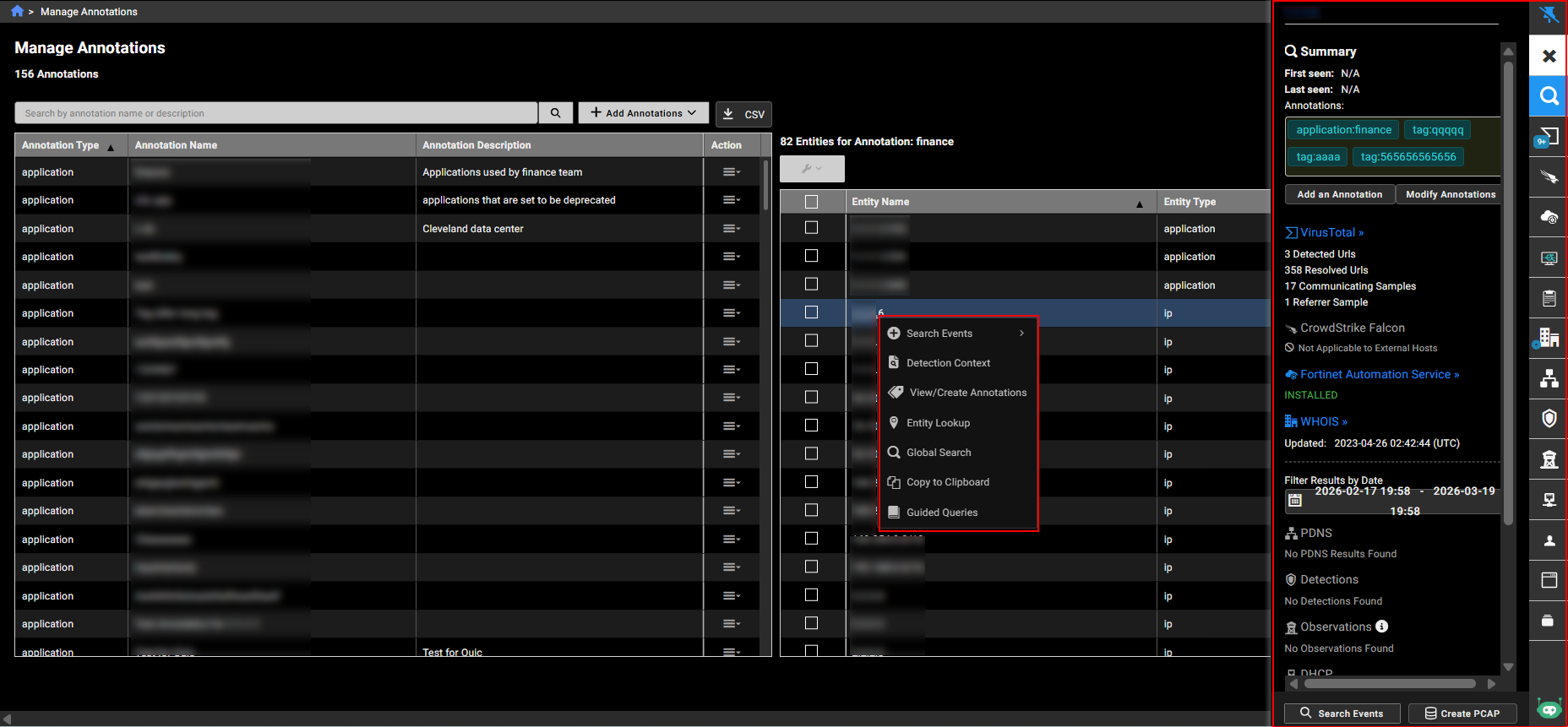
You can open the Entity Panel directly from the Manage Annotations page by clicking an entity name when it represents a valid IP address, CIDR, domain, or URL. The panel provides additional details about the selected entity, helping you explore related information during an investigation.

When you right‑click an entity that contains a valid IP address, a context menu appears with several options that support deeper investigation. These include searching events, viewing the detection context, viewing or creating annotations, performing an entity lookup, running a global search, and opening a guided query.
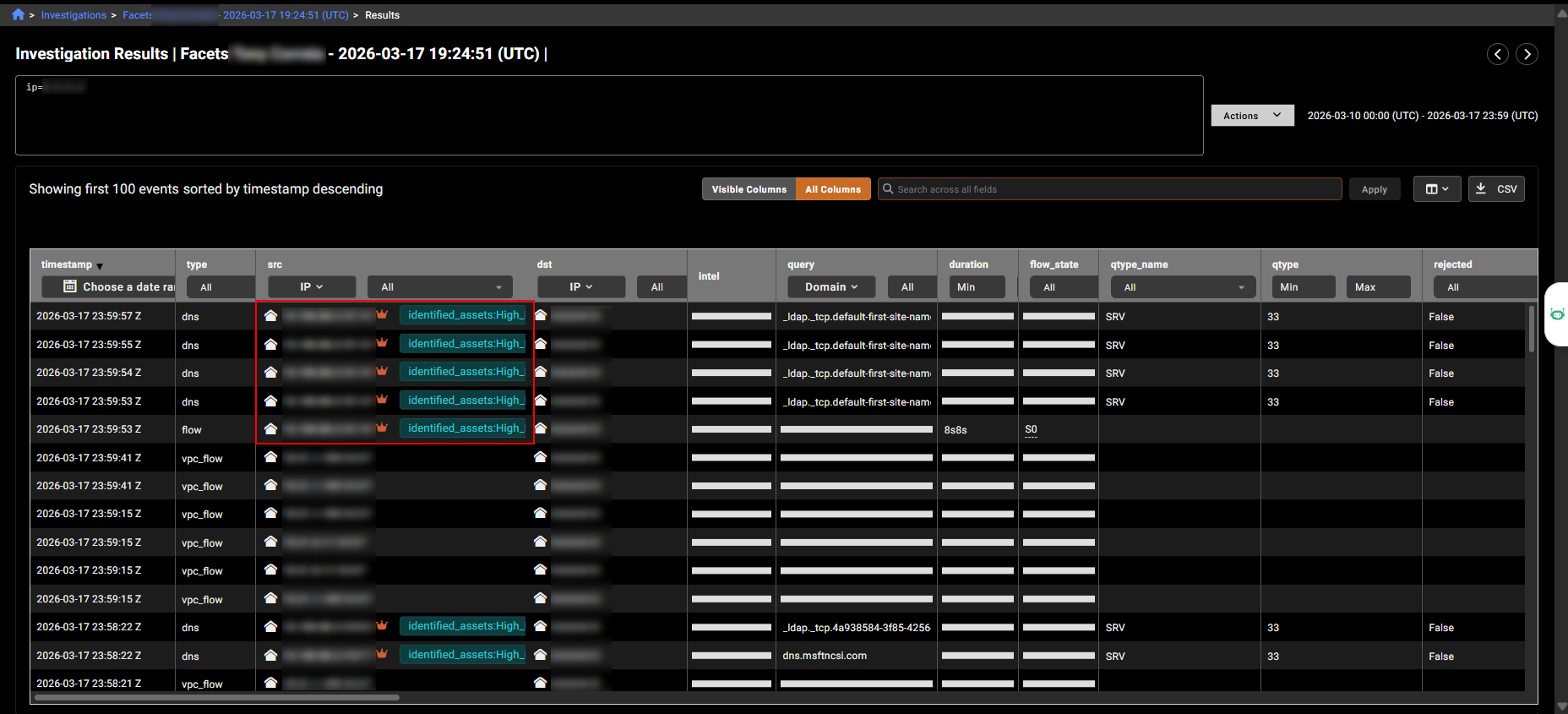
Automatic critical asset identification

FortiGuard ATR uses rich network metadata to automatically discover and classify critical assets across enterprise environments. This process identifies high-value infrastructure components such as Domain Controllers, DNS servers, SSH servers, FTP servers, SMTP servers, and other core services by analyzing behavioral patterns, protocols, and role-based traffic correlations.

Once identified, these assets are annotated within the FortiNDR Cloud platform to enhance network visibility and analytical context. This enrichment helps security teams distinguish routine activity from potential threats targeting essential systems. By adding this layer of asset intelligence, FortiNDR Cloud improves detection accuracy, prioritization, and relevance for high-impact business systems.

A crown icon appears next assets annotated by FortiGuard ATR in detection tables. The crown is color-coded to indicate its severity level:

  • Red for high risk
  • Orange for moderate risk
  • Yellow for low risk

Managing annotations

To manage annotations, go to Settings > Manage Annotations.

You can add new annotations individually by selecting an annotation type or upload multiple annotations at once using a CSV file. Existing annotations can be updated through the Actions menu, which allows you to modify their details or remove them entirely. You can also associate entities such as IP addresses, CIDR blocks, domains, or usernames with an annotation, and remove them individually or in bulk when needed. Associating entities with annotations adds context that makes IP addresses and other entities easier to identify and search during investigations.

You can add new annotations individually by selecting an annotation type or upload multiple annotations at once using a CSV file. Existing annotations can be modified or removed through the Actions menu. You can also associate entities such as IP addresses, CIDR blocks, domains, or usernames with an annotation and remove them individually or in bulk when needed. Associating entities with annotations adds context that makes them easier to identify and search during investigations.

To create an annotation:
  1. Go to Settings > Manage Annotations.
  2. Click Add Annotations > Create Annotation.
  3. Configure the annotation settings:

    Select an annotation type

    Select Application, Environment, Location, Owner, Role, Tag, or Identified Assets.

    Identified Assets annotations are automatically created by FortiGuard ATR and cannot be manually added. See, Automatic critical asset identification.

    A color-coded crown icon will appear only on assets annotated by FortiGuard ATR in the events and detections tables. See Detections table.

    Enter an annotation nameEnter a name for the annotation.
    Enter a descriptionEnter the annotation.
  4. Click Save.
To add annotations or entities with a CSV file:
  1. Create the CSV file. The file must contain the following : annotation type, annotation name, description, entity, entity_type.

    The annotation type must begin with a lower case letter, and the annotation name must be unique within the same type.

  2. Click Add Annotations > Upload CSV.

  3. Upload the CSV file.

  4. Click Save.

To edit an annotation:
  1. Click the Actions menu at the right side of the annotation and select Edit Annotation.

  2. Update the annotation and click Save.
To delete an annotation:
  1. Click the Actions menu at the right side of the annotation and select Remove Annotation.

  2. Click Confirm.
To associate entities with an annotation:
  1. Go to Settings > Manage Annotations.
  2. In the annotations table, select an Annotation Type.
  3. In he entity table, select an entity and click +Add Entity. The Add Entities dialog opens.
  4. Enter one or more entities (IP Address, CIDR, domain or username) separated by a comma, space, or return.

  5. Click Save. FortiNDR Cloud validates the fields and identifies any errors.
To bulk remove entities:
  1. Above the entities table, Click Remove bulk entities.

  2. Click Confirm.

Manage annotations

Manage annotations

Annotations let you add meaningful context to entities such as IP addresses, domains, URLs, and usernames, making it easier to interpret and organize data during investigations. The Manage Annotations page provides a centralized view where you can create, edit, and manage all annotations in your environment. You can also use annotations to enrich event data, support faster filtering, and improve entity categorization across FortiNDR Cloud.

Viewing annotations in the portal

Annotations appear throughout the FortiNDR Cloud portal wherever supported entities (such as IP addresses) are shown. When you hover over an annotation, a tooltip displays the annotation name and description. Clicking the annotation opens a pop‑up with the full details. Annotations can also be searched using IQL when annotation data is present in event records.

You can open the Entity Panel directly from the Manage Annotations page by clicking an entity name when it represents a valid IP address, CIDR, domain, or URL. The panel provides additional details about the selected entity, helping you explore related information during an investigation.

When you right‑click an entity that contains a valid IP address, a context menu appears with several options that support deeper investigation. These include searching events, viewing the detection context, viewing or creating annotations, performing an entity lookup, running a global search, and opening a guided query.

Automatic critical asset identification

FortiGuard ATR uses rich network metadata to automatically discover and classify critical assets across enterprise environments. This process identifies high-value infrastructure components such as Domain Controllers, DNS servers, SSH servers, FTP servers, SMTP servers, and other core services by analyzing behavioral patterns, protocols, and role-based traffic correlations.

Once identified, these assets are annotated within the FortiNDR Cloud platform to enhance network visibility and analytical context. This enrichment helps security teams distinguish routine activity from potential threats targeting essential systems. By adding this layer of asset intelligence, FortiNDR Cloud improves detection accuracy, prioritization, and relevance for high-impact business systems.

A crown icon appears next assets annotated by FortiGuard ATR in detection tables. The crown is color-coded to indicate its severity level:

  • Red for high risk
  • Orange for moderate risk
  • Yellow for low risk

Managing annotations

To manage annotations, go to Settings > Manage Annotations.

You can add new annotations individually by selecting an annotation type or upload multiple annotations at once using a CSV file. Existing annotations can be updated through the Actions menu, which allows you to modify their details or remove them entirely. You can also associate entities such as IP addresses, CIDR blocks, domains, or usernames with an annotation, and remove them individually or in bulk when needed. Associating entities with annotations adds context that makes IP addresses and other entities easier to identify and search during investigations.

You can add new annotations individually by selecting an annotation type or upload multiple annotations at once using a CSV file. Existing annotations can be modified or removed through the Actions menu. You can also associate entities such as IP addresses, CIDR blocks, domains, or usernames with an annotation and remove them individually or in bulk when needed. Associating entities with annotations adds context that makes them easier to identify and search during investigations.

To create an annotation:
  1. Go to Settings > Manage Annotations.
  2. Click Add Annotations > Create Annotation.
  3. Configure the annotation settings:

    Select an annotation type

    Select Application, Environment, Location, Owner, Role, Tag, or Identified Assets.

    Identified Assets annotations are automatically created by FortiGuard ATR and cannot be manually added. See, Automatic critical asset identification.

    A color-coded crown icon will appear only on assets annotated by FortiGuard ATR in the events and detections tables. See Detections table.

    Enter an annotation nameEnter a name for the annotation.
    Enter a descriptionEnter the annotation.
  4. Click Save.
To add annotations or entities with a CSV file:
  1. Create the CSV file. The file must contain the following : annotation type, annotation name, description, entity, entity_type.

    The annotation type must begin with a lower case letter, and the annotation name must be unique within the same type.

  2. Click Add Annotations > Upload CSV.

  3. Upload the CSV file.

  4. Click Save.

To edit an annotation:
  1. Click the Actions menu at the right side of the annotation and select Edit Annotation.

  2. Update the annotation and click Save.
To delete an annotation:
  1. Click the Actions menu at the right side of the annotation and select Remove Annotation.

  2. Click Confirm.
To associate entities with an annotation:
  1. Go to Settings > Manage Annotations.
  2. In the annotations table, select an Annotation Type.
  3. In he entity table, select an entity and click +Add Entity. The Add Entities dialog opens.
  4. Enter one or more entities (IP Address, CIDR, domain or username) separated by a comma, space, or return.

  5. Click Save. FortiNDR Cloud validates the fields and identifies any errors.
To bulk remove entities:
  1. Above the entities table, Click Remove bulk entities.

  2. Click Confirm.