
Fortinet white logo
Fortinet white logo

Upgrade notes and important information

Upgrade notes and important information

Upgrading to the latest FortiWeb release may involve specific considerations when transitioning from previous versions. This section outlines essential warnings, potential issues, and key information users need to be aware of to ensure a smooth and successful upgrade. Please review all details carefully to avoid compatibility issues and to take full advantage of the latest features and improvements.

Key sections:

Common Upgrade Issues and Solutions

Backup Restoration Issue After Enabling Private Encryption Key

When private-encryption-key is enabled with the following commands in versions prior to 7.6.3, backup files may no longer be restorable after the upgrade. To avoid this issue, please ensure you create a new backup after upgrading to version 7.6.3.

config system encryption-method
  set private-encryption-key enable
end
Log Delay Post-Upgrade (6.4.x & 7.0)

In several hours or days (depending on the number of existing logs) after upgrading from earlier versions, there might be a delay (30-60 mins) in displaying new logs on the GUI. This is caused by the log version upgrade in 6.4.x & 7.0. It takes time to scan and process all existing logs.

Browser Cache Issues After Upgrade

After upgrading FortiWeb to a new version, you may occasionally encounter issues where the browser continues to use a cached version of the GUI instead of fetching the updated resources from the server.

Recommendation: To ensure all resources are refreshed and the GUI functions correctly, we recommend clearing the browser cache after completing the upgrade.

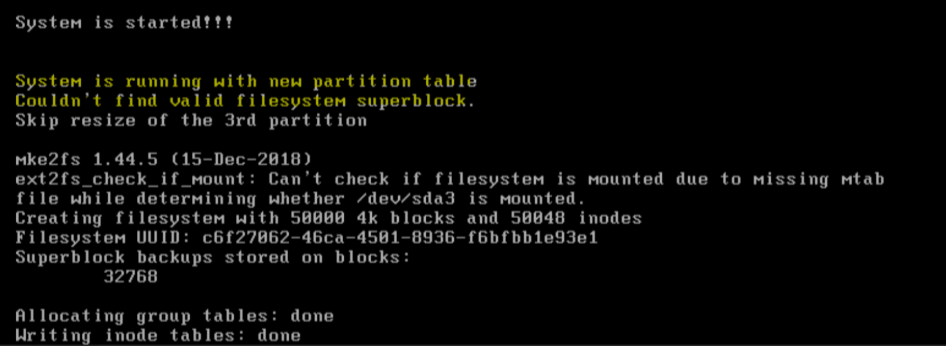
Error Message to Ignore

During the upgrade, the following error message may appear in the console. This is expected and does not require any action.
Known Issues and Workarounds

Compatibility Issue with FortiWeb 100D and 7.6.0/7.6.1

DO NOT update to 7.6.0/7.6.1 for FortiWeb 100D.

Global Settings and Configuration Loss (Pre-7.6.1)

On versions earlier than 7.6.1, a non-prof_admin user changing any global settings — such as executing the commands config system global and config system admin or modifying equivalent settings in the GUI — can result in the loss of the prof_admin user's configurations after a system reboot.

To prevent this configuration loss, we recommend the following workaround before upgrading:

  1. Log in with a "prof_admin" account.
  2. Make a change to a global setting (e.g., config the hostname).
  3. Reboot the system.

In summary, ensure that the last change to any global setting is made by a "prof_admin user" before rebooting the system.

Note: This issue has been resolved in versions 7.2.10, 7.4.5, 7.6.1, and later. If you are upgrading from these versions, the recommended workaround is unnecessary.

Admin Password Hash Change (Post-7.2.0)

The admin user password hash is changed from SHA1 to SHA256 starting from version 7.2.0. If you upgrade from versions earlier than 7.2.0, the hash will remain the same as before, but if the admin user changes their password or if new admin users are added, the password hash will be updated to SHA256.

Port 995 Disabled (Pre-7.2.0)

If upgrading from versions earlier than 7.2.0, port 995 will be switched to a disabled state. Remember to manually enable it in System > Admin > Settings if required for configuration synchronization.

VLAN and IP Address Conflicts Post-7.2.3 Upgrade

VLAN interfaces/interfaces with overlapping IP addresses and the VIP/Server Policy bound to them cannot be imported (while loading the config file) after upgrading to 7.2.3 and later due to the implementation of an IP overlap check in this release.

Workaround: Downgrade to an earlier version through booting from the alternate partition (see "Booting from the alternate partition"). The old configuration can be restored through this method, edit IP addresses to eliminate overlapping, and then upgrade to 7.6.2.

Maintenance for 6.4.x

We do not provide maintenance for 6.4.x releases unless major errors occur. We recommend upgrading 6.4.x to later versions.

Configuration Reset on Upgrades Before 6.0

When upgrading from releases prior to version 6.0, the "Retain Packet Payload" settings in Log & Report > Log Config > Other Log Settings will be reset to new defaults. This means that the following features — JSON Protection, Syntax-Based Detection, Malicious Bots, Known Good Bots, Mobile API Protection, and API Management — will be disabled. If you had these options enabled prior to the upgrade, please remember to re-enable them if they are still required.

FortiWeb-VM Specific Notes

VM License Upgrade Requirement
  • For FortiWeb-VM with a license purchased earlier than February 2019, you must upgrade to 6.3.4 or higher. Do not use a lower patch.

  • The VLAN, 802.3ad Aggregate, and Redundant interfaces are not supported on -VMs deployed on public cloud platforms since 6.3.6. If you upgrade from versions earlier than that, these configurations will be removed.

FortiWeb-VM Troubleshooting for Persistent Issues

If issues persist after the upgrade, consider deploying a new FortiWeb-VM instance with the 7.6.5 image and a trial license. You can download necessary database files from the support site to maintain valid services temporarily.

Upgrade notes and important information

Upgrade notes and important information

Upgrading to the latest FortiWeb release may involve specific considerations when transitioning from previous versions. This section outlines essential warnings, potential issues, and key information users need to be aware of to ensure a smooth and successful upgrade. Please review all details carefully to avoid compatibility issues and to take full advantage of the latest features and improvements.

Key sections:

Common Upgrade Issues and Solutions

Backup Restoration Issue After Enabling Private Encryption Key

When private-encryption-key is enabled with the following commands in versions prior to 7.6.3, backup files may no longer be restorable after the upgrade. To avoid this issue, please ensure you create a new backup after upgrading to version 7.6.3.

config system encryption-method
  set private-encryption-key enable
end
Log Delay Post-Upgrade (6.4.x & 7.0)

In several hours or days (depending on the number of existing logs) after upgrading from earlier versions, there might be a delay (30-60 mins) in displaying new logs on the GUI. This is caused by the log version upgrade in 6.4.x & 7.0. It takes time to scan and process all existing logs.

Browser Cache Issues After Upgrade

After upgrading FortiWeb to a new version, you may occasionally encounter issues where the browser continues to use a cached version of the GUI instead of fetching the updated resources from the server.

Recommendation: To ensure all resources are refreshed and the GUI functions correctly, we recommend clearing the browser cache after completing the upgrade.

Error Message to Ignore

During the upgrade, the following error message may appear in the console. This is expected and does not require any action.

Known Issues and Workarounds

Compatibility Issue with FortiWeb 100D and 7.6.0/7.6.1

DO NOT update to 7.6.0/7.6.1 for FortiWeb 100D.

Global Settings and Configuration Loss (Pre-7.6.1)

On versions earlier than 7.6.1, a non-prof_admin user changing any global settings — such as executing the commands config system global and config system admin or modifying equivalent settings in the GUI — can result in the loss of the prof_admin user's configurations after a system reboot.

To prevent this configuration loss, we recommend the following workaround before upgrading:

  1. Log in with a "prof_admin" account.
  2. Make a change to a global setting (e.g., config the hostname).
  3. Reboot the system.

In summary, ensure that the last change to any global setting is made by a "prof_admin user" before rebooting the system.

Note: This issue has been resolved in versions 7.2.10, 7.4.5, 7.6.1, and later. If you are upgrading from these versions, the recommended workaround is unnecessary.

Admin Password Hash Change (Post-7.2.0)

The admin user password hash is changed from SHA1 to SHA256 starting from version 7.2.0. If you upgrade from versions earlier than 7.2.0, the hash will remain the same as before, but if the admin user changes their password or if new admin users are added, the password hash will be updated to SHA256.

Port 995 Disabled (Pre-7.2.0)

If upgrading from versions earlier than 7.2.0, port 995 will be switched to a disabled state. Remember to manually enable it in System > Admin > Settings if required for configuration synchronization.

VLAN and IP Address Conflicts Post-7.2.3 Upgrade

VLAN interfaces/interfaces with overlapping IP addresses and the VIP/Server Policy bound to them cannot be imported (while loading the config file) after upgrading to 7.2.3 and later due to the implementation of an IP overlap check in this release.

Workaround: Downgrade to an earlier version through booting from the alternate partition (see "Booting from the alternate partition"). The old configuration can be restored through this method, edit IP addresses to eliminate overlapping, and then upgrade to 7.6.2.

Maintenance for 6.4.x

We do not provide maintenance for 6.4.x releases unless major errors occur. We recommend upgrading 6.4.x to later versions.

Configuration Reset on Upgrades Before 6.0

When upgrading from releases prior to version 6.0, the "Retain Packet Payload" settings in Log & Report > Log Config > Other Log Settings will be reset to new defaults. This means that the following features — JSON Protection, Syntax-Based Detection, Malicious Bots, Known Good Bots, Mobile API Protection, and API Management — will be disabled. If you had these options enabled prior to the upgrade, please remember to re-enable them if they are still required.

FortiWeb-VM Specific Notes

VM License Upgrade Requirement
  • For FortiWeb-VM with a license purchased earlier than February 2019, you must upgrade to 6.3.4 or higher. Do not use a lower patch.

  • The VLAN, 802.3ad Aggregate, and Redundant interfaces are not supported on -VMs deployed on public cloud platforms since 6.3.6. If you upgrade from versions earlier than that, these configurations will be removed.

FortiWeb-VM Troubleshooting for Persistent Issues

If issues persist after the upgrade, consider deploying a new FortiWeb-VM instance with the 7.6.5 image and a trial license. You can download necessary database files from the support site to maintain valid services temporarily.