DLP Exceptions for Fine-Grained Bypass Control (7.6.4)
FortiWeb 7.6.4 introduces DLP Exceptions, extending the flexibility of the Data Loss Prevention engine by allowing administrators to define explicit conditions under which DLP rules are bypassed. This enhancement is designed to address common operational challenges—such as false positives or trusted-but-sensitive traffic—without weakening the overall security posture.
A DLP Exception consists of one or more exception elements, each specifying a match condition based on HTTP request or response attributes. When traffic matches both a DLP rule and a configured exception, FortiWeb skips enforcement for that request. This allows sensitive inspections to be selectively disabled where appropriate.
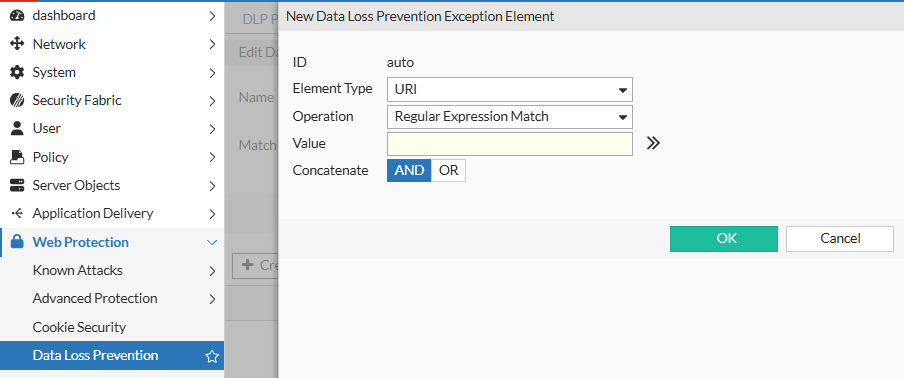
Supported match targets include:
-
Host
-
URI
-
Full URL
-
Parameter
-
Cookie
-
Client IP
-
HTTP Header
-
Payload SHA-256 hash
-
File SHA-256 hash
Operator support depends on the element type:
-
String Match and Regular Expression Match are supported for Host, URI, Full URL, Parameter, Cookie, and HTTP Header
-
Equal (EQ) and Not Equal (NE) are available only for Client IP
-
Payload SHA-256 and File SHA-256 support only String Match.
For Parameter, Cookie, and HTTP Header, you can enable Check Value of Specified Element to inspect name–value pairs.
Multiple elements can be combined within a single exception object using logical operators (AND or OR).
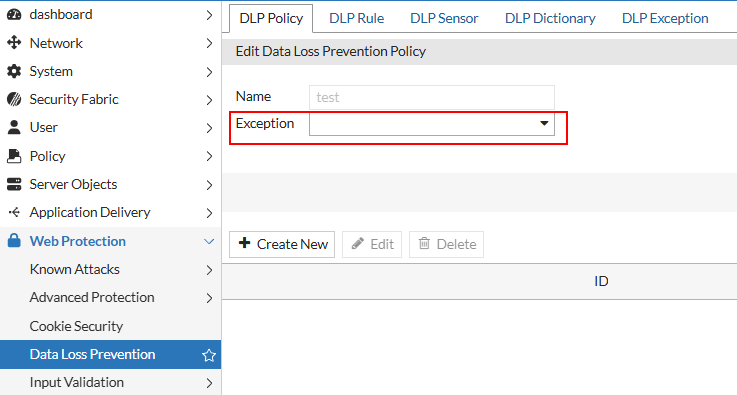
DLP Exceptions are configured independently and then assigned to DLP Policies through the Exception field. At runtime, FortiWeb evaluates DLP rules and exceptions in sequence; if an exception matches, the associated rule is bypassed.
This feature complements the existing File Exception mechanism (based on file hashes) and extends bypass control to a broader set of application-layer attributes, improving adaptability for enterprise environments.
To configure DLP exception:
- Go to Web Protection > Data Loss Prevention.
To access this part of the web UI, your administrator's account access profile must have Read and Write permission to items in the Web Protection Configuration category. For details, see Permissions. - Click DLP Exception.
- Click Create New.
- For Name, enter a name for the DLP policy that can be referenced in Web Protection Profile.
- Click OK.
- Click Create New.
- Configure the following settings based on the Element Type.
-
Host Operation - String Match—Value is a literal host name.
- Regular Expression Match—Value is a regular expression that matches all and only the hosts that the exception applies to.
Value Specifies the Host:field value to match.
To create and test a regular expression, click the >> (test) icon. For details, see Regular expression syntax.URI Operation - String Match—Value is a literal URL, such as
/folder1/index.htmthat the HTTP request must contain in order to match the rule, or use wildcards to match multiple URLs, such as/folder1/*or/folder1/*/index.htm. - Regular Expression Match—Value is a regular expression that matches all and only the URIs that the exception applies to.
Value Specifies a URL value to match. You can use up to 2048 characters in regex configuration. The value does not include parameters. For example, /testpage.php, which match requests forhttp://www.test.com/testpage.php?a=1&b=2.
If Operation is String Match, ensure the value starts with a forward slash ( / ) (for example,/causes-false-positives.php).
If Operation is Regular Expression Match, the value does not require a forward slash ( / ). However, ensure that it can match values that contain a forward slash.
When the URL value is a string, such as /causes-false-positives.php, the URL must begin with a slash ( / ).
Do not include a domain name or parameters. To match a domain name, use the Host element type. To match a URL that includes parameters, use the Full URL type.
To create and test a regular expression, click the >> (test) icon. For details, see Regular expression syntax.Full URL Operation - String Match—Value is a literal URL, such as
/folder1/index.htmthat the HTTP request must contain in order to match the rule, or use wildcards to match multiple URLs, such as/folder1/*or/folder1/*/index.htm. - Regular Expression Match—Value is a regular expression that matches all and only the URLs that the exception applies to.
Value Specifies a URL value that includes parameters to match. For example, /testpage.php?a=1&b=2, which match requests forhttp://www.test.com/testpage.php?a=1&b=2.
If Operation is String Match, ensure the value starts with a forward slash ( / ) (for example,/testpage.php?a=1&b=2).
If Operation is Regular Expression Match, the value does not require a forward slash ( / ). However, ensure that it can match values that contain a forward slash.
Do not include a domain name. To match a domain name, use the Host element type. To match a URL that does not include parameters, use the URI type.
To create and test a regular expression, click the >> (test) icon. For details, see Regular expression syntax.Parameter Operation - String Match—Name is the literal name of a parameter.
- Regular Expression Match— Name is a regular expression that matches all and only the name of the parameter that the exception applies to.
Name Specifies the name of the parameter to match.
To create and test a regular expression, click the >> (test) icon. For details, see Regular expression syntax.Check Value of Specified Element Enable to specify a parameter value to match in addition to the parameter name. Value Specifies the parameter value to match.
To create and test a regular expression, click the >> (test) icon. For details, see Regular expression syntax.Cookie Operation - String Match—Name is the literal name of a cookie.
- Regular Expression Match— Name is a regular expression that matches all and only the name of the cookie that the exception applies to.
Name Specifies the name of the cookie to match.
To create and test a regular expression, click the >> (test) icon. For details, see Regular expression syntax.Check Value of Specified Element Select to specify a cookie value to match in addition to the cookie name. Value Specifies the cookie value to match.
To create and test a regular expression, click the >> (test) icon. For details, see Regular expression syntax.Client IP
Operation
-
Equal—The request source IP address must exactly match the specified IP address.
-
Not Equal—The request source IP address must not match the specified IP address.
Client IP
Specifies the source IP address to match. You can enter either an IPv4 or IPv6 address.
HTTP Header
Operation
- String Match—Name is the literal name of a HTTP header.
- Regular Expression Match— Name is a regular expression that matches all and only the name of the HTTP header that the exception applies to.
Name
Specifies the name of the HTTP header to match.
To create and test a regular expression, click the >> (test) icon. For details, see Regular expression syntax.Check Value of Specified Element
Select to specify a HTTP header value to match in addition to the HTTP header name. Value
Specifies the HTTP header value to match.
To create and test a regular expression, click the >> (test) icon. For details, see Regular expression syntax.Payload SHA256
Operation
-
String Match—The hash must exactly match the computed SHA-256 hash of the request payload.
Value
Specifies the SHA-256 hash of the request payload to match. The hash must be entered as a 64-character hexadecimal string.
File SHA256
Operation
-
String Match—The hash must exactly match the computed SHA-256 hash of the uploaded file.
Value
Specifies the SHA-256 hash of the file to match. The hash must be entered as a 64-character hexadecimal string.
Concatenate - AND—A matching request matches this entry in addition to other entries in the exemption list.
- OR—A matching request matches this entry instead of other entries in the exemption list.
Later, you can use the exception list options to adjust the matching sequence for entries.
- Click OK to save the Data Loss Prevention Exception Element entry.
- Repeat the previous steps for each entry that you want to add to the exception.
Note: You can create up to 128 exceptions for each element type.
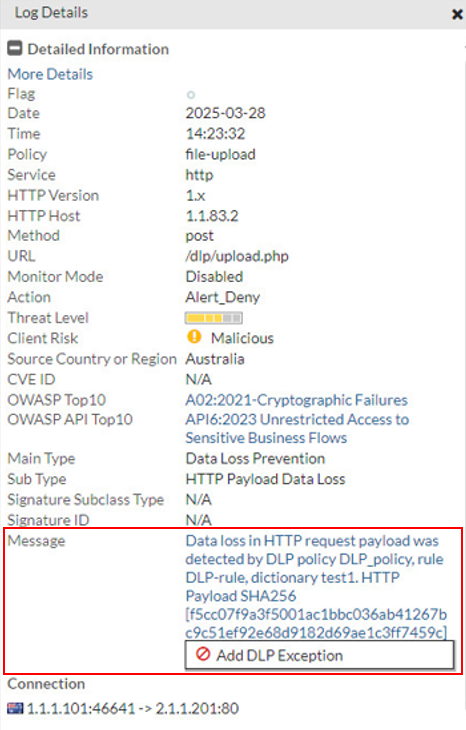
To add a DLP Exception from the Attack Log:
For DLP Policy violations, you can also add exceptions directly from the attack log.
Go to Log&Report > Log Access > Attack, and find the attack logs with Main Type set to "Data Loss Prevention". Double-click a log entry to view the log details. If you believe the request was falsely detected as an attack, click the Message field, then click Add DLP Exception.