Disk expansion (7.6.2)
The current free space in the data partition is insufficient to support certain new features. To resolve this, the partition size has been expanded in version 7.6.2.
Upgrade Notes
-
No user action is required
The system will automatically perform disk expansion during the upgrade to version 7.6.2.
-
Additional reboot required
During the upgrade to version 7.6.2, the system will reboot twice:
-
Once for the image upgrade.
-
Once for disk repartitioning.
-
-
Upgrade path for future versions
All future 7.6.x and higher version upgrades require an initial upgrade to version 7.6.2 before proceeding with subsequent upgrades.
-
Using console window
It is recommended to open the console window to monitor the upgrade process and avoid rebooting or powering off during the process.
-
Configuration and log backup
We strongly advise backing up both configurations and logs prior to performing the upgrade.
FortiWeb-VM Specific Notes
-
Minimum free disk space
Ensure that the remaining free space on the FortiWeb-VM log disk is more than 1.5 GB.
-
Upgrade time
The upgrade duration on the affected platforms may vary:
-
Typical Duration: Around 10 minutes.
-
Longer Durations: If the standard 32 GB log disk size was expanded to a larger capacity, such as 2 TB, during the initial deployment of the FortiWeb-VM instance, the upgrade process could take up to an hour, depending on the disk's usage level and disk I/O.
Affected Platforms:
-
KVM
-
VMware ESXi
-
Hyper-V
-
Citrix XenServer
Note: Upgrade times are not impacted on other virtual platforms.
-
FortiWeb-VM HA
In an HA cluster, the primary and secondary nodes upgrade separately, with a 15-minute interval between them to ensure that one node remains active to handle traffic.
Important consideration:
For the platforms listed above, if the log disk size exceeds 32 GB, the upgrade process may take longer than 15 minutes. This could result in a temporary period where neither the primary nor secondary node is operational.
Recommendation:
Evaluate the potential impact on your environment and notify customers in advance with a maintenance notice, if necessary.
FortiWeb-VM Troubleshooting
-
Handling insufficient disk space
If the system cannot expand disk due to insufficient disk space, the upgrade will proceed, skipping the disk expanding step.
To address this:
- Manually delete files on the log disk to free up space, or format the log disk.
- Once sufficient space is available, the system will perform the disk expansion during the next reboot.
Starting a new deployment for persistent issues
If certain issues persist during the upgrade, consider deploying a new FortiWeb-VM:
- Deploy a new FortiWeb-VM instance with the version 7.6.2 image.
- Use a trial license on the new instance to handle traffic temporarily.
- Download and manually upload the necessary database files from the support site to the new instance to ensure valid services without a standard license.
- After the old FortiWeb-VM has been offline for 90 minutes, import its license into the new instance.
-
Error Message to Ignore
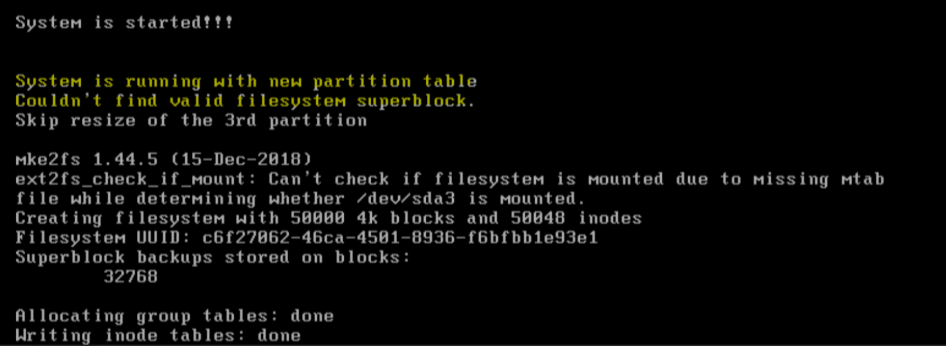
During the upgrade, the following error message may appear in the console. This is expected and does not require any action.