

ACME certificates
Instead of manually generating a Certificate Signing Request (CSR) and then uploading the final certificate from your local directory, a more efficient and secure approach is to configure FortiWeb to proactively obtain and manage certificates on behalf of your application.
FortiWeb utilizes the Automatic Certificate Management Environment (ACME) protocol (RFC 8555), an industry standard designed to automate the traditionally manual and error-prone steps of certificate issuance, validation, and renewal. By serving as an integrated ACME client, FortiWeb communicates directly with a Certificate Authority (CA) to manage your SSL/TLS certificates throughout their entire lifecycle without human intervention.
What are ACME certificates?
In a standard manual setup, obtaining a certificate is a labor-intensive process: you must generate a private key and CSR, submit them to a CA, interactive with the CA to prove domain ownership, and then manually install the issued certificate files.
An ACME certificate replaces this manual overhead with a standardized, automated communication channel. FortiWeb uses this protocol to "talk" to CAs such as Let's Encrypt, Sectigo, or ZeroSSL. It handles the proof of domain control automatically and pulls the certificate directly into the system configuration.
Why use ACME automation?
Relying on manual certificate management often leads to security vulnerabilities and operational risks. Automating this process provides several critical advantages:
-
Eliminate outages: Automated background renewals ensure your applications remain accessible by preventing service disruptions caused by expiration oversights.
-
Reduce security risk: Security best practices now favor using short-lived certificates (typically 90 days). While manual rotation at this frequency is difficult to maintain, ACME makes it effortless, significantly shrinking the window of exposure if a private key is compromised.
-
Scalable operations: Administrators can orchestrate certificates for hundreds of domains across various VDOMs from a single interface, removing the need for repetitive manual tasks and reducing the potential for human error.
How it works in FortiWeb
FortiWeb provides a flexible framework that allows you to choose the Certificate Authority that best fits your specific trust and compliance requirements.
Support for multiple providers
While Let's Encrypt is the most well-known public ACME provider, many organizations require certificates from commercial or enterprise-grade authorities. FortiWeb supports:
-
Let's Encrypt: A non-profit CA that provides certificates at no charge and is the standard for most public-facing applications.
-
Commercial CAs (EAB): Support for providers like ZeroSSL, Sectigo, or BuyPass that require External Account Binding (EAB). EAB securely links your FortiWeb client to a specific paid subscription or enterprise account at the CA.
Domain validation strategies
To prove you control a domain before a certificate is issued, FortiWeb can fulfill standard ACME challenges tailored to your network environment:
-
HTTP-01: A straightforward challenge fulfilled via an automated HTTP request to your domain on port 80.
-
TLS-ALPN-01: A secure challenge performed over HTTPS on port 443, useful for environments where port 80 is restricted.
-
DNS-01: A challenge involving a specific TXT record in your DNS configuration. This method is required for wildcard certificates.
Automated lifecycle management
Once an account is bound and the certificate is issued, FortiWeb monitors its validity in the background. It will automatically initiate a renewal request before the certificate expires, based on your configured Renew Period, ensuring continuous protection for your applications.
Configuring ACME certificates
Once you have decided on the ACME certificate provider, you can configure the ACME certificate in FortiWeb. Both Let's Encrypt and Other options are supported as ACME Services; however, if using Other, an EAB Account is required.
Before you begin:
To ensure the automated handshake between FortiWeb and the CA completes successfully, verify the following infrastructure requirements:
-
DNS Mapping: Your application's domain name must be mapped to the public IP address of the FortiWeb via a valid A or AAAA record.
-
Inbound Reachability: The ACME provider must be able to initiate connections to FortiWeb to verify domain ownership. If Geo IP Blocking is enabled, ensure you are not filtering the network regions where your provider operates.
-
Administrative Privileges: Your administrator profile must have Read and Write permissions for the Admin Users category to create and manage these certificate objects. For details, see Permissions.
Configure an EAB Account
If you are utilizing a commercial CA (such as ZeroSSL or Sectigo), the provider likely requires External Account Binding (EAB) to link the ACME client to your existing subscription. This must be configured before creating the certificate request.
-
Go to Server Objects > Certificates > ACME.
The configuration page displays the ACME page. -
Click the EAB Account tab.
-
Click Create New to display the configuration editor.
-
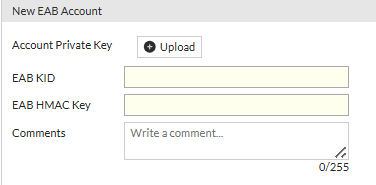
Configure the following:
-
Account Private Key: Click Upload to provide a unique RSA private key. RFC 8555 requires that every ACME account be bound to a unique private key to ensure account integrity. FortiWeb validates this uniqueness within each VDOM.
-
EAB KID: Enter the Key Identifier (KID) provided by your Certificate Authority (CA) portal. This must be an ASCII string.
-
EAB HMAC Key: Enter the base64url-encoded HMAC Key provided by your CA portal.
-
-
Click OK to save the credentials.
Implementation Notes:
-
Immutable Settings: Once these EAB Account credentials are applied to an ACME certificate and the certificate moves beyond the initial status, EAB-related settings (such as the service, URL, and EAB selection) become read-only to maintain consistency.
-
Modification: After an account is created, you cannot change its name or private key. If changes are required, you must delete the EAB account and create a new one.
-
Credential Reuse: While the account private key must be unique for every account, the EAB KID and HMAC credentials provided by the CA can typically be reused across multiple accounts to share a single subscription.
Configure an ACME certificate
- Go to Server Objects > Certificates > ACME.
- From the ACME tab, click Create New to display the configuration editor.
- Configure the following:
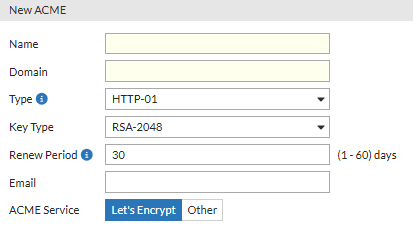
- Enter a name for this certificate.
- Enter the domain name of your application. FortiWeb will then retrieve the certificate for this domain from Let's encrypt.
- Wildcard is supported when the type is DNS-01. The wildcard only matches with the string within the same domain level, for example, "
a.example.com" matches with “*.example.com”, while "a.a.example.com" doesn't. - It's allowed to add more domain names by creating Subject Alternative Names (SAN). Up to 99 SAN items are supported. Make sure the domain names in the two places do not overlap, for example, "
*.wc_letsacme.net" can't be added together with "a.wc_letsacme.net".
- Wildcard is supported when the type is DNS-01. The wildcard only matches with the string within the same domain level, for example, "
- Select Type:
- HTTP-01: Let's Encrypt will send HTTP request to FortiWeb for validation.
When in RP mode, you must select HTTP service and uses port 80 for it in the server policy which uses the Let's Encrypt certificate.
When in TTP mode, the back-end server which uses Letsencrypt certificate should have port 80 enabled.
Redirect HTTP to HTTPS should not be enabled when the validation is in process. - TLS-ALPN: This method allows Let's Encrypt to send HTTPS requests to FortiWeb for validation. You must select HTTPS service in the server policy which uses the Let's Encrypt certificate.
- DNS-01: This method allows Let's Encrypt to do validation through your DNS provider. FortiWeb will generate a TXT record, then you need to add this TXT record to the DNS record. Refer to Fulfilling the DNS-01 challenge.
- HTTP-01: Let's Encrypt will send HTTP request to FortiWeb for validation.
- Select the Key Type. RSA algorithm with different key length can be implemented and accepted by the Let’s Encrypt Server. Those key sizes are 2048, 3072, and 4096 bits. Please note that larger keys consume more computing resources, however, achieve better security.
- Set the Renew Period.
The certificate expires every 90 days. The Renew Period specified how many days in advance that FortiWeb will renew the certificate from Let’s Encrypt or Other ACME service providers before it expires. For example, if Renew Period is 10 days, then FortiWeb will renew the certificate 10 days before it expires.
Certificates generated by the DNS-01 challenge cannot be renewed automatically because the TXT record value changes with every issuance, requiring a manual update to the DNS provider each time. Please manually renew the certificate before it expires.
- Enter a valid Email address. This is used by the Certificate Authority (CA) to send important notifications regarding your certificate
- Select the ACME Service. Choose the CA that will issue your certificate.
- Let's Encrypt: The default non-profit CA. This allows for an anonymous, automated handshake without prior account setup.
- Other: Select this option if you are using a commercial or enterprise provider (e.g., ZeroSSL, Sectigo, or a private CA).
ACME Service URL: Provide the directory URL for the third-party CA.
ACME EAB: Enable this and select a pre-configured EAB Account. This links your FortiWeb to your specific corporate or paid subscription at the CA. If ACME EAB is disabled, the certificate issuance will fail when the provider requires the EAB credentials.
- Click OK.
- To add more domains, under the Subject Alternative Names (SAN) section, click Create New.
- Up to 99 SAN items are supported.
- Make sure the domain names do not overlap, for example, "
*.wc_letsacme.net" can't be added together with "a.wc_letsacme.net". - All domain names must point to the same public IP address.
- Refer the ACME certificate:
- When in RP mode, refer it in server policy (see Configuring an HTTP server policy), or refer it through an SNI (see ACME certificates) in server policy.
- When in TTP mode, refer it in back-end server, or refer it through an SNI (see ACME certificates) when adding a back-end server. The back-end server should be in the server pool which is referenced in the desired server policy.
FortiWeb obtains an TLS certificate on your behalf from Let’s Encrypt and uses it for the HTTPS connections with the client to encrypt or decrypt the traffic. If FortiWeb fails to obtain the certificate, it will try again every 2 hours until the certificate is successfully obtained.
You can also manually obtain the certificate by clicking the Issue button. FortiWeb will obtain the certificate immediately.
To delete the certificate from FortiWeb, click the Revoke button.

Please note that Let's Encrypt only allows 5 times of certificate obtaining failure per hour for each hostname and account. If the following error message displays, it means you have retrieved the certificate too frequently.
"type": "urn:ietf:params:acme:error:rateLimited",
"detail": "Error creating new order :: too many failed authorizations recently: see https://letsencrypt.org/docs/rate-limits/"
After the certificate is successfully retrieved, you can refer it in the Server Policy settings.

|
In HA deployment, only active-passive mode supports Let's Encrypt certificate. |
Challenge fulfillment and issuance
The process for completing the domain validation challenge depends on the type selected:
-
Automated Challenges (HTTP-01 and TLS-ALPN): FortiWeb automatically hosts the required validation token. Once you initiate the process by clicking Issue, the CA verifies this token and issues the certificate.
-
Manual Challenges (DNS-01): This requires interaction with your DNS provider. For details, see Fulfilling the DNS-01 challenge.
Fulfilling the DNS-01 challenge
The DNS-01 challenge asks you to prove that you control the DNS for your domain name by putting a specific value in a TXT record under that domain name.
After you have saved your ACME certificate configuration, the DNS-01 challenge information is generated. With this information, you will configure your Public DNS Service to create the TXT record.
To obtain the TXT record:
- Follow the steps in "Configure an ACME certificate" to create an ACME certificate using the DNS-01 challenge type. The DNS Content File will not be available to download while you are creating the certificate.
- After the certificate is created, go back to the main table, find the certificate you just created, then click the Issue button.

- After the Status of the certificate turns to yellow, which means "need user to proceed manually", double click this certificate to enter into the certificate editing page. You will see the DNS Content File is ready to be downloaded. It is a .txt file which contains the TXT record.
To add the record the DNS challenge information to the Public DNS Service:
- Log in to your DNS service provider and go to your DNS Domain management page.
- Add a record and input the challenge information into the corresponding fields.
Name Enter your domain name prefixed with "_acme-challenge.", for example, " _acme-challenge.www.example.com". Type Set the record type as TXT.TTL Set this to the default value. Target Paste the content from your ACME DNS-01 challenge information. - Save the changes.
The ACME service provider will then query the DNS system for that record to find a match. It's recommended to wait about 20 minutes for the challenge to complete. - Log in to FortiWeb.
- Go to Server Objects > Certificates > ACME.
- Find the ACME certificate, then click the Issue button. If the ACME certificate passes validation, the certificate status will turn into OK.
If it fails, most likely the reason is that your DNS record is not successfully updated with the TXT record. To troubleshoot, please first check with your DNS service to make sure the TXT record is added successfully.
|
|
It is recommended to set a longer challenge wait time to allow enough time for the DNS configuration changes to take effect. If the DNS configuration changes has not taken effect at the time Let's Encrypt queries the DNS system for the TXT record, then the validation will fail. Various factors may influence the speed of the DNS (such as the DNS service provider, network speed, network traffic), so the DNS configuration changes may take as long as 20 minutes to take effect. |