Fortinet white logo
Fortinet white logo

User Guide

Creating the Map Structure

Creating the Map Structure

The map structure is organized hierarchically, starting with the largest entity: Site > Building > Floor.

Adding a Site

A site is the top-level entity that contains multiple buildings.

  1. Navigate to Wireless > Wi-Fi Maps.

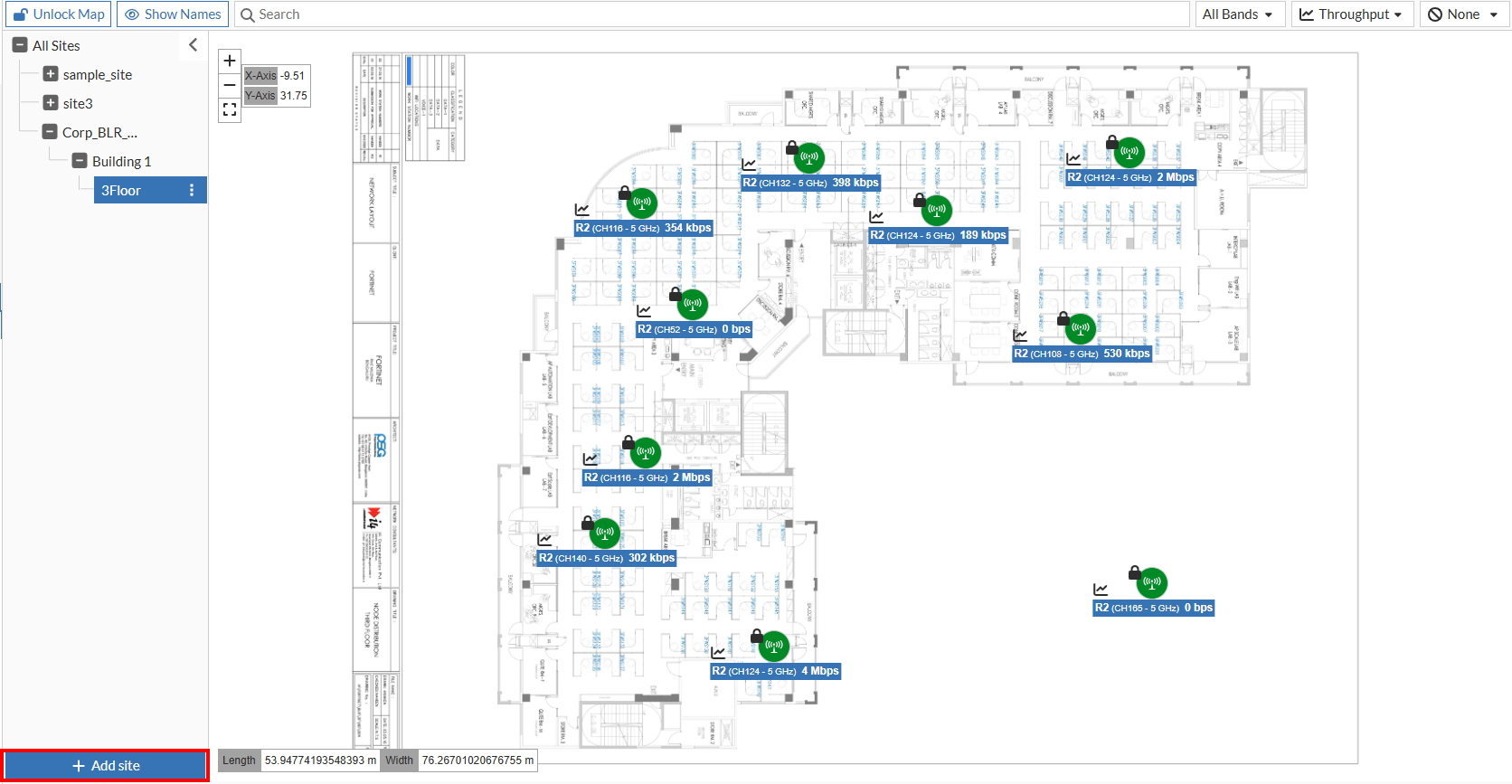
  2. Click Add site.

  3. In the Add site pane, enter a Name and a Description.
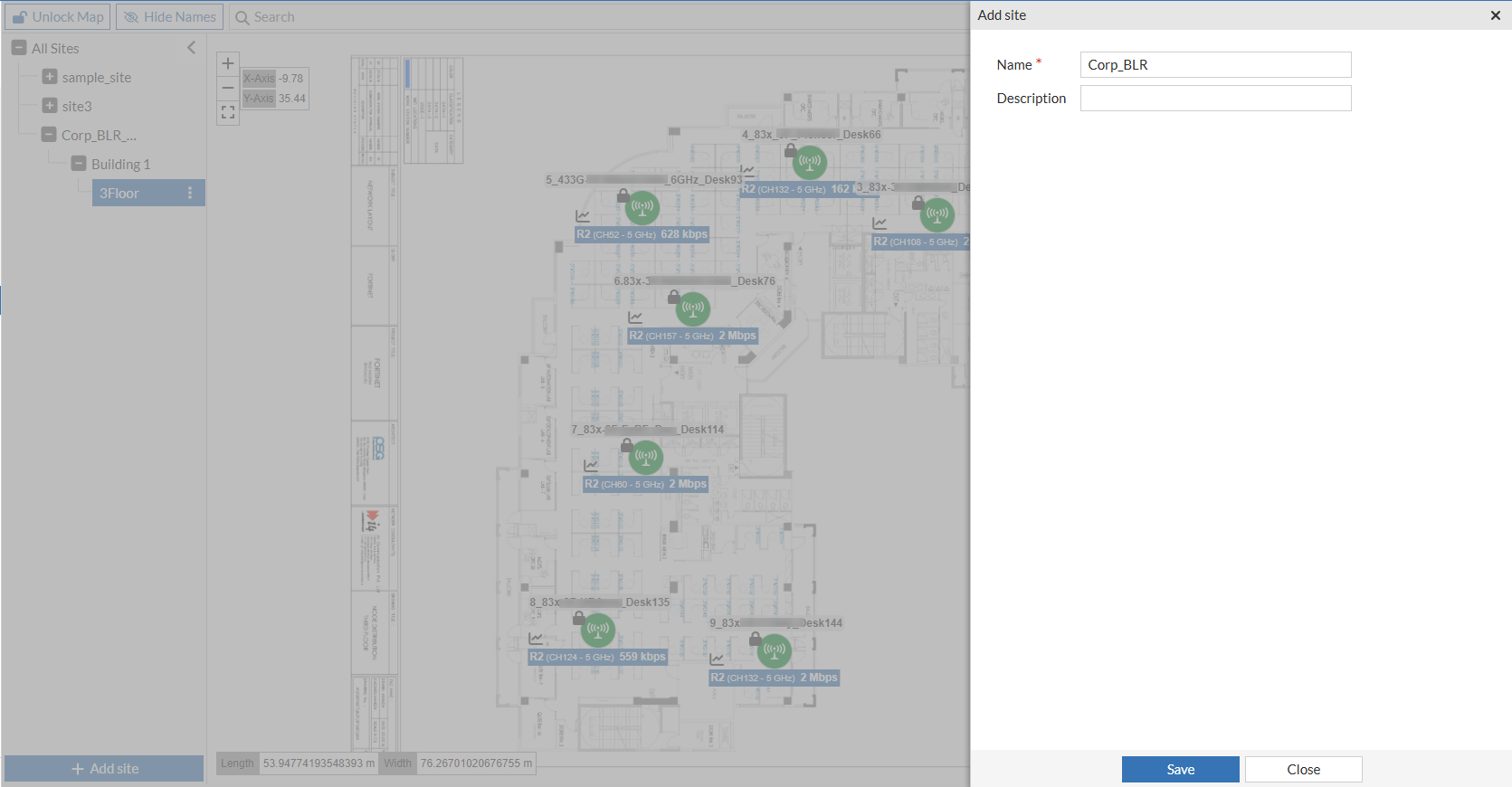
  4. Click Save. The new site will appear in the left pane under All Sites.

Note: To delete a site, click the Kebob menu (vertical ellipsis) next to the site and click Delete. Deleting a site will delete the entire hierarchy contained within that site.

Adding a Building

A building is contained within a site and can have multiple floors.

  1. On the left pane, select the site where you want to add a building.

  2. Click the Kebob menu (vertical ellipsis) next to the site and click Add Building.
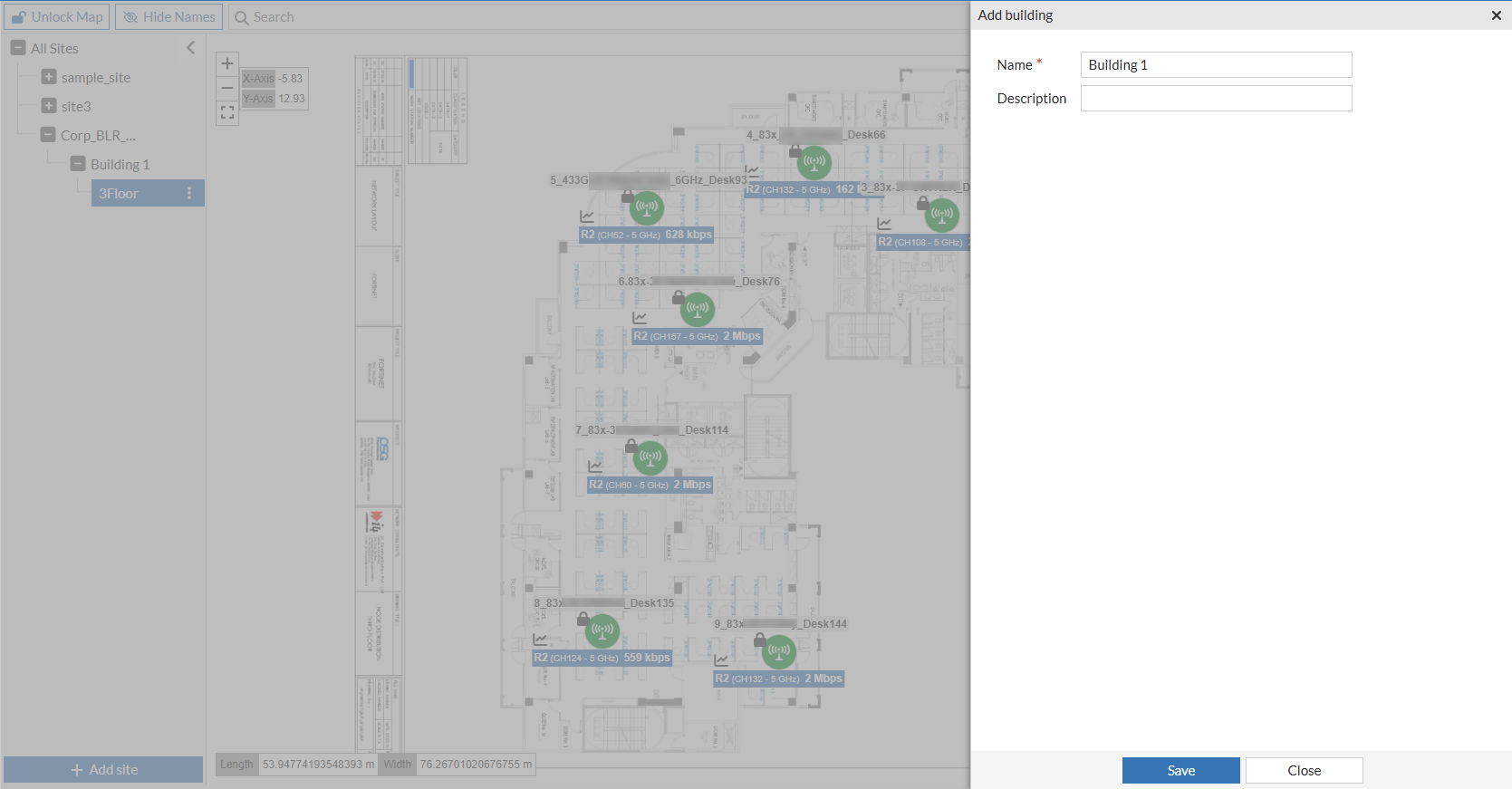
  3. On the Add building pane, enter a Name and Description.

  4. Click Save. The new building will appear under the selected site in the left pane.

Note: To delete a building, click the Kebob menu (vertical ellipsis) next to the site and click Delete. Deleting a building will delete the entire hierarchy contained within that building.

Adding a Floor

A floor is contained within a building and requires uploading a map image.

  1. On the left pane, select the site and the building where you want to add a floor.

  2. Click the Kebob menu (vertical ellipsis) next to the building and click Add Floor.

  3. In the Floor Details section, enter a Name for the floor.

  4. Upload the floor map file (must be in .jpg, .png, or .jpeg format).
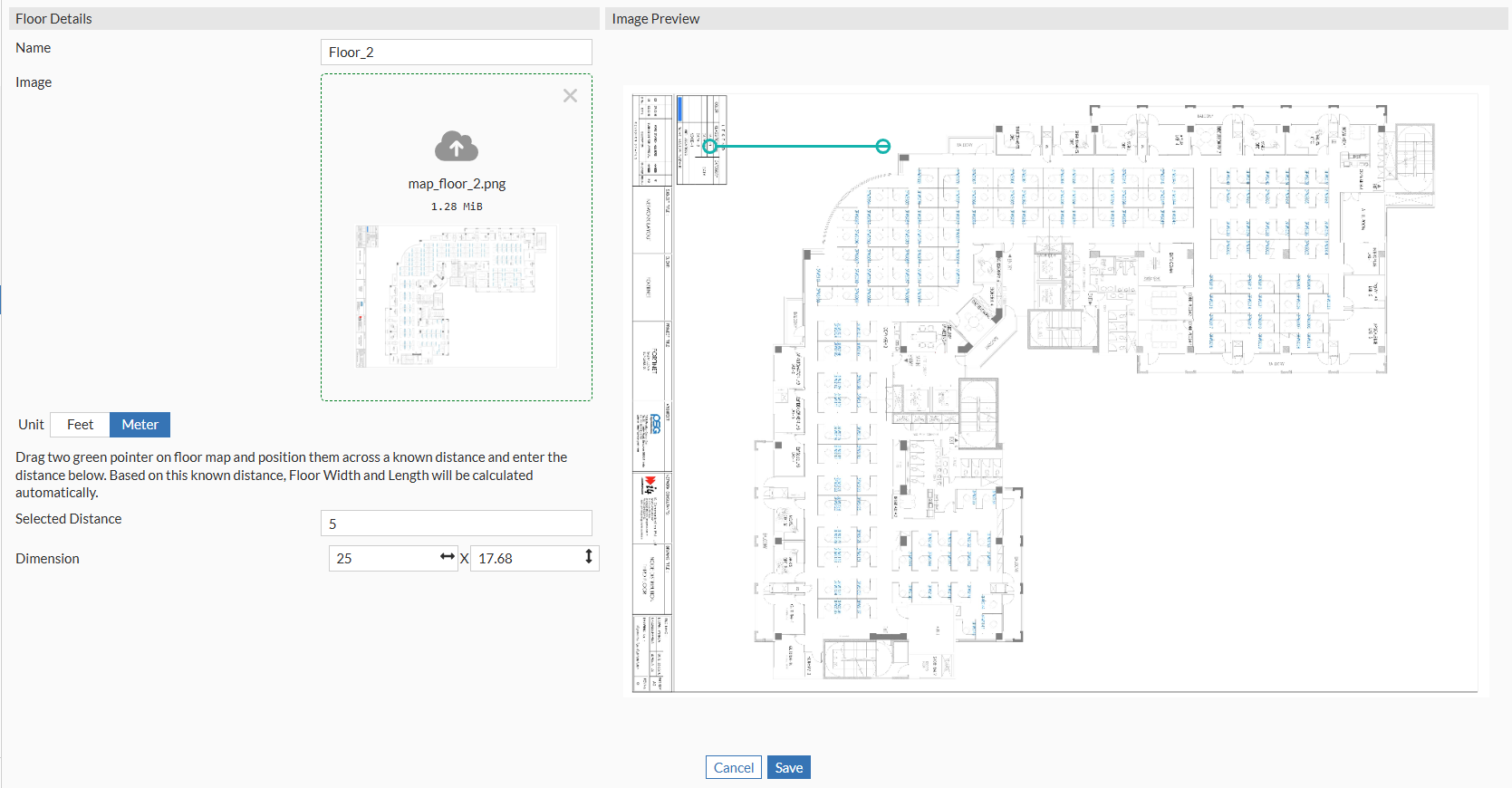
  5. Set the map scale:

    1. In the Image Preview section, drag the green pointer to two points on the map with a known distance between them.
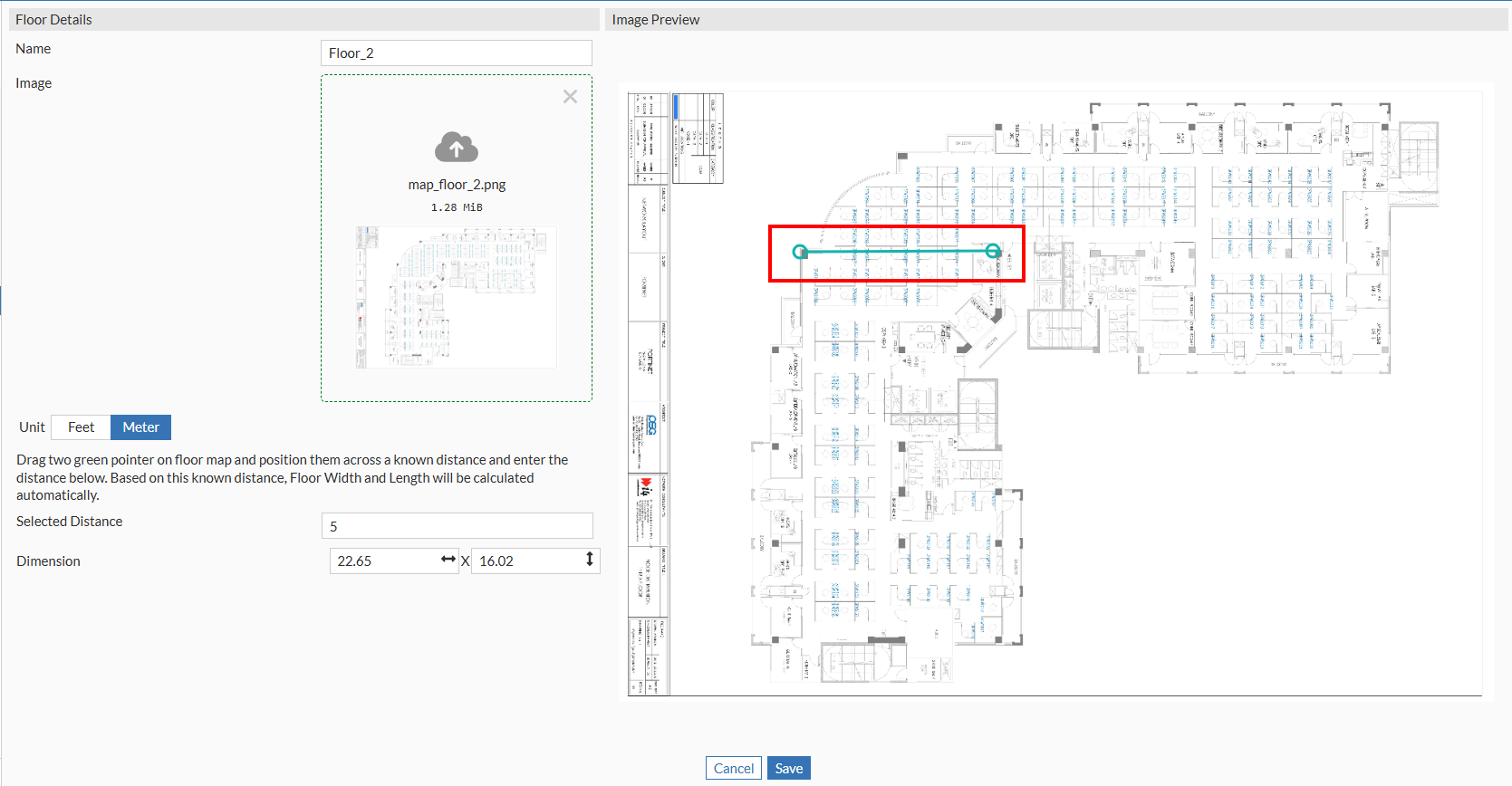
    2. Under Floor Details, specify the Unit of measurement.

    3. Enter the actual distance between the two selected points in the Selected Distance field. The system automatically computes and displays the correct map scale in the Dimension field.

    4. Click Save. The new floor will appear under the selected site in the left pane.

Note: To delete a floor, click the Kebob menu (vertical ellipsis) next to the floor and click Delete. Deleting a floor will delete the entire hierarchy contained within that floor.

Creating the Map Structure

Creating the Map Structure

The map structure is organized hierarchically, starting with the largest entity: Site > Building > Floor.

Adding a Site

A site is the top-level entity that contains multiple buildings.

  1. Navigate to Wireless > Wi-Fi Maps.

  2. Click Add site.

  3. In the Add site pane, enter a Name and a Description.

  4. Click Save. The new site will appear in the left pane under All Sites.

Note: To delete a site, click the Kebob menu (vertical ellipsis) next to the site and click Delete. Deleting a site will delete the entire hierarchy contained within that site.

Adding a Building

A building is contained within a site and can have multiple floors.

  1. On the left pane, select the site where you want to add a building.

  2. Click the Kebob menu (vertical ellipsis) next to the site and click Add Building.

  3. On the Add building pane, enter a Name and Description.

  4. Click Save. The new building will appear under the selected site in the left pane.

Note: To delete a building, click the Kebob menu (vertical ellipsis) next to the site and click Delete. Deleting a building will delete the entire hierarchy contained within that building.

Adding a Floor

A floor is contained within a building and requires uploading a map image.

  1. On the left pane, select the site and the building where you want to add a floor.

  2. Click the Kebob menu (vertical ellipsis) next to the building and click Add Floor.

  3. In the Floor Details section, enter a Name for the floor.

  4. Upload the floor map file (must be in .jpg, .png, or .jpeg format).

  5. Set the map scale:

    1. In the Image Preview section, drag the green pointer to two points on the map with a known distance between them.

    2. Under Floor Details, specify the Unit of measurement.

    3. Enter the actual distance between the two selected points in the Selected Distance field. The system automatically computes and displays the correct map scale in the Dimension field.

    4. Click Save. The new floor will appear under the selected site in the left pane.

Note: To delete a floor, click the Kebob menu (vertical ellipsis) next to the floor and click Delete. Deleting a floor will delete the entire hierarchy contained within that floor.