

View pane area
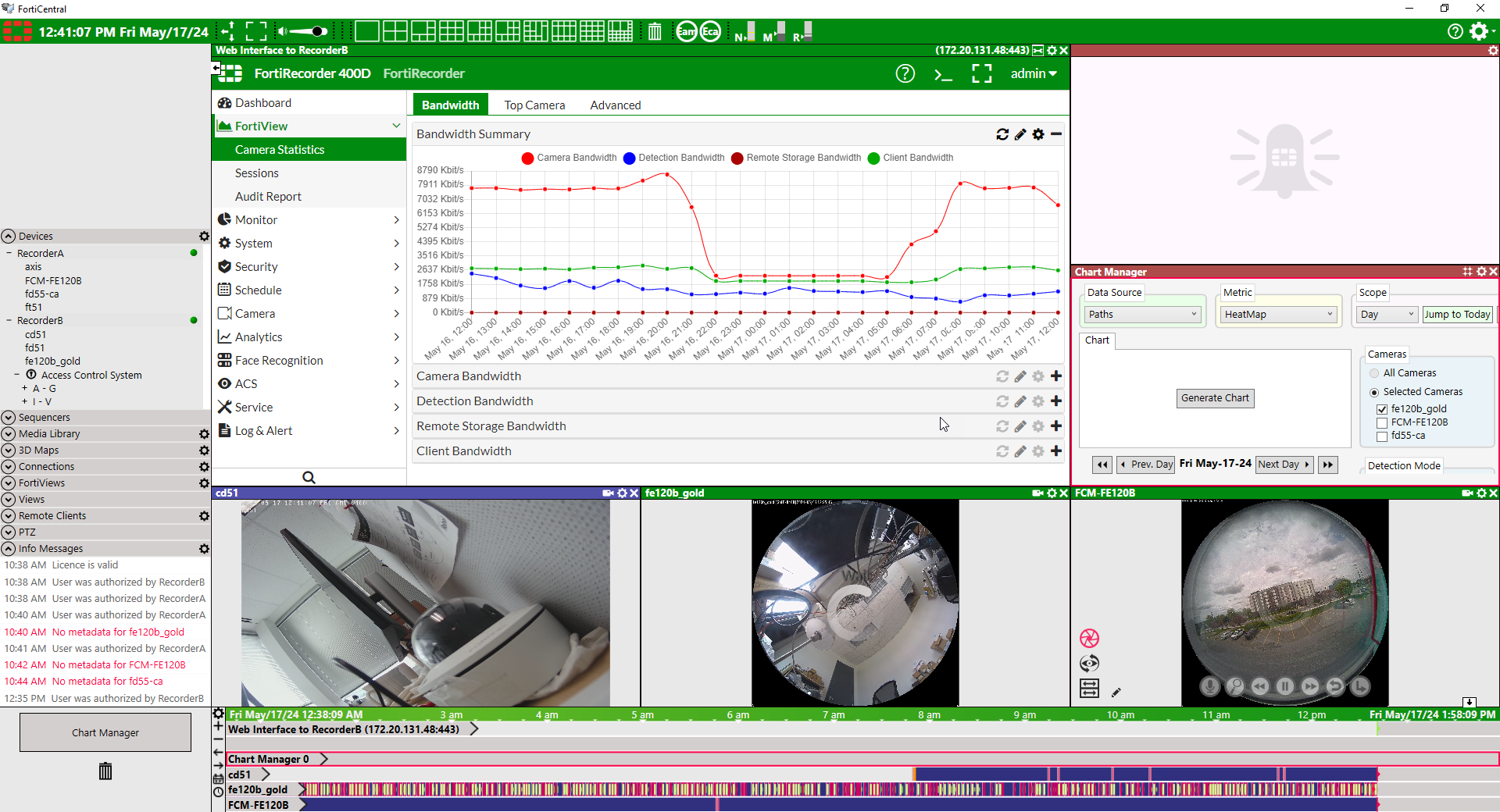
The view pane area has a grid layout that can display one or more items at the same time: video streams from cameras, 3D maps, FortiRecorder devices and more. You can drag panes into different locations in the grid to organize your the views.
Each pane is independent, so multiple panes can show different views from the same camera: a live stream in one view pane, and a playback of a previous recording in another video pane. The maximum number of videos that your view panes can display at the same time depends on your computer's hardware and the resolution and bitrate of the cameras.
To display an item in a view pane, drag it from the resources column onto a view pane. An item can be a camera, FortiRecorder, 3D map, or most of the other items in the resources column. Alternatively, you can click a view pane to select it, and then double-click the item in the resources column.
For example, you could drag a FortiRecorder connection onto a view panel in order to log into its GUI and adjust its settings.
To duplicate an item into another view pane, press and hold the Ctrl key while you drag the item from one pane to another.
To use the entire area to display the contents of a view pane, double-click it. To return to the grid, double-click it again.
To empty the view pane, click the Close ( X ) button on the view pane.
View panes have different behavior, depending on the:
- Item you drag into the view pane, and
- Type that you select when you either:
- Click the Settings (gear) button on the view pane
- Right-click the view pane
- Configure your view settings
For details on the types and sets of view panes, see Configuring views.
Opening a new window
If multiple monitors are connected to your computer, you can add more windows with even more view panes to increase your monitoring space.
Each window can use a different layout and different set of view panes. For details, see see Configuring views.
- Click the Settings button in the top right corner.

-
Go to Settings > Add Window.
Windows opened after the first (main) window do not have the resources column nor the timeline. Return to the original window if you need to use these features.