

Toolbar area
The toolbar area contains tools such as grid layout icons to organize the view pane area, and buttons to trigger scripts.

If you click a view pane that contains the live video stream of a camera, the toolbar might also have:
- video player controls
- sound volume slider
- pan-tilt-zoom (PTZ) controls
The toolbar area also indicates system resource usage and performance.
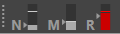
|
Icon |
Description |
|---|---|
| N |
Network usage in megabits per second (Mb/s). If there is too much delay when FortiRecorder needs to send video streams to FortiCentral, or if too many network packets are dropped, then the video motion will not be smooth. PTZ controls will also be less responsive. |
| M |
RAM memory usage in gigabytes (GB). |
| R |
Rendering performance in megapixels per second (MP/s). CPU usage is a factor in this benchmark. For example, to render video with smooth motion, you need approximately 30 frames per second (fps). If the size of the view pane is 1 MP, then the rendering rate must be at least 30 MP/s. If you play many live video streams at the same time in FortiCentral, you will eventually reach your computer's hardware performance limit. If that happens, then the video decoder must skip rendering of some frames to keep up with the video stream. Motion in the video will be less smooth. |
If you click and hold down your mouse button on the icon, it shows the current, maximum (Peak), and average of the system resource.
Color codes of the resource usage icons indicate their status:
- Grey: Normal performance.
- Yellow: Reduced performance.
- Red: Poor performance. For example, many packets might be lost, many video frames might be skipped, or FortiCentral controls might be slow to respond.