
Fortinet white logo
Fortinet white logo

User Guide

7.2.0

Resource column

Resource column

The column on the left side of the window contains collapsible panels such as Devices and Info Messages. By default, empty panels are hidden, so you might not see the panels until you begin to add items. To add cameras, sequencers, media files, etc. to this column, you can either drag them into the column, or add a FortiRecorder that is connected to your devices.

The Devices panel has all connected FortiRecorder devices and the cameras connected to them. Connection status indicators appear next to every FortiRecorder.

Connection Status Indicator

Description

Green FortiRecorder is connected with a successful login and authorization.
Yellow FortiRecorder is reachable on the network, but FortiCentral could not log into FortiRecorder. The reasons vary. For example, the username and password might not match.
Red FortiRecorder is not reachable on the network. It might be disconnected, misconfigured, or blocked by a firewall or router.
Black FortiRecorder was manually disabled in FortiCentral.

Note

The same user account is used on both FortiCentral and FortiRecorder. Any user permissions changes on FortiRecorder will also affect their permissions on FortiCentral.

If FortiRecorder is connected to an access control system (ACS), then the panel also has indicators for ACS components. Status indicators vary by the type of ACS device. For example, a door can be held open, but a relay cannot. Colors of the icons have meanings similar to the connection status: green is normal, orange needs some attention, red is more severe, and black is disabled. Hover your mouse cursor over an item to see a more specific status, such as ACTIVE or UNLOCKED.
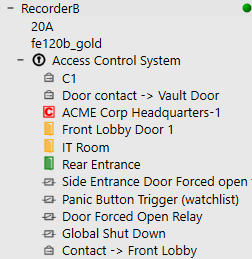
ACS Device Type Indicator

Description

ACS controller ACS controller
ACS door Door
ACS switch Switch for relays or outputs in the ACS system
ACS port Port for inputs or contacts for the ACS system

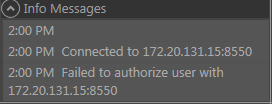
The Info Messages panel displays log messages generated by FortiCentral at specific times, or by your scripts. For example, the log message below shows you the exact time a connection failed for a specific FortiRecorder.
Resource column

Resource column

The column on the left side of the window contains collapsible panels such as Devices and Info Messages. By default, empty panels are hidden, so you might not see the panels until you begin to add items. To add cameras, sequencers, media files, etc. to this column, you can either drag them into the column, or add a FortiRecorder that is connected to your devices.

The Devices panel has all connected FortiRecorder devices and the cameras connected to them. Connection status indicators appear next to every FortiRecorder.

Connection Status Indicator

Description

Green FortiRecorder is connected with a successful login and authorization.
Yellow FortiRecorder is reachable on the network, but FortiCentral could not log into FortiRecorder. The reasons vary. For example, the username and password might not match.
Red FortiRecorder is not reachable on the network. It might be disconnected, misconfigured, or blocked by a firewall or router.
Black FortiRecorder was manually disabled in FortiCentral.

Note

The same user account is used on both FortiCentral and FortiRecorder. Any user permissions changes on FortiRecorder will also affect their permissions on FortiCentral.

If FortiRecorder is connected to an access control system (ACS), then the panel also has indicators for ACS components. Status indicators vary by the type of ACS device. For example, a door can be held open, but a relay cannot. Colors of the icons have meanings similar to the connection status: green is normal, orange needs some attention, red is more severe, and black is disabled. Hover your mouse cursor over an item to see a more specific status, such as ACTIVE or UNLOCKED.

ACS Device Type Indicator

Description

ACS controller ACS controller
ACS door Door
ACS switch Switch for relays or outputs in the ACS system
ACS port Port for inputs or contacts for the ACS system

The Info Messages panel displays log messages generated by FortiCentral at specific times, or by your scripts. For example, the log message below shows you the exact time a connection failed for a specific FortiRecorder.