

Timeline
When you drag a device onto a view pane, its events (if any) and video feed appear in a row on the timeline.
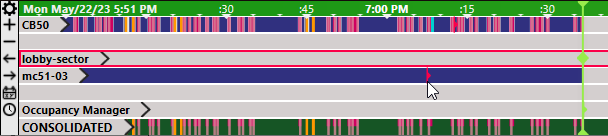
Timeline rows are color-coded to indicate recording status, video annotations, and events from the occupancy manager, motion detection, and more. When you click a view pane, both it and its associated row in the timeline are outlined in the "highlight" color of your theme. For details, see Appendix: Timeline indicators.
Unless you drag it, the timeline follows the current time.
To show previous or later times on the timeline, drag it to the left or right.
To zoom in or zoom out on the timeline, scroll your mouse wheel.
To play a specific time on a video, you can either:
- Click that time in the timeline. If you click a motion detection event, it plays the video clip that shows movement.
- Drag the green timeline slider to rewind to a previously recorded time. The slider is red while playing a previous time. When you drag the slider back to the current time to play the live video feed, the slider becomes green again.

|
If you use edge recording (saving the video onto an SD card on the camera, instead of immediately saving it on FortiRecorder), and you click on the timeline, FortiRecorder downloads the video so that you can view it in FortiCentral. Once the download is complete, the camera deletes the recording from its SD card. |
Some items on the timeline, such as annotations, display details about the event if you hover your mouse cursor over it.
At the bottom of the timeline is the row named CONSOLIDATED. This can be useful if there are many cameras in your view panes, and you need to monitor all of them for events. Instead of using the scroll bar at the right side of the timeline, and repeatedly scrolling up and down in the list of video feeds, you can simply monitor the CONSOLIDATED row, which shows all events from all cameras together, in one row.