Fortinet white logo
Fortinet white logo

Administration Guide

ZTNA web proxy example

ZTNA web proxy example

In this example, a web proxy is configured to demonstrate its function as a reverse proxy on behalf of the web server it is protecting. It verifies user identity, device identity, and trust context, before granting access to the protected source.
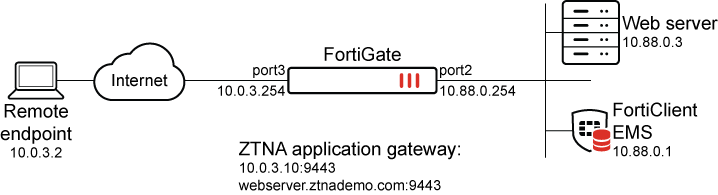
This example shows access control that allows or denies traffic based on security posture tags. Traffic is allowed when the FortiClient endpoint is tagged as Low Importance using Classification tags, and denied when the endpoint is tagged with Malicious-File-Detected.

This example uses EMS 7.4.5, and assumes that the FortiGate EMS fabric connector is already successfully connected.

To configure ZTNA in the GUI, go to System > Feature Visibility and enable Zero Trust Network Access.

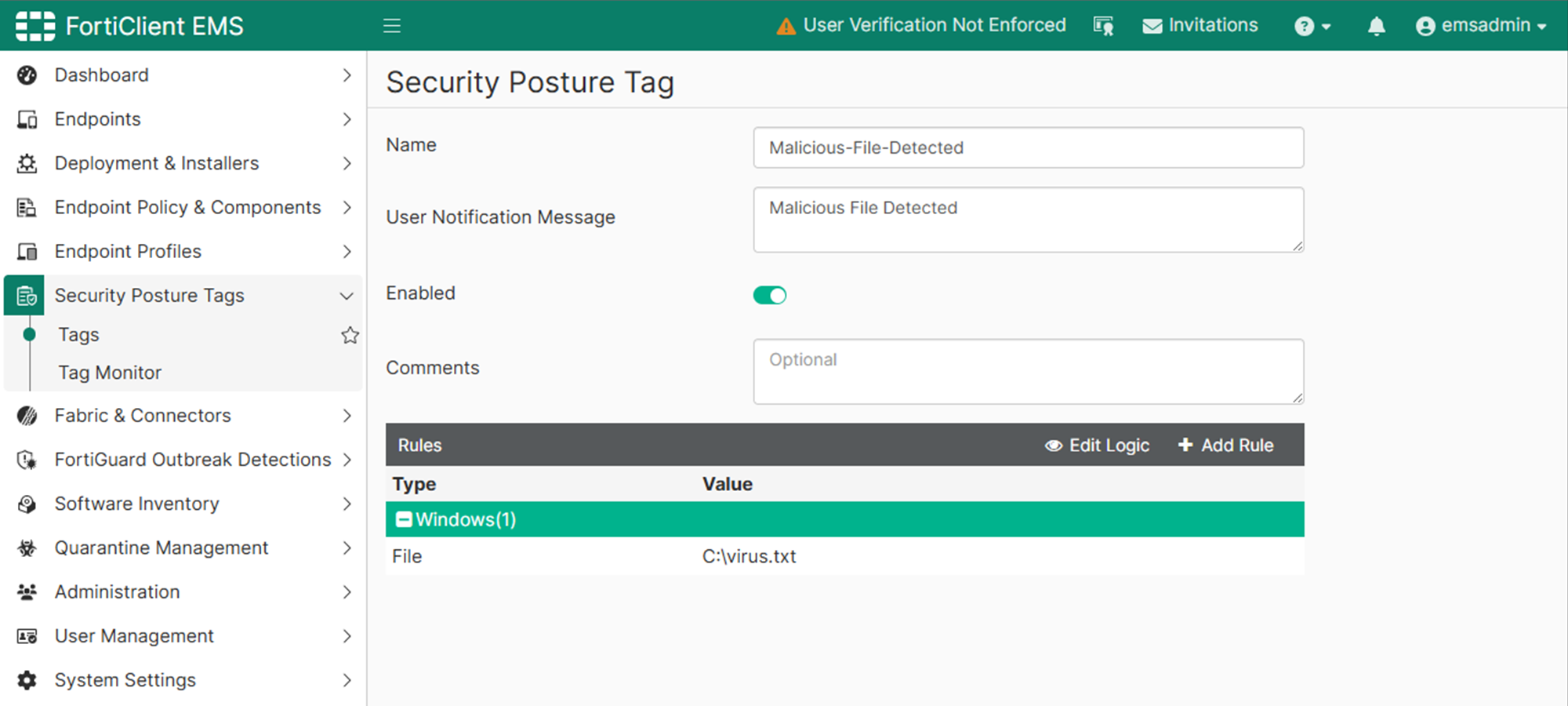
To configure a Zero Trust tagging rule on the FortiClient EMS:
  1. Log in to the FortiClient EMS.

  2. Go to Security Posture Tags > Tags, and click Create.

  3. In the Name field, enter Malicious-File-Detected.

  4. In the Tag Endpoint As dropdown list, select Malicious-File-Detected.

    EMS uses this tag to dynamically group together endpoints that satisfy the rule, as well as any other rules that are configured to use this tag.

  5. Specify a User Notification Message, such as Malicious File Detected.

  6. Click Add Rule then configure the rule:

    1. For OS, select Windows.

    2. From the Rule Type dropdown list, select File.

    3. Enter a file name, such as C:\virus.txt.

    4. Click Save.

  7. Click Save.

To configure FortiClient EMS to share classification tags:

This is required for the Low Importance tag to be sent to the FortiGate.

  1. Go to Fabric & Connectors > Fabric Devices.

  2. Expand Standalone devices and hover over the FortiGate device to select the box with a pencil icon.

  3. Click Edit.

  4. Under Tag Types Being Shared, add Classification Tags.
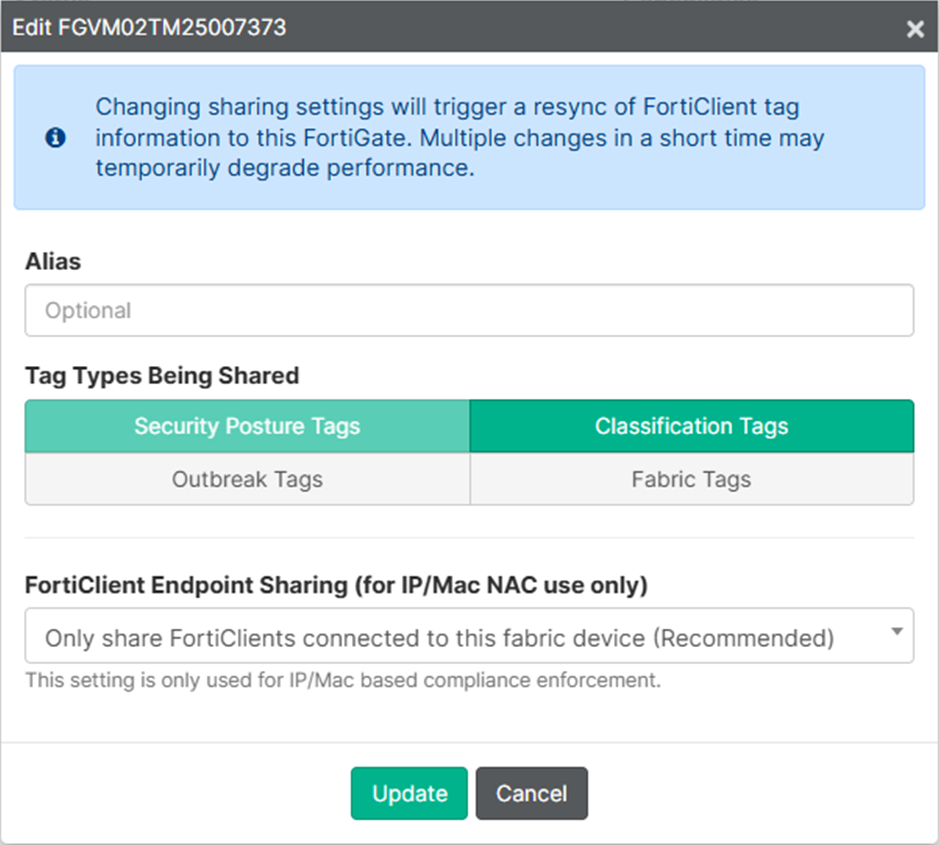
  5. Click Update.

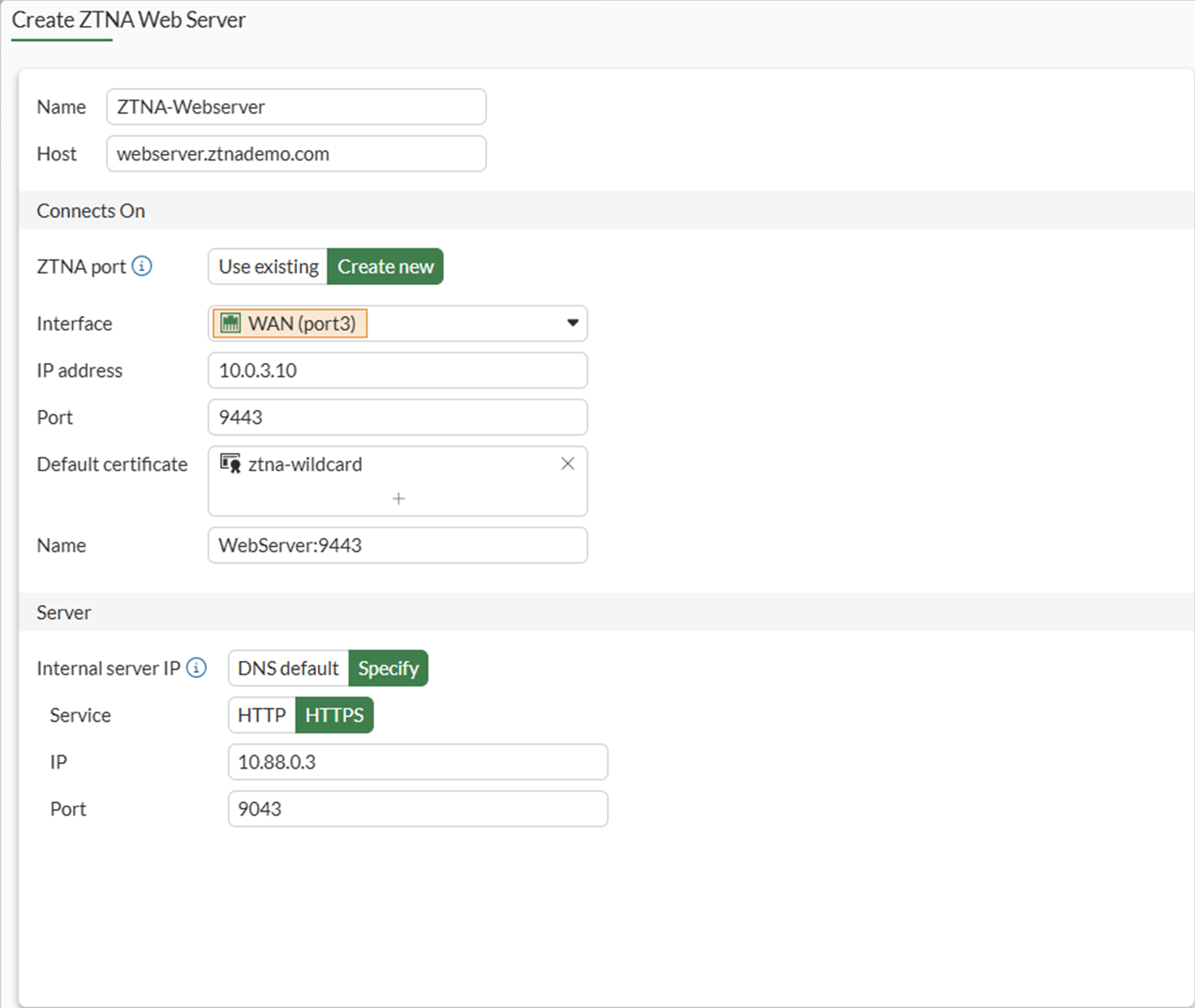
To configure a ZTNA server for HTTPS access proxy in the FortiGate GUI:
  1. Go to Policy & Objects > ZTNA > Servers & Portals > Web server.

  2. Click Create New.

  3. Set Name to ZTNA-Webserver.

  4. Set Host to the IP address or FQDN that will be used to access the webserver: webserver.ztnademo.com.

  5. Under Connects On, select Create new for ZTNA port to provide the following details:

    1. Set Interface to port3.
    2. Set External IP to 10.0.3.10.
    3. Set External port to 9443.

    Verify that the IP address and port do not conflict with management access to the interface. Otherwise, change the IP address to another address on that subnet.

  6. Select a certificate. Clients will be presented with this certificate when they connect to the ZTNA port.

    This example uses a wildcard certificate with a Common Name (CN):

    *.ztnademo.com. This certificate is trusted by the endpoints which will access the ZTNA port.

  7. Enter a name for the ZTNA port, such as WebServer:9443.

  8. In the Server section, configure the internal server settings:

    1. Switch the Internal server IP to Specify.

    2. Set Service to HTTPS.

    3. Set IP to the internal IP for the web server: 10.88.0.3.

    4. Set Port to 9043.

      The WebServer service is running on port 9043. This configuration will translate clients accessing TCP/9443 to TCP/9043.

  9. Click OK. The Web server object is listed.
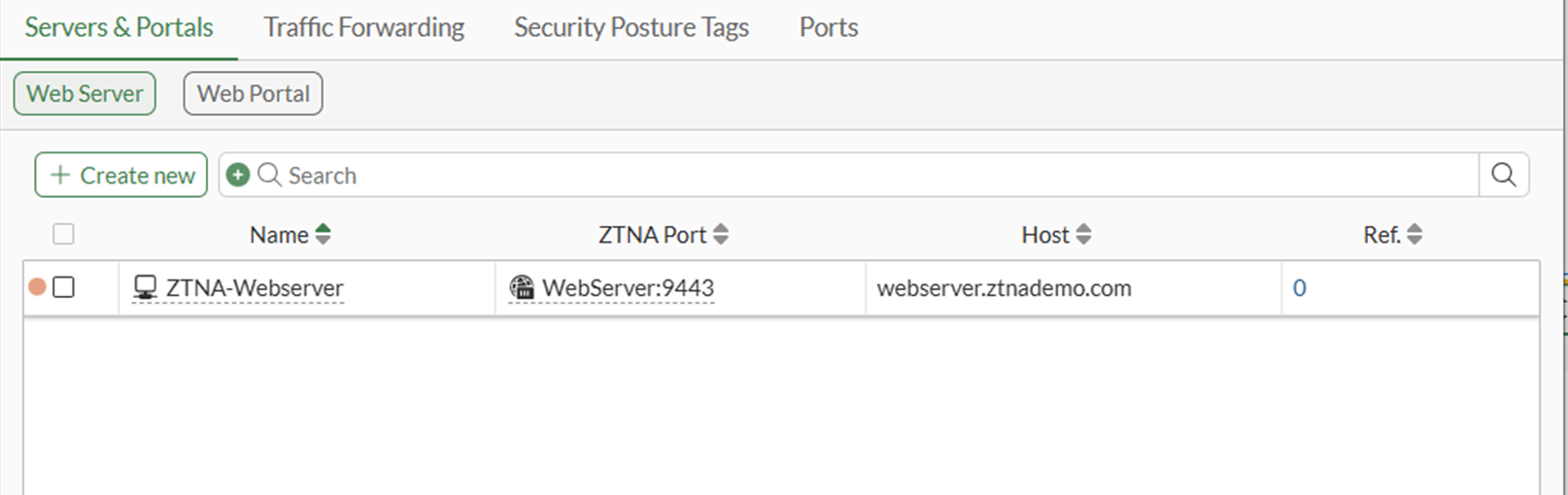
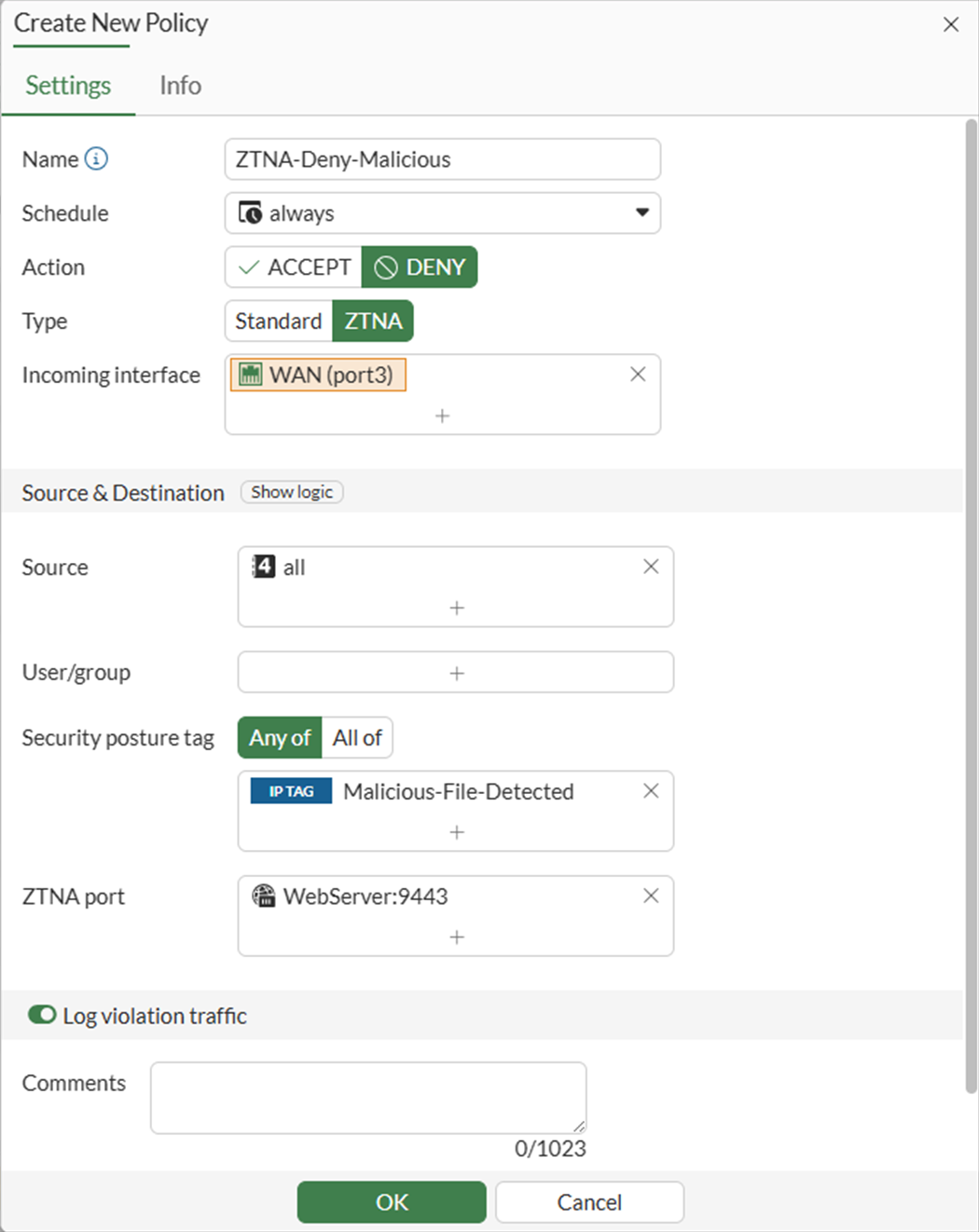
To configure simple ZTNA policies to allow and deny traffic based on security posture tags in the GUI:
  1. Go to Policy & Objects > Firewall Policy.

  2. Create a rule to deny traffic:

    1. Click Create New.

    2. Set Name to ZTNA-Deny-Malicious.

    3. Set Action to DENY.

    4. Set Type to ZTNA.

    5. Set Incoming Interface to port3.

    6. Set Source to all.

    7. Keep the default of Any of, and add the security posture tag IP Malicious-File-Detected.

      This tag is dynamically retrieved from EMS when you first created the Zero Trust Tagging Rule.

    8. Set ZTNA port to the WebServer:9443 port created earlier.

    9. Enable Log Violation Traffic.

    10. Click OK.

  3. Create a rule to allow traffic:

    1. Click Create New.

    2. Set Name to ZTNA-Allow-Simple.

    3. Set Type to ZTNA.

    4. Set Incoming Interface to port3.

    5. Set Source to all. This can also be set to specific IP addresses to only allow those addresses to connect to this HTTPS access proxy.

    6. Keep the default of Any of, and add the class tag IP Low.

    7. Select the ZTNA port WebServer:9443.

    8. Configure the remaining options as needed.

    9. Click OK.

  4. On the firewall policy list, make sure that the deny rule (ZTNA-Deny-Malicious) is above the allow rule (ZTNA-Allow-Simple).

To configure HTTPS access in the CLI:
  1. Configure the access proxy VIP:

    config firewall vip
        edit "WebServer:9443"
            set type access-proxy
            set server-type https
            set extip 10.0.3.10
            set extintf "port3"
            set extport 9443
            set ssl-certificate "ztna-wildcard"
        next
    end
  2. Configure the virtual host:

    config firewall access-proxy-virtual-host
        edit "WebServer9443"
            set ssl-certificate “ztna-wildcard”
            set host “webserver.ztnademo.com”
        next
    end
  3. Configure the web proxy:

    config ztna web-proxy
        edit "ZTNA-Webserver"
            set vip "Webserver:9443"
            set host WebServer9443
            config api-gateway
                edit 1
                    config realservers
                        edit 1
                            set ip 10.88.0.3
                            set port 9043 
                        next
                    end
                next
            end
        next
    end
  4. Configure ZTNA policies:

    config firewall policy
        edit 1
            set name "ZTNA-Deny-Malicious"
            set srcintf "port3"
            set dstintf "any"
            set srcaddr "all"
            set dstaddr "WebServer:9443"
            set ztna-ems-tag "EMS1_ZTNA_Malicious-File-Detected"
            set schedule "always"
            set logtraffic all
        next
        edit 2
            set name "ZTNA-Allow-Simple"
            set srcintf "port3"
            set dstintf "any"
            set action accept
            set srcaddr "all"
            set dstaddr "WebServer:9443"
            set ztna-ems-tag "EMS1_CLASS_Low"
            set schedule "always"
            set logtraffic all
        next 
    end

Testing the remote access to the HTTPS access proxy

After FortiClient EMS and FortiGate are configured, the HTTPS access proxy remote connection can be tested.

Access allowed:
  1. On the remote Windows PC, open FortiClient.

  2. On the Zero Trust Telemetry tab, make sure that you are connected to the EMS server.

    It is not necessary to configure a ZTNA Destination on FortiClient for the HTTPS access proxy use case. In fact, configuring a ZTNA Destination rule for the website may interfere with its operation.

  3. Open a browser and enter the address of the server and the access port. When entering the FQDN, make sure that the DNS can resolve the address to the IP address of the FortiGate. In this example, webserver.ztnademo.com resolves to 10.0.3.10.

  4. The browser prompts for the client certificate to use. Select the EMS signed certificate, then click OK.
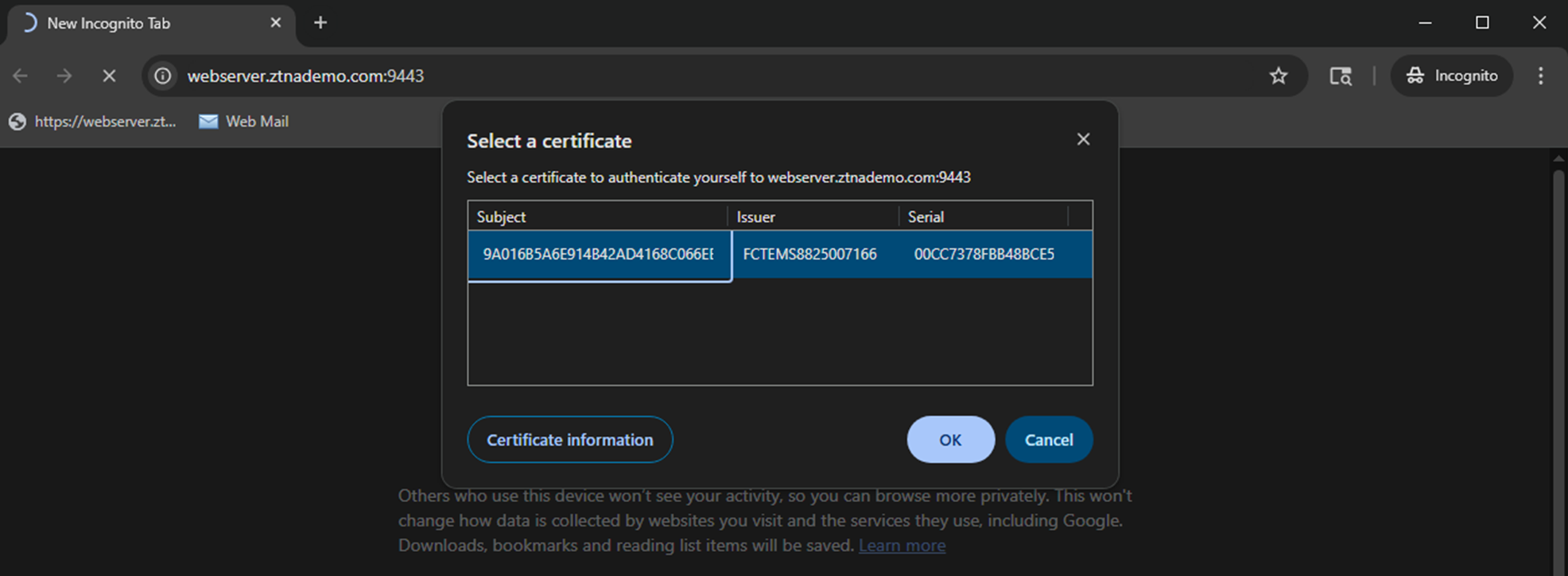
    The certificate is in the User Configuration store, under Personal > Certificates. The details show the SN of the certificate, which matches the record on the FortiClient EMS and the FortiGate.
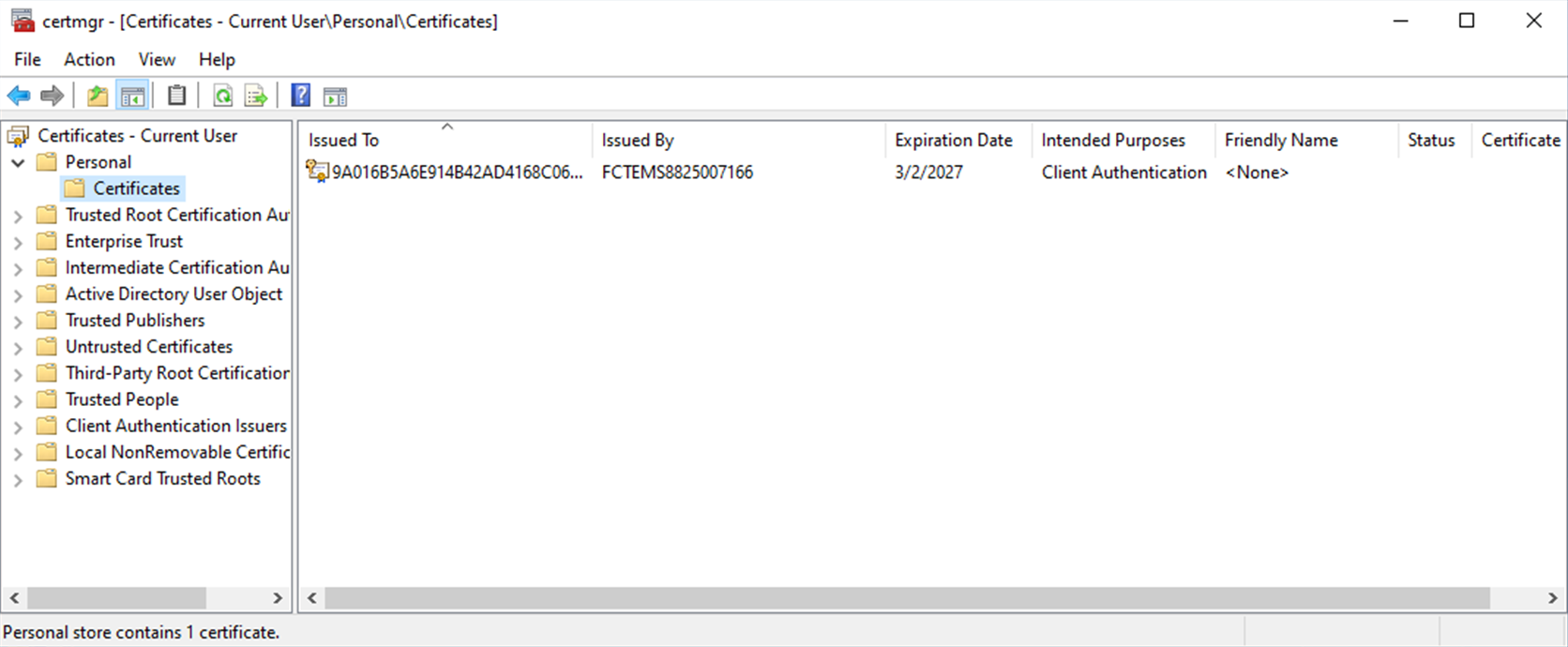
  5. The client is verified by the FortiGate to authenticate your identity.

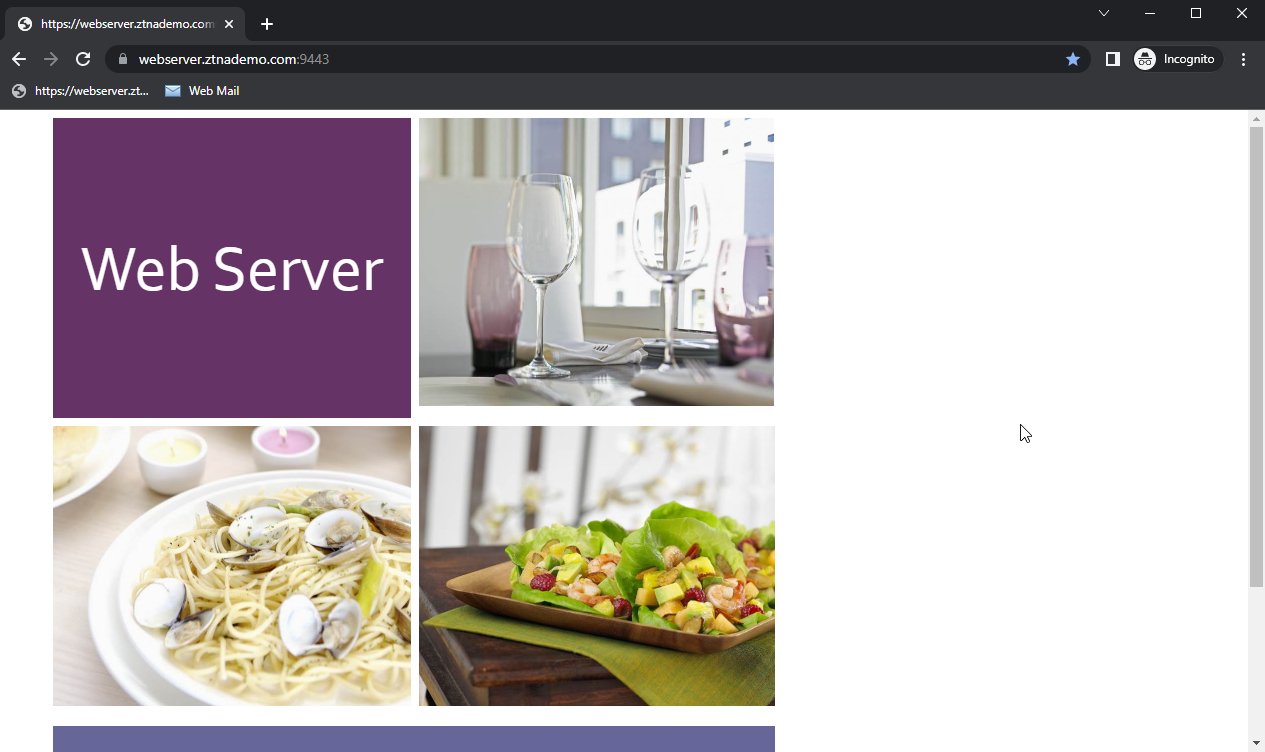
  6. The FortiGate matches your security posture by verifying your security posture tag and/or classification tag. The matching ZTNA rule allows access to the web server.
Access denied:
  1. On the remote Windows PC, trigger the Zero Trust Tagging Rule by creating the file in C:\virus.txt.

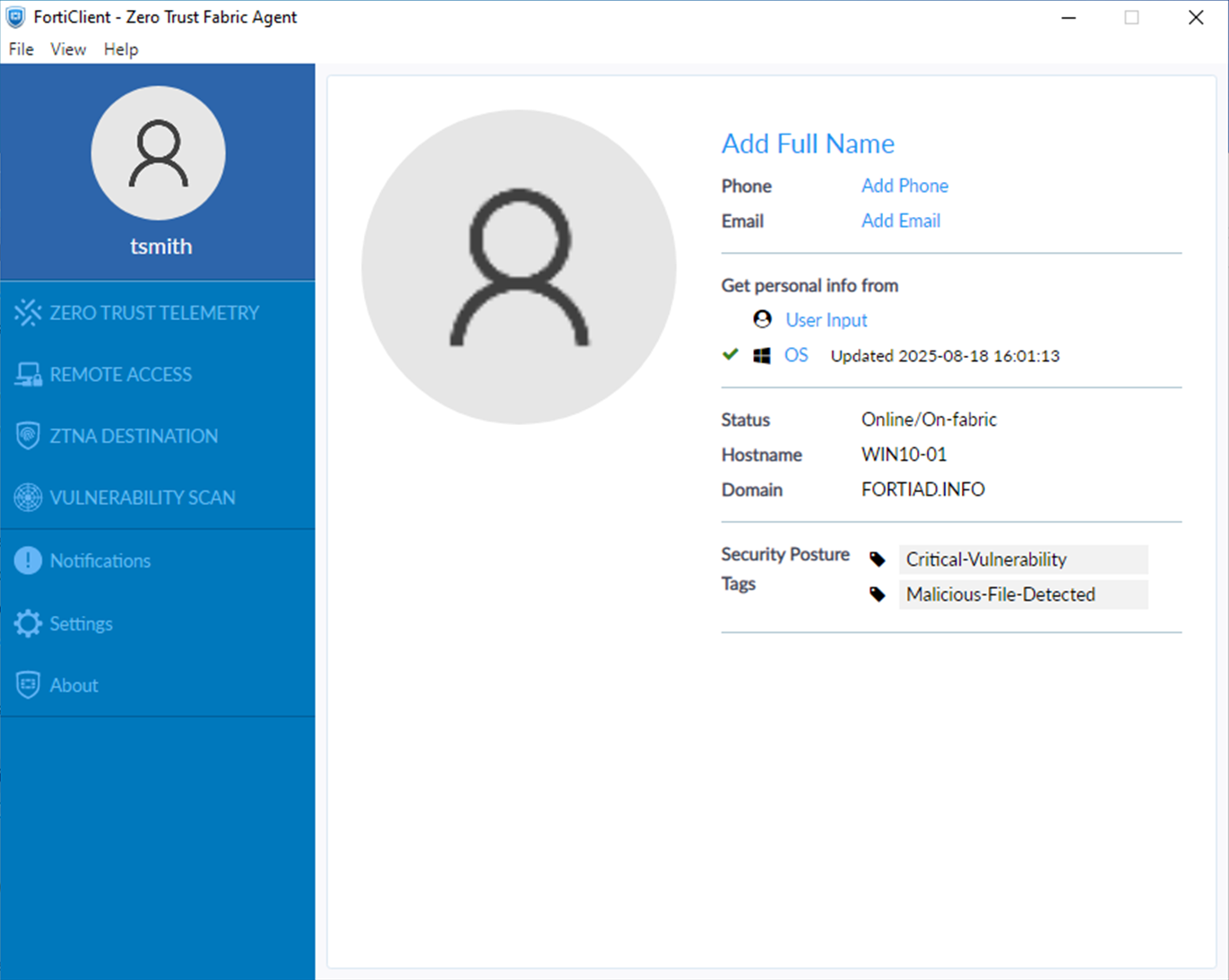
  2. Verify that FortiClient has received the Malicious-File-Detected tag by opening FortiClient and clicking the portrait in the top left.
  3. Open a browser and enter the address http://webserver.ztnademo.com:9443.

  4. The client is verified by the FortiGate to authenticate your identity.

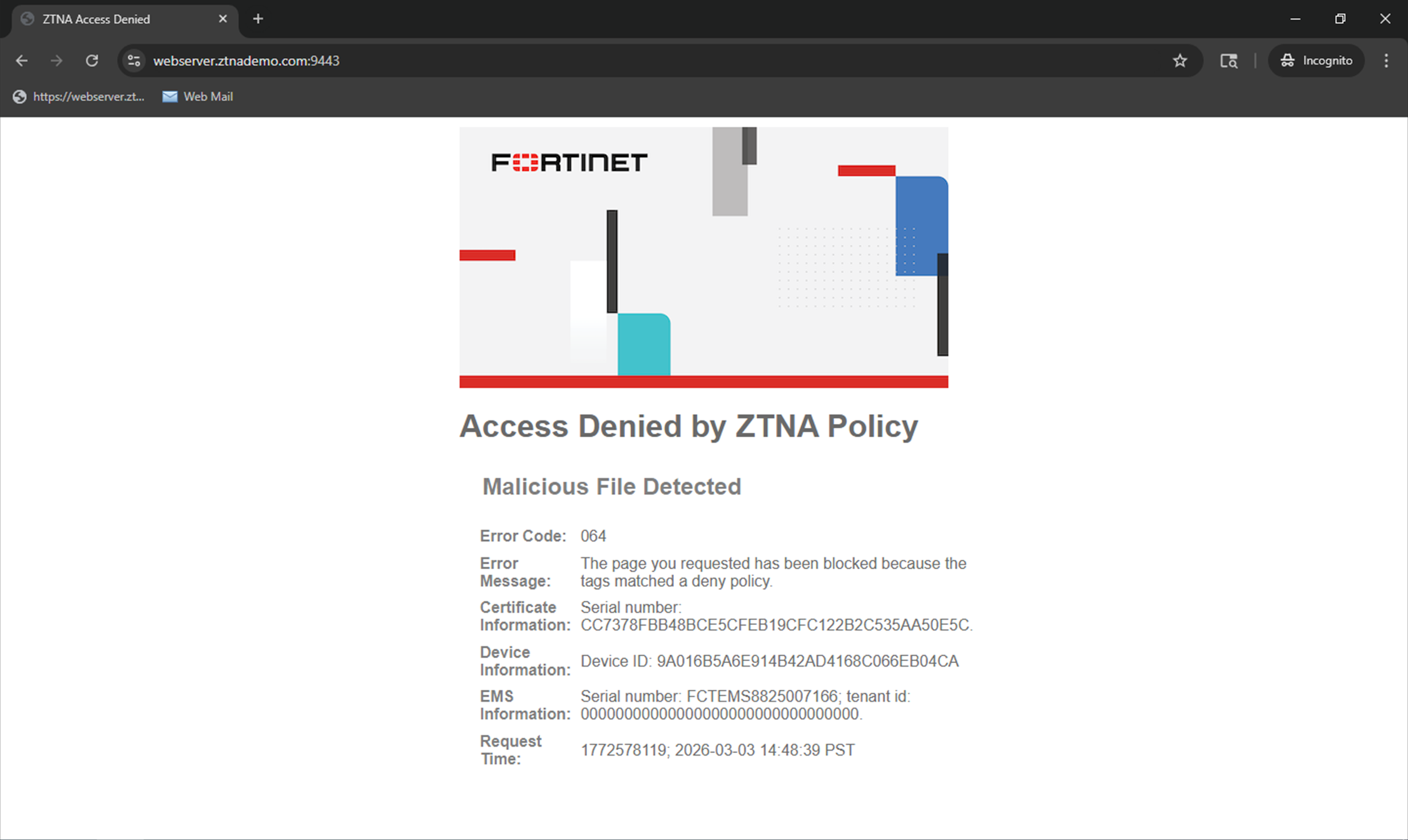
  5. FortiGate checks your security posture. Because EMS has tagged the PC with the Malicious-File-Detected tag, it matches the ZTNA-Deny-malicious rule.

  6. You are denied access to the web server.
Logs and debugs

Access allowed:
# diagnose endpoint ec-shm list 
Record #0:
                IP Address = 10.0.3.2
                MAC Address = 02:09:0f:00:03:03
                MAC list = 
                VDOM =  (-1)
                EMS serial number: FCTEMS8825007166
                EMS tenant id: 00000000000000000000000000000000
                Client cert SN: CC7378FBB48BCE5CFEB19CFC122B2C535AA50E5C
                Public IP address: 148.230.50.203
                Quarantined: no
                Online status: online
                Registration status: registered
                On-net status: off-net
                Gateway Interface: 
                FortiClient version: 7.4.3
                AVDB version: 1.0
                FortiClient app signature version: 35.177
                FortiClient vulnerability scan engine version: 3.8
                FortiClient UID: 9A016B5A6E914B42AD4168C066EB04CA
                Host Name: WIN10-01
                OS Type: WIN64
                OS Version: Microsoft Windows 10 Professional Edition, 64-bit (build 19045)
                Domain: fortiad.info
                Last Login User: tsmith
                Owner: @fortiad.info
                Host Model: Standard PC (i440FX + PIIX, 1996)
                Host Manufacturer: QEMU
                CPU Model: Intel(R) Xeon(R) CPU @ 2.20GHz
                Memory Size: 8095
                AV Feature: 1
                FW Feature: 1
                WF Feature: 1
                AS Feature: 0
                VS Feature: 1
                VN Feature: 1
                Last vul message received time: Tue Mar  3 12:36:42 2026
                Last vul scanned time: Tue Mar  3 17:38:36 2026
                Last vul statistic: critical=0, high=0, medium=0, low=1, info=0
                Avatar fingerprint: 
                Avatar source username: Tom Smith
                Avatar source email: 
                Avatar source: OS
                Phone number: 
                Issued time in seconds: 1772570201
                JWT expiry time in seconds: 0 (Current time in seconds: 1772577332)
                Subscribed only: true
                Sendall: disabled
                Number of Routes: (0)
# diagnose test application fcnacd 7
#ID:0
UID:     9A016B5A6E914B42AD4168C066EB04CA
EMS:     FCTEMS8825007166 00000000000000000000000000000000
State:   sysinfo:1, tag:1, tagsz:1, out-of-sync:0, ref:1
Owner:   @fortiad.info
Cert SN: CC7378FBB48BCE5CFEB19CFC122B2C535AA50E5C
online:  Yes
Sub TS:  1772570201
idx:0, ttdl:1   name:all_registered_clients
idx:3, ttdl:2   name:Low
# diagnose wad dev query-by uid 9A016B5A6E914B42AD4168C066EB04CA FCTEMS8825007166 00000000000000000000000000000000  
Attr of type=0, length=83, value(ascii)=9A016B5A6E914B42AD4168C066EB04CA
Attr of type=7, length=8, value(ascii)=Gi
Attr of type=4, length=13, value(ascii)=@fortiad.info
Attr of type=6, length=1, value(ascii)=true
Attr of type=9, length=1, value(ascii)=1
Attr of type=5, length=40, value(ascii)=CC7378FBB48BCE5CFEB19CFC122B2C535AA50E5C
Attr of type=3, length=76, value(ascii)=ZTNA_all_registered_clients_FCTEMS882500716600000000000000000000000000000000
Attr of type=3, length=58, value(ascii)=CLASS_Low_FCTEMS882500716600000000000000000000000000000000
Response termination due to no more data
# execute log filter category 0
# execute log filter field subtype ztna
# execute log display

1: date=2026-03-03 time=14:46:14 eventtime=1772577974130406404 tz="-0800" logid="0005000024" type="traffic" subtype="ztna" level="notice" vd="root" srcip=10.0.3.2 srcport=64377 srcintf="port3" srcintfrole="wan" dstcountry="Reserved" srccountry="Reserved" dstip=10.88.0.3 dstport=9043 dstintf="port2" dstintfrole="dmz" sessionid=9174 srcuuid="b458a65a-f759-51ea-d7df-ef2e750026d1" dstuuid="01b612e6-174a-51f1-1a3d-b3293e8efa12" service="tcp/9043" proxyapptype="ztna-proxy" proto=6 action="accept" policyid=2 policytype="policy" poluuid="693c3e3e-174c-51f1-3e13-715130a1a107" policyname="ZTNA-Allow-Simple" appcat="unscanned" duration=129 gatewayid=1 realserverid=1 vip="WebServer:9443" vipincomingip=10.0.3.10 accessproxy="ZTNA-Webserver" clientdeviceid="9A016B5A6E914B42AD4168C066EB04CA" clientdevicemanageable="manageable" clientdeviceems="FCTEMS8825007166" clientdevicetags="CLASS_Low/ all_registered_clients" clientcert="yes" emsconnection="online" wanin=303009 rcvdbyte=303009 wanout=4424 lanin=4220 sentbyte=4220 lanout=305716 fctuid="9A016B5A6E914B42AD4168C066EB04CA"
Access denied:
# diagnose test application fcnacd 7
#ID:0
UID:     9A016B5A6E914B42AD4168C066EB04CA
EMS:     FCTEMS8825007166 00000000000000000000000000000000
State:   sysinfo:1, tag:1, tagsz:1, out-of-sync:0, ref:1
Owner:   @fortiad.info
Cert SN: CC7378FBB48BCE5CFEB19CFC122B2C535AA50E5C
online:  Yes
Sub TS:  1772570201
idx:0, ttdl:1   name:all_registered_clients
idx:1, ttdl:1   name:Malicious-File-Detected
idx:3, ttdl:2   name:Low
# diagnose wad dev query-by uid 9A016B5A6E914B42AD4168C066EB04CA FCTEMS8825007166 00000000000000000000000000000000
Attr of type=0, length=83, value(ascii)=9A016B5A6E914B42AD4168C066EB04CA
Attr of type=7, length=8, value(ascii)=di
Attr of type=4, length=13, value(ascii)=@fortiad.info
Attr of type=6, length=1, value(ascii)=true
Attr of type=9, length=1, value(ascii)=1
Attr of type=5, length=40, value(ascii)=CC7378FBB48BCE5CFEB19CFC122B2C535AA50E5C
Attr of type=3, length=76, value(ascii)=ZTNA_all_registered_clients_FCTEMS882500716600000000000000000000000000000000
Attr of type=3, length=77, value(ascii)=ZTNA_Malicious-File-Detected_FCTEMS882500716600000000000000000000000000000000
Attr of type=3, length=58, value(ascii)=CLASS_Low_FCTEMS882500716600000000000000000000000000000000
Response termination due to no more data
# execute log filter category 0
# execute log filter field subtype ztna 
# execute log display
			
1: date=2026-03-03 time=14:48:40 eventtime=1772578119728445929 tz="-0800" logid="0005000024" type="traffic" subtype="ztna" level="notice" vd="root" srcip=10.0.3.2 srcport=64396 srcintf="port3" srcintfrole="wan" dstcountry="Reserved" srccountry="Reserved" dstip=10.0.3.10 dstport=9443 dstintf="root" dstintfrole="undefined" sessionid=9280 srcuuid="b458a65a-f759-51ea-d7df-ef2e750026d1" dstuuid="01b612e6-174a-51f1-1a3d-b3293e8efa12" service="tcp/9443" proxyapptype="ztna-proxy" proto=6 action="deny" policyid=1 policytype="policy" poluuid="393a561c-174c-51f1-cdd1-442746c0ffc3" policyname="ZTNA-Deny-Malicious" appcat="unscanned" duration=0 vip="WebServer:9443" vipincomingip=10.0.3.10 clientdeviceid="9A016B5A6E914B42AD4168C066EB04CA" clientdevicemanageable="manageable" clientdeviceems="FCTEMS8825007166" clientdevicetags="CLASS_Low/Malicious-File-Detected/ all_registered_clients" clientcert="yes" emsconnection="online" wanin=0 rcvdbyte=0 wanout=0 lanin=3773 sentbyte=3773 lanout=4524 fctuid="9A016B5A6E914B42AD4168C066EB04CA" msg="Traffic denied because proxy-policy action is deny. Matched tag: EMS1_ZTNA_Malicious-File-Detected" crscore=30 craction=131072 crlevel="high"

ZTNA web proxy example

ZTNA web proxy example

In this example, a web proxy is configured to demonstrate its function as a reverse proxy on behalf of the web server it is protecting. It verifies user identity, device identity, and trust context, before granting access to the protected source.

This example shows access control that allows or denies traffic based on security posture tags. Traffic is allowed when the FortiClient endpoint is tagged as Low Importance using Classification tags, and denied when the endpoint is tagged with Malicious-File-Detected.

This example uses EMS 7.4.5, and assumes that the FortiGate EMS fabric connector is already successfully connected.

To configure ZTNA in the GUI, go to System > Feature Visibility and enable Zero Trust Network Access.

To configure a Zero Trust tagging rule on the FortiClient EMS:
  1. Log in to the FortiClient EMS.

  2. Go to Security Posture Tags > Tags, and click Create.

  3. In the Name field, enter Malicious-File-Detected.

  4. In the Tag Endpoint As dropdown list, select Malicious-File-Detected.

    EMS uses this tag to dynamically group together endpoints that satisfy the rule, as well as any other rules that are configured to use this tag.

  5. Specify a User Notification Message, such as Malicious File Detected.

  6. Click Add Rule then configure the rule:

    1. For OS, select Windows.

    2. From the Rule Type dropdown list, select File.

    3. Enter a file name, such as C:\virus.txt.

    4. Click Save.

  7. Click Save.

To configure FortiClient EMS to share classification tags:

This is required for the Low Importance tag to be sent to the FortiGate.

  1. Go to Fabric & Connectors > Fabric Devices.

  2. Expand Standalone devices and hover over the FortiGate device to select the box with a pencil icon.

  3. Click Edit.

  4. Under Tag Types Being Shared, add Classification Tags.

  5. Click Update.

To configure a ZTNA server for HTTPS access proxy in the FortiGate GUI:
  1. Go to Policy & Objects > ZTNA > Servers & Portals > Web server.

  2. Click Create New.

  3. Set Name to ZTNA-Webserver.

  4. Set Host to the IP address or FQDN that will be used to access the webserver: webserver.ztnademo.com.

  5. Under Connects On, select Create new for ZTNA port to provide the following details:

    1. Set Interface to port3.
    2. Set External IP to 10.0.3.10.
    3. Set External port to 9443.

    Verify that the IP address and port do not conflict with management access to the interface. Otherwise, change the IP address to another address on that subnet.

  6. Select a certificate. Clients will be presented with this certificate when they connect to the ZTNA port.

    This example uses a wildcard certificate with a Common Name (CN):

    *.ztnademo.com. This certificate is trusted by the endpoints which will access the ZTNA port.

  7. Enter a name for the ZTNA port, such as WebServer:9443.

  8. In the Server section, configure the internal server settings:

    1. Switch the Internal server IP to Specify.

    2. Set Service to HTTPS.

    3. Set IP to the internal IP for the web server: 10.88.0.3.

    4. Set Port to 9043.

      The WebServer service is running on port 9043. This configuration will translate clients accessing TCP/9443 to TCP/9043.

  9. Click OK. The Web server object is listed.

To configure simple ZTNA policies to allow and deny traffic based on security posture tags in the GUI:
  1. Go to Policy & Objects > Firewall Policy.

  2. Create a rule to deny traffic:

    1. Click Create New.

    2. Set Name to ZTNA-Deny-Malicious.

    3. Set Action to DENY.

    4. Set Type to ZTNA.

    5. Set Incoming Interface to port3.

    6. Set Source to all.

    7. Keep the default of Any of, and add the security posture tag IP Malicious-File-Detected.

      This tag is dynamically retrieved from EMS when you first created the Zero Trust Tagging Rule.

    8. Set ZTNA port to the WebServer:9443 port created earlier.

    9. Enable Log Violation Traffic.

    10. Click OK.

  3. Create a rule to allow traffic:

    1. Click Create New.

    2. Set Name to ZTNA-Allow-Simple.

    3. Set Type to ZTNA.

    4. Set Incoming Interface to port3.

    5. Set Source to all. This can also be set to specific IP addresses to only allow those addresses to connect to this HTTPS access proxy.

    6. Keep the default of Any of, and add the class tag IP Low.

    7. Select the ZTNA port WebServer:9443.

    8. Configure the remaining options as needed.

    9. Click OK.

  4. On the firewall policy list, make sure that the deny rule (ZTNA-Deny-Malicious) is above the allow rule (ZTNA-Allow-Simple).

To configure HTTPS access in the CLI:
  1. Configure the access proxy VIP:

    config firewall vip
        edit "WebServer:9443"
            set type access-proxy
            set server-type https
            set extip 10.0.3.10
            set extintf "port3"
            set extport 9443
            set ssl-certificate "ztna-wildcard"
        next
    end
  2. Configure the virtual host:

    config firewall access-proxy-virtual-host
        edit "WebServer9443"
            set ssl-certificate “ztna-wildcard”
            set host “webserver.ztnademo.com”
        next
    end
  3. Configure the web proxy:

    config ztna web-proxy
        edit "ZTNA-Webserver"
            set vip "Webserver:9443"
            set host WebServer9443
            config api-gateway
                edit 1
                    config realservers
                        edit 1
                            set ip 10.88.0.3
                            set port 9043 
                        next
                    end
                next
            end
        next
    end
  4. Configure ZTNA policies:

    config firewall policy
        edit 1
            set name "ZTNA-Deny-Malicious"
            set srcintf "port3"
            set dstintf "any"
            set srcaddr "all"
            set dstaddr "WebServer:9443"
            set ztna-ems-tag "EMS1_ZTNA_Malicious-File-Detected"
            set schedule "always"
            set logtraffic all
        next
        edit 2
            set name "ZTNA-Allow-Simple"
            set srcintf "port3"
            set dstintf "any"
            set action accept
            set srcaddr "all"
            set dstaddr "WebServer:9443"
            set ztna-ems-tag "EMS1_CLASS_Low"
            set schedule "always"
            set logtraffic all
        next 
    end

Testing the remote access to the HTTPS access proxy

After FortiClient EMS and FortiGate are configured, the HTTPS access proxy remote connection can be tested.

Access allowed:
  1. On the remote Windows PC, open FortiClient.

  2. On the Zero Trust Telemetry tab, make sure that you are connected to the EMS server.

    It is not necessary to configure a ZTNA Destination on FortiClient for the HTTPS access proxy use case. In fact, configuring a ZTNA Destination rule for the website may interfere with its operation.

  3. Open a browser and enter the address of the server and the access port. When entering the FQDN, make sure that the DNS can resolve the address to the IP address of the FortiGate. In this example, webserver.ztnademo.com resolves to 10.0.3.10.

  4. The browser prompts for the client certificate to use. Select the EMS signed certificate, then click OK.

    The certificate is in the User Configuration store, under Personal > Certificates. The details show the SN of the certificate, which matches the record on the FortiClient EMS and the FortiGate.

  5. The client is verified by the FortiGate to authenticate your identity.

  6. The FortiGate matches your security posture by verifying your security posture tag and/or classification tag. The matching ZTNA rule allows access to the web server.

Access denied:
  1. On the remote Windows PC, trigger the Zero Trust Tagging Rule by creating the file in C:\virus.txt.

  2. Verify that FortiClient has received the Malicious-File-Detected tag by opening FortiClient and clicking the portrait in the top left.

  3. Open a browser and enter the address http://webserver.ztnademo.com:9443.

  4. The client is verified by the FortiGate to authenticate your identity.

  5. FortiGate checks your security posture. Because EMS has tagged the PC with the Malicious-File-Detected tag, it matches the ZTNA-Deny-malicious rule.

  6. You are denied access to the web server.

Logs and debugs

Access allowed:
# diagnose endpoint ec-shm list 
Record #0:
                IP Address = 10.0.3.2
                MAC Address = 02:09:0f:00:03:03
                MAC list = 
                VDOM =  (-1)
                EMS serial number: FCTEMS8825007166
                EMS tenant id: 00000000000000000000000000000000
                Client cert SN: CC7378FBB48BCE5CFEB19CFC122B2C535AA50E5C
                Public IP address: 148.230.50.203
                Quarantined: no
                Online status: online
                Registration status: registered
                On-net status: off-net
                Gateway Interface: 
                FortiClient version: 7.4.3
                AVDB version: 1.0
                FortiClient app signature version: 35.177
                FortiClient vulnerability scan engine version: 3.8
                FortiClient UID: 9A016B5A6E914B42AD4168C066EB04CA
                Host Name: WIN10-01
                OS Type: WIN64
                OS Version: Microsoft Windows 10 Professional Edition, 64-bit (build 19045)
                Domain: fortiad.info
                Last Login User: tsmith
                Owner: @fortiad.info
                Host Model: Standard PC (i440FX + PIIX, 1996)
                Host Manufacturer: QEMU
                CPU Model: Intel(R) Xeon(R) CPU @ 2.20GHz
                Memory Size: 8095
                AV Feature: 1
                FW Feature: 1
                WF Feature: 1
                AS Feature: 0
                VS Feature: 1
                VN Feature: 1
                Last vul message received time: Tue Mar  3 12:36:42 2026
                Last vul scanned time: Tue Mar  3 17:38:36 2026
                Last vul statistic: critical=0, high=0, medium=0, low=1, info=0
                Avatar fingerprint: 
                Avatar source username: Tom Smith
                Avatar source email: 
                Avatar source: OS
                Phone number: 
                Issued time in seconds: 1772570201
                JWT expiry time in seconds: 0 (Current time in seconds: 1772577332)
                Subscribed only: true
                Sendall: disabled
                Number of Routes: (0)
# diagnose test application fcnacd 7
#ID:0
UID:     9A016B5A6E914B42AD4168C066EB04CA
EMS:     FCTEMS8825007166 00000000000000000000000000000000
State:   sysinfo:1, tag:1, tagsz:1, out-of-sync:0, ref:1
Owner:   @fortiad.info
Cert SN: CC7378FBB48BCE5CFEB19CFC122B2C535AA50E5C
online:  Yes
Sub TS:  1772570201
idx:0, ttdl:1   name:all_registered_clients
idx:3, ttdl:2   name:Low
# diagnose wad dev query-by uid 9A016B5A6E914B42AD4168C066EB04CA FCTEMS8825007166 00000000000000000000000000000000  
Attr of type=0, length=83, value(ascii)=9A016B5A6E914B42AD4168C066EB04CA
Attr of type=7, length=8, value(ascii)=Gi
Attr of type=4, length=13, value(ascii)=@fortiad.info
Attr of type=6, length=1, value(ascii)=true
Attr of type=9, length=1, value(ascii)=1
Attr of type=5, length=40, value(ascii)=CC7378FBB48BCE5CFEB19CFC122B2C535AA50E5C
Attr of type=3, length=76, value(ascii)=ZTNA_all_registered_clients_FCTEMS882500716600000000000000000000000000000000
Attr of type=3, length=58, value(ascii)=CLASS_Low_FCTEMS882500716600000000000000000000000000000000
Response termination due to no more data
# execute log filter category 0
# execute log filter field subtype ztna
# execute log display

1: date=2026-03-03 time=14:46:14 eventtime=1772577974130406404 tz="-0800" logid="0005000024" type="traffic" subtype="ztna" level="notice" vd="root" srcip=10.0.3.2 srcport=64377 srcintf="port3" srcintfrole="wan" dstcountry="Reserved" srccountry="Reserved" dstip=10.88.0.3 dstport=9043 dstintf="port2" dstintfrole="dmz" sessionid=9174 srcuuid="b458a65a-f759-51ea-d7df-ef2e750026d1" dstuuid="01b612e6-174a-51f1-1a3d-b3293e8efa12" service="tcp/9043" proxyapptype="ztna-proxy" proto=6 action="accept" policyid=2 policytype="policy" poluuid="693c3e3e-174c-51f1-3e13-715130a1a107" policyname="ZTNA-Allow-Simple" appcat="unscanned" duration=129 gatewayid=1 realserverid=1 vip="WebServer:9443" vipincomingip=10.0.3.10 accessproxy="ZTNA-Webserver" clientdeviceid="9A016B5A6E914B42AD4168C066EB04CA" clientdevicemanageable="manageable" clientdeviceems="FCTEMS8825007166" clientdevicetags="CLASS_Low/ all_registered_clients" clientcert="yes" emsconnection="online" wanin=303009 rcvdbyte=303009 wanout=4424 lanin=4220 sentbyte=4220 lanout=305716 fctuid="9A016B5A6E914B42AD4168C066EB04CA"
Access denied:
# diagnose test application fcnacd 7
#ID:0
UID:     9A016B5A6E914B42AD4168C066EB04CA
EMS:     FCTEMS8825007166 00000000000000000000000000000000
State:   sysinfo:1, tag:1, tagsz:1, out-of-sync:0, ref:1
Owner:   @fortiad.info
Cert SN: CC7378FBB48BCE5CFEB19CFC122B2C535AA50E5C
online:  Yes
Sub TS:  1772570201
idx:0, ttdl:1   name:all_registered_clients
idx:1, ttdl:1   name:Malicious-File-Detected
idx:3, ttdl:2   name:Low
# diagnose wad dev query-by uid 9A016B5A6E914B42AD4168C066EB04CA FCTEMS8825007166 00000000000000000000000000000000
Attr of type=0, length=83, value(ascii)=9A016B5A6E914B42AD4168C066EB04CA
Attr of type=7, length=8, value(ascii)=di
Attr of type=4, length=13, value(ascii)=@fortiad.info
Attr of type=6, length=1, value(ascii)=true
Attr of type=9, length=1, value(ascii)=1
Attr of type=5, length=40, value(ascii)=CC7378FBB48BCE5CFEB19CFC122B2C535AA50E5C
Attr of type=3, length=76, value(ascii)=ZTNA_all_registered_clients_FCTEMS882500716600000000000000000000000000000000
Attr of type=3, length=77, value(ascii)=ZTNA_Malicious-File-Detected_FCTEMS882500716600000000000000000000000000000000
Attr of type=3, length=58, value(ascii)=CLASS_Low_FCTEMS882500716600000000000000000000000000000000
Response termination due to no more data
# execute log filter category 0
# execute log filter field subtype ztna 
# execute log display
			
1: date=2026-03-03 time=14:48:40 eventtime=1772578119728445929 tz="-0800" logid="0005000024" type="traffic" subtype="ztna" level="notice" vd="root" srcip=10.0.3.2 srcport=64396 srcintf="port3" srcintfrole="wan" dstcountry="Reserved" srccountry="Reserved" dstip=10.0.3.10 dstport=9443 dstintf="root" dstintfrole="undefined" sessionid=9280 srcuuid="b458a65a-f759-51ea-d7df-ef2e750026d1" dstuuid="01b612e6-174a-51f1-1a3d-b3293e8efa12" service="tcp/9443" proxyapptype="ztna-proxy" proto=6 action="deny" policyid=1 policytype="policy" poluuid="393a561c-174c-51f1-cdd1-442746c0ffc3" policyname="ZTNA-Deny-Malicious" appcat="unscanned" duration=0 vip="WebServer:9443" vipincomingip=10.0.3.10 clientdeviceid="9A016B5A6E914B42AD4168C066EB04CA" clientdevicemanageable="manageable" clientdeviceems="FCTEMS8825007166" clientdevicetags="CLASS_Low/Malicious-File-Detected/ all_registered_clients" clientcert="yes" emsconnection="online" wanin=0 rcvdbyte=0 wanout=0 lanin=3773 sentbyte=3773 lanout=4524 fctuid="9A016B5A6E914B42AD4168C066EB04CA" msg="Traffic denied because proxy-policy action is deny. Matched tag: EMS1_ZTNA_Malicious-File-Detected" crscore=30 craction=131072 crlevel="high"