Fortinet white logo
Fortinet white logo

Administration Guide

ZTNA web proxy with basic authentication example

ZTNA web proxy with basic authentication example

This example expands on the previous example (ZTNA web proxy example), adding LDAP authentication to the ZTNA rule. Users are allowed based on passing the client certificate authentication check, user authentication, and security posture check.

Users that are in the AD security group ALLOWED-VPN are allowed access to the access proxy. Users that are not part of this security group are not allowed access.
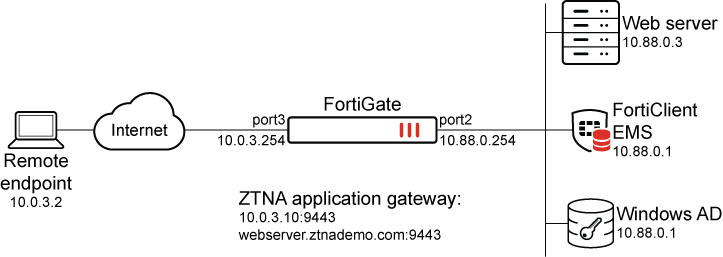
This example assumes that the FortiGate EMS fabric connector is already successfully connected.

LDAP/Active Directory Users and Groups:

  • Domain: fortiad.info

  • Users (Groups):

    • tsmith (Domain Users, Remote-Allowed)

    • lhansen (Domain Users)

To configure a secure connection to the LDAP server in the GUI:
  1. Go to User & Authentication > LDAP Servers and click Create New.

  2. Configure the following settings:

    Name

    LDAP-fortiad

    Server IP/Name

    10.88.0.1

    Server Port

    636

    Common Name Identifier

    sAMAccountName

    Distinguished Name

    dc=fortiad,dc=info

    Exchange server

    Disabled

    Bind Type

    Regular

    Enter the Username and Password for LDAP binding and lookup.

    Protocol

    LDAPS

    Certificate

    Enable and select the CA certificate to validate the server certificate.

    Server identity check

    Optionally, enable to verify the domain name or IP address against the server certificate.
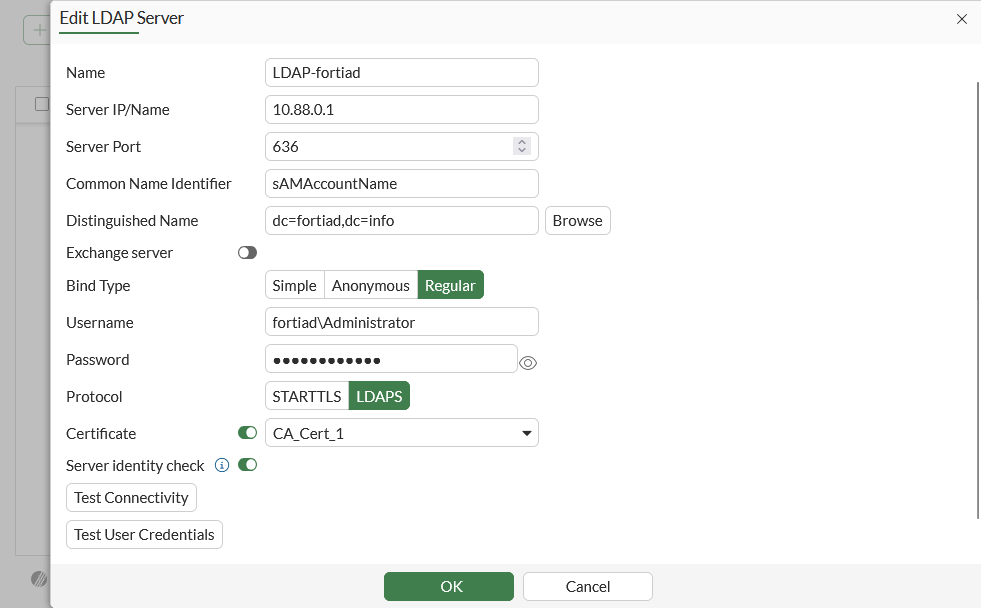
  3. Click Test Connectivity to verify the connection to the server.

  4. Click OK.

To configure a secure connection to the LDAP server in the CLI:
config user ldap
    edit "LDAP-fortiad"
        set server "10.88.0.1"
        set cnid "sAMAccountName"
        set dn "dc=fortiad,dc=info"
        set type regular
        set username "fortiad\\Administrator"
        set password <password>
        set secure ldaps
        set ca-cert "CA_Cert_1"
        set port 636
    next
end
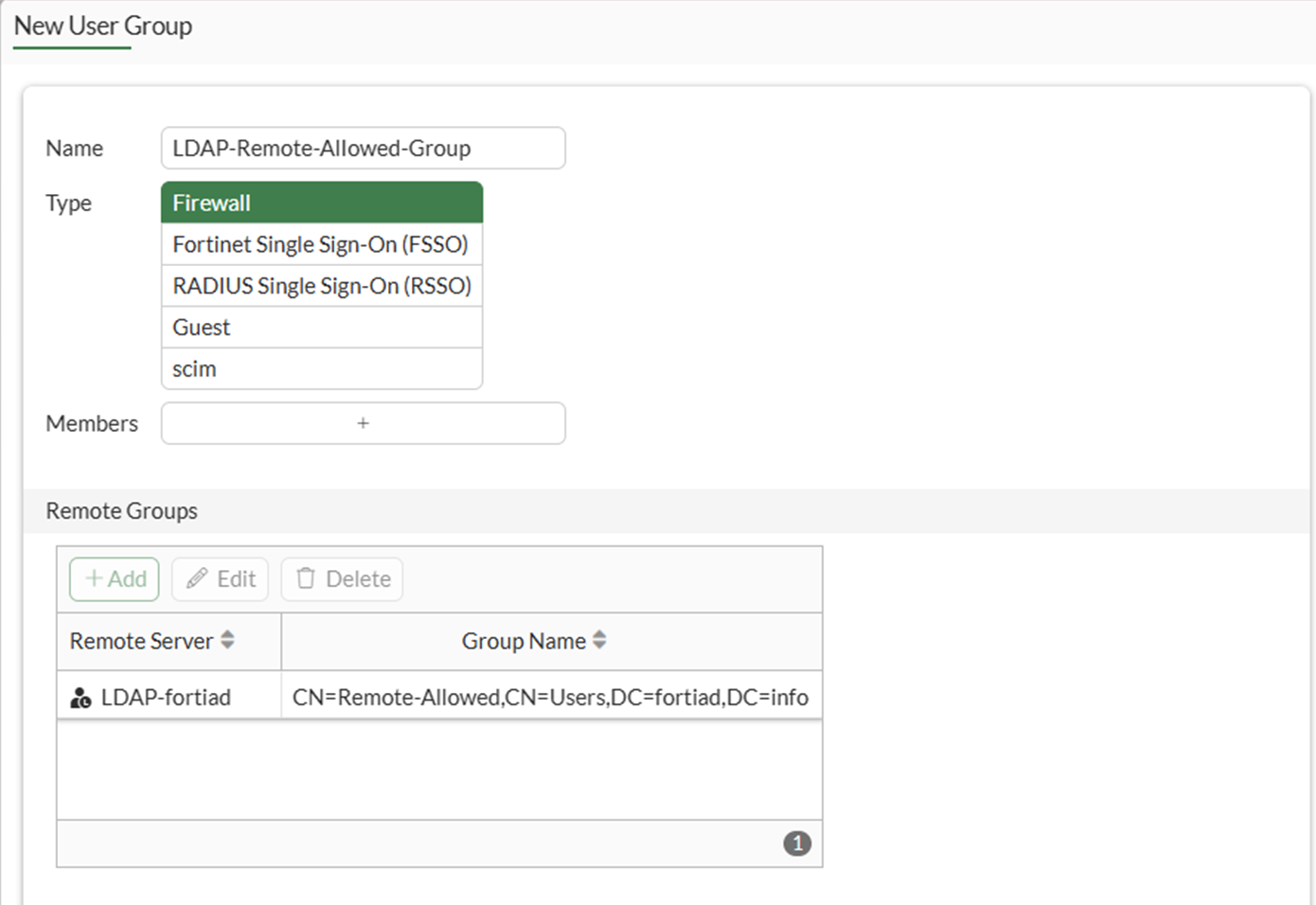
To configure a remote user group from the LDAP server in the GUI:
  1. Go to User & Authentication > User Groups and click Create New.

  2. Set the name to LDAP-Remote-Allowed-Group.

  3. Set Type to Firewall.

  4. In the Remote Groups table click Add:

    1. Set Remote Server to LDAP-fortiad.

    2. Locate the Remote-Allowed group, right-click on it, and click Add Selected.

    3. Click OK.

  5. Click OK.

To configure a remote user group from the LDAP server in the CLI:
config user group
    edit "LDAP-Remote-Allowed-Group"
        set member "LDAP-fortiad"
        config match
            edit 1
                set server-name "LDAP-fortiad"
                set group-name "CN=Remote-Allowed,CN=Users,DC=fortiad,DC=info"
            next
        end
    next
end

Authentication scheme and rules

After the LDAP server and user group have been configured, an authentication scheme and rule must be configured.

To configure authentication schemes and rules in the GUI, go to System > Feature Visibility and enable Explicit Proxy.

Authentication scheme

The authentication scheme defines the method of authentication that is applied. In this example, basic HTTP authentication is used so that users are prompted for a username and password the first time that they connect to a website through the HTTPS access proxy.

To configure an authentication scheme in the GUI:
  1. Go to Policy & Objects > Authentication and select the Authentication Schemes tab.

  2. Click Create New.

  3. Set the name to ZTNA-Auth-scheme.

  4. Set Method to Basic.

  5. Set User database to Other and select LDAP-fortiad as the LDAP server.
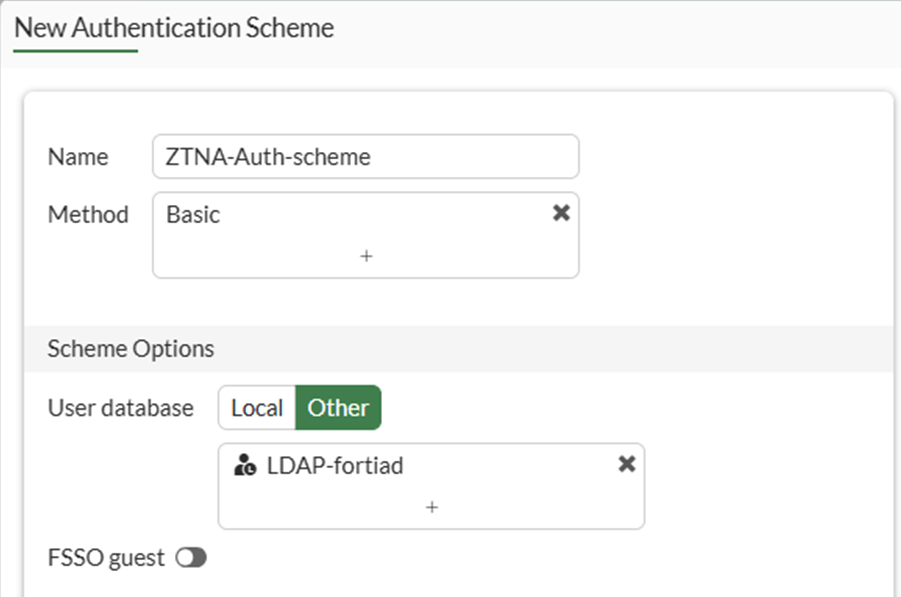
  6. Click OK.

To configure an authentication scheme in the CLI:
config authentication scheme
    edit "ZTNA-Auth-scheme"
        set method basic
        set user-database "LDAP-fortiad"
    next
end

Authentication rule

The authentication rule defines the proxy sources and destination that require authentication, and what authentication scheme is applied. In this example, active authentication through the basic HTTP prompt is used and applied to all sources.

To configure an authentication rule in the GUI:
  1. Go to Policy & Objects > Authentication > Authentication Rules and click Create New.

  2. Set the name to ZTNA-Auth-rule.

  3. Set Source Address to all.

  4. Set Incoming interface to port3.

  5. Set Protocol to HTTP.

  6. Enable Authentication Scheme and select ZTNA-Auth-scheme.
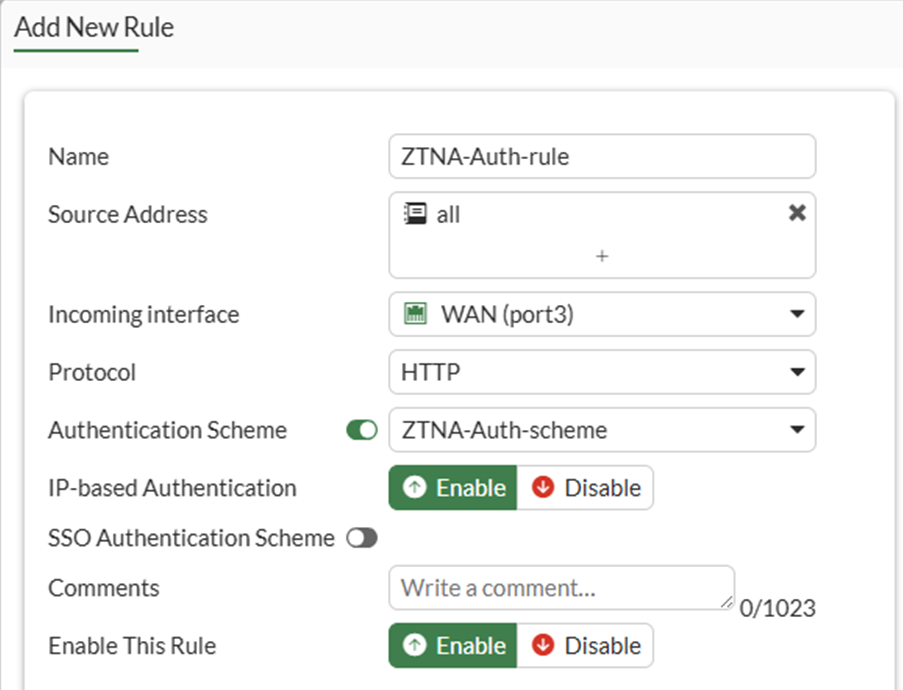
  7. Click OK.

To configure an authentication rule in the CLI:
config authentication rule
    edit "ZTNA-Auth-rule"
        set srcintf "port3"
        set srcaddr "all"
        set active-auth-method "ZTNA-Auth-scheme"
    next
end

Applying the user group to a ZTNA policy

A user or user group must be applied to the ZTNA policy that you need to control user access to. The authenticated user from the authentication scheme and rule must match the user or user group in the ZTNA policy.

In this example, the user group is applied to the two simple ZTNA policies that were configured in ZTNA web proxy example.

To apply a user group to the simple ZTNA policies in the GUI:
  1. Go to Policy & Objects > Firewall Policy.

  2. Edit the ZTNA-Deny-Malicious rule.

  3. In the Source & Destination section, set User/group to LDAP-Remote-Allowed-Group.
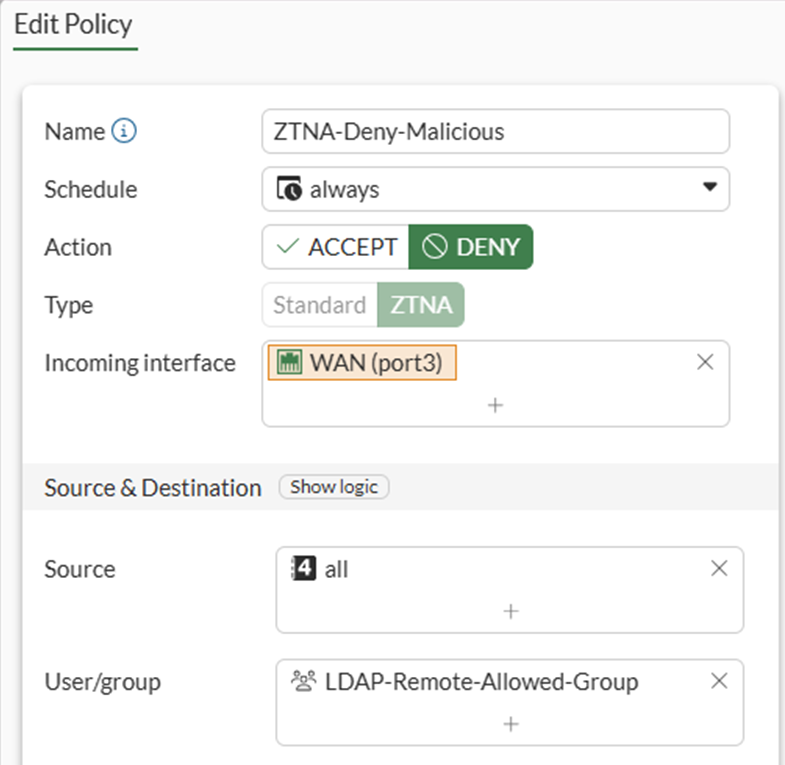
  4. Click OK.

  5. Edit the ZTNA-Allow-Simple rule.

  6. In the Source & Destination section, set User/group to LDAP-Remote-Allowed-Group.

  7. Click OK.

To apply a user group to the simple ZTNA policies in the CLI:
config firewall policy
     edit 1
        set name "ZTNA-Deny-Malicious"
        set srcintf "port3"
        set dstintf "any"
        set srcaddr "all"
        set dstaddr "WebServer:9443"
        set ztna-ems-tag "EMS1_ZTNA_Malicious-File-Detected"
        set schedule "always"
        set logtraffic all
        set groups "LDAP-Remote-Allowed-Group"
    next
    edit 2
        set name "ZTNA-Allow-Simple"
        set srcintf "port3"
        set dstintf "any"
        set action accept
        set srcaddr "all"
        set dstaddr "WebServer:9443"
        set ztna-ems-tag "EMS1_CLASS_Low"
        set schedule "always"
        set logtraffic all
        set groups "LDAP-Remote-Allowed-Group"
    next
end

For configuration examples using full ZTNA policy, see Configure a ZTNA policy.

Testing remote access to the HTTPS access proxy with user authentication

Scenario 1: access allowed - user tsmith

  1. On a remote Windows PC, open the FortiClient app, select the Zero Trust Telemetry tab, and confirm that you are connected to the EMS server.

    It is not necessary to configure a ZTNA Destination on the FortiClient for the HTTPS access proxy use case. In fact, configuring a ZTNA Destination rule for the website may interfere with its operation.

  2. In a browser, enter the address of the server and the access port.

    If entering an FQDN, make sure that DNS can resolve the address to the IP address of the FortiGate. In this example, webserver.ztnademo.com resolves to 10.0.3.10.

  3. When the browser asks for the client certificate to use, select the EMS signed certificate, then click OK.

    The client certificate is verified by the FortiGate to authenticate your identity.

  4. When prompted, enter the username tsmith and the password, and click Sign in.

    As tsmith is a member of the Remote-Allowed-Group group in Active Directory, it will match the LDAP-Remote-Allowed-Group user group. After the user authentication passes, the FortiGate performs a posture check on the ZTNA group. When that passes, you are allowed access to the website.

To verify the results:
#  diagnose firewall auth list 

 10.0.3.2, tsmith
        type: fw, id: 0, duration: 31, idled: 13
        expire: 287, allow-idle: 300
        packets: in 8 out 7, bytes: in 1164 out 1080
        group_id: 4 3
        group_name: LDAP-Administrator LDAP-Remote-Allowed-Group

----- 1 listed, 0 filtered ------
# diagnose test app fcnacd 7
#ID:0
UID:     9A016B5A6E914B42AD4168C066EB04CA
EMS:     FCTEMS8825007166 00000000000000000000000000000000
State:   sysinfo:1, tag:1, tagsz:1, out-of-sync:0, ref:1
Owner:   @fortiad.info
Cert SN: CC7378FBB48BCE5CFEB19CFC122B2C535AA50E5C
online:  Yes
Sub TS:  1772570201
idx:0, ttdl:1   name:all_registered_clients
idx:1, ttdl:1   name:Critical-Vulnerability
idx:3, ttdl:2   name:Low

The user_name is the windows log in username learned by FortiClient. It might not match the username used in firewall user authentication.

# execute log filter category 0 
# execute log filter field subtype ztna 
# execute log display

1: date=2026-03-04 time=07:34:42 eventtime=1772638482258291129 tz="-0800" logid="0005000024" type="traffic" subtype="ztna" level="notice" vd="root" srcip=10.0.3.2 srcport=1314 srcintf="port3" srcintfrole="wan" dstcountry="Reserved" srccountry="Reserved" dstip=10.88.0.3 dstport=9043 dstintf="port2" dstintfrole="dmz" sessionid=22480 srcuuid="b458a65a-f759-51ea-d7df-ef2e750026d1" dstuuid="01b612e6-174a-51f1-1a3d-b3293e8efa12" service="tcp/9043" proxyapptype="ztna-proxy" proto=6 action="accept" policyid=2 policytype="policy" poluuid="693c3e3e-174c-51f1-3e13-715130a1a107" policyname="ZTNA-Allow-Simple" appcat="unscanned" duration=131 user="tsmith" group="LDAP-Remote-Allowed-Group" authserver="LDAP-fortiad" gatewayid=1 realserverid=1 vip="WebServer:9443" vipincomingip=10.0.3.10 accessproxy="ZTNA-Webserver" clientdeviceid="9A016B5A6E914B42AD4168C066EB04CA" clientdevicemanageable="manageable" clientdeviceems="FCTEMS8825007166" clientdevicetags="CLASS_Low/all_registered_clients" clientcert="yes" emsconnection="online" wanin=303009 rcvdbyte=303009 wanout=4469 lanin=4247 sentbyte=4247 lanout=340700 fctuid="9A016B5A6E914B42AD4168C066EB04CA" 

Scenario 2: access denied – user lhansen

  1. If scenario 1 has just been tested, log in to the FortiGate and deauthenticate the user:

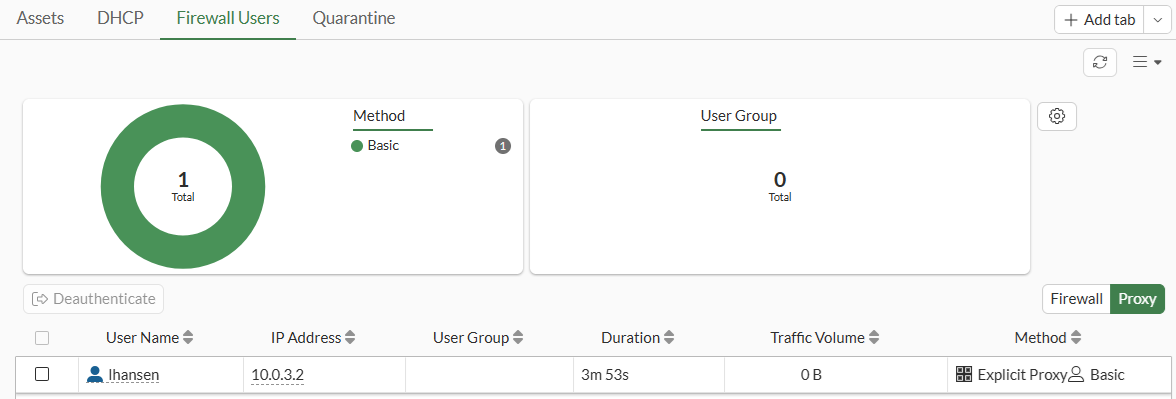
    1. Go to Dashboard > Assets & Identities > Firewall Users and select the Proxy table.

    2. Right-click on the user tsmith and select deauthenticate.
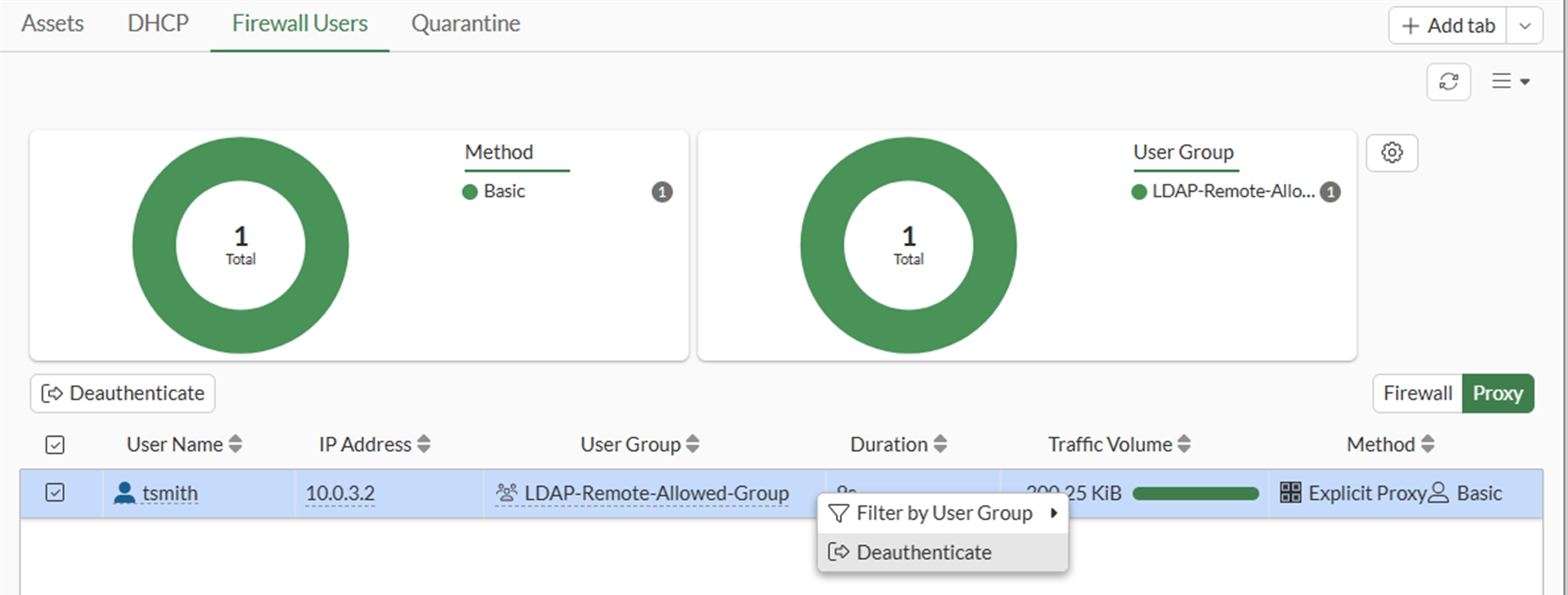
  2. On a remote Windows PC, open the FortiClient app, select the Zero Trust Telemetry tab, and confirm that you are connected to the EMS server.

  3. In a browser, enter the address webserver.ztnademo.com.

  4. When the browser asks for the client certificate to use, select the EMS signed certificate, then click OK. This option might not appear if you have already selected the certificate when testing scenario 1.

    The client certificate is verified by the FortiGate to authenticate your identity.

  5. When prompted, enter the username lhansen and the password, and click Sign in.

    As lhansen is not a member of the Remote-Allowed group in Active Directory, it will not match the LDAP-Remote-Allowed-Group user group. Because no other policies are matched, this user is implicitly denied
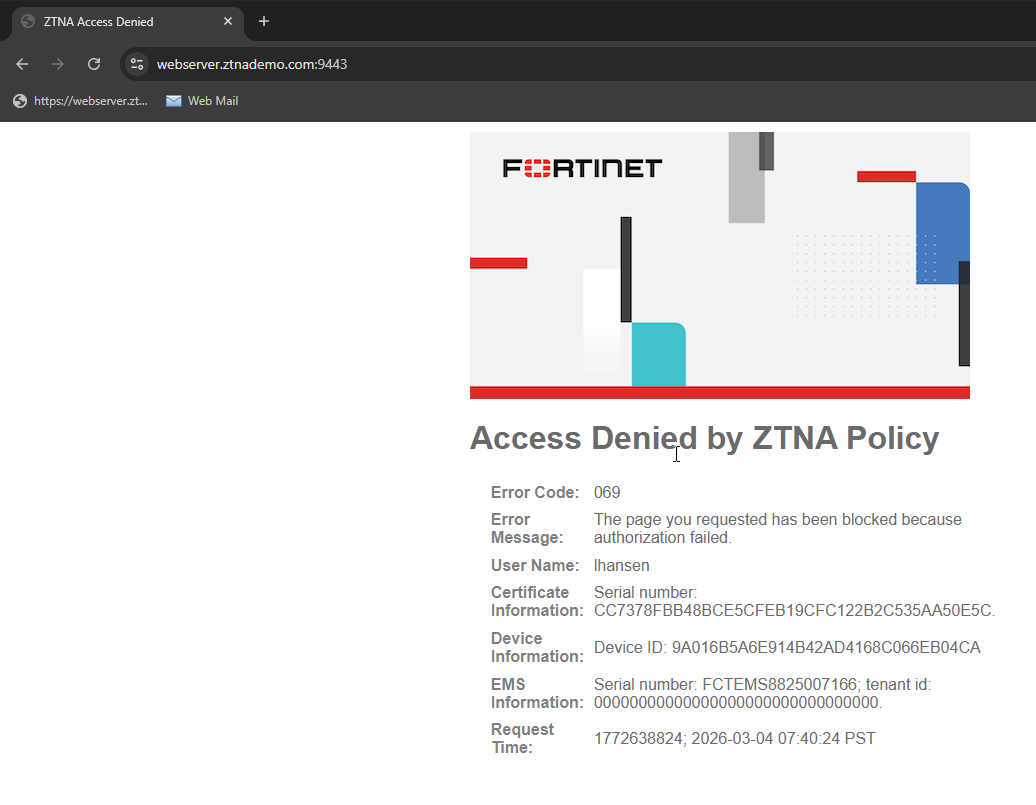
To verify the results:

Go to Dashboard > Assets & Identities > Firewall Users and select the Proxy table. Confirm that user lhansen is listed, but no applicable user group is returned.
# execute log display
 
1: date=2026-03-04 time=07:41:25 eventtime=1772638885574732337 tz="-0800" logid="0005000024" type="traffic" subtype="ztna" level="notice" vd="root" srcip=10.0.3.2 srcport=1355 srcintf="port3" srcintfrole="wan" dstcountry="Reserved" srccountry="Reserved" dstip=10.0.3.10 dstport=9443 dstintf="root" dstintfrole="undefined" sessionid=22618 srcuuid="b458a65a-f759-51ea-d7df-ef2e750026d1" dstuuid="01b612e6-174a-51f1-1a3d-b3293e8efa12" service="tcp/9443" proxyapptype="ztna-proxy" proto=6 action="deny" policyid=0 policytype="proxy-policy" appcat="unscanned" duration=61 user="lhansen" authserver="LDAP-fortiad" vip="WebServer:9443" vipincomingip=10.0.3.10 clientdeviceid="9A016B5A6E914B42AD4168C066EB04CA" clientdevicemanageable="manageable" clientdeviceems="FCTEMS8825007166" clientdevicetags="CLASS_Low/all_registered_clients" clientcert="yes" emsconnection="online" wanin=0 rcvdbyte=0 wanout=0 lanin=3866 sentbyte=3866 lanout=39507 fctuid="9A016B5A6E914B42AD4168C066EB04CA" msg="Traffic denied because failed to match a policy or proxy-policy" crscore=30 craction=131072 crlevel="high" 

ZTNA web proxy with basic authentication example

ZTNA web proxy with basic authentication example

This example expands on the previous example (ZTNA web proxy example), adding LDAP authentication to the ZTNA rule. Users are allowed based on passing the client certificate authentication check, user authentication, and security posture check.

Users that are in the AD security group ALLOWED-VPN are allowed access to the access proxy. Users that are not part of this security group are not allowed access.

This example assumes that the FortiGate EMS fabric connector is already successfully connected.

LDAP/Active Directory Users and Groups:

  • Domain: fortiad.info

  • Users (Groups):

    • tsmith (Domain Users, Remote-Allowed)

    • lhansen (Domain Users)

To configure a secure connection to the LDAP server in the GUI:
  1. Go to User & Authentication > LDAP Servers and click Create New.

  2. Configure the following settings:

    Name

    LDAP-fortiad

    Server IP/Name

    10.88.0.1

    Server Port

    636

    Common Name Identifier

    sAMAccountName

    Distinguished Name

    dc=fortiad,dc=info

    Exchange server

    Disabled

    Bind Type

    Regular

    Enter the Username and Password for LDAP binding and lookup.

    Protocol

    LDAPS

    Certificate

    Enable and select the CA certificate to validate the server certificate.

    Server identity check

    Optionally, enable to verify the domain name or IP address against the server certificate.

  3. Click Test Connectivity to verify the connection to the server.

  4. Click OK.

To configure a secure connection to the LDAP server in the CLI:
config user ldap
    edit "LDAP-fortiad"
        set server "10.88.0.1"
        set cnid "sAMAccountName"
        set dn "dc=fortiad,dc=info"
        set type regular
        set username "fortiad\\Administrator"
        set password <password>
        set secure ldaps
        set ca-cert "CA_Cert_1"
        set port 636
    next
end
To configure a remote user group from the LDAP server in the GUI:
  1. Go to User & Authentication > User Groups and click Create New.

  2. Set the name to LDAP-Remote-Allowed-Group.

  3. Set Type to Firewall.

  4. In the Remote Groups table click Add:

    1. Set Remote Server to LDAP-fortiad.

    2. Locate the Remote-Allowed group, right-click on it, and click Add Selected.

    3. Click OK.

  5. Click OK.

To configure a remote user group from the LDAP server in the CLI:
config user group
    edit "LDAP-Remote-Allowed-Group"
        set member "LDAP-fortiad"
        config match
            edit 1
                set server-name "LDAP-fortiad"
                set group-name "CN=Remote-Allowed,CN=Users,DC=fortiad,DC=info"
            next
        end
    next
end

Authentication scheme and rules

After the LDAP server and user group have been configured, an authentication scheme and rule must be configured.

To configure authentication schemes and rules in the GUI, go to System > Feature Visibility and enable Explicit Proxy.

Authentication scheme

The authentication scheme defines the method of authentication that is applied. In this example, basic HTTP authentication is used so that users are prompted for a username and password the first time that they connect to a website through the HTTPS access proxy.

To configure an authentication scheme in the GUI:
  1. Go to Policy & Objects > Authentication and select the Authentication Schemes tab.

  2. Click Create New.

  3. Set the name to ZTNA-Auth-scheme.

  4. Set Method to Basic.

  5. Set User database to Other and select LDAP-fortiad as the LDAP server.

  6. Click OK.

To configure an authentication scheme in the CLI:
config authentication scheme
    edit "ZTNA-Auth-scheme"
        set method basic
        set user-database "LDAP-fortiad"
    next
end

Authentication rule

The authentication rule defines the proxy sources and destination that require authentication, and what authentication scheme is applied. In this example, active authentication through the basic HTTP prompt is used and applied to all sources.

To configure an authentication rule in the GUI:
  1. Go to Policy & Objects > Authentication > Authentication Rules and click Create New.

  2. Set the name to ZTNA-Auth-rule.

  3. Set Source Address to all.

  4. Set Incoming interface to port3.

  5. Set Protocol to HTTP.

  6. Enable Authentication Scheme and select ZTNA-Auth-scheme.

  7. Click OK.

To configure an authentication rule in the CLI:
config authentication rule
    edit "ZTNA-Auth-rule"
        set srcintf "port3"
        set srcaddr "all"
        set active-auth-method "ZTNA-Auth-scheme"
    next
end

Applying the user group to a ZTNA policy

A user or user group must be applied to the ZTNA policy that you need to control user access to. The authenticated user from the authentication scheme and rule must match the user or user group in the ZTNA policy.

In this example, the user group is applied to the two simple ZTNA policies that were configured in ZTNA web proxy example.

To apply a user group to the simple ZTNA policies in the GUI:
  1. Go to Policy & Objects > Firewall Policy.

  2. Edit the ZTNA-Deny-Malicious rule.

  3. In the Source & Destination section, set User/group to LDAP-Remote-Allowed-Group.

  4. Click OK.

  5. Edit the ZTNA-Allow-Simple rule.

  6. In the Source & Destination section, set User/group to LDAP-Remote-Allowed-Group.

  7. Click OK.

To apply a user group to the simple ZTNA policies in the CLI:
config firewall policy
     edit 1
        set name "ZTNA-Deny-Malicious"
        set srcintf "port3"
        set dstintf "any"
        set srcaddr "all"
        set dstaddr "WebServer:9443"
        set ztna-ems-tag "EMS1_ZTNA_Malicious-File-Detected"
        set schedule "always"
        set logtraffic all
        set groups "LDAP-Remote-Allowed-Group"
    next
    edit 2
        set name "ZTNA-Allow-Simple"
        set srcintf "port3"
        set dstintf "any"
        set action accept
        set srcaddr "all"
        set dstaddr "WebServer:9443"
        set ztna-ems-tag "EMS1_CLASS_Low"
        set schedule "always"
        set logtraffic all
        set groups "LDAP-Remote-Allowed-Group"
    next
end

For configuration examples using full ZTNA policy, see Configure a ZTNA policy.

Testing remote access to the HTTPS access proxy with user authentication

Scenario 1: access allowed - user tsmith

  1. On a remote Windows PC, open the FortiClient app, select the Zero Trust Telemetry tab, and confirm that you are connected to the EMS server.

    It is not necessary to configure a ZTNA Destination on the FortiClient for the HTTPS access proxy use case. In fact, configuring a ZTNA Destination rule for the website may interfere with its operation.

  2. In a browser, enter the address of the server and the access port.

    If entering an FQDN, make sure that DNS can resolve the address to the IP address of the FortiGate. In this example, webserver.ztnademo.com resolves to 10.0.3.10.

  3. When the browser asks for the client certificate to use, select the EMS signed certificate, then click OK.

    The client certificate is verified by the FortiGate to authenticate your identity.

  4. When prompted, enter the username tsmith and the password, and click Sign in.

    As tsmith is a member of the Remote-Allowed-Group group in Active Directory, it will match the LDAP-Remote-Allowed-Group user group. After the user authentication passes, the FortiGate performs a posture check on the ZTNA group. When that passes, you are allowed access to the website.

To verify the results:
#  diagnose firewall auth list 

 10.0.3.2, tsmith
        type: fw, id: 0, duration: 31, idled: 13
        expire: 287, allow-idle: 300
        packets: in 8 out 7, bytes: in 1164 out 1080
        group_id: 4 3
        group_name: LDAP-Administrator LDAP-Remote-Allowed-Group

----- 1 listed, 0 filtered ------
# diagnose test app fcnacd 7
#ID:0
UID:     9A016B5A6E914B42AD4168C066EB04CA
EMS:     FCTEMS8825007166 00000000000000000000000000000000
State:   sysinfo:1, tag:1, tagsz:1, out-of-sync:0, ref:1
Owner:   @fortiad.info
Cert SN: CC7378FBB48BCE5CFEB19CFC122B2C535AA50E5C
online:  Yes
Sub TS:  1772570201
idx:0, ttdl:1   name:all_registered_clients
idx:1, ttdl:1   name:Critical-Vulnerability
idx:3, ttdl:2   name:Low

The user_name is the windows log in username learned by FortiClient. It might not match the username used in firewall user authentication.

# execute log filter category 0 
# execute log filter field subtype ztna 
# execute log display

1: date=2026-03-04 time=07:34:42 eventtime=1772638482258291129 tz="-0800" logid="0005000024" type="traffic" subtype="ztna" level="notice" vd="root" srcip=10.0.3.2 srcport=1314 srcintf="port3" srcintfrole="wan" dstcountry="Reserved" srccountry="Reserved" dstip=10.88.0.3 dstport=9043 dstintf="port2" dstintfrole="dmz" sessionid=22480 srcuuid="b458a65a-f759-51ea-d7df-ef2e750026d1" dstuuid="01b612e6-174a-51f1-1a3d-b3293e8efa12" service="tcp/9043" proxyapptype="ztna-proxy" proto=6 action="accept" policyid=2 policytype="policy" poluuid="693c3e3e-174c-51f1-3e13-715130a1a107" policyname="ZTNA-Allow-Simple" appcat="unscanned" duration=131 user="tsmith" group="LDAP-Remote-Allowed-Group" authserver="LDAP-fortiad" gatewayid=1 realserverid=1 vip="WebServer:9443" vipincomingip=10.0.3.10 accessproxy="ZTNA-Webserver" clientdeviceid="9A016B5A6E914B42AD4168C066EB04CA" clientdevicemanageable="manageable" clientdeviceems="FCTEMS8825007166" clientdevicetags="CLASS_Low/all_registered_clients" clientcert="yes" emsconnection="online" wanin=303009 rcvdbyte=303009 wanout=4469 lanin=4247 sentbyte=4247 lanout=340700 fctuid="9A016B5A6E914B42AD4168C066EB04CA" 

Scenario 2: access denied – user lhansen

  1. If scenario 1 has just been tested, log in to the FortiGate and deauthenticate the user:

    1. Go to Dashboard > Assets & Identities > Firewall Users and select the Proxy table.

    2. Right-click on the user tsmith and select deauthenticate.

  2. On a remote Windows PC, open the FortiClient app, select the Zero Trust Telemetry tab, and confirm that you are connected to the EMS server.

  3. In a browser, enter the address webserver.ztnademo.com.

  4. When the browser asks for the client certificate to use, select the EMS signed certificate, then click OK. This option might not appear if you have already selected the certificate when testing scenario 1.

    The client certificate is verified by the FortiGate to authenticate your identity.

  5. When prompted, enter the username lhansen and the password, and click Sign in.

    As lhansen is not a member of the Remote-Allowed group in Active Directory, it will not match the LDAP-Remote-Allowed-Group user group. Because no other policies are matched, this user is implicitly denied

To verify the results:

Go to Dashboard > Assets & Identities > Firewall Users and select the Proxy table. Confirm that user lhansen is listed, but no applicable user group is returned.

# execute log display
 
1: date=2026-03-04 time=07:41:25 eventtime=1772638885574732337 tz="-0800" logid="0005000024" type="traffic" subtype="ztna" level="notice" vd="root" srcip=10.0.3.2 srcport=1355 srcintf="port3" srcintfrole="wan" dstcountry="Reserved" srccountry="Reserved" dstip=10.0.3.10 dstport=9443 dstintf="root" dstintfrole="undefined" sessionid=22618 srcuuid="b458a65a-f759-51ea-d7df-ef2e750026d1" dstuuid="01b612e6-174a-51f1-1a3d-b3293e8efa12" service="tcp/9443" proxyapptype="ztna-proxy" proto=6 action="deny" policyid=0 policytype="proxy-policy" appcat="unscanned" duration=61 user="lhansen" authserver="LDAP-fortiad" vip="WebServer:9443" vipincomingip=10.0.3.10 clientdeviceid="9A016B5A6E914B42AD4168C066EB04CA" clientdevicemanageable="manageable" clientdeviceems="FCTEMS8825007166" clientdevicetags="CLASS_Low/all_registered_clients" clientcert="yes" emsconnection="online" wanin=0 rcvdbyte=0 wanout=0 lanin=3866 sentbyte=3866 lanout=39507 fctuid="9A016B5A6E914B42AD4168C066EB04CA" msg="Traffic denied because failed to match a policy or proxy-policy" crscore=30 craction=131072 crlevel="high"