Fortinet white logo
Fortinet white logo

Administration Guide

Routing monitor

Routing monitor

The Routing monitor displays the routing table on the FortiGate, including all static and dynamic routing protocols in IPv4 and IPv6. You can also use this monitor to view policy routes, BGP neighbors and paths, and OSPF neighbors.
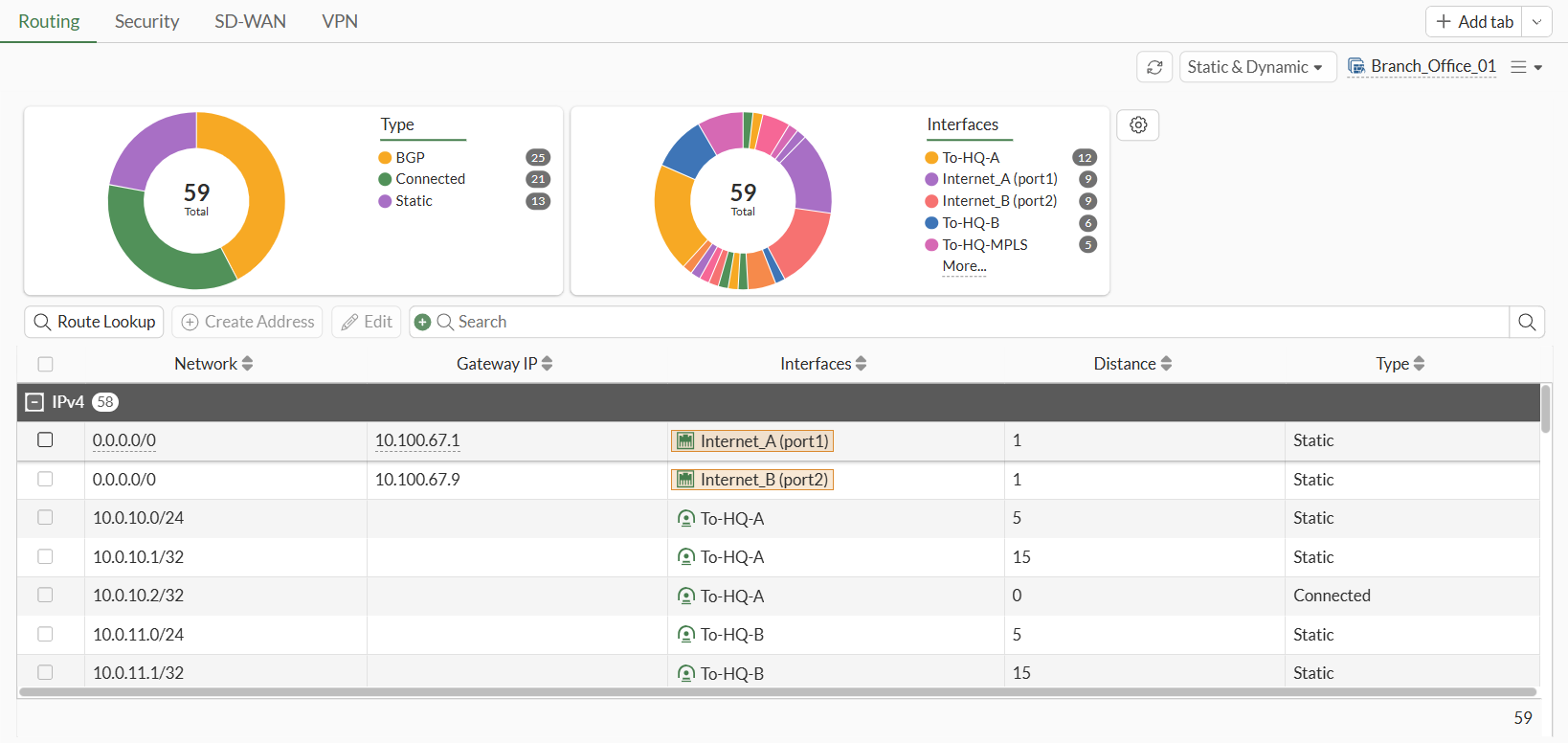
To view the routing monitor in the GUI:
  1. Go to Dashboard > Network Monitor > Routing. The Routing monitor is displayed.

  2. Click the dropdown at the top of the page and select Policy to view policy routes.
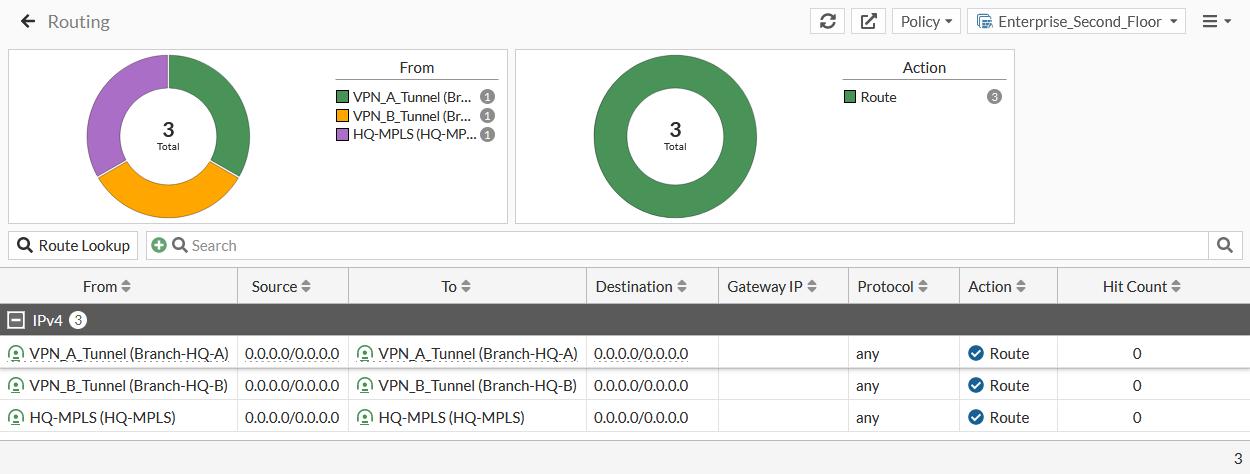
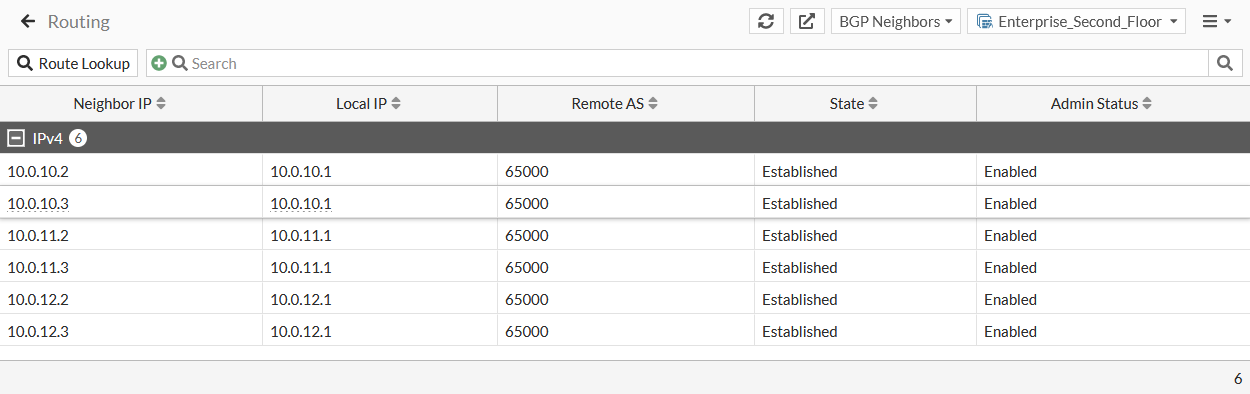
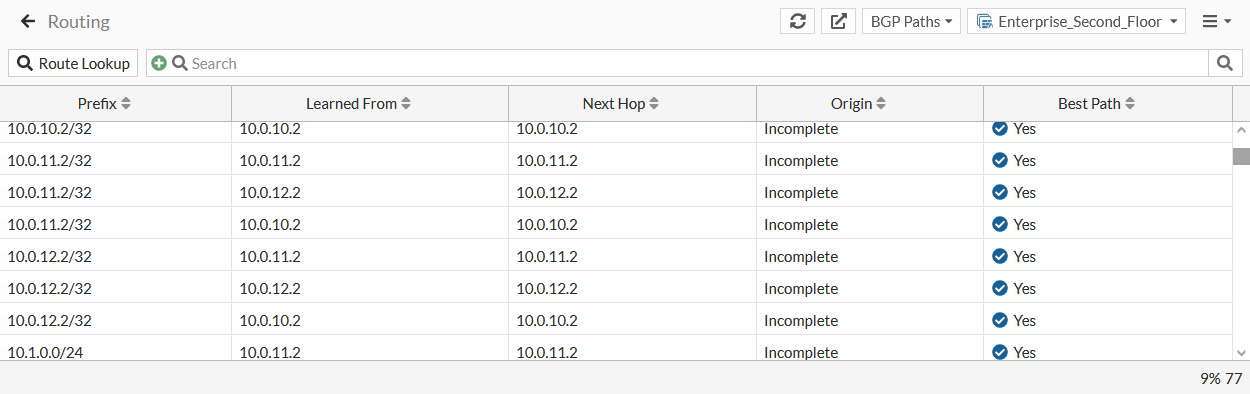
  3. Click the dropdown and select the required neighbor or path type to view neighbors and paths.

    For example:

    • BGP Neighbors

    • BGP Paths

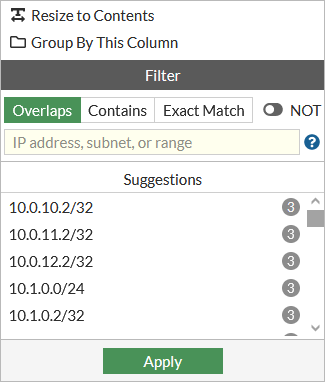
  4. To filter a column:

    1. Hover over the column heading, and click the Filter/Configure Column icon.

    2. Configure the filter, then click Apply.
  5. (Optional) Click the Save as Monitor button to save the widget as monitor.

To look up a route in the GUI:
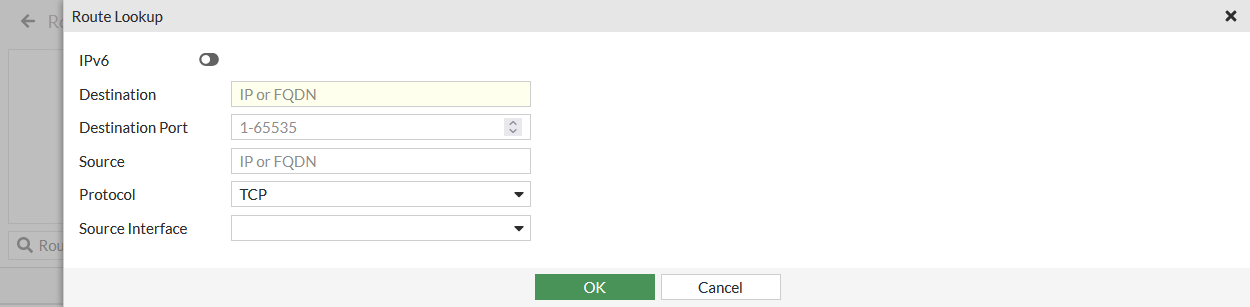
  1. Click Route Lookup.

  2. Enter an IP address in the Destination field.

  3. Configure the remaining options as needed, then click OK.

    The matching route is highlighted on the Routing monitor.

To view the routing table in the CLI:
# get route info routing-table all

Sample output:

Codes: K - kernel, C - connected, S - static, R - RIP, B - BGP
O - OSPF, IA - OSPF inter area
N1 - OSPF NSSA external type 1, N2 - OSPF NSSA external type 2
E1 - OSPF external type 1, E2 - OSPF external type 2
i - IS-IS, L1 - IS-IS level-1, L2 - IS-IS level-2, ia - IS-IS inter area
* - candidate default
 
Routing table for VRF=0
S*      0.0.0.0/0 [1/0] via 10.0.10.1, To-HQ-A
[1/0] via 10.0.12.1, To-HQ-MPLS
[1/0] via 10.10.11.1, To-HQ-B
[1/0] via 10.100.67.1, port1
[1/0] via 10.100.67.9, port2
C       10.0.10.0/24 is directly connected, To-HQ-A
C       10.0.10.2/32 is directly connected, To-HQ-A
C       10.0.11.0/24 is directly connected, To-HQ-B
C       10.0.11.2/32 is directly connected, To-HQ-B
C       10.0.12.0/24 is directly connected, To-HQ-MPLS
C       10.0.12.2/32 is directly connected, To-HQ-MPLS
C       10.1.0.0/24 is directly connected, port3
C       10.1.0.2/32 is directly connected, port3
C       10.1.0.3/32 is directly connected, port3
C       10.1.100.0/24 is directly connected, vsw.port6
To look up a firewall route in the CLI:
# diagnose firewall proute list

Sample output:

list route policy info(vf=root):

id=1(0x01) dscp_tag=0xfc 0xfc flags=0x0 tos=0x00 tos_mask=0x00 protocol=0 sport=0-0 iif=15(Branch-HQ-A) dport=0-65535 path(1) oif=15(Branch-HQ-A) 
source wildcard(1): 0.0.0.0/0.0.0.0 
destination wildcard(1): 0.0.0.0/0.0.0.0 
hit_count=0 last_used=2023-05-10 13:04:05

id=2(0x02) dscp_tag=0xfc 0xfc flags=0x0 tos=0x00 tos_mask=0x00 protocol=0 sport=0-0 iif=16(Branch-HQ-B) dport=0-65535 path(1) oif=16(Branch-HQ-B) 
source wildcard(1): 0.0.0.0/0.0.0.0 
destination wildcard(1): 0.0.0.0/0.0.0.0 
hit_count=0 last_used=2023-05-10 13:04:05

id=3(0x03) dscp_tag=0xfc 0xfc flags=0x0 tos=0x00 tos_mask=0x00 protocol=0 sport=0-0 iif=17(HQ-MPLS) dport=0-65535 path(1) oif=17(HQ-MPLS) 
source wildcard(1): 0.0.0.0/0.0.0.0 
destination wildcard(1): 0.0.0.0/0.0.0.0 
hit_count=0 last_used=2023-05-10 13:04:05

Routing monitor

Routing monitor

The Routing monitor displays the routing table on the FortiGate, including all static and dynamic routing protocols in IPv4 and IPv6. You can also use this monitor to view policy routes, BGP neighbors and paths, and OSPF neighbors.

To view the routing monitor in the GUI:
  1. Go to Dashboard > Network Monitor > Routing. The Routing monitor is displayed.

  2. Click the dropdown at the top of the page and select Policy to view policy routes.

  3. Click the dropdown and select the required neighbor or path type to view neighbors and paths.

    For example:

    • BGP Neighbors

    • BGP Paths

  4. To filter a column:

    1. Hover over the column heading, and click the Filter/Configure Column icon.

    2. Configure the filter, then click Apply.

  5. (Optional) Click the Save as Monitor button to save the widget as monitor.

To look up a route in the GUI:
  1. Click Route Lookup.

  2. Enter an IP address in the Destination field.

  3. Configure the remaining options as needed, then click OK.

    The matching route is highlighted on the Routing monitor.

To view the routing table in the CLI:
# get route info routing-table all

Sample output:

Codes: K - kernel, C - connected, S - static, R - RIP, B - BGP
O - OSPF, IA - OSPF inter area
N1 - OSPF NSSA external type 1, N2 - OSPF NSSA external type 2
E1 - OSPF external type 1, E2 - OSPF external type 2
i - IS-IS, L1 - IS-IS level-1, L2 - IS-IS level-2, ia - IS-IS inter area
* - candidate default
 
Routing table for VRF=0
S*      0.0.0.0/0 [1/0] via 10.0.10.1, To-HQ-A
[1/0] via 10.0.12.1, To-HQ-MPLS
[1/0] via 10.10.11.1, To-HQ-B
[1/0] via 10.100.67.1, port1
[1/0] via 10.100.67.9, port2
C       10.0.10.0/24 is directly connected, To-HQ-A
C       10.0.10.2/32 is directly connected, To-HQ-A
C       10.0.11.0/24 is directly connected, To-HQ-B
C       10.0.11.2/32 is directly connected, To-HQ-B
C       10.0.12.0/24 is directly connected, To-HQ-MPLS
C       10.0.12.2/32 is directly connected, To-HQ-MPLS
C       10.1.0.0/24 is directly connected, port3
C       10.1.0.2/32 is directly connected, port3
C       10.1.0.3/32 is directly connected, port3
C       10.1.100.0/24 is directly connected, vsw.port6
To look up a firewall route in the CLI:
# diagnose firewall proute list

Sample output:

list route policy info(vf=root):

id=1(0x01) dscp_tag=0xfc 0xfc flags=0x0 tos=0x00 tos_mask=0x00 protocol=0 sport=0-0 iif=15(Branch-HQ-A) dport=0-65535 path(1) oif=15(Branch-HQ-A) 
source wildcard(1): 0.0.0.0/0.0.0.0 
destination wildcard(1): 0.0.0.0/0.0.0.0 
hit_count=0 last_used=2023-05-10 13:04:05

id=2(0x02) dscp_tag=0xfc 0xfc flags=0x0 tos=0x00 tos_mask=0x00 protocol=0 sport=0-0 iif=16(Branch-HQ-B) dport=0-65535 path(1) oif=16(Branch-HQ-B) 
source wildcard(1): 0.0.0.0/0.0.0.0 
destination wildcard(1): 0.0.0.0/0.0.0.0 
hit_count=0 last_used=2023-05-10 13:04:05

id=3(0x03) dscp_tag=0xfc 0xfc flags=0x0 tos=0x00 tos_mask=0x00 protocol=0 sport=0-0 iif=17(HQ-MPLS) dport=0-65535 path(1) oif=17(HQ-MPLS) 
source wildcard(1): 0.0.0.0/0.0.0.0 
destination wildcard(1): 0.0.0.0/0.0.0.0 
hit_count=0 last_used=2023-05-10 13:04:05