
Fortinet white logo
Fortinet white logo

Administration Guide

Enable FortiIdentity Cloud seats directly from FortiGate

Enable FortiIdentity Cloud seats directly from FortiGate

Three seats of FortiIdentity Cloud (formerly FortiToken Cloud) are available for FortiGates with FortiCare Premium or FortiCare Elite. A valid support contract must be registered to a FortiCare/FortiCloud account with Fortinet Technical Support. See Product registration with FortiCare for more information.

You can access the seats by enabling two-factor authentication within a user or administrator configuration.

The FortiIdentity Cloud seats remains active as long as the support contract is valid.

To enable the FortiIdentity Cloud seats for a local user:
  1. Go to User & Authentication > User Definition.

  2. Click Create new.

  3. Configure settings as needed.

  4. Enable Two-factor Authentication.

  5. Set Authentication Type to FortiToken Cloud.

    The FortiToken Cloud license field displays Licensed and the expiration date of the license.

    The Usage field displays the number of available and used seats. In this example, 0 of 3 (0/3) seats are used because the user configuration hasn't been saved yet.
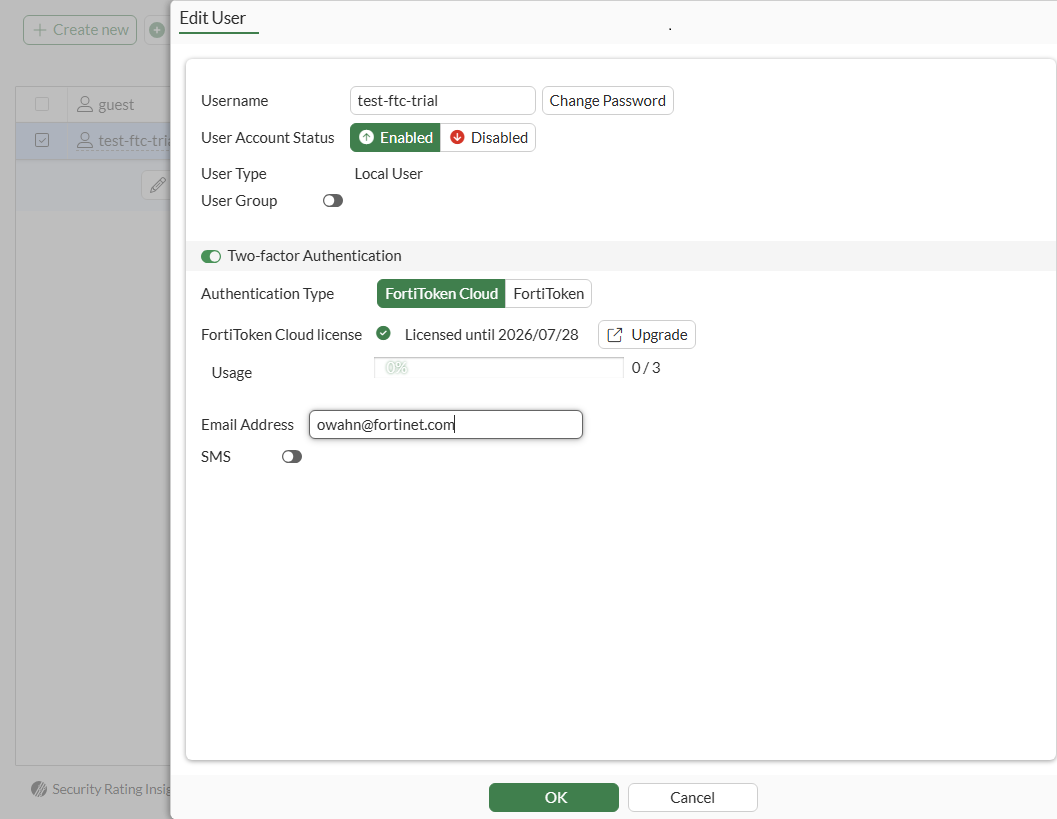
  6. Complete the remaining fields, and click OK.

    A FortiIdentity Cloud enrollment email is sent to the provided email.

To enable the FortiIdentity Cloud for an administrator:
  1. Go to System > Administrators.

  2. Click Create new > Administrator.

  3. Enable Two-factor Authentication.

  4. Set Authentication Type to FortiToken Cloud.

    The FortiToken Cloud license field displays Licensed and the expiration date of the license.

    The Usage field displays the number of available and used seats. In this example, 1 of 3 (1/3) seats are used. After this administrator configuration is saved, a second seat will be used.
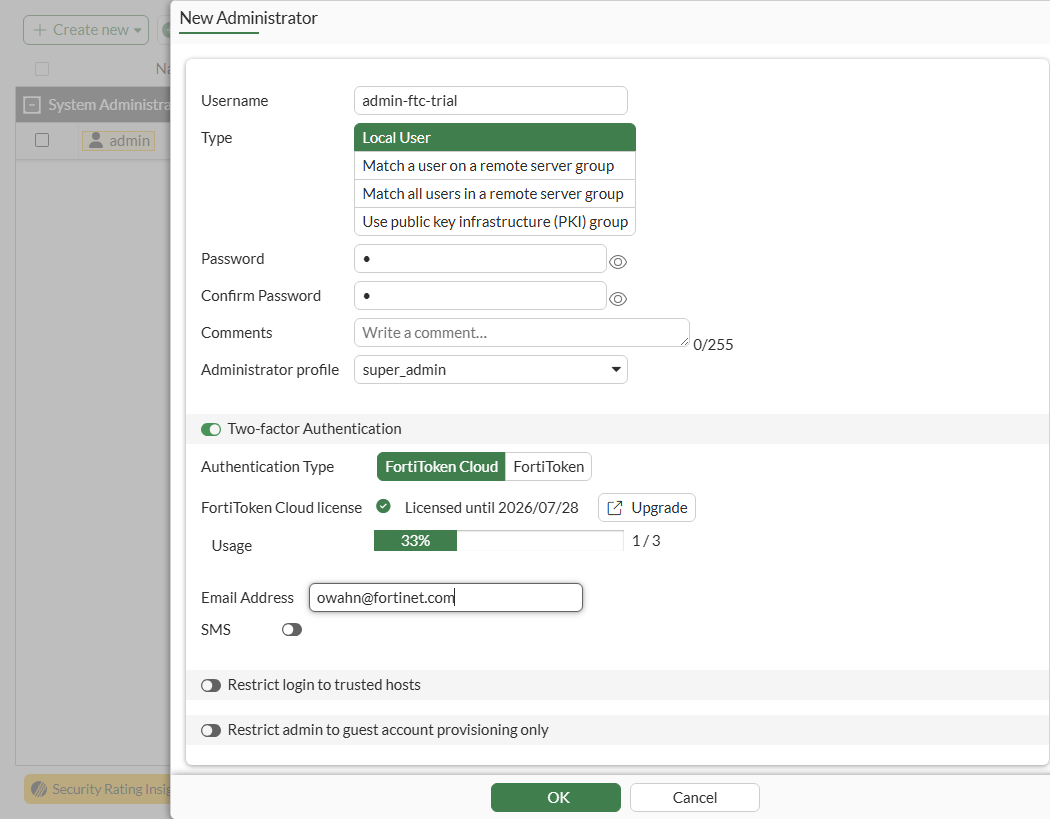
  5. Complete the remaining fields, and click OK.

    A FortiIdentity Cloud enrollment email is sent to the provided email.

To view the FortiIdentity Cloud status in the CLI:
# execute fortitoken-cloud show
FortiToken Cloud service status: licensed. Region code: 01. Region name: eu.
Service balance: 1.00 users. Expiration date: 2026-07-29. Customer ID: 1336761.
FortiToken Cloud account number of users: 2, max number of users: 3.

Enable FortiIdentity Cloud seats directly from FortiGate

Enable FortiIdentity Cloud seats directly from FortiGate

Three seats of FortiIdentity Cloud (formerly FortiToken Cloud) are available for FortiGates with FortiCare Premium or FortiCare Elite. A valid support contract must be registered to a FortiCare/FortiCloud account with Fortinet Technical Support. See Product registration with FortiCare for more information.

You can access the seats by enabling two-factor authentication within a user or administrator configuration.

The FortiIdentity Cloud seats remains active as long as the support contract is valid.

To enable the FortiIdentity Cloud seats for a local user:
  1. Go to User & Authentication > User Definition.

  2. Click Create new.

  3. Configure settings as needed.

  4. Enable Two-factor Authentication.

  5. Set Authentication Type to FortiToken Cloud.

    The FortiToken Cloud license field displays Licensed and the expiration date of the license.

    The Usage field displays the number of available and used seats. In this example, 0 of 3 (0/3) seats are used because the user configuration hasn't been saved yet.

  6. Complete the remaining fields, and click OK.

    A FortiIdentity Cloud enrollment email is sent to the provided email.

To enable the FortiIdentity Cloud for an administrator:
  1. Go to System > Administrators.

  2. Click Create new > Administrator.

  3. Enable Two-factor Authentication.

  4. Set Authentication Type to FortiToken Cloud.

    The FortiToken Cloud license field displays Licensed and the expiration date of the license.

    The Usage field displays the number of available and used seats. In this example, 1 of 3 (1/3) seats are used. After this administrator configuration is saved, a second seat will be used.

  5. Complete the remaining fields, and click OK.

    A FortiIdentity Cloud enrollment email is sent to the provided email.

To view the FortiIdentity Cloud status in the CLI:
# execute fortitoken-cloud show
FortiToken Cloud service status: licensed. Region code: 01. Region name: eu.
Service balance: 1.00 users. Expiration date: 2026-07-29. Customer ID: 1336761.
FortiToken Cloud account number of users: 2, max number of users: 3.