

Support for wildcard SDN connectors in filter configurations
Wildcards are supported for SDN connectors when configuring dynamic address filters.
The following SDN connector types are currently supported:
-
AWS
-
Azure
-
Google Cloud Platform
-
Kubernetes
-
OpenStack
-
Oracle Cloud Infrastructure
-
VMware ESXi
To configure a dynamic address filter for AWS in the GUI:
-
Create the SDN connector:
-
Go to Security Fabric > External Connectors.
-
Click Create New.
-
In the Public SDN section, click Amazon Web Services (AWS).
-
Configure the settings as needed.
-
Click OK.
-
-
Create the dynamic firewall address:
-
Go to Policy & Objects > Addresses and select Address.
-
Click Create new.
-
Enter a name for the address, then configure the following settings:
-
Set Type to Dynamic.
-
Set Sub Type to Fabric Connector Address.
-
Set SDN Connector to aws1.
-
Set SDN address type to Private.
-
For Filter, click Create, enter
Tag.Name=aws*, the click OK.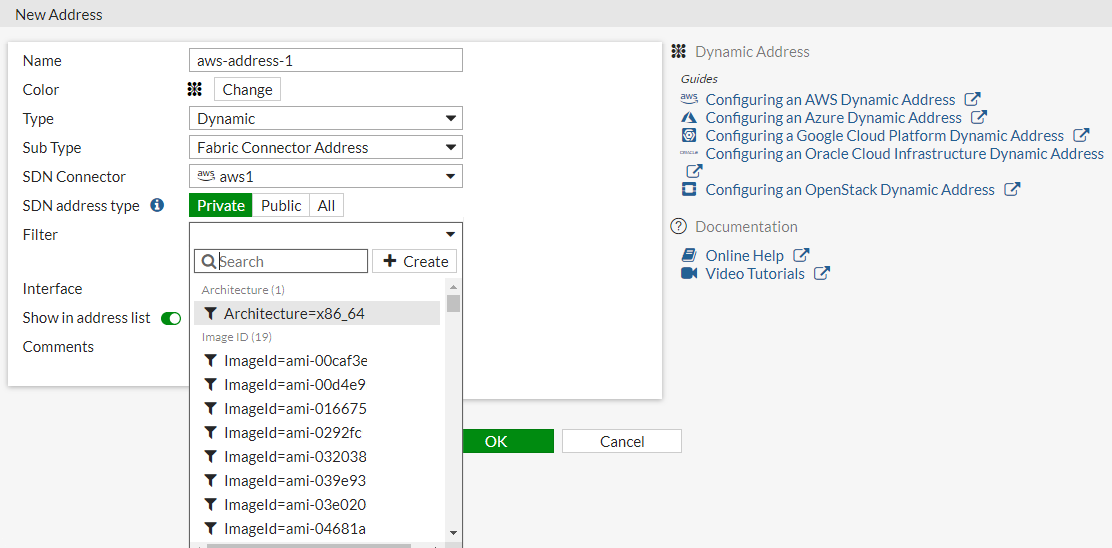
-
-
Click OK.
-
-
In the address table, hover over the address to view what IPs it resolves to.

-
In AWS, verify to confirm the IP addresses match.

To configure a dynamic address filter for AWS in the CLI:
-
Configure the SDN connector:
config firewall address edit "aws-address-1" set type dynamic set sdn "aws1" set filter "Tag.Name=aws*" set sdn-addr-type public next end -
Create the dynamic firewall address and verify where the IP addresses resolve to:
config firewall address edit "aws-address-1" set type dynamic set sdn "aws1" set filter "Tag.Name=aws*" set sdn-addr-type public config list edit "18.234.167.123" next edit "3.81.41.167" next edit "52.87.157.127" next end next end -
In AWS, verify that the IP addresses match.