
Fortinet white logo
Fortinet white logo

Administration Guide

Firewall Users monitor

Firewall Users monitor

The Firewall Users monitor displays all currently logged in firewall and proxy users. You can use the monitor to diagnose user-related logons or to highlight and deauthenticate a user.
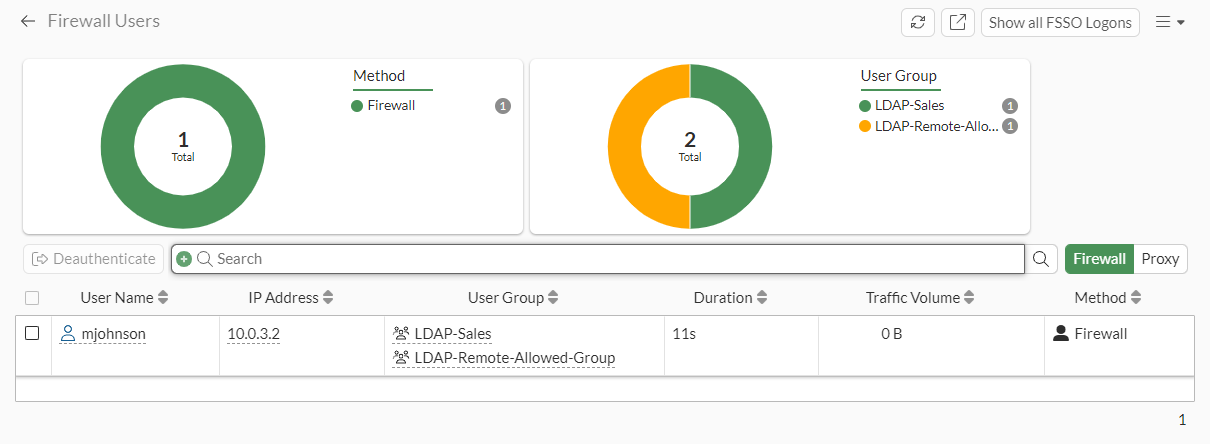
To view the firewall monitor:
  1. Go to Dashboard > Assets and Identities > Firewall Users.

  2. On the Firewall tab, click Show all FSSO Logons at the top-right of the page to show FSSO logons.

  3. To switch to the proxy user view, click Proxy (next to the search bar). Proxy user view shows used that authenticated over ZTNA and explicit proxy.

To filter or configure a column in the table, hover over the column heading and click the Filter/Configure Column button.

When the number of users exceeds 2000, the page no longer displays the search bar, filter columns, or graphs because lazily-loaded results do not support these GUI features.

To deauthenticate a user in the GUI:
  1. Go to Dashboard > Assets and Identities > Firewall Users.

  2. (Optional) Use the Search field to search for and select a specific user.

  3. In the toolbar, click Deauthenticate, or right-click the user, and click Deauthenticate. The Confirm dialog is displayed.

  4. Click OK.

To view and deauthenticate firewall users in the CLI:
# diagnose firewall auth list
# diagnose firewall auth filter <parameters>
# diagnose firewall auth clear
To view and deauthenticate proxy users in the CLI:
# diagnose wad user list
# diagnose wad user clear <ID> <IP|IPv6> <VDOM>

or

# diagnose wad user clear

Firewall Users monitor

Firewall Users monitor

The Firewall Users monitor displays all currently logged in firewall and proxy users. You can use the monitor to diagnose user-related logons or to highlight and deauthenticate a user.

To view the firewall monitor:
  1. Go to Dashboard > Assets and Identities > Firewall Users.

  2. On the Firewall tab, click Show all FSSO Logons at the top-right of the page to show FSSO logons.

  3. To switch to the proxy user view, click Proxy (next to the search bar). Proxy user view shows used that authenticated over ZTNA and explicit proxy.

To filter or configure a column in the table, hover over the column heading and click the Filter/Configure Column button.

When the number of users exceeds 2000, the page no longer displays the search bar, filter columns, or graphs because lazily-loaded results do not support these GUI features.

To deauthenticate a user in the GUI:
  1. Go to Dashboard > Assets and Identities > Firewall Users.

  2. (Optional) Use the Search field to search for and select a specific user.

  3. In the toolbar, click Deauthenticate, or right-click the user, and click Deauthenticate. The Confirm dialog is displayed.

  4. Click OK.

To view and deauthenticate firewall users in the CLI:
# diagnose firewall auth list
# diagnose firewall auth filter <parameters>
# diagnose firewall auth clear
To view and deauthenticate proxy users in the CLI:
# diagnose wad user list
# diagnose wad user clear <ID> <IP|IPv6> <VDOM>

or

# diagnose wad user clear