

FAQs
Licenses
End-user licenses
Each end-user license (SKU) allows for SMS messages in the amount of 125 multiplied by the total number of FIC end users that it covers for a year. For example, if you have a 25-user license (i.e., FC1-10-IDCLD-445-02-12), you are able to use a total of 3,125 SMS messages for the year.
Your SMS quota is always shared among all your users. Allowing sharing of SMS quota doesn't entitle you to extra user quotas, so make sure that you have enough quotas to cover your existing users.
Yes, you can purchase additional licenses to increase your user quota as needed. Licenses are stackable or co-termed. For co-termed licenses (e.g., adding a new license after an existing license has already been in use for six months), your Fortinet sales representative will apply a discount using prorated pricing for six months.
Sales of FIC licenses are handled by Fortinet-authorized resellers only. You must contact a Fortinet-authorized reseller in your region to place your order. For a complete list of Fortinet-authorized resellers, click Authorized Resellers or go to https://partnerportal.fortinet.com/directory/
Yes, your SMS quota is shared by all your end users. If you uses up your SMS quota, any SMS notification beyond the quota limit will fail. You can either buy a new user license (which comes with free SMS credits) or contact FortiCare Technical Support for assistance.
Each license SKU comes with a specific user quota. Make sure that the new license can cover the number of existing end users in your account. For example, if you currently have 50 users in your account, you need to purchase the SKU "FC1-10-IDCLD-445-02-12".
Effective August 2025, FortiToken Cloud (FTC) has been renamed to FortiIdentity Cloud (FIC).
If you're an existing customer who began your FortiToken Cloud subscriptions with the legacy TKCLD SKUs and wish to renew or upgrade your subscriptions with the new FortiIdentity cloud licenses, you can simply purchase the new IDCLD SKUs that best suit your needs. These new licenses will integrate seamlessly with your account—whether they are co-termed with your existing FortiToken Cloud licenses or operate independently. Also, the new IDCLD SKUs are seat-based, meaning that you can purchase the exact number of user quotas needed rather than choosing a predefined pack of users.
Free trial licenses
Your free trial license is auto-enabled after you log into the FIC portal for the first time, or run the CLI command “execute FortiIdentity-cloud trial” on FortiGate.
See “Free trial license” for more information.
No. If you have no existing FIC license when transferring your FTM license to FIC, FIC will generate a one-year free transfer license for you to use.
After one year, you'll have to purchase an FIC license to continue using the service.
SMS licenses
FIC charges FIC credits by SMS message. The rate varies, depending on the country or region where the phone number is registered. For example, text messages sent to phone numbers registered in the US or Canada normally cost one (1) FIC credit per SMS message.
Due to legal restrictions, SMS delivery might fail with carriers in some countries or regions. For more information, see SMS Rate Card.
FortiCare does not support upgrade or downgrade of FortiIdentity Cloud (FIC) SMS licenses. FIC sets your SMS quota according to the number of SMS credits that are licensed in your FortiCare account.
Are these licenses stackable?
Yes.
Can SMS credits be co-termed when purchased at different times?
Yes. For more information, please contact your Fortinet Sales rep or reach out to our renewal team (renewals@fortinet.com).
General
FortiIdentity Cloud offers a number of annual user licenses. Customers are charged by user quota for using the service. Your quotas are consumed based on the total number of end users in your account for one year.
FortiIdentity Cloud offers four license options for customers to choose from based on their needs. Suppose that you start FIC service on August 1, 2021 with a 500-user license (i.e., FC2-10-IDCLD-445-02-12) which expires on August 1, 2022. On October 15, 2021, you decide to add 100 more end-users to your account, so you purchase another license for 100 end-users (i.e., FC1-10-IDCLD-445-02-12). Those two licenses are independent of each other. The 500-user license will expire on August 1, 2022, and the 100-user license will expire on October 15, 2022. You can also renew an existing license by requesting a co-term license. For example, on December 1, 2022, you want to add a 25-user license which expires on the same date as the 500-user license. In this case, the new co-term license will be stacked on top of the original 500-user license. The cost of new license will be prorated so that it expires on August 1, 2022 as the original 500-user license. For more information, see Time-based SKUs and their services in the Admin Guide.
Check your user quote balance to ensure that you have enough user quota. The FortiIdentity Cloud server prevents users from issuing new FIC tokens when their account has a zero or negative quota balance. To resolve the issue, you must purchase a new license under your account ID and apply it to your account.
Once you've set up your FortiCloud account, your account automatically becomes a trial FIC account when you log into the FIC portal for the first time. Your FortiIdentity Cloud free trial will last for up to 30 days, after which you must purchase an annual license to continue using FortiIdentity Cloud service.
For FortiCloud accounts, the free trial license can support up to five FIC end users.
The free trial license does not offer SMS messaging service.
You can renew your service by purchasing a new license and importing it into your FortiCare account. If you encounter any issue, please reach out to our FIC team for assistance.
It all depends. For example, your old license expired in February 1, 2020, but you activated a new license in June 1, 2021 and assigned six users (one token each) from the last 15 months. You will still see a balance of -20.54 after applying the new license. This is because your first license were activated in February 2020 and the new license was in June 2021. So for the four months between February 2021 when the old license expired and June 2021, usage in that period has to be deducted from your account with 0 balance. Because your old license expired in February 2021, unused quota in that license are cleared off your account in that month.
No, the Licenses page only shows valid active licenses.
The FIC portal will show an alert message if the license is going to be expired in 30 days.
Quota formula for licensed accounts:
-
License user pack = X
-
User Quota = X
-
Realm Quota = 500 + X/10 if X > 500 else = X
-
API Application Quota = max (X/10, 5) if X > 0 else = 0
Note: X is the total user pack from all activated licenses in your account.
The following table shows some sample total user packs with corresponding resource quotas.
|
License user pack |
User quota |
Realm quota |
API application quota |
Fortinet product Application quota |
|---|---|---|---|---|
| 25 | 25 | 25 | 5 | No limit |
| 500 | 500 | 500 | 50 | No limit |
| 2,000 | 2,000 | 700 | 200 | No limit |
| 10,000 | 10,000 | 1,500 | 1,000 | No limit |
Accounts
Sometimes, you may get "Error: Get Accountlist Failed" when trying to access the FortiIdentity Cloud portal. We recommend that you contact FortiCare Technical Support for assistance.
Sometimes, you could get the "UNAUTHORIZED (Your account cannot be found.)" error when trying to log into support.fortinet.com with a valid FortiCloud account.
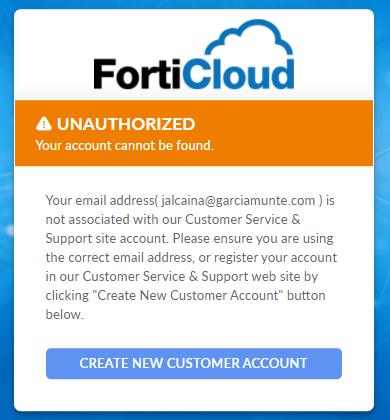
If you encounter this error, please contact our FortiCare team at https://www.fortinet.com/support/contact for assistance.
No. Only licensed account can support flexible user quota allocation for realms.
Administrators
The sub-admin account must be added to a group and the group must have realms under its management to see resources under the realms.
By default, there is a global admin group, which can see all the realms. The first account to log into the FIC portal is automatically placed in this global admin group. By default, the master account is also the global admin. All other sub-accounts will have to be added to a group to manage any realms.
Depending on the intended realms for the sub-account to manage, you can add individual realms for it to manage or add the sub-account in the default global admin group so it will see all the realms as the master account does.
For more information, visit https://docs.fortinet.com/document/FortiIdentity-cloud/latest/admin-guide/271410/administrators
Settings
Global settings
When Multi-realm Mode is disabled, any new application will be assigned to the default realm; when multi-realm mode is enabled, any new application registered in FIC will be automatically assigned to a new realm.
Note that pre-generated applications pushed to FortiIdentity Cloud from FortiGate will not be assigned to any realm. You cannot add or sync users from those applications until the FIC admin has associated them to a realm
The Share-quota Mode only controls the unallocated user quota that can be shared by all realms. It does not control the user quota already allocated to a realm, but has not yet been used.
Realm settings
Yes. You can enable or disable the push feature from the FortiIdentity Cloud portal by clicking Settings>Realm>FTM Setting> Enable Push.
Realms
FortiIdentity Cloud enables administrators to create realms to effectively allocate resources and better manage end users.
FIC admins can create custom realms, view realm permission, delete realms, and view realm settings.
For more information, see Managing realms.
Situation:
I have two FortiGate 500Ds which are of the same mode and configuration and registered under the same account, but are not in any HA cluster. One is up and running, and is already recognized by FIC.fortinet.com, and our users are using it for MFA. The other is currently powered down. How can I add it to the FIC.fortinet.com realm?
Here's what you need to do:
- Power up the FortiGate, and enable Multi-Realm Mode on the FortiIdentity Cloud portal (Settings>Global>Multi-Realm Mode if multi-realm is disabled).
- In the FortiGate CLI, run the command
‘exe fortitoken-cloud update’to add it to the same realm. Note: This command only sends the VDOM list and creates an application, but does not assign it to the realm. - Assign the application corresponding to the VDOM where the users exist to Realm FGT5HDxxxxxxxxxx-root.
- On the FortiIdentity Cloud portal (applications>FortiProducts), select Realm FGT5HDxxxxxxxxxx-root for the new application.
- Make sure that there are users on the FortiGate. Note: This FortiGate should have the same FortiIdentity Cloud users because it has the same configuration as the other FortiGate.
- In FortiGate CLI, run the command
‘exec fortitoken-cloud sync’to sync users again.
This may be because the applications are in different realms. Migrating them to the same realm can solve your issue.
Assume that you currently use FortiIdentity Cloud for SSL VPN. When you activate a token for VPN 2, the VPN 1 (already set up) token may stop working if the users are in different realms even though the email for both token is the same. So if you want to use the same FortiIdentity Cloud from all your FortiGate devices, you must move the users and applications into the same realm.
Applications
FortiProducts
Situation:
I have two FortiGate devices, one is already recognized by FIC.fortinet.com and our end-users are using it for MFA; the other is currently powered down. I want to add the second FortiGate to the same realm as the first one, but how?
Solution:
- Power up the second FortiGate, and make sure that it is up and running properly.
- Open the FortiGate Console, and run the command
"exec fortitoken-cloud update". - Assign the application corresponding to the VDOM where the users exist to the realm FGT5HD391580xxxx-root.
- On the Applications>FortiProducts page, select the realm FGT5HD391580xxxx-root for the new application.
- Make sure that the users exist on the second FortiGate. (They should have users because the two FortiGate devices have the same conMakf.)
- On the FortiGate Console, run the command
"exec fortitoken-cloud sync".
The command sends the VDOM list to FIC and creates an application, but does not assign the application to any realm.
The maximum number of applications in your account is determined by your license. You can find out that value from the FortiIdentity Cloud Dashboard (https://FIC.fortinet.com/dashboard/root).
There is no limit to the number of FortiProducts as applications, and the number of Web Apps as applications is determined by your FIC license.
FIC doesn’t set any limit to the number of clusters, but when a VDOM of a FortiProduct cluster (if no VDOM concept in the product, the default VDOM is ‘root’) connects to FortiIdentity Cloud, FortiIdentity Cloud will create an application for the VDOM. So the number of supported clusters is actually fewer than or equal to the number of applications, depending on how many VDOMs are connected to FortiIdentity Cloud.
WebApp
We have two kinds of APIs for auth status checking: one is single auth status checking by auth id, the other is the batch auth query for all applications in current system.
Single auth status checking by auth id:
GET https://FIC.fortinet.com:9696/api/v1/auth/<auth_id>. The auth status is alive for two minutes (the current production default configuration) in the system. It means that if the auth status query API reaches FIC two minutes after the push request (approves or denies), the status response will be {“status”: null}.
Batch auth query:
GET https://FIC.fortinet.com:9696/api/v1/auth?sn=<auth_client_id>. This API call can get all auth id status for the applications in the current system. Please note that the auth status calls will be cleared in the system after they are returned via the batch query API. It means that there will be no any auth status back after one batch query.
API doc link: https://docs.fortinet.com/document/fortiidentity-cloud/latest/rest-api, download the REST API doc, section of “User authentication” -> GET.
Username is the only parameter required for post auth from the client side. The FIC server will extract the other information such as client id, realm id, etc. based on the access token.
Users
An aliased user is a number of users grouped together sharing the same MFA method used by the base user and the same token (whether it is FTM or FTK). They must also be in the same realm.
To create an aliased user:
- Log in to the FIC portal and click Users.
- On the Users page, select (check) all the users you want to be in the alias.
- On top of the page, click Add User Alias.
- In the dialog, select the base user and click Next.
- Click Confirm.
Note: Ensure that all the users selected are in same realm and are using the same MFA method.
The newly added alias shows up in black bold-faced letters on the Users page. All users in the alias will share the same MFA method used by the base user. If it is FTM or FTK, they will be sharing the same token.
For more information, refer to Enabling Auto-alias by Email.
Check the user quota allocation for each realm on the Realms page. If some quotas have been allocated to some realms, those quotas are taken up even though no users have been created with them. In this case, you are not able to use those quotas to add users to other realms. You can resolve the problem by either taking back the allocated quotas that have not been used or deleting unused realms with allocated quotas.
Device transfer
If for some reason your existing FortiCloud account, e.g., accountA@gmail.com, does not work, you can transfer your FortiGate to a different FortiCloud account, e.g., accountB@gmail.com, to continue using FIC service.
The following steps show how to transfer a FortiGate between FortiCloud accounts.
Step 1: Transfer the FortiGate using the FortiOS Administrator portal
- Log into the FOS administrator portal.
- Select the global VDOM (if multi-vdom is enabled).
- Click System>FortiGuard>Under License Information.
- Click the Action button of FortiCare.
- Select “Transfer FortiGate to Another Account”.
Step 2: Clean up user data from the old FortiCloud account from FortiIdentity Cloud.
Option 1
Manually delete the existing applications from the old FortiCloud account from the FIC portal:
- Click Applications>FortiProducts.
- Select all applications associated with the FortiGate serial number registered under the old account.
- Click Delete.

|
If you cannot access your old FortiCloud account any more, contact FortiCare Technical Support for assistance. |
Option 2
Clean up user data from the FIC portal via the Validate Device Ownership page:
- Log into FIC.fortinet.com with the source or target FC account.
- Click applications > Devices (HA).
- Enter the Device serial number, and click Validate.
- Read the messages onscreen.
- Press Delete to remove the users from the account.
- In the warning message, click Delete.
After clicking the Delete button, wait for a few minutes for the clean-up process to complete before clicking the Validate button. If you click the Validate button while the clean-up is in progress, you will see the message of “Data under this device is being deleted…”.
The clean-up process is completed if you see the "This device ownership info is up to date...."message after clicking Validate from the target account or the "Not allowed to check the device info." message when clicking Validate from the source account.
Step 3: Make sure the new FortiCloud account has enough license to support the users on the FortiGate.
Step 4: Upon confirmation of your account transfer, update your application(s) to your new FortiCloud account using the FortiGate CLI.
Execute ‘exe fortitoken-cloud update’
Step 5: Update FIC user to new account using the FortiGate CLI.
Execute ‘exe fortitoken-cloud sync’
|
|
If you encounter the "new-created on FGT doesn’t sync over to FIC portal from application > Count is 0" error, you must manually associate the application to a realm on the FIC portal:
|
Tokens
You can find out the status of FIC tokens assigned to your end-users using the following procedures:
- On the main menu, click Users to open the Users page.
- Locate the user of interest.
- Mouse over the Status column.
When an FIC end-user is created, the FortiIdentity Cloud server will send an activation notification to the end-user either by email or SMS depending on the user setup. The status of an FIC token can be one or more of the following:
- Pending—The newly provisioned user initially shows up in ‘Pending’ status on the portal.
- Active—It changes to "Active" as soon as FortiToken Mobile is activated for the user.
- Expired—If the FIC token is not activated on its expiration date, the status changes to ‘Expired’.
- No bypass/Bypass—If bypass is enabled (Settings>Realm>General Setting>Enable Bypass), the newly created user in that realm shows up in ‘Bypass’ status.
- Unlocked/Locked—If the user's login attempts have exceeded the ‘Max Login Attempts Before Lockout’, the user's status changes to ‘Locked’.
To assign a FortiIdentity Cloud to a local or remote user using a FortiGate or FortiAuthenticator, the device must be registered on the same account as the FortiIdentity Cloud contracts. The following instructions show how to provision FIC on a FortiGate.
To configure FortiIdentity Cloud to a local or remote user using a FortiGate:
- Open the Console on the FortiGate device GUI.
- Go to User & Authentication > User Definition.
- Either edit an existing user of interest or create a new user using the Users/Groups Creation Wizard.
- Enable Two-factor Authentication.
- Select FortiIdentity Cloud for Authentication.
- Enter the user's email address, where the use will receive the QR code for FortiToken activation.
- Click OK.
|
|
The above instructions focuses on provisioning FortiIdentity Cloud on FortiGate. For instructions on how to provision FortiIdentity Cloud on FortiAuthenticator, refer to Getting started—FAC-FIC users in the Admin Guide. |
Some customers with FortiToken licenses have enabled some users on their FortiGate to use FortiToken MFA, but don’t see those users assigned on the FortiIdentity Cloud portal. They are wondering if they have to do something on FortiGate to make it work.
The answer is that FortiToken licenses are different from FortiIdentity Cloud licenses which are issued from FortiIdentity Cloud server. Only users with FortiIdentity Cloud MFA authentication are visible on the FortiIdentity Cloud portal (FIC.fortinet.com).
The following table highlights the differences between FortiToken and FortiIdentity Cloud licenses.
| Type | FortiToken | FortiIdentity Cloud |
|---|---|---|
| License Redemption Certification Serial Number Format | EFTMxxxxxxxxxxxx.pdf | FASxxxxxxxxxxxx.pdf |
| License Serial Number Format | FTKMOBxxxxxxxxxx | FTCxxxxxxxxxxxxx |
| Where to Register/Import License | FortiGate Portal>User& Authentication>FortiTokens> Create New>Input registration code in License Redemption Certification .pdf file | https://support.fortinet.com > Register Product |
| Where to display after registration |
FortiGate portal>User& Authentication>FortiTokens (It lists all imported FortiToken.) |
FortiIdentity-Cloud portal (FIC.fortinet.com)>Tokens (It only displays all activated FortiIdentity-Cloud tokens.) |
| How to assign to admin and local user | FortiGate portal>User& Authentication>User Definition> Create New>Authentication Type: FortiToken | FortiGate portal>User& Authentication>User Definition > Create New>Authentication Type: FortiIdentity-Cloud |
| Visible on FIC.fortinet.com | No | Yes |
Yes. For FortiGate, you can use FortiIdentity-Cloud tokens for global admins, e.g., “#administrators” and one VDOM admins e.g. “root” VDOM, it means each cluster will use two applications, one for “#administrators” VDOM and another one for “root” VDOM, then the number of supported clusters will be 5."
It is because your have used up all your user quota in your current license. You must have a positive quota balance to issue a new token for the new admin. You can purchase a new FIC license using your customer ID.
For more information, refer to the Purchasing Guide.
Yes, FortiIdentity Cloud supports that. FIC treats users with the same username (by default) in the same realm as the same user and assigns one only token for that user. All you have to do is to move those applications with the users to the same realm so that the users with the same username will be identified as the same user.
To move applications to a realm, you can edit those applications by changing their realm assignment to the desired realm on the applications>FortiProducts page, where you can locate the application and then use the Edit tool to reassign it to the desired realm. This will move all the users on the application to the same realm, and those users can share one token.
If a user exists at application 1/Realm 1 and application 2/Realm 2, the user needs two tokens, let’s say Token 1 in Realm 1 and Token 2 in Realm 2.
If you move application 2 from Realm 2 to the Realm 1, the user’s Token 1 in Realm 1 will be kept and Token 2 in Realm 2 will be deleted, so the user can use Token 1 at the application 1 and application 2.
If, after moving the same users to the same realm, you have trouble identifying which token should be used, you can assign a new token for the user. This will delete Token 1 and Token 2 altogether and the user will use the new token instead.
Yes. The FortiIdentity Cloud user alias feature is just for that purpose. You can create a user alias for a group of users with different usernames and let them share the same MFA method. Different users under the same aliased user to share the same token with the base user.
To create a aliased user:
- On the FortiIdentity Cloud portal, click the Users menu to open the Users page.
- Select all users whom you want to share the same token.
- On top of the Users page, click Add User Alias.
- Choose a base user for all selected users, and follow the prompts onscreen to create the user alias.
Note:
- One or more aliased users can be created for one base user.
- A newly added alias shows in black bold-faced characters on the Users page.
- The MFA method and token serial number assigned to the base user are shared by aliased user(s).
- All users to be aliased must be in the same realm.
FIC LDAP
Yes. FortiGate devices running FortiOS 7.0.0. 7.2.0, 7.4.0, and 7.6.0 support FIC AD-wildcard 2FA if cnid = sAMAccountName .
Note: FortiGate also supports FIC AD-wildcard 2FA if cnid = cn.
(cnid can be set either as ‘cn’ or ‘sAMAccountName’)
Step 1: Configure LDAP server in FortiGate via CLI
config user ldap
    edit "ldap_1"
        set server "xx.xxx.xx.xxx" (ldap-server-ip)
        set source-ip xx.xxx.xx.xx (fgt-ip)
        set cnid "cn"                <<< cnid
        set dn "DC=FIS,DC=local"
        set type regular
        set two-factor fortitoken-cloud  —> enable 2fa FIC
        set username "CN=admin,CN=Users,DC=FIS,DC=local"
        set password ENC  ---->YmplY+eec9Wi1qmxYnZvrf3QSxJ8Bui73VwAo+ngLSf3ynkLF4So9AmAn6zNqbRHqQOEwSM5jP1p2BNNdnpCHJlo06uFwQmySdvUm6CYhXsD/zNB3T4XkTIDqTy5g43/Fq0CavX7sXtI485chKKaAU5HRO6xf+/0+2ZeBj2qlHxOxO7Qz1j2WkqkN+bRyAGkVUDOkw==
    next
Step 2: Add LDAP server as 'remote server' to the existing SSL VPN group
config user group
    edit "ssl_vpn_group"
        set member "ldap_1"
    next
end
Step 3: Search and query users from the AD-LDAP server
exe fortitoken-cloud sync
Step 4: Verify all LDAP users on FIC portal
- Launch the FIC portal.
- From the main menu, click Users.
All LDAP users on the remote server should appear on the Users page.
This question is discussed in detail in the article "CVE-2020-12812 (bypassing two-factor authentication for LDAP users) and its remedies" (https://kb.fortinet.com/kb/documentLink.do?externalID=FD49410).
It describes what CVE-2020-12812 is all about, how two-factor authentication can be bypassed in the first place, and what options FortiGate offers to prevent the vulnerability from being exploited.
The FIC portal doesn’t support LDAP users import. You can import wildcard LDAP users from FortiGate only. Here are the steps:
Step 1: On FortiGate, disable LDAP wildcard to avoid any potential conflict or error.
config user ldap
edit "your_ldap_server_name"
unset two-factor fortitoken-cloud
end
Step 2: Import LDAP user(s) by following the steps in the link below:
Step 3: Configure the following settings for each LDAP user upon import.
config user local
edit “your_ldap_user"
set type ldap
set two-factor fortitoken-cloud
set email-to youremail@gmail.com
set ldap-server “your_ad_ldap_server_name”
next
Step 4: Check to ensure that you have received new FIC activation codes for all imported LDAP users.
Step 5: Go to the FIC portal to check if the users are shown on the Users page.
FortiOS FIC CLI
On FOS 7.0.0 and earlier versions, this command shows FortiIdentity-cloud service status, service balance, existing FIC users, and the maximum number of FIC users; on FOS 7.0.1 and later versions, it adds customer ID info.
The following is an example output of this command:
FGT_TEST (global) # exe fortitoken-cloud show
FortiToken Cloud service status: licensed, service ready.
Service balance: 36.66 points. Customer ID: 908147.
FortiToken Cloud account number of users: 28, max number of users: 1200.
(Note: In this case, the customer already has subscription with their SMS provider.)
Yes, you can configure it either in the FortiGate CLI or on the FortiIdentity Cloud portal, but you cannot set it from FortiGate GUI. The process of setting it on the FortiIdentity-Cloud portal is straightforward, but setting it from the FortiGate CLI will overwrite the existing SMS settings on the FortiIdentity-Cloud portal.
Configure SMS on FortiGate CLI:
FGT-TEST (local) # edit test123
new entry 'test123' added
FGT-TEST (test123) # set two-factor fortitoken-cloud
FGT-TEST (test123) # set two-factor two-factor-authentication
FGT-TEST (test123) # set two-factor-authentication sms
FGT-TEST (test123) # set sms-custom-server [customer sms provider]
FGT-TEST (test123) # set sms-phone +(country code)4082357700
Configure SMS on FortiIdentity Cloud portal:
- On the main menu, click Users to open the Users page.
- Select user ‘test123’ and click the Edit tool to open the Edit User dialog.
- For Auth Method, select FTM.
- For Notification Method, select SMS.
- For Mobile Phone, enter +(country code) (area code) (phone number, e.g., xxx-xxxx)
- Click Apply.
This command compares the FIC end-users on the FIC server with those on the FortiGate and synchronizes the difference between them. If some users are deleted from FortiGate but still remain on FIC, FortiGate will issue delete request for those users; if there are users enabled for FIC on FortiGate but not on FIC, it will include user creation in the sync request.
FortiOS admin
Even though an FGT admin user has already been removed from FIC, the user still remains in FGT with FIC MFA. So if you want to log back into FGT after you have been removed from FIC, you must first log into FGT in maintainer mode to factory-reset using the ‘exe factoryreset’ command.
You need to provide the following information to log in in maintainer mode:
- Username: maintainer
- Password: The password is bcpb + the serial number of the firewall (Letters of the serial number are in UPPERCASE format, for example, bcpbFGT60C3G10xxxxxx.)
Then, you can log in FGT with the default admin username and password.
If you have backed up the FGT configuration file, you can edit the file and remove the line 'set two-factor fortitoken-cloud' under admin user configuration, and then upload the modified configuration which has 2FA removed.
If you did not back up the FGT configuration file, you can factory-reset in maintainer mode and then configure the FortiGate from scratch.

|
|
FortiAuthenticator
You must enable communication between FAC and FIC on the FAC GUI (Authentication>RADIUS Service>Policies>Allow FortiToken Mobile push notifications).
Miscellaneous
Currently, FortiIdentity Cloud does not support FortiAnalyzer Cloud, and does not provide MFA access to other FortiCloud portals.
Please contact the FortiCare team for assistance.