Fortinet white logo
Fortinet white logo

Deploying a FortiManager Cloud instance

Deploying a FortiManager Cloud instance

This section explains how to deploy FortiManager Cloud. You can select a region, and then deploy the instance of FortiManager Cloud to the region.

A primary FortiCloud account is required to deploy FortiManager Cloud. A primary FortiCloud account can invite other users to launch FortiManager Cloud as sub users. See Adding a secondary account.

Only one FortiManager Cloud instance can be created per FortiCloud account.

Note

At the time of the 7.4 release, FortiManager Cloud supports new deployments in version 7.0 and upgrades to version 7.2 and 7.4.

Check the latest FortiManager Cloud Deployment Guide to see the current FortiManager Cloud versions available for deployment.

Tooltip

For support of FortiGates devices on earlier firmware versions, you can change the FortiManager Cloud ADOM version to match the firmware version of the FortiGates.

Check the FortiManager/FortiOS Compatibility Guide to see which FortiOS versions are supported by each FortiManager release.

For more information on changing the ADOM version, see Updating the ADOM version.

To deploy a FortiManager Cloud instance:
  1. If not done already, go to FortiCloud (https://support.fortinet.com/), and use your FortiCloud account credentials to log in.

    The FortiCloud portal is displayed.

  2. From the Services menu, select FortiManager Cloud.
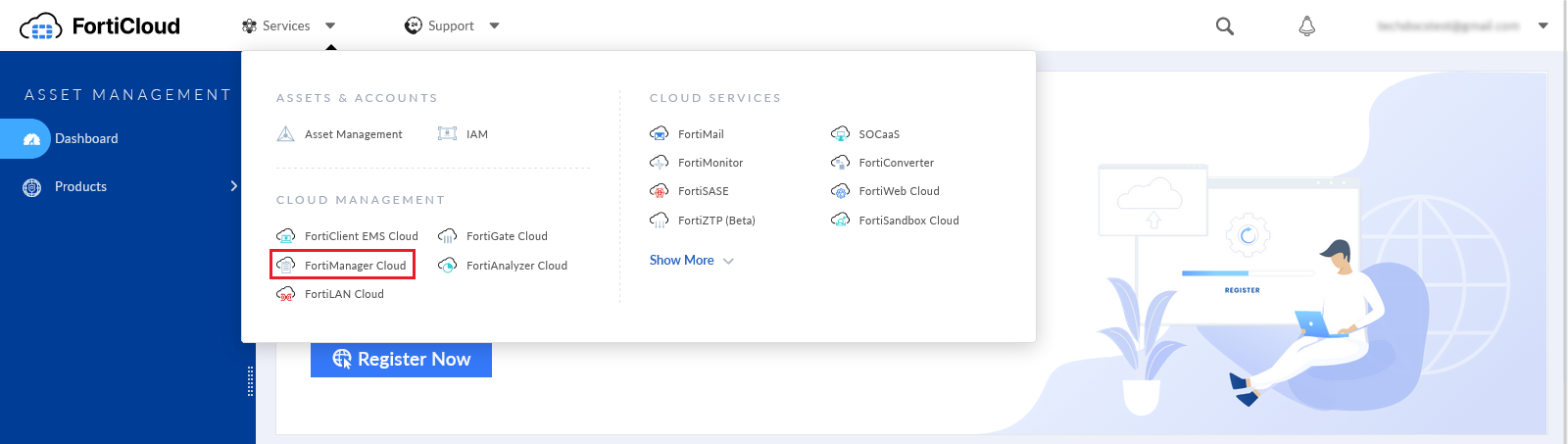
    The FortiManager Cloud & Service portal is displayed.

  3. On the FortiManager Cloud & Service portal:

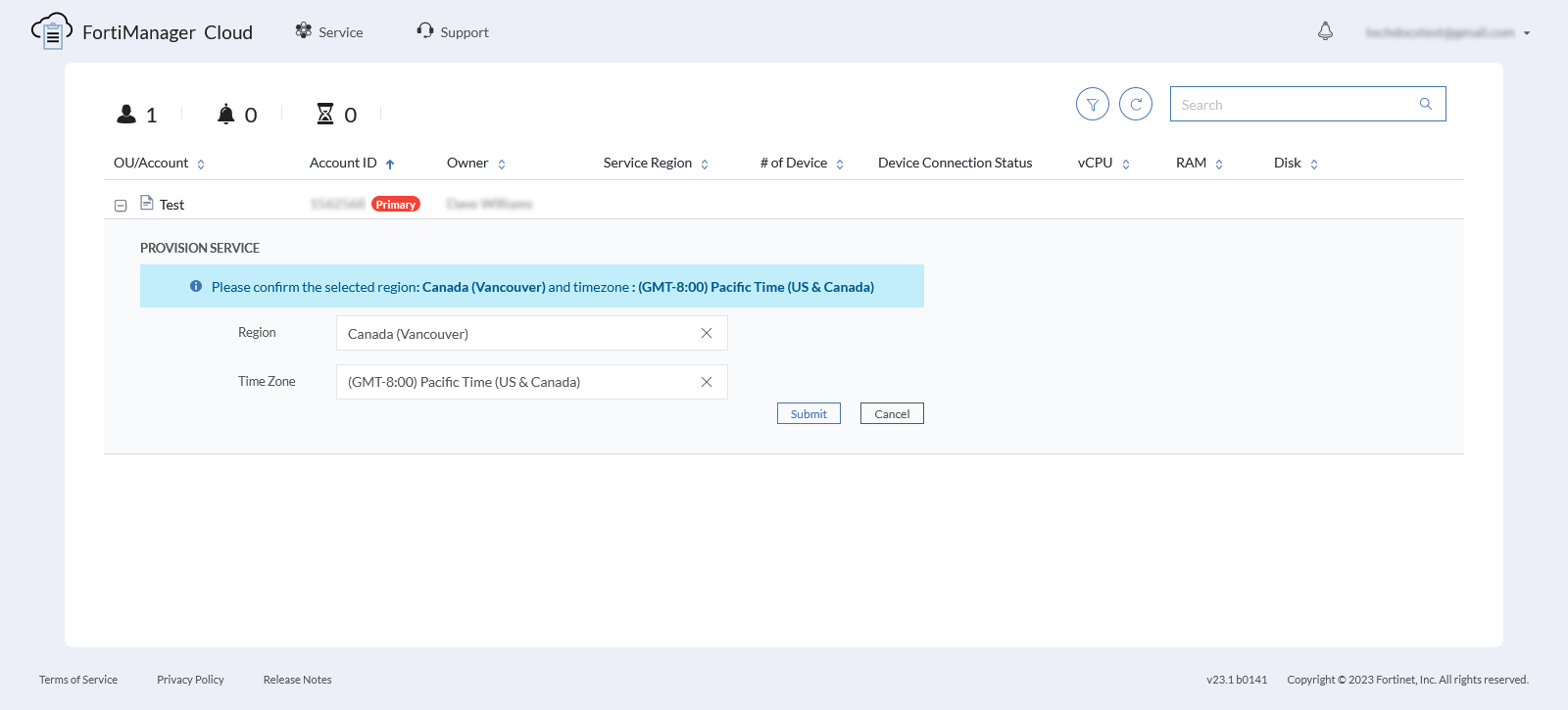
    1. Select a Region for the FortiManager Cloud instance. In this example, the region is Canada (Vancouver).

    2. Select a Time Zone for the FortiManager Cloud instance.

  4. Click Submit.

  5. Confirm your selected region and time zone.
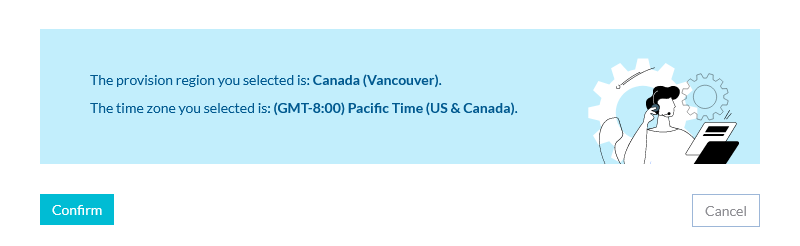
  6. Click Submit.

  7. Review and accept the Terms of Service and Privacy Policy. Privacy settings can be configured in the instance. See Privacy and notification preferences.

  8. FortiManager Cloud instance is provisioned in a few minutes.
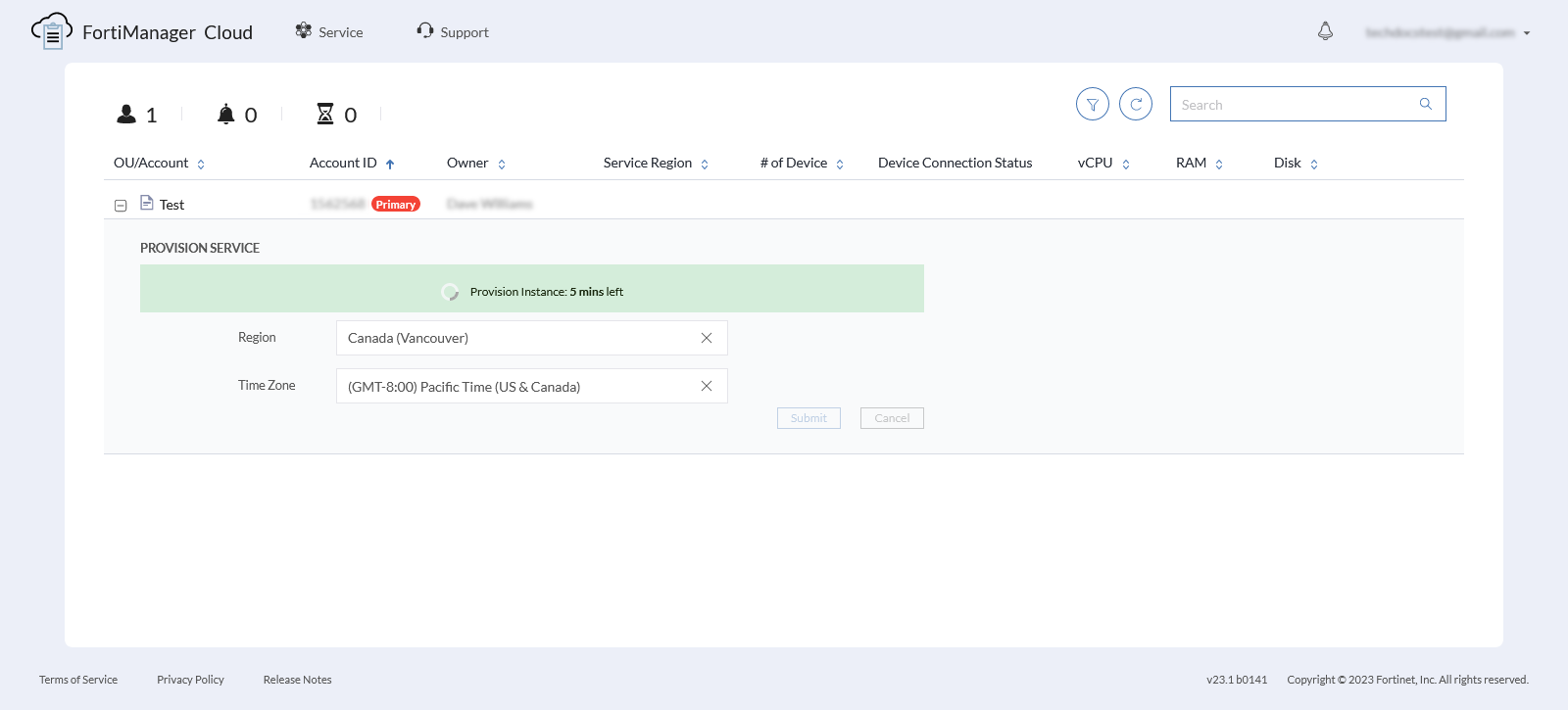
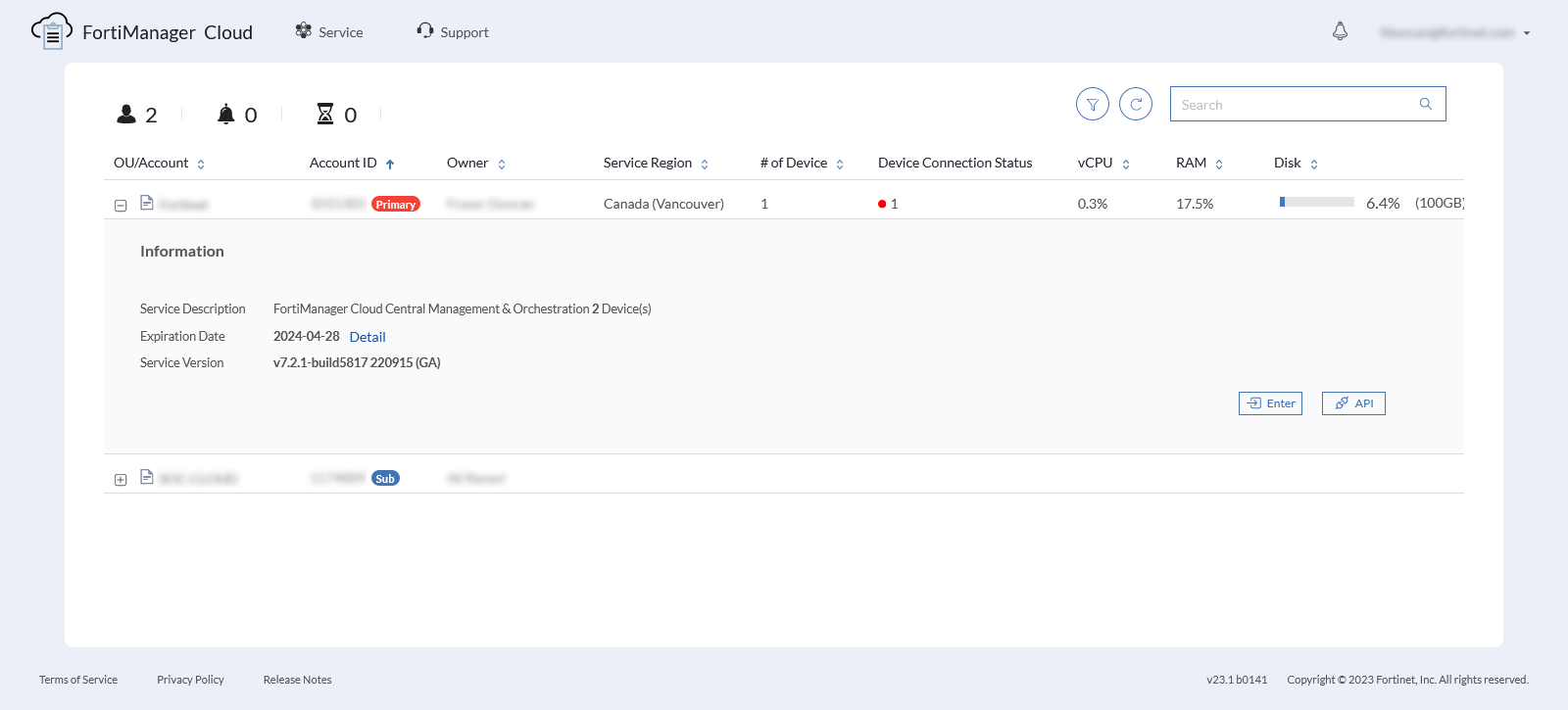
  9. Once provisioned, expand the account, and click Enter to access the FortiManager Cloud instance.
  10. (Optional) Upgrade FortiManager Cloud to 7.4.x. See Upgrading firmware from the instance.

  11. Configure FortiOS to work with FortiManager Cloud. See Configuring FortiOS.

Deploying a FortiManager Cloud instance

Deploying a FortiManager Cloud instance

This section explains how to deploy FortiManager Cloud. You can select a region, and then deploy the instance of FortiManager Cloud to the region.

A primary FortiCloud account is required to deploy FortiManager Cloud. A primary FortiCloud account can invite other users to launch FortiManager Cloud as sub users. See Adding a secondary account.

Only one FortiManager Cloud instance can be created per FortiCloud account.

Note

At the time of the 7.4 release, FortiManager Cloud supports new deployments in version 7.0 and upgrades to version 7.2 and 7.4.

Check the latest FortiManager Cloud Deployment Guide to see the current FortiManager Cloud versions available for deployment.

Tooltip

For support of FortiGates devices on earlier firmware versions, you can change the FortiManager Cloud ADOM version to match the firmware version of the FortiGates.

Check the FortiManager/FortiOS Compatibility Guide to see which FortiOS versions are supported by each FortiManager release.

For more information on changing the ADOM version, see Updating the ADOM version.

To deploy a FortiManager Cloud instance:
  1. If not done already, go to FortiCloud (https://support.fortinet.com/), and use your FortiCloud account credentials to log in.

    The FortiCloud portal is displayed.

  2. From the Services menu, select FortiManager Cloud.

    The FortiManager Cloud & Service portal is displayed.

  3. On the FortiManager Cloud & Service portal:

    1. Select a Region for the FortiManager Cloud instance. In this example, the region is Canada (Vancouver).

    2. Select a Time Zone for the FortiManager Cloud instance.

  4. Click Submit.

  5. Confirm your selected region and time zone.

  6. Click Submit.

  7. Review and accept the Terms of Service and Privacy Policy. Privacy settings can be configured in the instance. See Privacy and notification preferences.

  8. FortiManager Cloud instance is provisioned in a few minutes.

  9. Once provisioned, expand the account, and click Enter to access the FortiManager Cloud instance.

  10. (Optional) Upgrade FortiManager Cloud to 7.4.x. See Upgrading firmware from the instance.

  11. Configure FortiOS to work with FortiManager Cloud. See Configuring FortiOS.