
Fortinet white logo
Fortinet white logo

Upgrade information

Upgrade information

A notification is displayed in the FortiManager Cloud notification drawer when a new version of the firmware is available. You can chose to upgrade immediately or schedule the upgrade for a later date.

Note

Administrators can perform firmware upgrades from within the FortiManager Cloud Dashboard or notification drawer.

An administrator with Super_User permissions is required to perform the upgrade.

Tooltip

To keep FortiManager Cloud secure and up to date, it is recommended that you upgrade your 7.6 release to the latest release build.

An email will be sent to notify you when an upgrade is mandatory. After receiving the notification, you will have 14 days to complete the upgrade.

Note

FortiManager Cloud supports FortiOS versions 7.6, 7.4, and 7.2. You must upgrade all managed FortiGates to FortiOS version 7.2 or later.

To upgrade firmware from the notification drawer:
  1. Go to FortiManager Cloud (https://fortimanager.forticloud.com/), and use your FortiCloud account credentials to log in. An administrator with Super_User permissions is required to perform the upgrade.

  2. Expand the notification drawer to view information about available firmware upgrades.
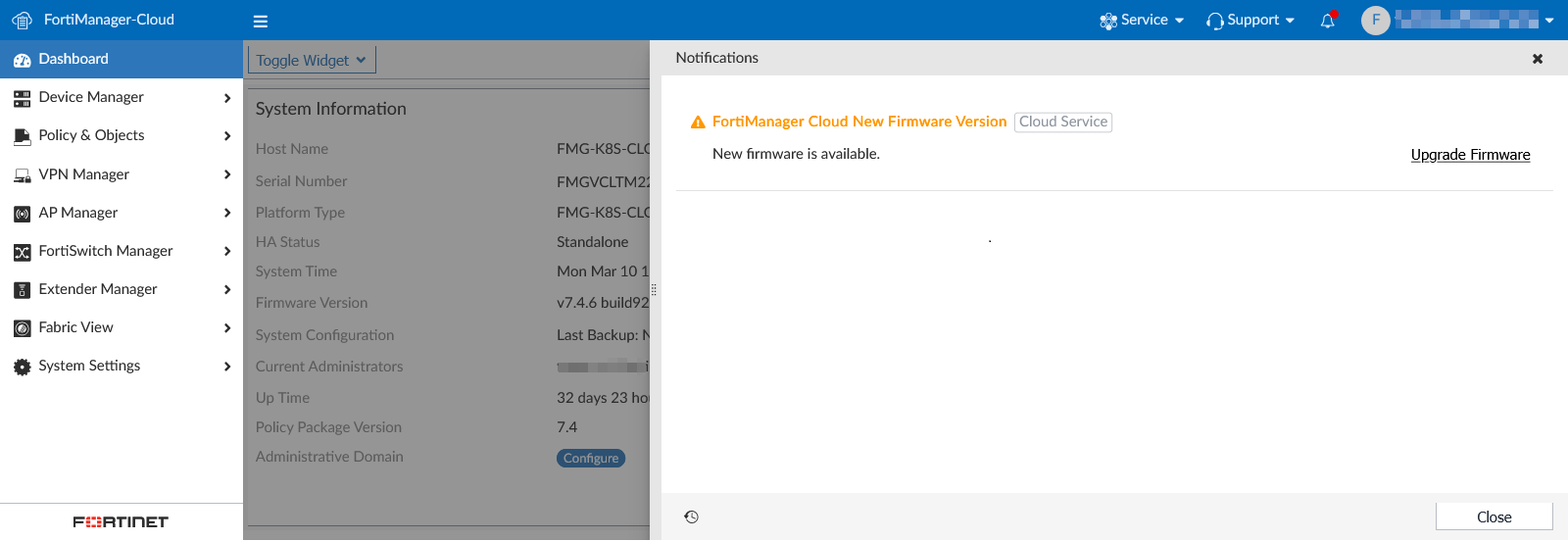
  3. Click Upgrade Firmware to update the firmware immediately or to schedule upgrade of the firmware for a later date.
    Alternatively, you can access firmware upgrade options from the FortiManager Cloud Dashboard > System Information widget.

    Note

    The Later option for Upgrade Time is only available for one week after the firmware is released.

  4. Click OK to perform or schedule the upgrade.

To upgrade FortiManager Cloud from the System Information widget:
  1. Log in to your FortiManager Cloud instance.

  2. Go to Dashboard in the tree menu.

  3. In the System Information widget, select the upgrade icon next to the firmware version.
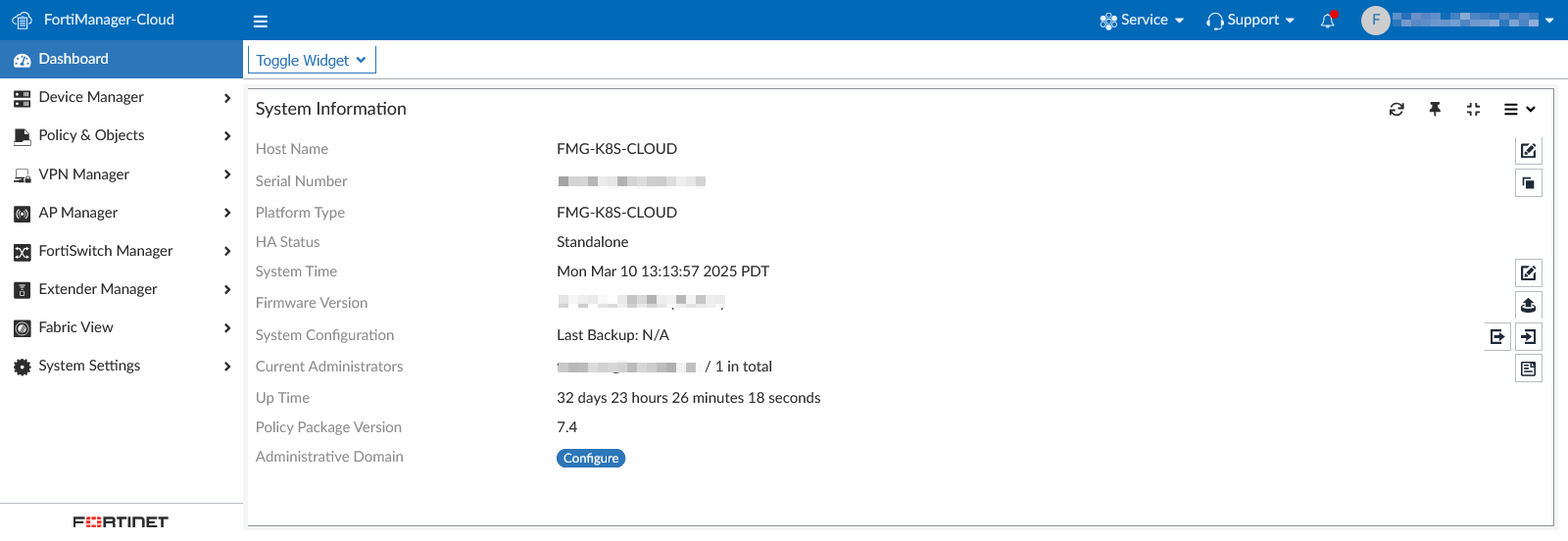
    The Firmware Management dialog appears. The current firmware version is displayed along with upgrade options.
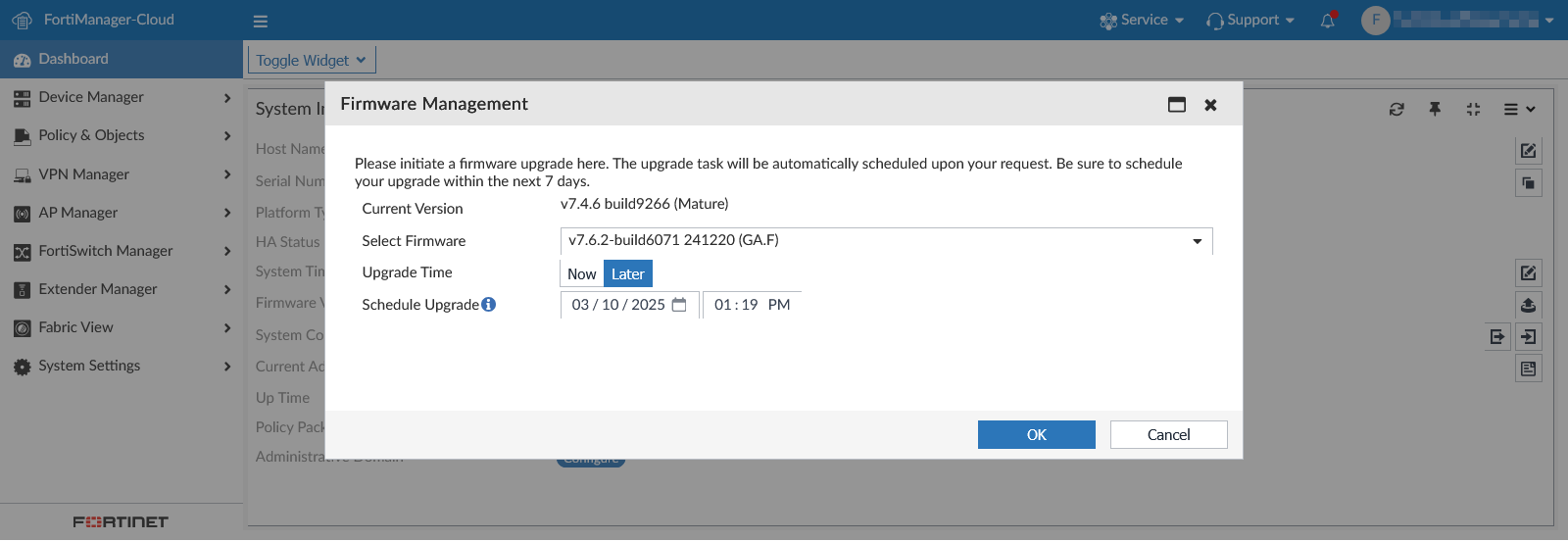
  4. In the Select Firmware field, choose an available firmware version.

  5. In the Upgrade Time choose Now or Later.

    • Now: Begin the upgrade immediately.
    • Later: Schedule the upgrade for a later time.
  6. Click OK. The upgrade will be completed based on the selected options.

Upgrade information

Upgrade information

A notification is displayed in the FortiManager Cloud notification drawer when a new version of the firmware is available. You can chose to upgrade immediately or schedule the upgrade for a later date.

Note

Administrators can perform firmware upgrades from within the FortiManager Cloud Dashboard or notification drawer.

An administrator with Super_User permissions is required to perform the upgrade.

Tooltip

To keep FortiManager Cloud secure and up to date, it is recommended that you upgrade your 7.6 release to the latest release build.

An email will be sent to notify you when an upgrade is mandatory. After receiving the notification, you will have 14 days to complete the upgrade.

Note

FortiManager Cloud supports FortiOS versions 7.6, 7.4, and 7.2. You must upgrade all managed FortiGates to FortiOS version 7.2 or later.

To upgrade firmware from the notification drawer:
  1. Go to FortiManager Cloud (https://fortimanager.forticloud.com/), and use your FortiCloud account credentials to log in. An administrator with Super_User permissions is required to perform the upgrade.

  2. Expand the notification drawer to view information about available firmware upgrades.

  3. Click Upgrade Firmware to update the firmware immediately or to schedule upgrade of the firmware for a later date.
    Alternatively, you can access firmware upgrade options from the FortiManager Cloud Dashboard > System Information widget.

    Note

    The Later option for Upgrade Time is only available for one week after the firmware is released.

  4. Click OK to perform or schedule the upgrade.

To upgrade FortiManager Cloud from the System Information widget:
  1. Log in to your FortiManager Cloud instance.

  2. Go to Dashboard in the tree menu.

  3. In the System Information widget, select the upgrade icon next to the firmware version.

    The Firmware Management dialog appears. The current firmware version is displayed along with upgrade options.

  4. In the Select Firmware field, choose an available firmware version.

  5. In the Upgrade Time choose Now or Later.

    • Now: Begin the upgrade immediately.
    • Later: Schedule the upgrade for a later time.
  6. Click OK. The upgrade will be completed based on the selected options.