
Fortinet white logo
Fortinet white logo

Administration Guide

Using custom session labels to identify sessions in the Event Log

Using custom session labels to identify sessions in the Event Log

In some forensic or troubleshooting scenarios, it is necessary to retrace the full sequence of actions performed by FortiManager administrators during a login session. FortiManager supports the optional ability to set custom session labels to make session identification easier.

When a custom session label is set, all actions performed by the administrator during that session will be tagged with the session label in the Event Log.

The custom session label feature can be enabled using the FortiManager CLI. By default, this feature is disabled.

When enabled, you can set the session label mode as one of the following options:

  • Changeable: The custom session label can be changed during an active session (default).

  • Unique per-session: After a custom session label has been set, it cannot be changed until the session is terminated.

When custom session labels are enabled, it is mandatory for an administrator to set a custom session label.

Unique session labels are not enforced, which means it is possible to have multiple sessions with the same session label.

To use custom session labels:
  1. Enable custom session labels in the FortiManager CLI:

    config system admin setting
    	set custom-session-label {enable | disable}
    	set custom-session-label-mode {changeable | unique-per-session}
    end
  2. Log in to the FortiManager GUI.

    Administrators will see a Set Custom Session Label dialog after successfully logging in to FortiManager.
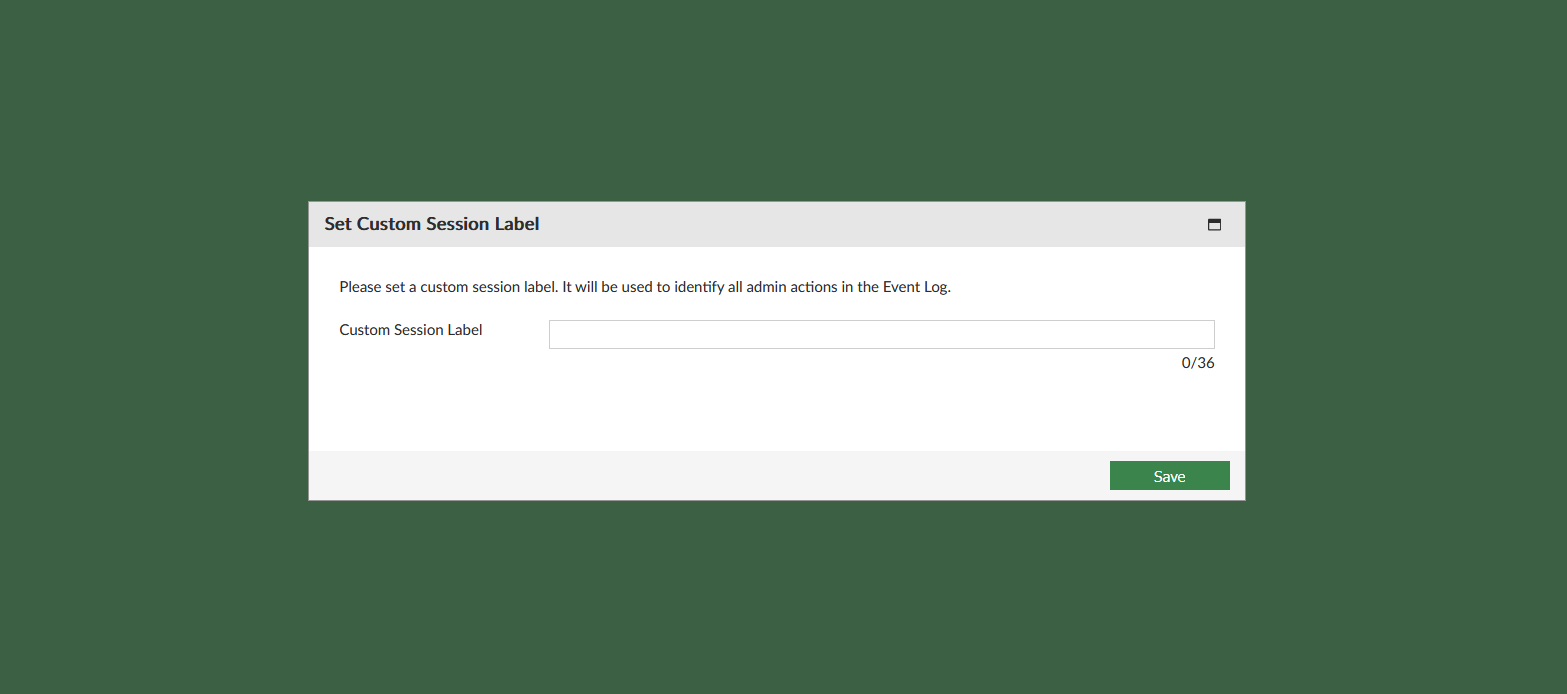
  3. Enter your login credentials and enter a custom session label, then click Login. Custom session labels can be up to 36 characters in length.
    When there are multiple logins from the same administrator, different custom session labels can be used to distinguish the sessions.

  4. View a list of active sessions by going to Dashboard and clicking on the Current Session List icon in the System Information widget.
    The custom session labels for active users are displayed.
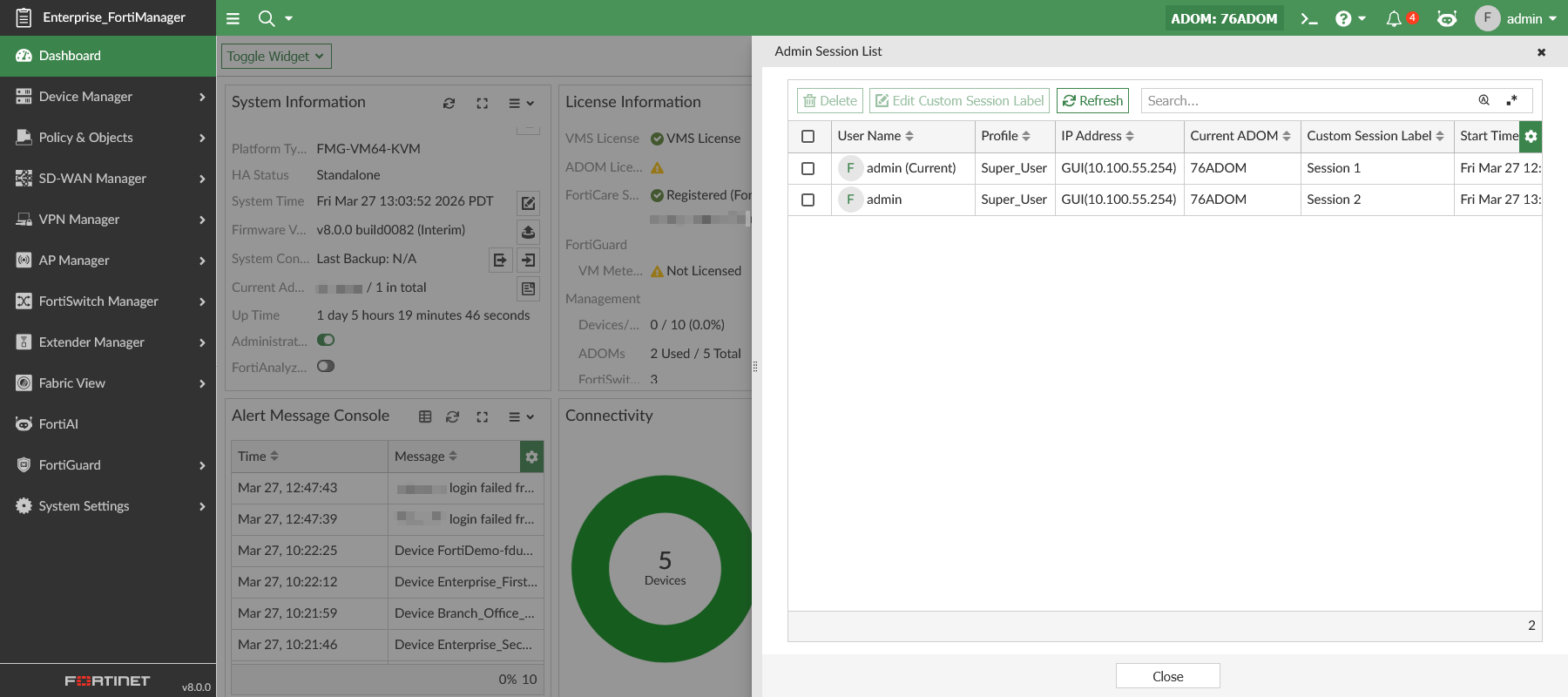
  5. Go to System Settings > Event Logs and review the Custom Session Label column to see the session label associated with each event.
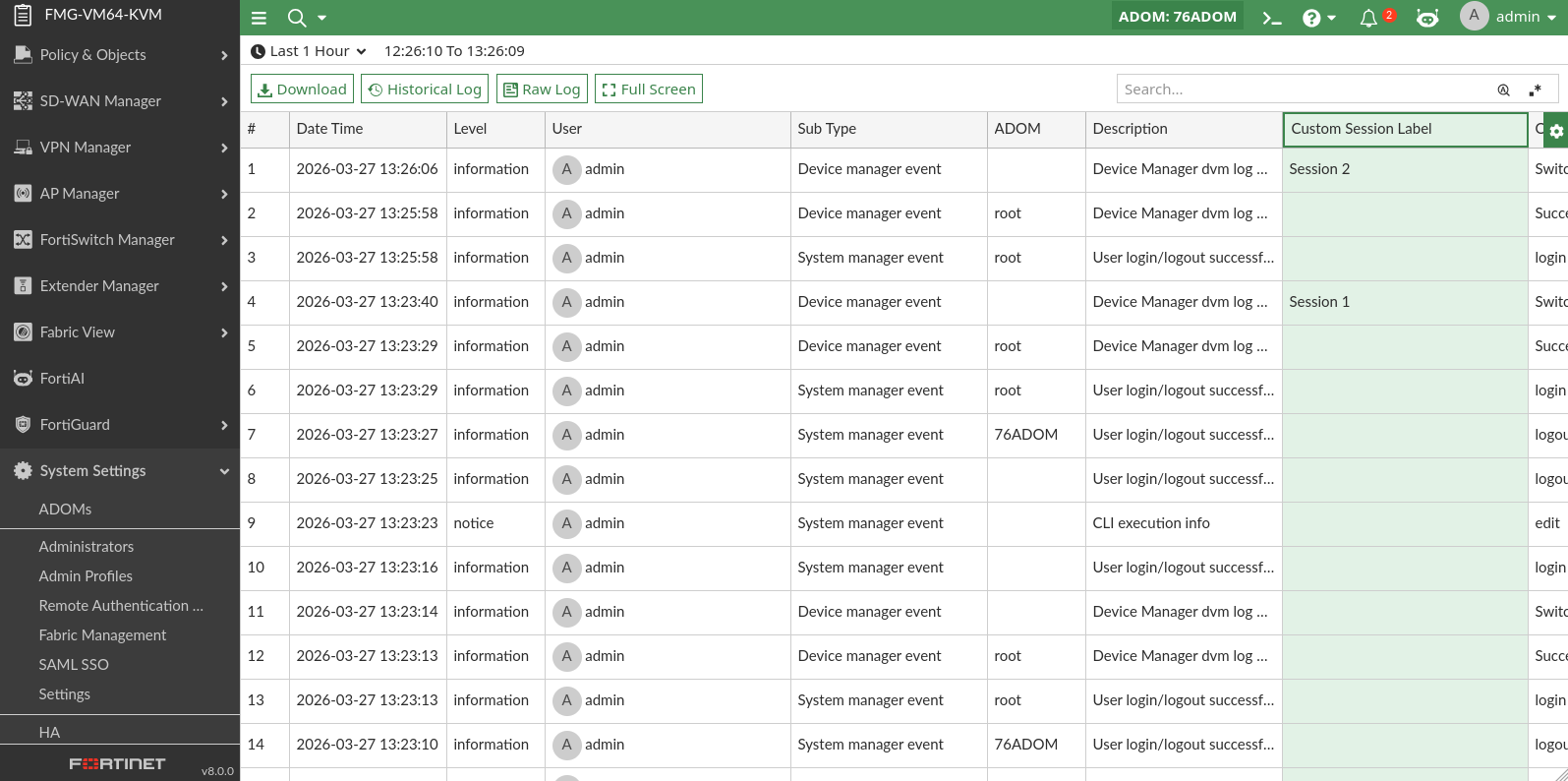
Change an active custom session label

When changeable mode is enabled, administrators can change their custom session label during an active session using one of the following methods.

To change an active session's label:
  1. In the System Information widget's Current Session List menu, select the administrator and click Edit Custom Session Label.
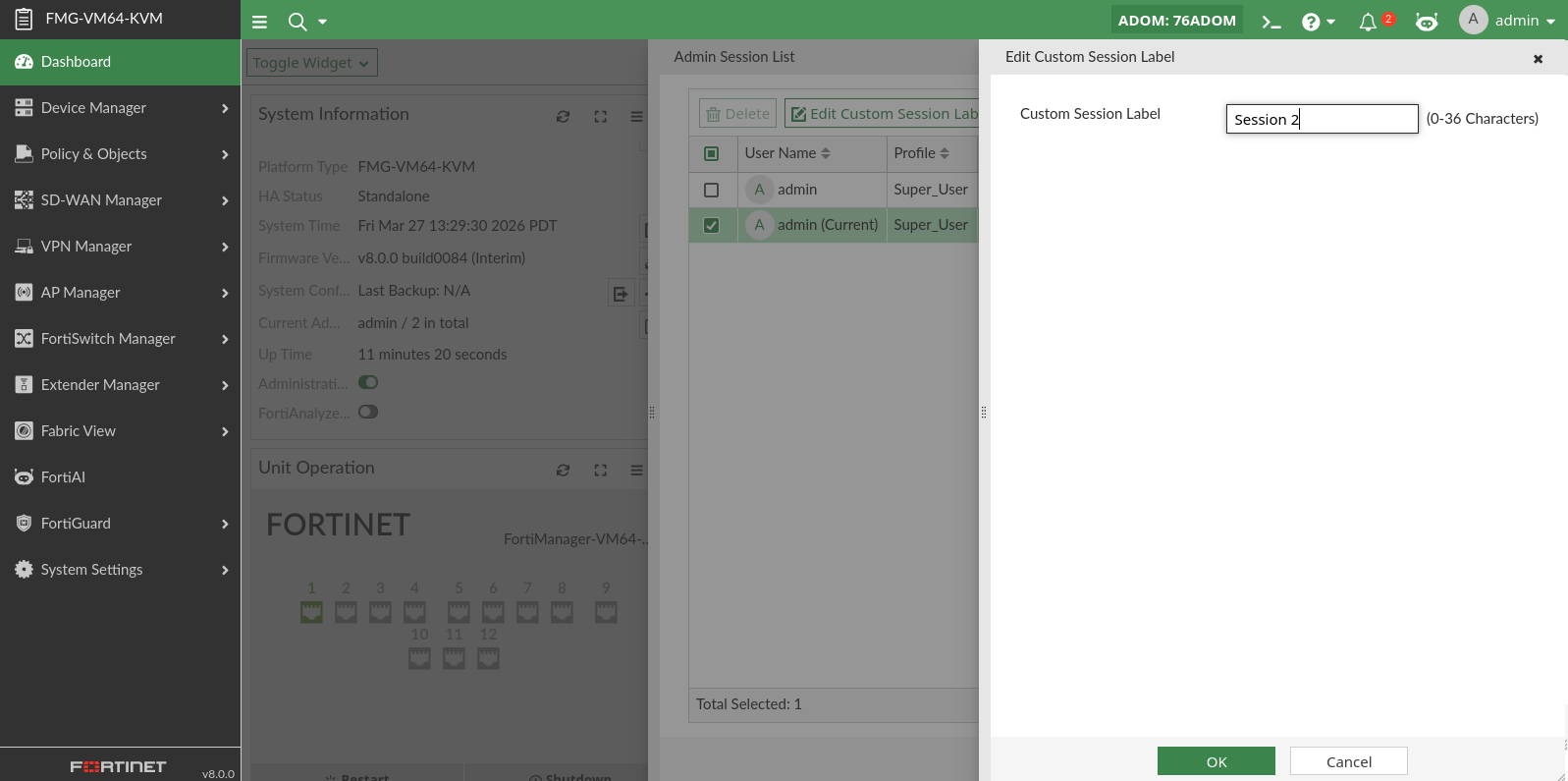
  2. In the toolbar's administrator dropdown menu, click Custom Session Label.
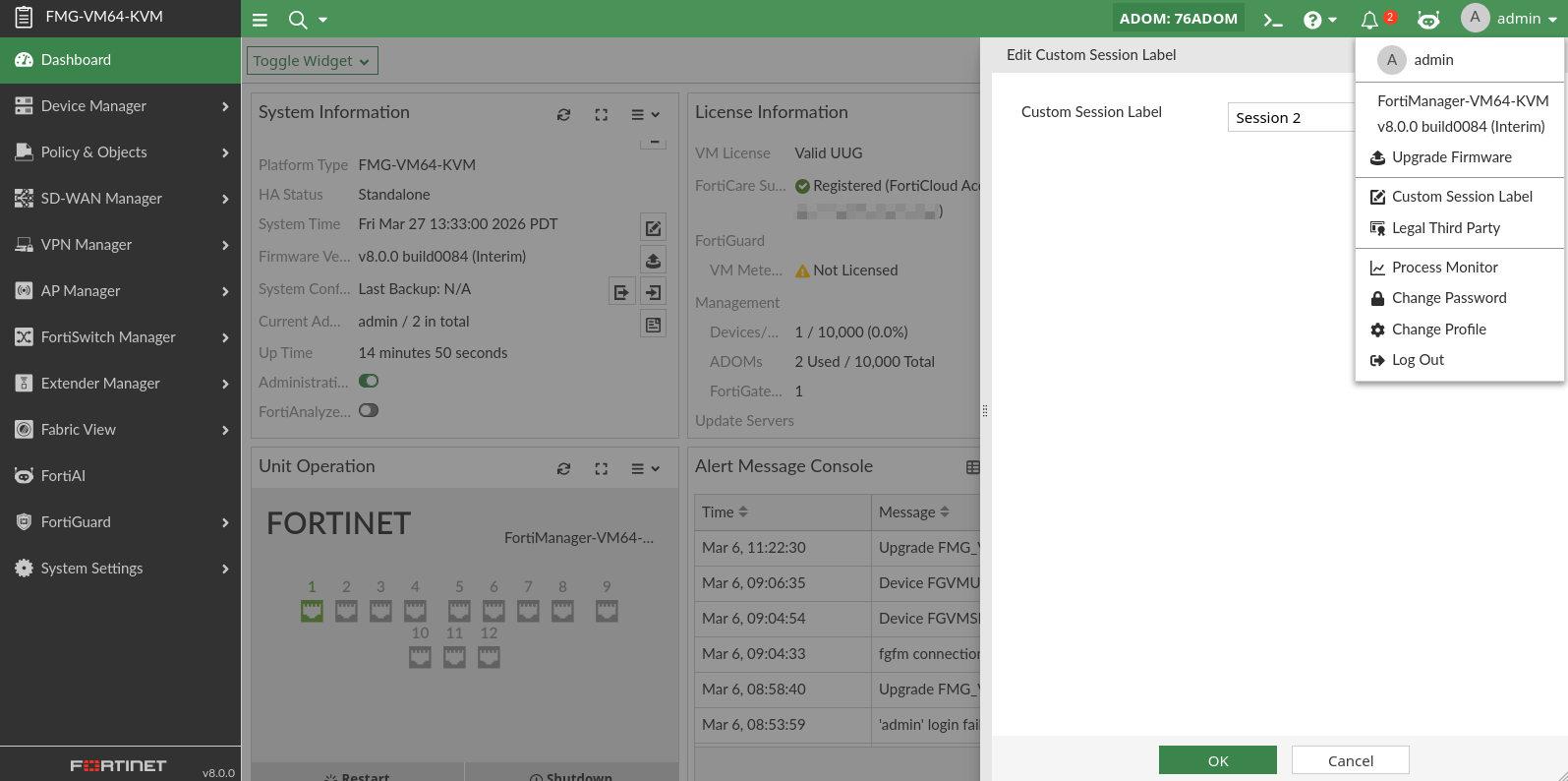
    After changing the session label, you can see the updated session label in the Current Session List.

Related Videos

sidebar video

Custom Session Labels for FortiManager Event Logs

  • 141 views
  • 1 months ago

Using custom session labels to identify sessions in the Event Log

Using custom session labels to identify sessions in the Event Log

In some forensic or troubleshooting scenarios, it is necessary to retrace the full sequence of actions performed by FortiManager administrators during a login session. FortiManager supports the optional ability to set custom session labels to make session identification easier.

When a custom session label is set, all actions performed by the administrator during that session will be tagged with the session label in the Event Log.

The custom session label feature can be enabled using the FortiManager CLI. By default, this feature is disabled.

When enabled, you can set the session label mode as one of the following options:

  • Changeable: The custom session label can be changed during an active session (default).

  • Unique per-session: After a custom session label has been set, it cannot be changed until the session is terminated.

When custom session labels are enabled, it is mandatory for an administrator to set a custom session label.

Unique session labels are not enforced, which means it is possible to have multiple sessions with the same session label.

To use custom session labels:
  1. Enable custom session labels in the FortiManager CLI:

    config system admin setting
    	set custom-session-label {enable | disable}
    	set custom-session-label-mode {changeable | unique-per-session}
    end
  2. Log in to the FortiManager GUI.

    Administrators will see a Set Custom Session Label dialog after successfully logging in to FortiManager.

  3. Enter your login credentials and enter a custom session label, then click Login. Custom session labels can be up to 36 characters in length.
    When there are multiple logins from the same administrator, different custom session labels can be used to distinguish the sessions.

  4. View a list of active sessions by going to Dashboard and clicking on the Current Session List icon in the System Information widget.
    The custom session labels for active users are displayed.

  5. Go to System Settings > Event Logs and review the Custom Session Label column to see the session label associated with each event.

Change an active custom session label

When changeable mode is enabled, administrators can change their custom session label during an active session using one of the following methods.

To change an active session's label:
  1. In the System Information widget's Current Session List menu, select the administrator and click Edit Custom Session Label.

  2. In the toolbar's administrator dropdown menu, click Custom Session Label.

    After changing the session label, you can see the updated session label in the Current Session List.