Fortinet white logo
Fortinet white logo

Administration Guide

NSX-T service templates

NSX-T service templates

NSX-T Service templates allow you to manage multiple FortiGate VMs running on NSX-T by automatically applying VDOM, policy, and configuration settings to each VM that belongs on the same registered service.

There are two main use cases for this feature:

  1. You need to deploy an additional VM in NSX-T.

    When a new VM is authorized in FortiManager, it has no configuration or policy. Using the NSX-T template, FortiManager automatically creates the VDOMs, links them to a policy package, and configures the service profile/VDOM association, log settings, etc.

  2. You need to change the existing configuration, for example adding a VDOM.

    FortiManager applies the same change to all VMs from the same service where the template is applied.

NSX-T templates can be created, cloned, deleted, and assigned in Device Manager > Provisioning Templates > NSX-T Service Template.

To create a new NSX-T service template:
  1. Go to Device Manager > Provisioning Templates > NSX-T Service Template.

  2. Click Create New in the toolbar.

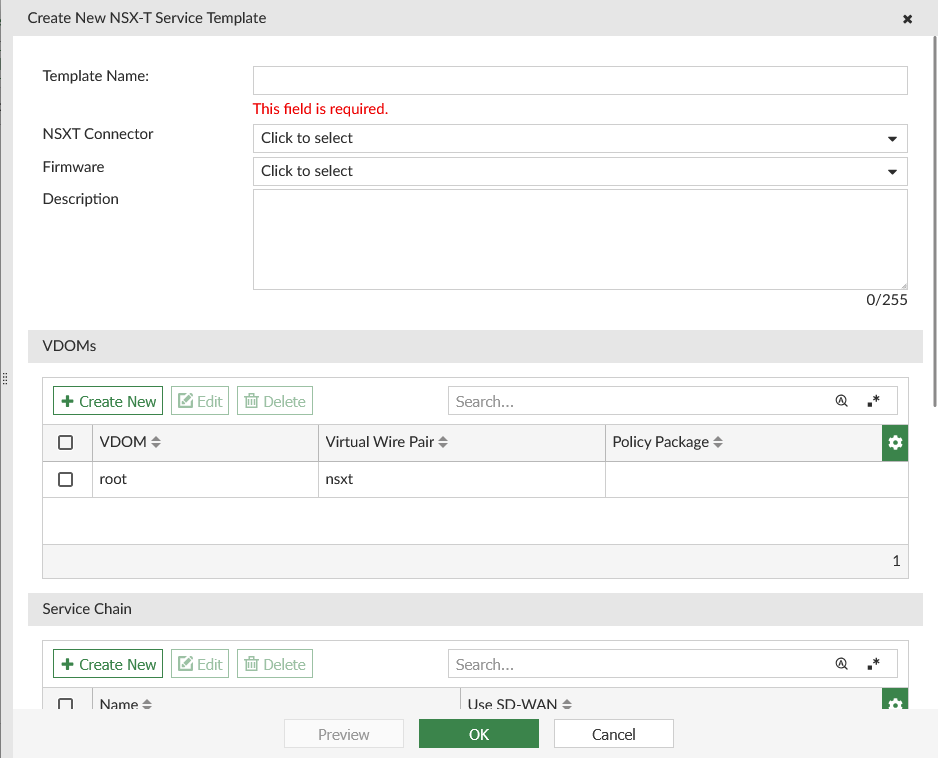
  3. In the Create New Template pane, type a name for the template.

  4. Adjust the settings as required.

    NSXT Connector

    Select an NSX-T connector. See Creating VMware NSX-T connectors.

    After saving the template, this setting cannot be modified.

    NSX-T Register Service

    Select NSX-t registered services.

    Firmware Select the template firmware device type.
    Description Enter a description for the NSX-T service template.

    VDOMs

    Click Create New to create a new VDOM in the template. See Create VDOMs in the NSX-T template.

    Service Chain

    Click Create New to create a new Service Chain in the template. See Create service chains in the NSX-T template.

  5. Click OK to save the template.

Create VDOMs in the NSX-T template

To create a new VDOM:
  1. When editing an NSX-T service template, click Create New under the VDOMs section.

    The Create New VDOM pane opens.

  2. Enter a name for the VDOM, and select a Policy Package from the dropdown which will be applied to the template.

    The Virtual Wire Pair will be automatically filled based on the VDOM name.
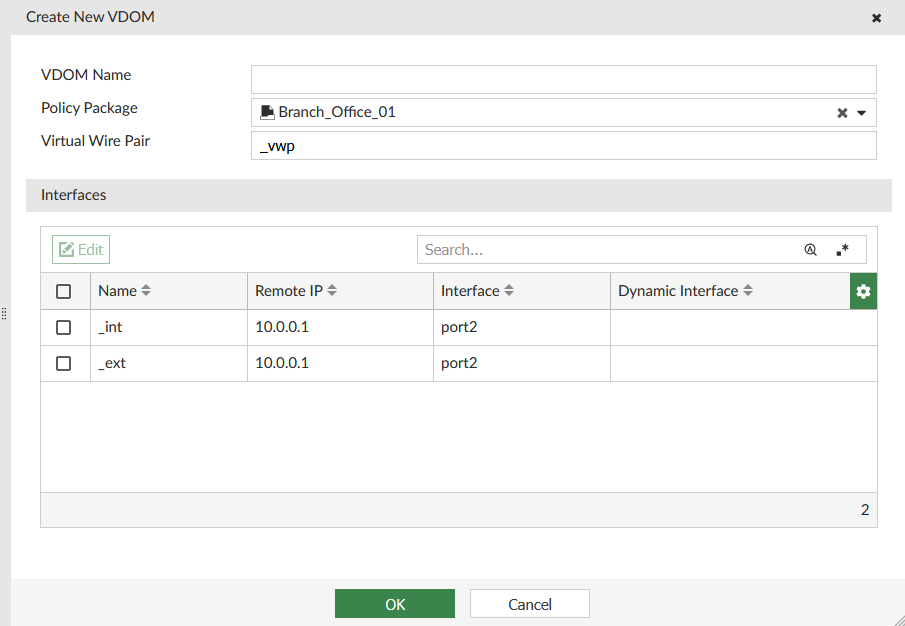
  3. Dynamic interface mapping is mandatory to create a VDOM. Select the interface name and click Edit to configure the dynamic interface mapping for internal and external interfaces.

    The dynamic interface dropdown will only show normalized interfaces that have a default mapping. The default mapping name must be the same as the name of the interface on the Edit Interface page.

    You can create new interfaces using the + icon in the dropdown.

Create service chains in the NSX-T template

To assign an NSX-T service template to a device:
  1. Go to Device Manager > Provisioning Templates > NSX-T Service Template.
  2. Select a template to assign to managed devices.
  3. Right-click anywhere in the template list window, and select Assign to Device from the menu, or click Assign to Device from the toolbar above.
  4. Select the managed devices to which you want to assign the selected template from the Available Entries field, and move those entries to the Selected Entries field.

    In order for a device to show up in the list it must meet the following conditions.

    1. The VDOM feature must be enabled on the FortiGate.
    2. The FortiGate platform type must match the one selected in the template.
    3. The NSX-T Service name should match with devices.
  5. Once the template has been assigned to the device, you can install the changes using the Install Wizard at the top of the page.

NSX-T service templates

NSX-T service templates

NSX-T Service templates allow you to manage multiple FortiGate VMs running on NSX-T by automatically applying VDOM, policy, and configuration settings to each VM that belongs on the same registered service.

There are two main use cases for this feature:

  1. You need to deploy an additional VM in NSX-T.

    When a new VM is authorized in FortiManager, it has no configuration or policy. Using the NSX-T template, FortiManager automatically creates the VDOMs, links them to a policy package, and configures the service profile/VDOM association, log settings, etc.

  2. You need to change the existing configuration, for example adding a VDOM.

    FortiManager applies the same change to all VMs from the same service where the template is applied.

NSX-T templates can be created, cloned, deleted, and assigned in Device Manager > Provisioning Templates > NSX-T Service Template.

To create a new NSX-T service template:
  1. Go to Device Manager > Provisioning Templates > NSX-T Service Template.

  2. Click Create New in the toolbar.

  3. In the Create New Template pane, type a name for the template.

  4. Adjust the settings as required.

    NSXT Connector

    Select an NSX-T connector. See Creating VMware NSX-T connectors.

    After saving the template, this setting cannot be modified.

    NSX-T Register Service

    Select NSX-t registered services.

    Firmware Select the template firmware device type.
    Description Enter a description for the NSX-T service template.

    VDOMs

    Click Create New to create a new VDOM in the template. See Create VDOMs in the NSX-T template.

    Service Chain

    Click Create New to create a new Service Chain in the template. See Create service chains in the NSX-T template.

  5. Click OK to save the template.

Create VDOMs in the NSX-T template

To create a new VDOM:
  1. When editing an NSX-T service template, click Create New under the VDOMs section.

    The Create New VDOM pane opens.

  2. Enter a name for the VDOM, and select a Policy Package from the dropdown which will be applied to the template.

    The Virtual Wire Pair will be automatically filled based on the VDOM name.

  3. Dynamic interface mapping is mandatory to create a VDOM. Select the interface name and click Edit to configure the dynamic interface mapping for internal and external interfaces.

    The dynamic interface dropdown will only show normalized interfaces that have a default mapping. The default mapping name must be the same as the name of the interface on the Edit Interface page.

    You can create new interfaces using the + icon in the dropdown.

Create service chains in the NSX-T template

To assign an NSX-T service template to a device:
  1. Go to Device Manager > Provisioning Templates > NSX-T Service Template.
  2. Select a template to assign to managed devices.
  3. Right-click anywhere in the template list window, and select Assign to Device from the menu, or click Assign to Device from the toolbar above.
  4. Select the managed devices to which you want to assign the selected template from the Available Entries field, and move those entries to the Selected Entries field.

    In order for a device to show up in the list it must meet the following conditions.

    1. The VDOM feature must be enabled on the FortiGate.
    2. The FortiGate platform type must match the one selected in the template.
    3. The NSX-T Service name should match with devices.
  5. Once the template has been assigned to the device, you can install the changes using the Install Wizard at the top of the page.