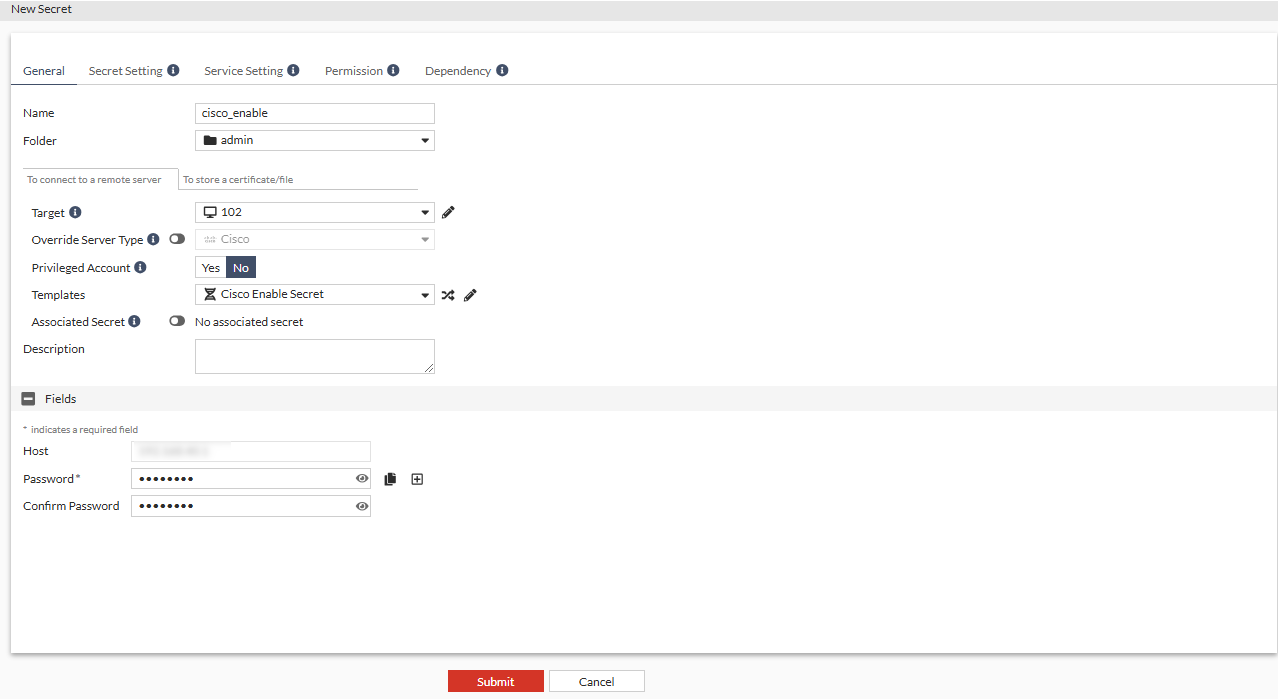
Creating an associated secret
To create an associated secret:
- Go to Secrets > Secrets.
Alternatively, go to Secrets > Personal/Public Folder, and select a folder where you intend to add a secret.
From the Create dropdown, select Secret, and skip to step 5.
- In Secret List, select Create.
The Create New Secret in: dialog appears.
- Select the folder where you intend to add the secret.
The folder is already selected if you are creating secret from inside a folder.
- Select Create.
The New Secret window opens.
- Enter a name for the secret.
- Ensure that you are in the To connect to a remote server pane.
- In the Target dropdown, select the target server.
- In the Templates dropdown, select Cisco Enable Secret default template.
- Disable Associated Secret.
- In the Fields pane:
- In the Password field, enter the password for the Cisco machine.
- In the Confirm Password field that appears after the password is filled in, enter the password again.
- Click Submit.