Fortinet white logo
Fortinet white logo

Examples

Creating a target with server information as non-Windows

Creating a target with server information as non-Windows

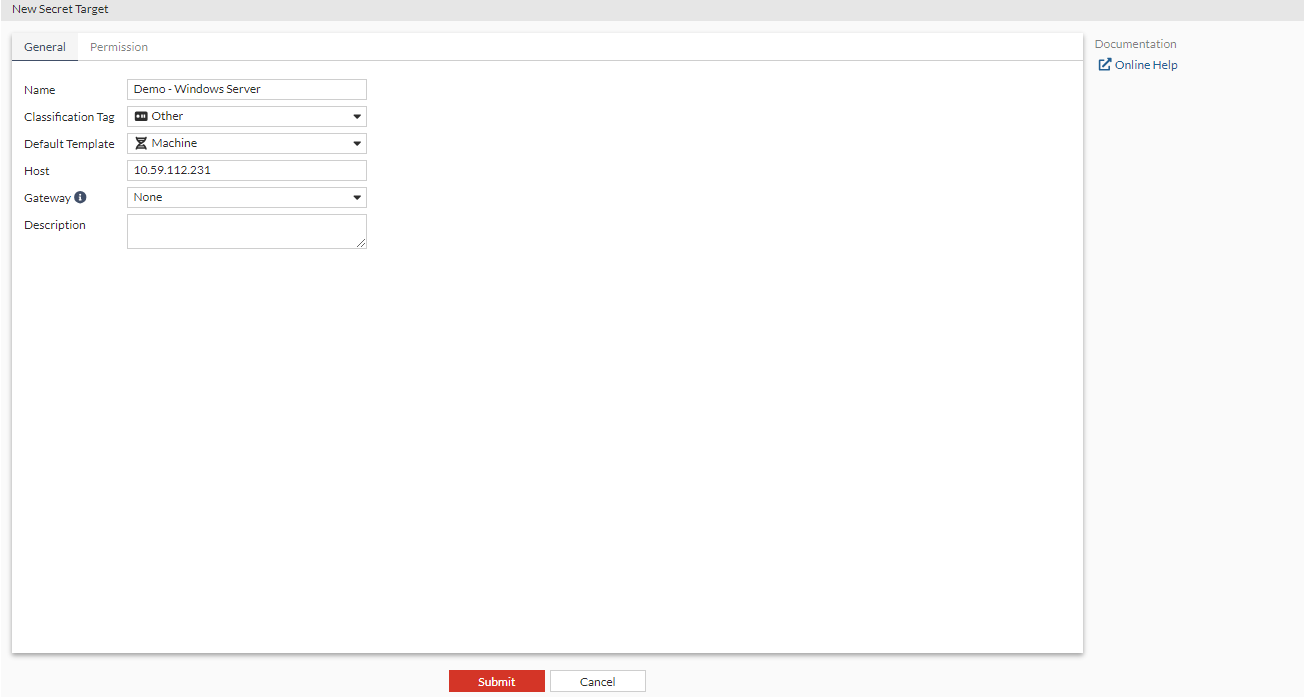
To create the target:
  1. Go to Secrets > Targets and select +Create.
  2. In Name, enter a name for the target.
  3. In Classification Tag, select Other.
  4. In Default Template, select a secret template that does not have Windows as the server information, e.g., Machine.

    Note: For the Machine template, WinRM HTTPS option can be set in the CLI.

  5. In Host, enter the IP address of the server.
  6. Click Submit.

The above target can be created in the CLI using the following commands CLI:

 config secret target
  edit "Demo - Windows Server"
   set class "Other"
   set template "Machine"
   set address "10.59.112.231"
   set winrm-https disable
   set sql-server-log-status disable
  next
 end

Creating a target with server information as non-Windows

Creating a target with server information as non-Windows

To create the target:
  1. Go to Secrets > Targets and select +Create.
  2. In Name, enter a name for the target.
  3. In Classification Tag, select Other.
  4. In Default Template, select a secret template that does not have Windows as the server information, e.g., Machine.

    Note: For the Machine template, WinRM HTTPS option can be set in the CLI.

  5. In Host, enter the IP address of the server.
  6. Click Submit.

The above target can be created in the CLI using the following commands CLI:

 config secret target
  edit "Demo - Windows Server"
   set class "Other"
   set template "Machine"
   set address "10.59.112.231"
   set winrm-https disable
   set sql-server-log-status disable
  next
 end