
Fortinet white logo
Fortinet white logo

User Guide

Managing DHCP relays

Managing DHCP relays

You can add, update, and delete DHCP relays.

Adding a DHCP relay
  1. Select DHCP Relay from the System dropdown.
  2. Click Create.
  3. Enter values in the relevant fields. See DHCP relay fields.
  4. Click Save.
Updating a DHCP relay
  1. Select DHCP Relay from the System dropdown.
  2. Select a DHCP relay and click Edit.
  3. Update the values that you want to change.
  4. Click Save.
Deleting a DHCP relay
  1. Select DHCP Relay from the System dropdown.
  2. Select a DHCP server and click Delete.
  3. Confirm to delete the selected DHCP relay.
DHCP relay fields

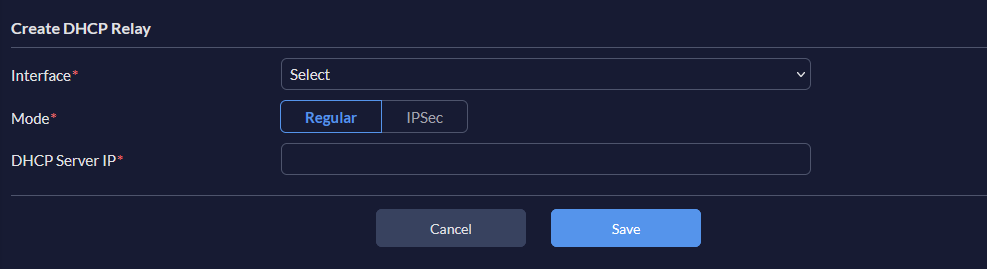
The Create DHCP Relay and Edit DHCP Relay dialogs contain the following fields:
Settings

Guidelines

Interface

From the dropdown, select an interface.

Mode

Select the appropriate mode.

DHCP Server IP

Set the IP address of the DHCP server.

Managing DHCP relays

Managing DHCP relays

You can add, update, and delete DHCP relays.

Adding a DHCP relay
  1. Select DHCP Relay from the System dropdown.
  2. Click Create.
  3. Enter values in the relevant fields. See DHCP relay fields.
  4. Click Save.
Updating a DHCP relay
  1. Select DHCP Relay from the System dropdown.
  2. Select a DHCP relay and click Edit.
  3. Update the values that you want to change.
  4. Click Save.
Deleting a DHCP relay
  1. Select DHCP Relay from the System dropdown.
  2. Select a DHCP server and click Delete.
  3. Confirm to delete the selected DHCP relay.
DHCP relay fields

The Create DHCP Relay and Edit DHCP Relay dialogs contain the following fields:

Settings

Guidelines

Interface

From the dropdown, select an interface.

Mode

Select the appropriate mode.

DHCP Server IP

Set the IP address of the DHCP server.