Fortinet white logo
Fortinet white logo

Administration Guide

Formatting and loading FortiProxy firmware image using TFTP

Appendix F - Formatting and loading FortiProxy firmware image using TFTP

You can download and install FortiProxy firmware from a local TFTP server via the BIOS, under CLI control. This is useful in cases such as when the OPEN DEVICE BOOT FAILED message appears on console.

Caution

Installing firmware from a local TFTP server under console control will reset the FortiProxy unit to factory default settings. Consider backing up the configuration before starting the formattingprocess. See Configuration backups and reset.

Prerequisites

  • A null modem, or RJ-45 to DB9 console cable, supplied with the FortiProxy unit

  • An Ethernet RJ45 cable

  • A terminal client, such as a PC running HyperTerminal (Windows)

  • A TFTP server

To format and load FortiProxy firmware image using TFTP:
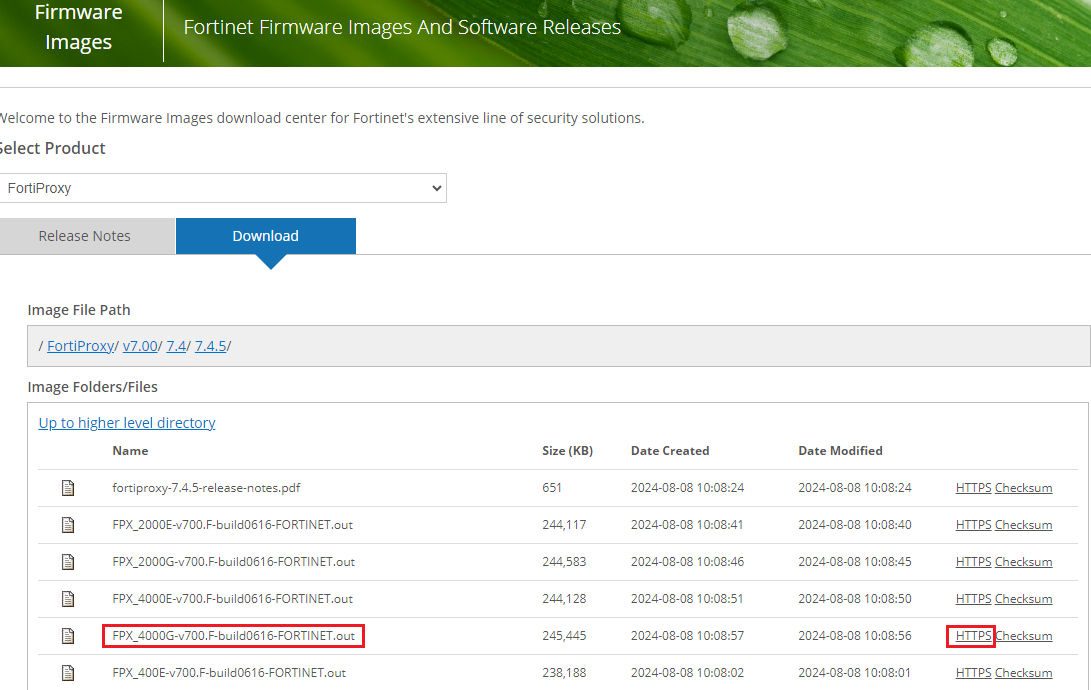
  1. Download the FortiProxy firmware and verify the MD5 checksum:

    1. Go to https://support.fortinet.com.

    2. Click Login to log in to the Fortinet Support website.

    3. From the Support > Downloads menu, select Firmware Download.

    4. In the Select Product dropdown menu, select FortiProxy.

    5. On the Download tab, navigate to the FortiProxy firmware file for your FortiProxy model or VM platform in the Image Folders/Files section.

    6. Click HTTPS to download the desired firmware.
  2. Download the TFTP server from here and install it on the computer. Make sure the bitness of the TFTP installer matches that of the computer, such as tftp64 for a 64-bit computer.

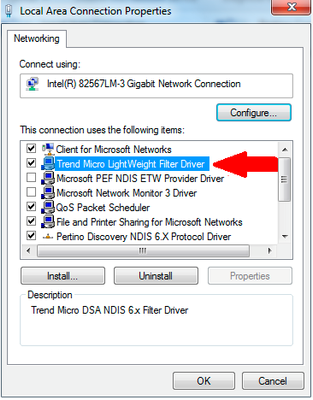
  3. Disable Windows firewall or any other 3rd party packet filtering application (e.g. Trend Micro LightWeight Filter Driver).
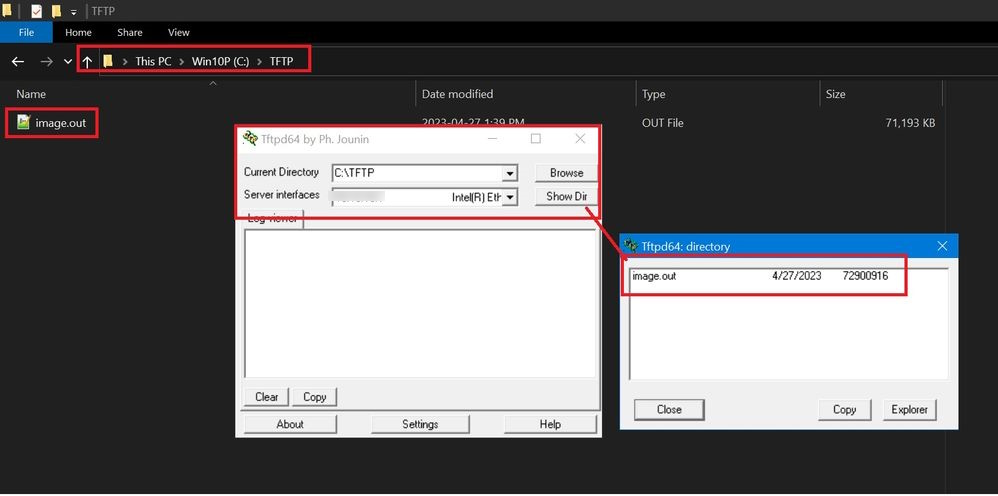
  4. Create a directory and name it as something like TFTP.

  5. Move the FortiProxy image to that directory.

  6. Rename the image file to image.out.

  7. Set the system's ethernet interface IP (can be from any subnet), subnet mask, and default gateway (local IP address that is set on FortiProxy). This example uses the following:

    • IP address: 172.18.20.86

    • Subnet mask: 255.255.255.0

    • Default gateway: 172.18.20.86

  8. Connect the computer to the FortiProxy unit using the null modem cable. See the FortiProxy Quick Start Guide for detailed instructions.

  9. Restart the FortiProxy.

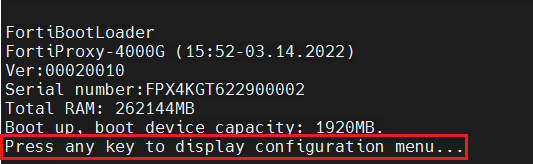
  10. When the console displays Press any key to display configuration menu..., press any other key.
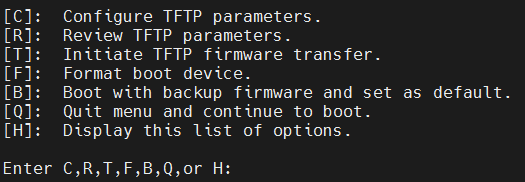
  11. When a list of choices with individual letters of the alphabet appears, press F to format the device. The device will reboot after the formatting is complete.
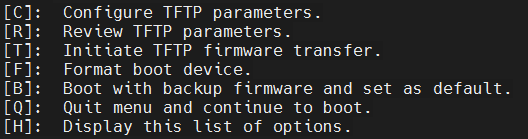
  12. When a list of choices with letters appear, press R to review TFTP parameters.

  13. Once again, when a list of choices with letters appears, press C to configure TFTP parameters.

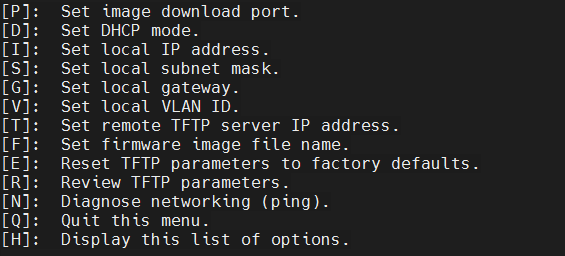
  14. Change the parameters to match the TFTP server configuration using the following provided options:

    [P]: Set firmware download port.

    [D]: Set DHCP mode.

    [I]: Set local IP address.

    [S]: Set local subnet mask.

    [G]: Set local gateway.

    [V]: Set local VLAN ID.

    [T]: Set remote TFTP server IP address.

    [F]: Set firmware file name.

    [E]: Reset TFTP parameters to factory defaults.

    [R]: Review TFTP parameters.

    [N]: Diagnose networking(ping).

    [Q]: Quit this menu.

    [H]: Display this list of options.

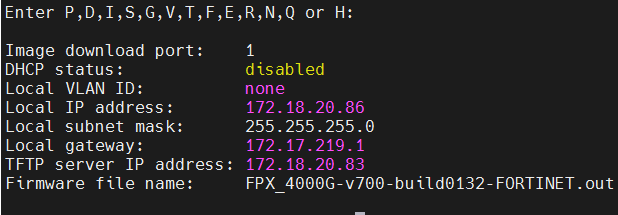
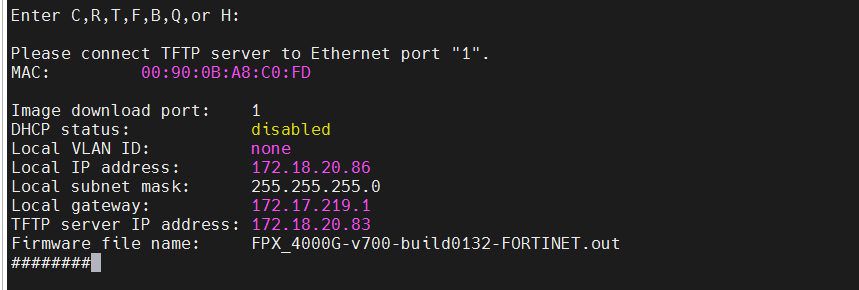
    The following are examples of configuring the local IP address, TFTP server IP address, and firmware file name:


  15. When the configuration is complete, press T to initiate the TFTP firmware transfer.

  16. After the transfer is complete, follow the prompts to finish the formatting process and login using the default credentials.

Formatting and loading FortiProxy firmware image using TFTP

Appendix F - Formatting and loading FortiProxy firmware image using TFTP

You can download and install FortiProxy firmware from a local TFTP server via the BIOS, under CLI control. This is useful in cases such as when the OPEN DEVICE BOOT FAILED message appears on console.

Caution

Installing firmware from a local TFTP server under console control will reset the FortiProxy unit to factory default settings. Consider backing up the configuration before starting the formattingprocess. See Configuration backups and reset.

Prerequisites

  • A null modem, or RJ-45 to DB9 console cable, supplied with the FortiProxy unit

  • An Ethernet RJ45 cable

  • A terminal client, such as a PC running HyperTerminal (Windows)

  • A TFTP server

To format and load FortiProxy firmware image using TFTP:
  1. Download the FortiProxy firmware and verify the MD5 checksum:

    1. Go to https://support.fortinet.com.

    2. Click Login to log in to the Fortinet Support website.

    3. From the Support > Downloads menu, select Firmware Download.

    4. In the Select Product dropdown menu, select FortiProxy.

    5. On the Download tab, navigate to the FortiProxy firmware file for your FortiProxy model or VM platform in the Image Folders/Files section.

    6. Click HTTPS to download the desired firmware.

  2. Download the TFTP server from here and install it on the computer. Make sure the bitness of the TFTP installer matches that of the computer, such as tftp64 for a 64-bit computer.

  3. Disable Windows firewall or any other 3rd party packet filtering application (e.g. Trend Micro LightWeight Filter Driver).

  4. Create a directory and name it as something like TFTP.

  5. Move the FortiProxy image to that directory.

  6. Rename the image file to image.out.

  7. Set the system's ethernet interface IP (can be from any subnet), subnet mask, and default gateway (local IP address that is set on FortiProxy). This example uses the following:

    • IP address: 172.18.20.86

    • Subnet mask: 255.255.255.0

    • Default gateway: 172.18.20.86

  8. Connect the computer to the FortiProxy unit using the null modem cable. See the FortiProxy Quick Start Guide for detailed instructions.

  9. Restart the FortiProxy.

  10. When the console displays Press any key to display configuration menu..., press any other key.

  11. When a list of choices with individual letters of the alphabet appears, press F to format the device. The device will reboot after the formatting is complete.

  12. When a list of choices with letters appear, press R to review TFTP parameters.

  13. Once again, when a list of choices with letters appears, press C to configure TFTP parameters.

  14. Change the parameters to match the TFTP server configuration using the following provided options:

    [P]: Set firmware download port.

    [D]: Set DHCP mode.

    [I]: Set local IP address.

    [S]: Set local subnet mask.

    [G]: Set local gateway.

    [V]: Set local VLAN ID.

    [T]: Set remote TFTP server IP address.

    [F]: Set firmware file name.

    [E]: Reset TFTP parameters to factory defaults.

    [R]: Review TFTP parameters.

    [N]: Diagnose networking(ping).

    [Q]: Quit this menu.

    [H]: Display this list of options.

    The following are examples of configuring the local IP address, TFTP server IP address, and firmware file name:

  15. When the configuration is complete, press T to initiate the TFTP firmware transfer.

  16. After the transfer is complete, follow the prompts to finish the formatting process and login using the default credentials.