Fortinet white logo
Fortinet white logo

User Guide

Certificates

Certificates

The Certificates page allows you to manage both local and CA certificates. Certificates provide security assurance validated by a Certificate Authority (CA).

Local Certificates

The Local Certificates section allows you to install certificate key pair by uploading a zip file containing a certificate and a private key file. The supported zip file formats include .tar, .tar.gz, tgz, zip, tar.xz, and .xz.

The Local Certificates section also enables you to import a certificate. The supported formats are .cer, .crt, .tar, .tar.gz, tgz, zip, tar.xz, and .xz.

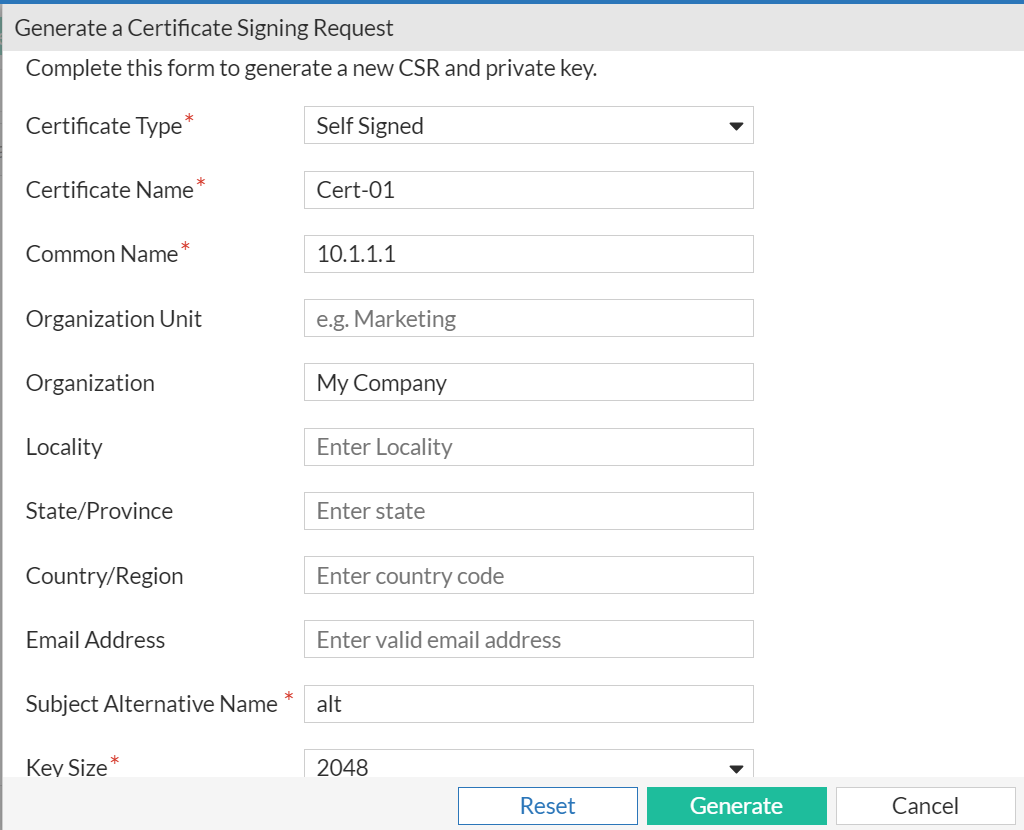
Server certificates are generated based on a specific CSR. The CSR is a request sent from an applicant to a CA in order to apply for a digital identity certificate. When a CSR is generated, the associated private key to sign and/or encrypt connections is also generated. Click on the Generate CSR button and fill in the required information to generate a CSR for your certificate. In the Certificate Signing Request window, enter the following.

  • Certificate Type - The type of the certificate, either CA signed or self signed.
  • Certificate Name - A name for the certificate.
  • Common Name - The FQDN or IP address of the server.
  • Organization - The name of your establishment or organization.
  • Locality - The city or area where your organization is located.
  • State or Province - The state or province of the above mentioned area.
  • Key Size - Either 2048 or 4096.
  • Subject Alternative Name (SAN) - It is mandatory to provide SAN.
  • Optionally, you can enter the Organization Unit and the Country.
  • Click Generate.

CA Certificates

The CA Certificates section allows you to install and manage your CA certificate. To install a CA certificate, click Install CA Certificate and upload your CA certificate (.pem or .cer file). You can view details, download, or delete selected CA certificate after installation.

Notes:

  • To upload certificates, the Root CA, server certificate, and key file must be bundled together and uploaded in any of the supported formats.

  • Certificates can only be uploaded in PEM or CER formats. Other formats are not supported. If the certificate is in any other format, such as P12 or PFX, it must be converted to a supported format before uploading.

  • When using CA2, the intermediate and root CA content must be combined into a single text file (.pem file). This is necessary because only three files can be included in the bundle uploaded: Root CA, server certificate, and key file.

  • To access FortiAIOps using a custom domain name, you must install the required CA and Server certificates for the domain configured on FortiAIOps.

Certificates

Certificates

The Certificates page allows you to manage both local and CA certificates. Certificates provide security assurance validated by a Certificate Authority (CA).

Local Certificates

The Local Certificates section allows you to install certificate key pair by uploading a zip file containing a certificate and a private key file. The supported zip file formats include .tar, .tar.gz, tgz, zip, tar.xz, and .xz.

The Local Certificates section also enables you to import a certificate. The supported formats are .cer, .crt, .tar, .tar.gz, tgz, zip, tar.xz, and .xz.

Server certificates are generated based on a specific CSR. The CSR is a request sent from an applicant to a CA in order to apply for a digital identity certificate. When a CSR is generated, the associated private key to sign and/or encrypt connections is also generated. Click on the Generate CSR button and fill in the required information to generate a CSR for your certificate. In the Certificate Signing Request window, enter the following.

  • Certificate Type - The type of the certificate, either CA signed or self signed.
  • Certificate Name - A name for the certificate.
  • Common Name - The FQDN or IP address of the server.
  • Organization - The name of your establishment or organization.
  • Locality - The city or area where your organization is located.
  • State or Province - The state or province of the above mentioned area.
  • Key Size - Either 2048 or 4096.
  • Subject Alternative Name (SAN) - It is mandatory to provide SAN.
  • Optionally, you can enter the Organization Unit and the Country.
  • Click Generate.

CA Certificates

The CA Certificates section allows you to install and manage your CA certificate. To install a CA certificate, click Install CA Certificate and upload your CA certificate (.pem or .cer file). You can view details, download, or delete selected CA certificate after installation.

Notes:

  • To upload certificates, the Root CA, server certificate, and key file must be bundled together and uploaded in any of the supported formats.

  • Certificates can only be uploaded in PEM or CER formats. Other formats are not supported. If the certificate is in any other format, such as P12 or PFX, it must be converted to a supported format before uploading.

  • When using CA2, the intermediate and root CA content must be combined into a single text file (.pem file). This is necessary because only three files can be included in the bundle uploaded: Root CA, server certificate, and key file.

  • To access FortiAIOps using a custom domain name, you must install the required CA and Server certificates for the domain configured on FortiAIOps.