Wireless Clients
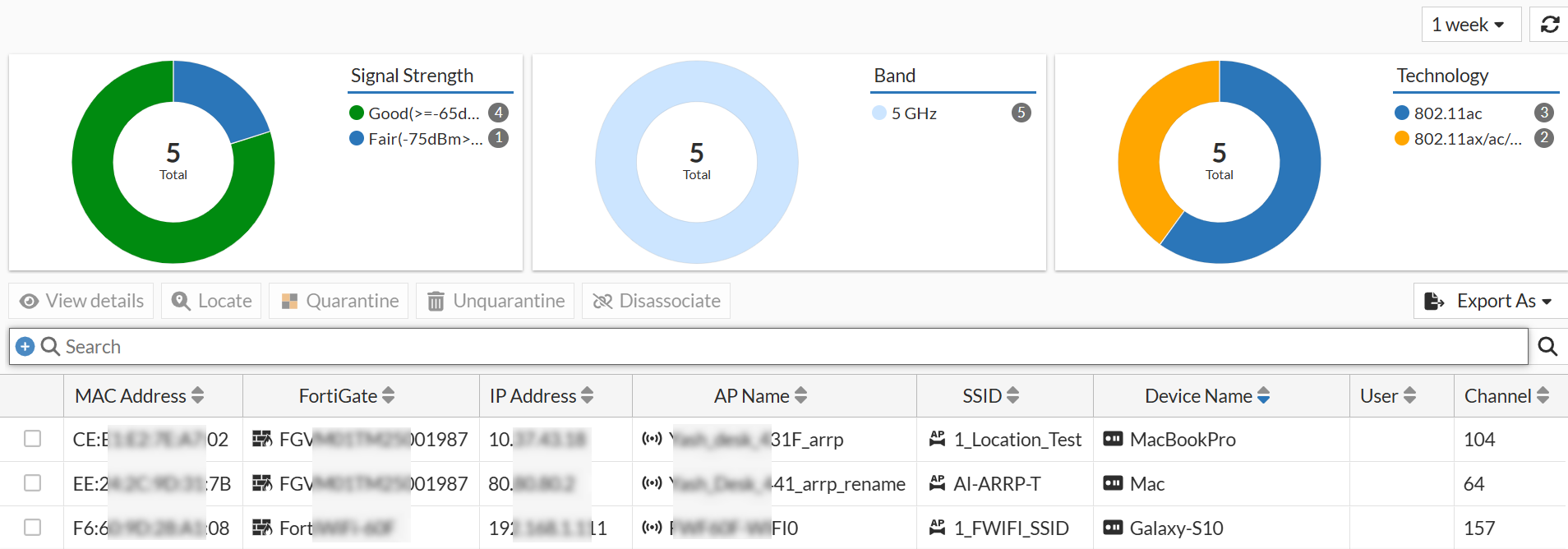
The Clients page provides information about the clients connected to the wireless network and consists of three widgets - signal strength, band, and technology.
You can filter the wireless client data for a selected duration or a customized time slot.The Custom range allows the selection of a minimum of 1 hour and maximum of 1 week, the option of Now displays data for the last 1 minute.
Signal Strength
The signal strength widget provides information about the strength of the signal between each client and the access point. It displays the signal strength in dBm, which is a measure of signal power. A higher dBm value indicates a stronger signal, while a lower dBm value indicates a weaker signal.
Band
The band widget displays the band that each client is connected to. It indicates whether the client is connected to the 2.4 GHz, 5 GHz or 6 GHz band.
Technology
The technology widget displays the technology that each client is using to connect to the wireless network. It indicates whether the client is using 802.11a/b/g/n or 802.11ac technology.
The clients are listed with their relevant details, including the MAC address, FortiGate, IP address, FortiAP, SSID, channel, bandwidth, and signal strength.
View Details
To view detailed information about a client, select the desired client from the list and click View Details. See, Clients Diagnostics and Tools.
Locate
Click the Locate to find the physical location of a wireless device. The system opens the Wi-Fi Maps window to highlight the placement of the selected wireless device on its floor plan. For more information, see Locating Wireless Devices on the Map.
Quarantine
This button adds the device MAC address to a quarantine list, allowing FortiGate to apply security policies that block all or specific network access for that device.
-
This button is available for both currently and previously connected clients.
-
If a client is not quarantined, the button will show Quarantine. If it is already quarantined, the button will change to Unquarantine.
-
Quarantined clients are also visually highlighted on the main Wireless Clients window (Wireless > Wireless Clients).
Unquarantine
This button enables you to remove a device MAC address from the quarantine list if previously added.
Disassociate
This button immediately disconnects a client from its access point.
Note: This option is only available when the time range is set to Now.
Export As
Click Export As to export the table in CSV, JSON, Plaintext, or PDF format. You can export either filtered data or all data in the available formats.
Note: You customize your exports by choosing which columns to be included in the export. A maximum of 8 columns can be selected.
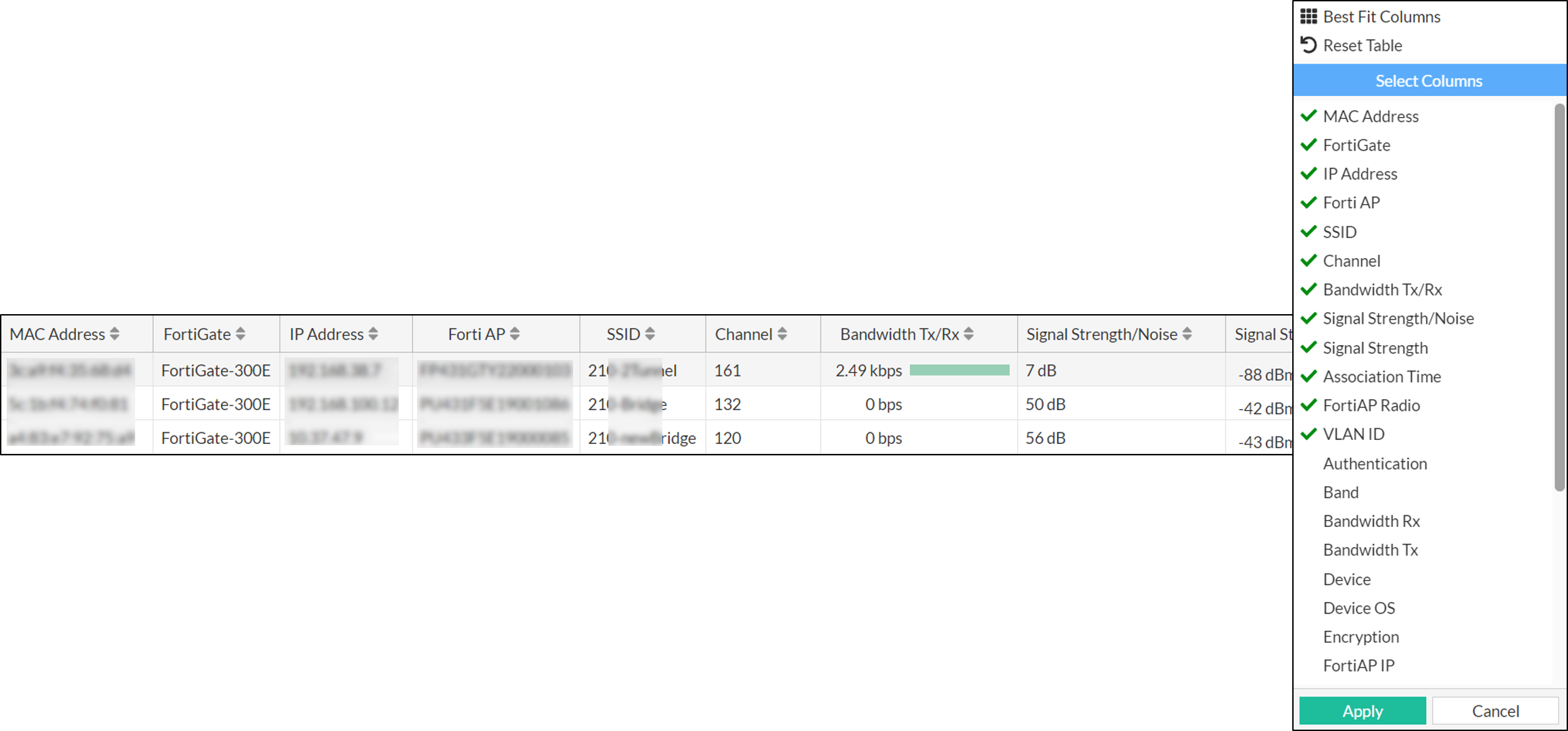
Right-click on the header of the table to select the desired columns to add to the table, and then click Apply to update the table with the selected columns.