
Fortinet white logo
Fortinet white logo

Administration Guide

Dialup IPsec VPN using custom TCP port

Dialup IPsec VPN using custom TCP port

Dialup IPsec VPN traditionally relies on UDP but can now operate over TCP. This enhancement enables VPN traffic from FortiClient to traverse restrictive firewalls that only permit TCP-based traffic. You can configure an IPsec VPN tunnel to exclusively use UDP or TCP, or you can configure the tunnel automatically switch to TCP mode when the firewall blocks UDP.

In high-latency or congested networks, UDP-based VPN connections may suffer from packet loss or performance degradation. TCP, with its built-in error correction and retransmission mechanisms, enhances the reliability and stability of VPN connections in such environments.

Dialup IPsec over TCP is particularly advantageous in mobile or dynamic settings such as public WiFi, hotel networks, or cellular data where network conditions and restrictions often vary. This feature ensures more seamless and dependable VPN connectivity across a broader range of scenarios.

Note

The custom TCP port functionality for IPsec is exclusively supported with IKE version 2 (IKEv2), and does not support NPU offloading.

Example

In this example, FortiGate is configured as a dialup IPsec server using IKE version 2 (IKEv2) and operating on a custom TCP port (5500). IKEv2 is configured to use EAP for user authentication. The initial setup leverages the VPN wizard to create the dialup IPsec tunnel. After the tunnel is created by the wizard, you use the CLI to customize the IKE settings and enable the use of TCP port 5500.

On the client side, FortiClient is managed by FortiClient EMS and configured to act as the dialup IPsec client. The client is configured to connect to the FortiGate server over the custom TCP port 5500. This feature requires FortiClient 7.4.1 or later.

For a detailed description of the steps to configure FortiClient EMS to use the custom TCP port 5500 for IPsec VPN connections, see IPsec VPN over TCP.
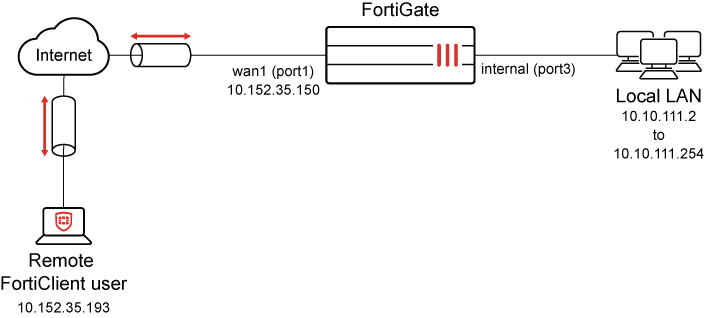
To configure FortiGate as IPsec dialup server using VPN Wizard:
  1. Go to VPN > VPN Wizard, and enter the following:

    Field

    Value

    Tunnel name

    v2_psk-120

    Select a template

    Remote Access

  2. Click Begin.

  3. Under VPN Tunnel section, enter the following:

    Field

    Value

    VPN client type

    FortiClient

    Authentication method

    Pre-shared key

    Pre-shared key

    Enter suitable key

    IKE

    Version 2

    Transport

    Auto

    Use Fortinet encapsulation

    Disable

    NAT traversal

    Enable

    Keepalive frequency

    10

    EAP peer identification

    EAP identity request

    User authentication method

    Phase 1 interface

    Use dropdown to select user group IPSEC. To configure user groups for authentication, see User groups.

    (Optional) To use multiple user groups, select Inherit from policy.

    DNS Server

    Specify

    Server IP

    8.8.8.8

    Enable IPv4 Split Tunnel

    Disable
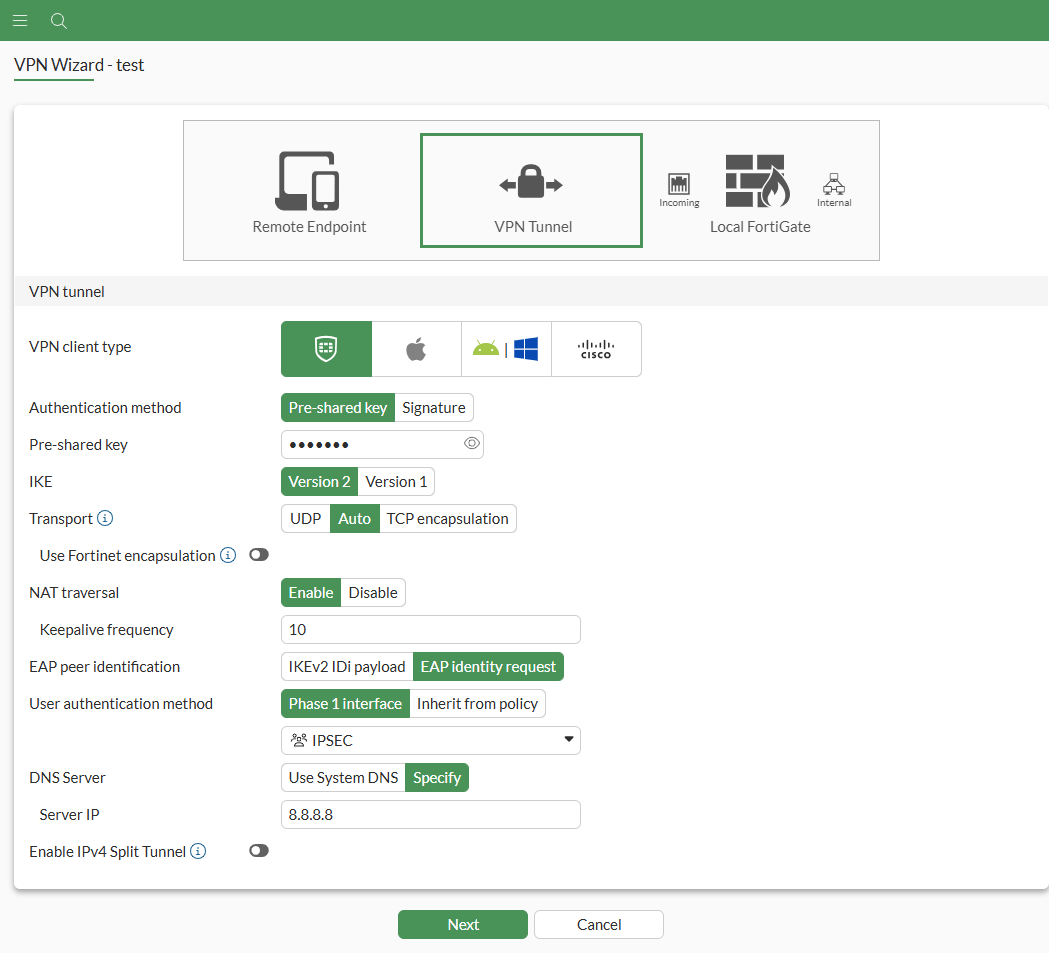
  4. Click Next.

  5. Under Remote Endpoint section, enter the following:

    Field

    Value

    Address to assign to connected endpoints

    9.5.6.7-9.5.6.70

    Subnet for connected endpoints

    255.255.255.255

    FortiClient settings

    Security posture gateway matching

    Disable

    EMS SN verification

    Disable

    Save password

    Enable

    Auto Connect

    Enable

    Always up (keep alive)

    Enable
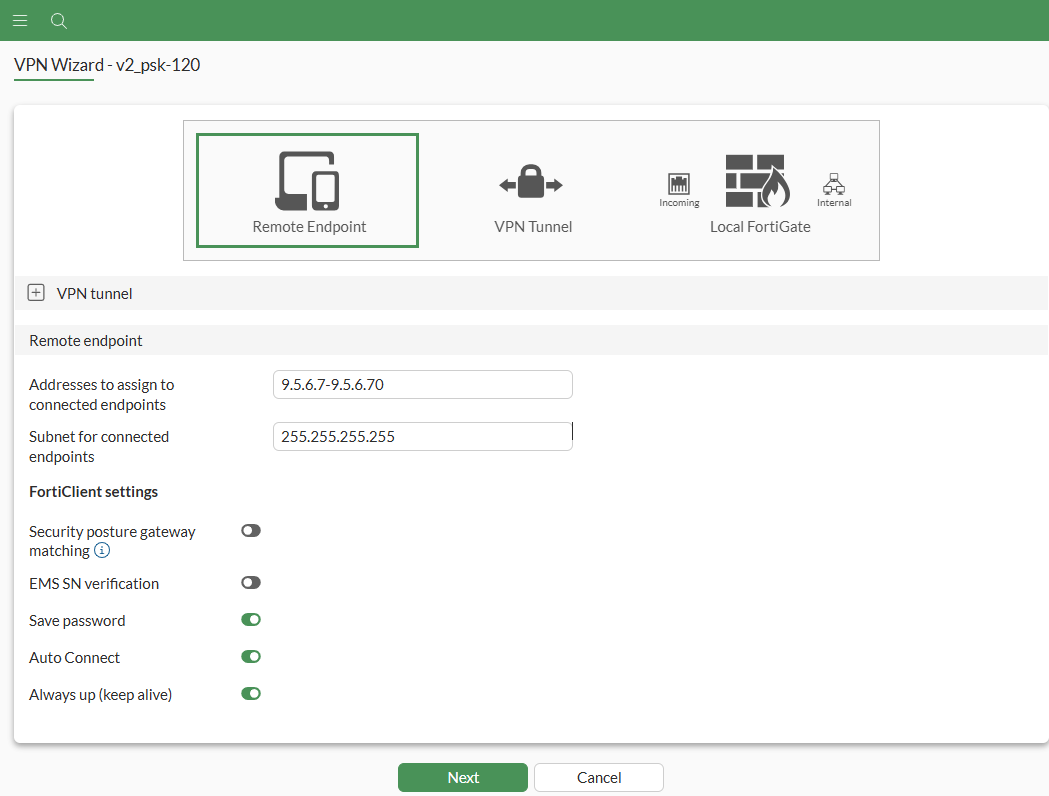
  6. Click Next.

  7. Under Local FortiGate section, enter the following:

    Field

    Value

    Incoming interface that binds to tunnel

    wan1(port1)

    Create and add interface to Zone

    Enable

    Local interface

    internal (port3)

    Local Address

    internal network
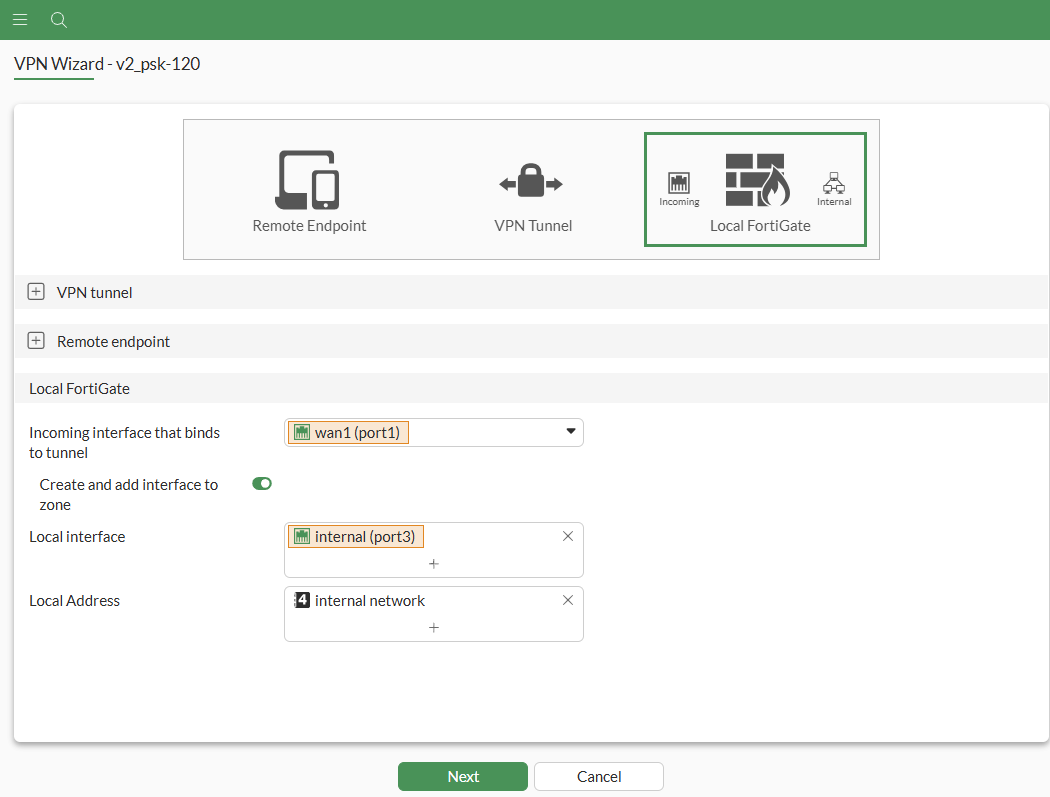
  8. Click Next.

  9. Under Review section, review the configuration pending configuration by the wizard.
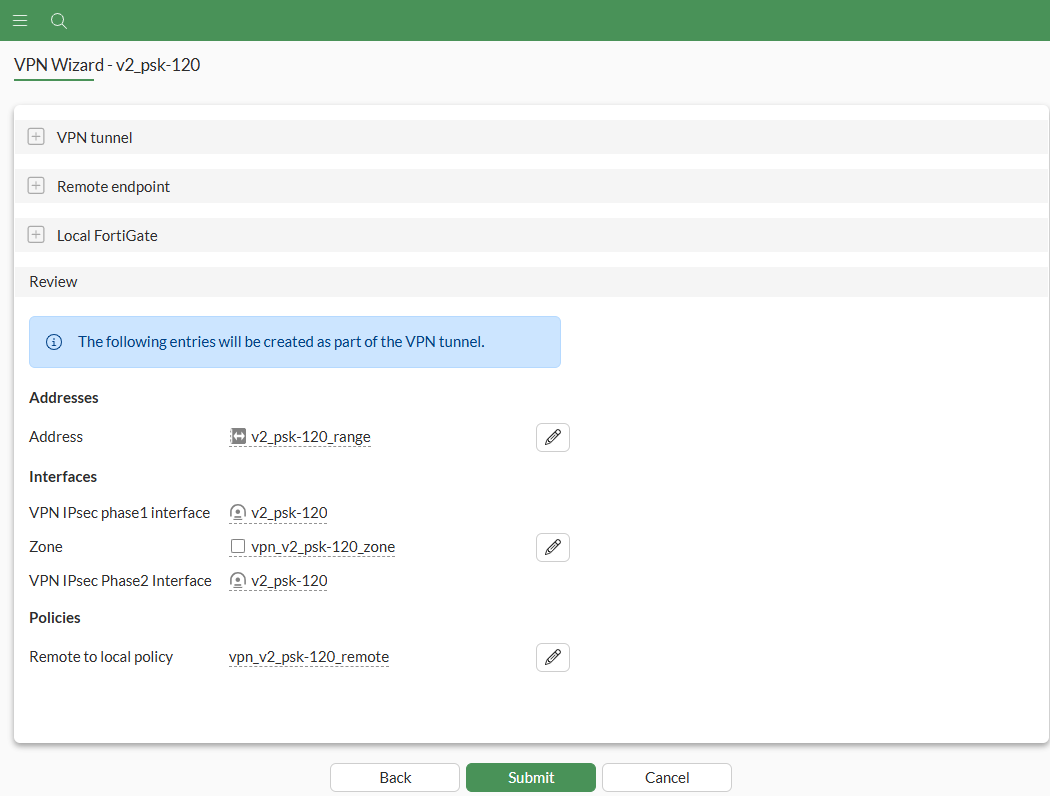
  10. Click Submit.

    The tunnel is configured and visible under VPN > VPN Tunnels.
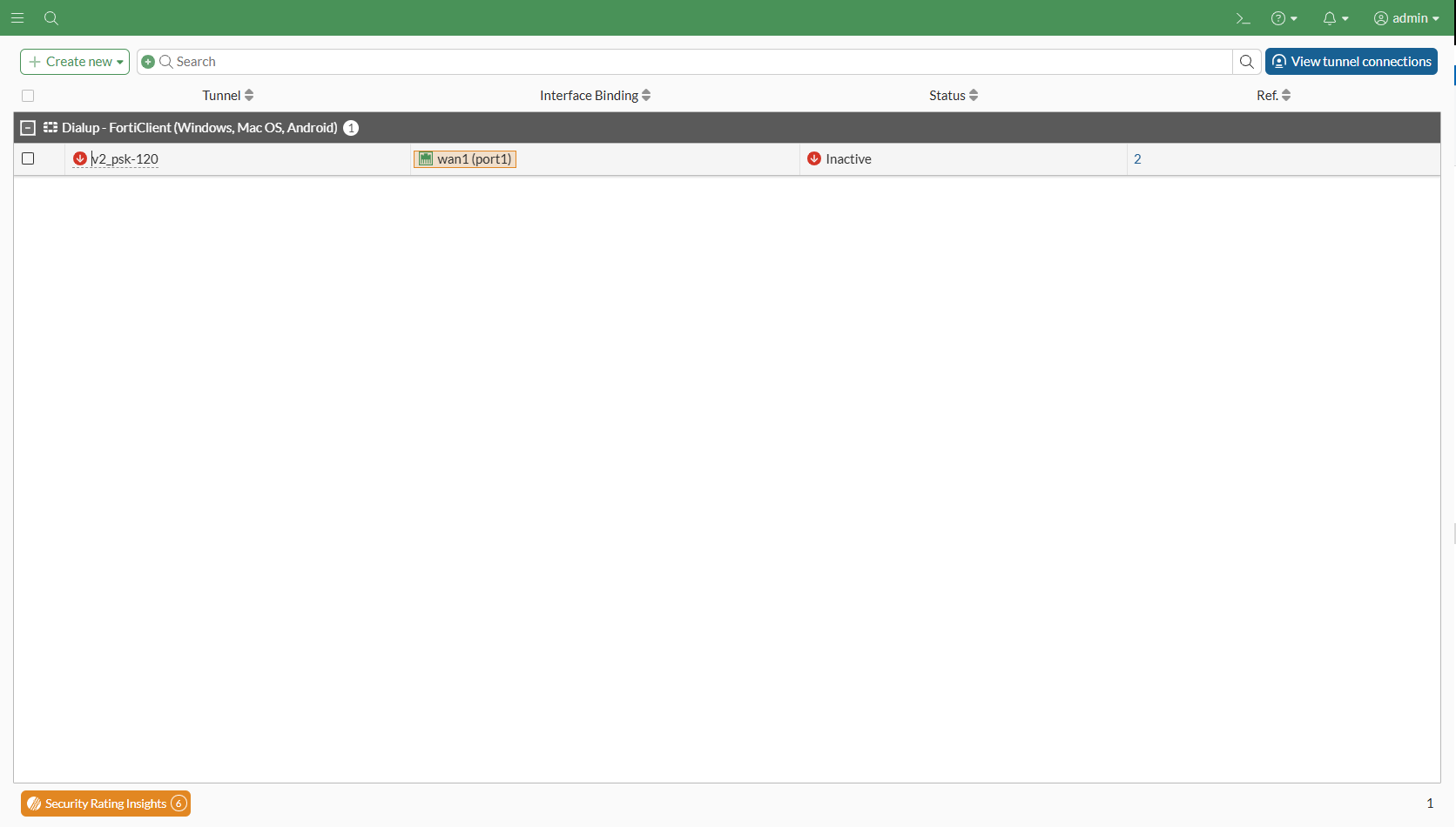
To configure the IPsec tunnel’s method as TCP:
  1. On FortiGate, go to VPN > VPN Tunnels, select the tunnel v2_psk-120, and click Edit.

  2. In Tunnel Settings slide-in, under Network section, set Transport to TCP encapsulation.
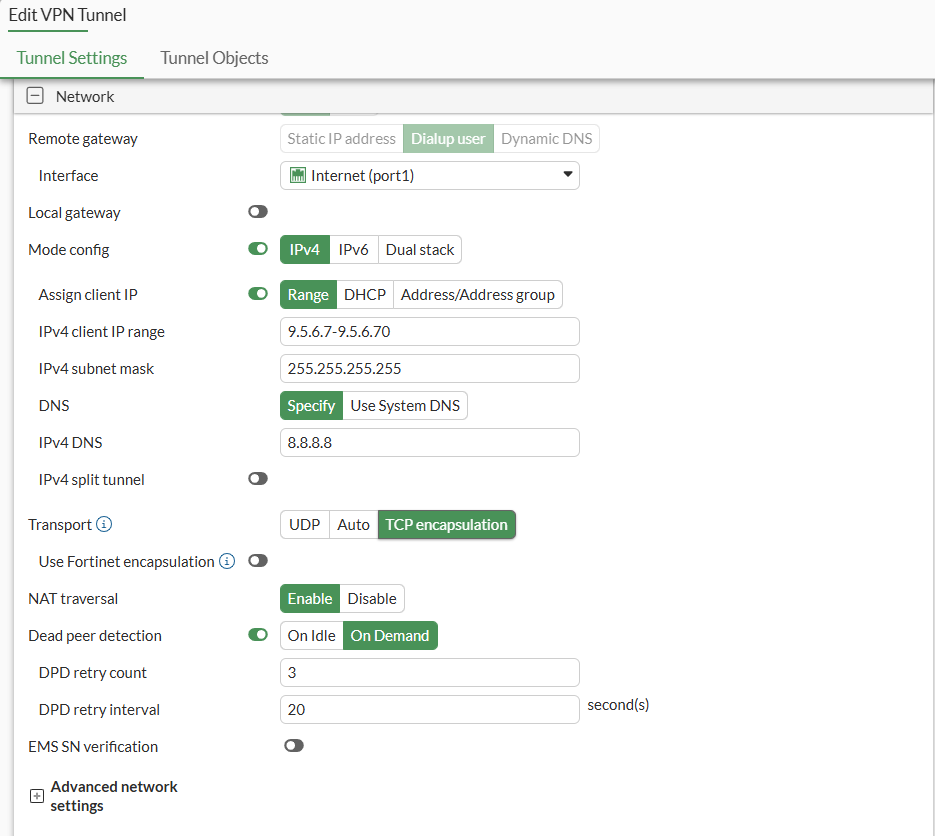
  3. Click OK.

To view and modify TCP port used by IKEv2 using CLI:
  1. On the top-right corner of the FortiGate GUI, click the _> icon to open a CLI console.

    For other methods to connect to CLI, see Connecting to the CLI.

  2. Enter the following command to see the default TCP IKE port used by FortiGate:

    show full-configuration system settings | grep ike-tcp
        set ike-tcp-port 4500
  3. Notice the setting ike-tcp-port set to 4500 by default.

  4. Use the following commands to modify the default TCP port to use a custom port 5500:

    config system settings
        set ike-tcp-port 5500
    end
    

    ike-tcp-port <port>

    Set the TCP port for IKE/IPsec traffic (1 - 65535, default = 4500).

    Note

    When using TCP port 443 for IKE/IPsec traffic, GUI access can be affected for interfaces that are bound to an IPsec tunnel when the GUI admin port is also using port 443. To ensure continued functionality, change either the IKE/IPsec port or the administrative access port.

    To change the administrative access port:
    config system global
        set admin-sport <port>
    end

    admin-sport <port>

    Set the administrative access port for HTTPS (1 - 65535, default = 443).

    For port conflicts with ZTNA and SSL VPN, ZTNA and SSL VPN will take precedence. To avoid any port conflicts with other services, review the FortiOS Ports guide for other incoming ports used on the FortiGate.

To verify the VPN connection:
  1. Using FortiClient, connect to the IPsec VPN gateway.
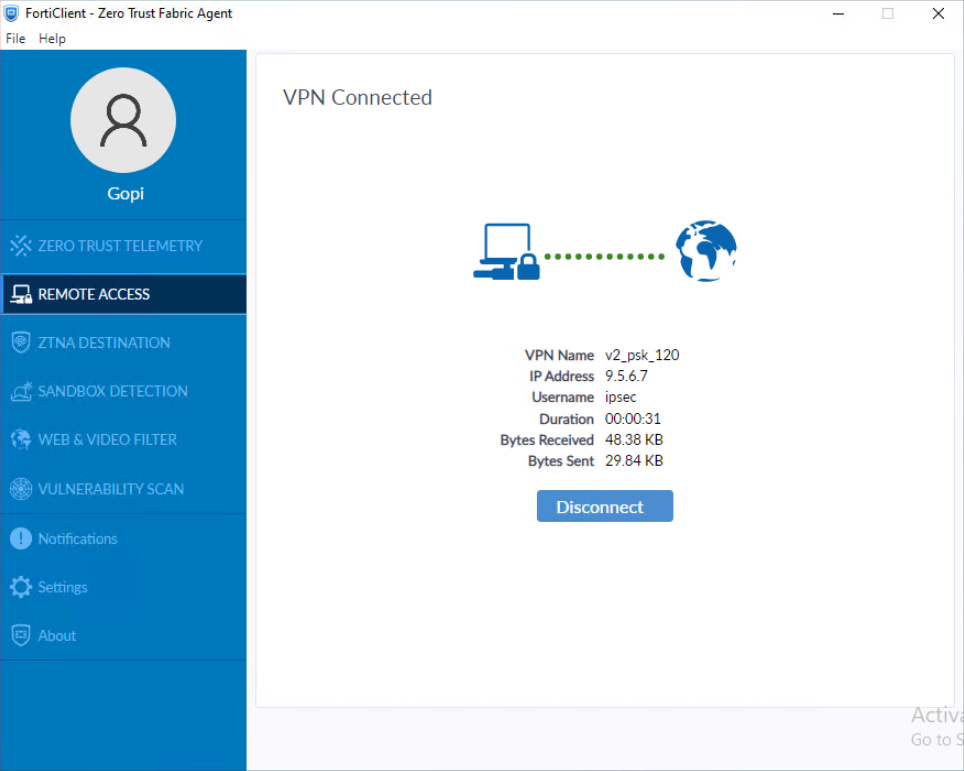
  2. On FortiGate, run diagnose vpn ike gateway list to verify the IPsec VPN tunnel status.

    Note that addr shows the custom TCP port value, and transport shows TCP:

    vd: root/0
    name: v2_psk-120_0
    version: 2
    interface: port1 3
    addr: 10.152.35.150:5500 -> 10.152.35.193:54854
    tun_id: 9.5.6.7/::10.0.0.23
    remote_location: 0.0.0.0
    network-id: 0
    transport: TCP
    virtual-interface-addr: 169.254.1.1 -> 169.254.1.1
    created: 592s ago
    eap-user: ipsec
    2FA: no
    peer-id: 120
    peer-id-auth: no
    FortiClient UID: B70BAD123010487E86DB102969115E99
    assigned IPv4 address: 9.5.6.7/255.255.255.255
    nat: me peer
    pending-queue: 0
    PPK: no
    IKE SA: created 1/1  established 1/1  time 80/80/80 ms
    IPsec SA: created 1/1  established 1/1  time 0/0/0 ms
    
      id/spi: 23 93b6803bff7cff00/f89d6f9965fbf3a7
      direction: responder
      status: established 592-592s ago = 80ms
      proposal: aes256-sha256
      child: no
      SK_ei: f93108f3f8d9a94e-3e0a78289defb329-4d1ae67365f2cb56-e0d471a57ccb4f8d
      SK_er: 58b37cf4d2e96cb3-cb7e334a48905459-ac8e4ff743c86e5c-630454f2e35b97e6
      SK_ai: fc83b139808121a2-1dd68396d804e28d-bd619c0c4778dbda-9a1eb9e6fdf13808
      SK_ar: edad89ee56bf9ecc-81443426c00c78f5-0574d6b71163a43b-d9ebf04c3ae4b87f
      PPK: no
      message-id sent/recv: 0/124
      QKD: no
      lifetime/rekey: 86400/85537
      DPD sent/recv: 00000000/00000000
      peer-id: 120
  3. Run a packet capture using the packet capture tool on FortiGate GUI under Network > Diagnostic tab for wan1(port1) interface with TCP port number 5500.
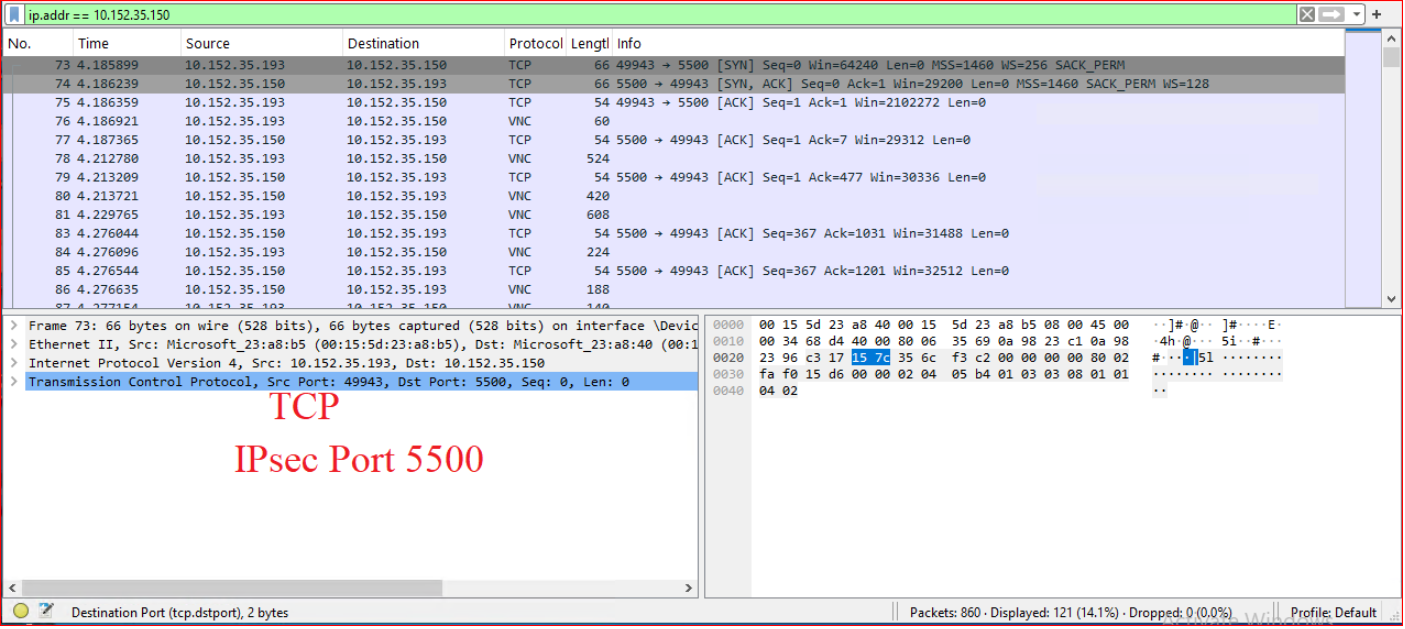
    For more information, see Using the packet capture tool.

  4. (Optional) Run the packet capture using the following command:

    diagnose sniffer packet wan1 “port 5500” 4 0 l.

    For more information, see Performing a sniffer trace or packet capture.

Dialup IPsec VPN using custom TCP port

Dialup IPsec VPN using custom TCP port

Dialup IPsec VPN traditionally relies on UDP but can now operate over TCP. This enhancement enables VPN traffic from FortiClient to traverse restrictive firewalls that only permit TCP-based traffic. You can configure an IPsec VPN tunnel to exclusively use UDP or TCP, or you can configure the tunnel automatically switch to TCP mode when the firewall blocks UDP.

In high-latency or congested networks, UDP-based VPN connections may suffer from packet loss or performance degradation. TCP, with its built-in error correction and retransmission mechanisms, enhances the reliability and stability of VPN connections in such environments.

Dialup IPsec over TCP is particularly advantageous in mobile or dynamic settings such as public WiFi, hotel networks, or cellular data where network conditions and restrictions often vary. This feature ensures more seamless and dependable VPN connectivity across a broader range of scenarios.

Note

The custom TCP port functionality for IPsec is exclusively supported with IKE version 2 (IKEv2), and does not support NPU offloading.

Example

In this example, FortiGate is configured as a dialup IPsec server using IKE version 2 (IKEv2) and operating on a custom TCP port (5500). IKEv2 is configured to use EAP for user authentication. The initial setup leverages the VPN wizard to create the dialup IPsec tunnel. After the tunnel is created by the wizard, you use the CLI to customize the IKE settings and enable the use of TCP port 5500.

On the client side, FortiClient is managed by FortiClient EMS and configured to act as the dialup IPsec client. The client is configured to connect to the FortiGate server over the custom TCP port 5500. This feature requires FortiClient 7.4.1 or later.

For a detailed description of the steps to configure FortiClient EMS to use the custom TCP port 5500 for IPsec VPN connections, see IPsec VPN over TCP.

To configure FortiGate as IPsec dialup server using VPN Wizard:
  1. Go to VPN > VPN Wizard, and enter the following:

    Field

    Value

    Tunnel name

    v2_psk-120

    Select a template

    Remote Access

  2. Click Begin.

  3. Under VPN Tunnel section, enter the following:

    Field

    Value

    VPN client type

    FortiClient

    Authentication method

    Pre-shared key

    Pre-shared key

    Enter suitable key

    IKE

    Version 2

    Transport

    Auto

    Use Fortinet encapsulation

    Disable

    NAT traversal

    Enable

    Keepalive frequency

    10

    EAP peer identification

    EAP identity request

    User authentication method

    Phase 1 interface

    Use dropdown to select user group IPSEC. To configure user groups for authentication, see User groups.

    (Optional) To use multiple user groups, select Inherit from policy.

    DNS Server

    Specify

    Server IP

    8.8.8.8

    Enable IPv4 Split Tunnel

    Disable

  4. Click Next.

  5. Under Remote Endpoint section, enter the following:

    Field

    Value

    Address to assign to connected endpoints

    9.5.6.7-9.5.6.70

    Subnet for connected endpoints

    255.255.255.255

    FortiClient settings

    Security posture gateway matching

    Disable

    EMS SN verification

    Disable

    Save password

    Enable

    Auto Connect

    Enable

    Always up (keep alive)

    Enable

  6. Click Next.

  7. Under Local FortiGate section, enter the following:

    Field

    Value

    Incoming interface that binds to tunnel

    wan1(port1)

    Create and add interface to Zone

    Enable

    Local interface

    internal (port3)

    Local Address

    internal network

  8. Click Next.

  9. Under Review section, review the configuration pending configuration by the wizard.

  10. Click Submit.

    The tunnel is configured and visible under VPN > VPN Tunnels.

To configure the IPsec tunnel’s method as TCP:
  1. On FortiGate, go to VPN > VPN Tunnels, select the tunnel v2_psk-120, and click Edit.

  2. In Tunnel Settings slide-in, under Network section, set Transport to TCP encapsulation.

  3. Click OK.

To view and modify TCP port used by IKEv2 using CLI:
  1. On the top-right corner of the FortiGate GUI, click the _> icon to open a CLI console.

    For other methods to connect to CLI, see Connecting to the CLI.

  2. Enter the following command to see the default TCP IKE port used by FortiGate:

    show full-configuration system settings | grep ike-tcp
        set ike-tcp-port 4500
  3. Notice the setting ike-tcp-port set to 4500 by default.

  4. Use the following commands to modify the default TCP port to use a custom port 5500:

    config system settings
        set ike-tcp-port 5500
    end
    

    ike-tcp-port <port>

    Set the TCP port for IKE/IPsec traffic (1 - 65535, default = 4500).

    Note

    When using TCP port 443 for IKE/IPsec traffic, GUI access can be affected for interfaces that are bound to an IPsec tunnel when the GUI admin port is also using port 443. To ensure continued functionality, change either the IKE/IPsec port or the administrative access port.

    To change the administrative access port:
    config system global
        set admin-sport <port>
    end

    admin-sport <port>

    Set the administrative access port for HTTPS (1 - 65535, default = 443).

    For port conflicts with ZTNA and SSL VPN, ZTNA and SSL VPN will take precedence. To avoid any port conflicts with other services, review the FortiOS Ports guide for other incoming ports used on the FortiGate.

To verify the VPN connection:
  1. Using FortiClient, connect to the IPsec VPN gateway.

  2. On FortiGate, run diagnose vpn ike gateway list to verify the IPsec VPN tunnel status.

    Note that addr shows the custom TCP port value, and transport shows TCP:

    vd: root/0
    name: v2_psk-120_0
    version: 2
    interface: port1 3
    addr: 10.152.35.150:5500 -> 10.152.35.193:54854
    tun_id: 9.5.6.7/::10.0.0.23
    remote_location: 0.0.0.0
    network-id: 0
    transport: TCP
    virtual-interface-addr: 169.254.1.1 -> 169.254.1.1
    created: 592s ago
    eap-user: ipsec
    2FA: no
    peer-id: 120
    peer-id-auth: no
    FortiClient UID: B70BAD123010487E86DB102969115E99
    assigned IPv4 address: 9.5.6.7/255.255.255.255
    nat: me peer
    pending-queue: 0
    PPK: no
    IKE SA: created 1/1  established 1/1  time 80/80/80 ms
    IPsec SA: created 1/1  established 1/1  time 0/0/0 ms
    
      id/spi: 23 93b6803bff7cff00/f89d6f9965fbf3a7
      direction: responder
      status: established 592-592s ago = 80ms
      proposal: aes256-sha256
      child: no
      SK_ei: f93108f3f8d9a94e-3e0a78289defb329-4d1ae67365f2cb56-e0d471a57ccb4f8d
      SK_er: 58b37cf4d2e96cb3-cb7e334a48905459-ac8e4ff743c86e5c-630454f2e35b97e6
      SK_ai: fc83b139808121a2-1dd68396d804e28d-bd619c0c4778dbda-9a1eb9e6fdf13808
      SK_ar: edad89ee56bf9ecc-81443426c00c78f5-0574d6b71163a43b-d9ebf04c3ae4b87f
      PPK: no
      message-id sent/recv: 0/124
      QKD: no
      lifetime/rekey: 86400/85537
      DPD sent/recv: 00000000/00000000
      peer-id: 120
  3. Run a packet capture using the packet capture tool on FortiGate GUI under Network > Diagnostic tab for wan1(port1) interface with TCP port number 5500.

    For more information, see Using the packet capture tool.

  4. (Optional) Run the packet capture using the following command:

    diagnose sniffer packet wan1 “port 5500” 4 0 l.

    For more information, see Performing a sniffer trace or packet capture.