
Fortinet white logo
Fortinet white logo

Administration Guide

Connecting to FortiData

Connecting to FortiData

Fabric connectors are used to integrate FortiData with FortiGate. You must configure both FortiData and FortiGate to establish the connection between them. Configure the products in the following order:

  1. On FortiData, configure a fabric connector to FortiGate, and add FortiGate as an allowed device. See Connecting FortiData to FortiGate.

  2. On FortiGate, enable FortiData. See Enabling FortiData.

  3. On FortiGate, authorize FortiData. See Authorizing FortiData.

Information about Diagnostics is also included.

See FortiData labels for information about using FortiData labels.

Enabling FortiData

FortiData can be enabled only in the CLI.

To enable FortiData in the CLI:
  1. In FortiOS, enable FortiData:

    config system fortidata
        set status enable
        unset source-ip
        set interface-select-method auto
        set vrf-select 0
    				end

    Command

    Description

    status {enable | disable}

    Enable/disable FortiData.

    source-ip <string>

    Source IPv4 address used to communicate with FortiData.

    interface-select-method {auto | sdwan | specify}

    Specify how to select outgoing interface to reach server.

    • auto: Set outgoing interface automatically.

    • sdwan: Set outgoing interface by SD-WAN or policy routing rules.

    • specify: Set outgoing interface manually.

    vrf-select

    VRF ID used for connection to server (0 to 511, default = 0).

Authorizing FortiData

On FortiGate, authorize FortiData to establish a connection between the two products.

To authorize FortiData:
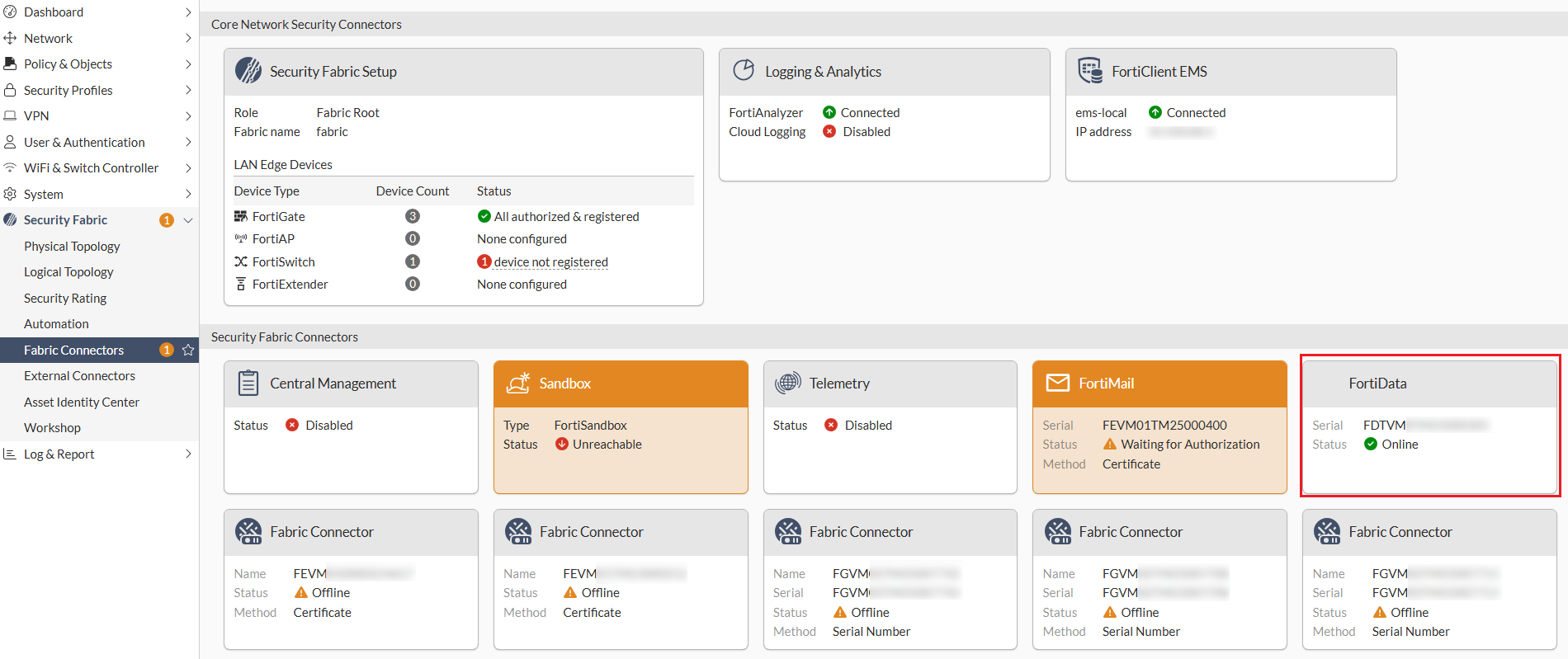
  1. On the Security Fabric > Fabric Connectors page, click the FortiData card and select Authorize. Accept the certificate and verify that the status of the FortiData card changes to Online.
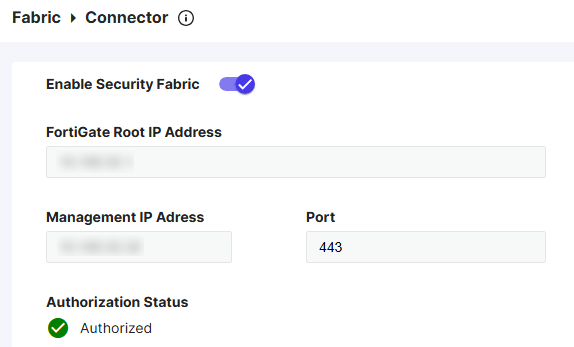
    To further verify the authorization status in FortiData, go to the Fabric > Connector page and ensure that the authorization status is Authorized.
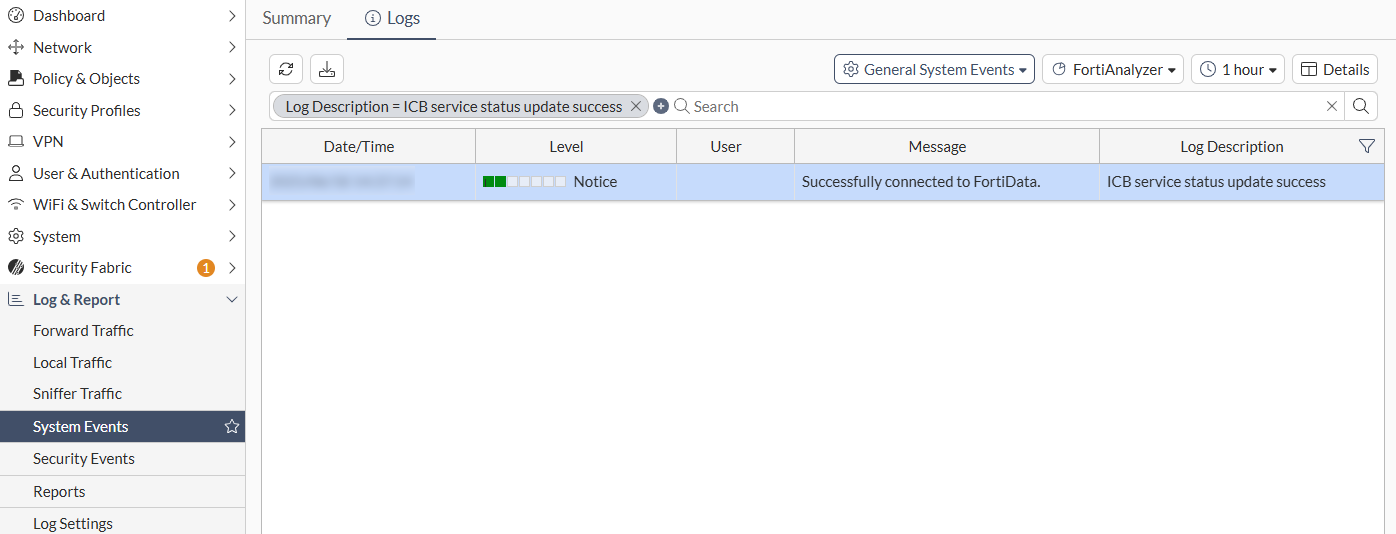
  2. Go to the Log & Report > System Events page and verify the log stating that the FortiGate is successfully connected to the FortiData.
Diagnostics

Use the following diagnose commands to debug FortiData integration issues:

  • Verify the integration is successful and a list of supported file types is returned:

    # diagnose sys icb status
    current time 2025-06-18 15:32:39 -07:00
    icb.status_updated.count: 21
    icb.status_updated.last.time: 1750282634
    icb.status_updated.last.ago: 3325
    icb.status_updated.last.local: 2025-06-18 14:37:14 -0700
    ======= fai =======
    icb.state: stop
    icb.file_type_list: not available
    ======= fsa =======
    icb.state: stop
    icb.file_type_list: not available
    ======= fortidata =======
    icb.state: ready
    icb.file_type_list:
    ft.1: AVFT_JAVASCRIPT (7)
    ft.2: AVFT_MSOFFICE (10)
    ft.3: AVFT_PDF (42)
    ft.4: AVFT_MSOFFICEX (52)
    ft.5: AVFT_C_CPP (110)
    ft.6: AVFT_JPEG (1006)
    ft.7: AVFT_GIF (1007)
    ft.8: AVFT_TIFF (1008)
    ft.9: AVFT_PNG (1009)
    ft.10: AVFT_BMP (1010)
    icb.file_type_extensions:
    ext.1: avif
    ext.2: cer
    ext.3: cfg
    ext.4: conf
    ext.5: crt
    ext.6: csv
    ext.7: env
    ext.8: go
    ext.9: ini
    ext.10: java
    ext.11: jpeg
    ext.12: json
    ext.13: key
    ext.14: kt
    ext.15: md
    ext.16: odp
    ext.17: ods
    ext.18: odt
    ext.19: p7b
    ext.20: pem
    ext.21: php
    ext.22: py
    ext.23: rtf
    ext.24: service
    ext.25: sh
    ext.26: tiff
    ext.27: toml
    ext.28: txt
    ext.29: webp
    ext.30: yaml
    ext.31: yml
  • Show statistics:

    # diagnose sys icb stats
  • Restart the ICB manager daemon:

    # diagnose sys icb restart
  • Query FortiData-related information:

    # diagnose sys fortidata {labels | local-labels | service-ip}

Connecting to FortiData

Connecting to FortiData

Fabric connectors are used to integrate FortiData with FortiGate. You must configure both FortiData and FortiGate to establish the connection between them. Configure the products in the following order:

  1. On FortiData, configure a fabric connector to FortiGate, and add FortiGate as an allowed device. See Connecting FortiData to FortiGate.

  2. On FortiGate, enable FortiData. See Enabling FortiData.

  3. On FortiGate, authorize FortiData. See Authorizing FortiData.

Information about Diagnostics is also included.

See FortiData labels for information about using FortiData labels.

Enabling FortiData

FortiData can be enabled only in the CLI.

To enable FortiData in the CLI:
  1. In FortiOS, enable FortiData:

    config system fortidata
        set status enable
        unset source-ip
        set interface-select-method auto
        set vrf-select 0
    				end

    Command

    Description

    status {enable | disable}

    Enable/disable FortiData.

    source-ip <string>

    Source IPv4 address used to communicate with FortiData.

    interface-select-method {auto | sdwan | specify}

    Specify how to select outgoing interface to reach server.

    • auto: Set outgoing interface automatically.

    • sdwan: Set outgoing interface by SD-WAN or policy routing rules.

    • specify: Set outgoing interface manually.

    vrf-select

    VRF ID used for connection to server (0 to 511, default = 0).

Authorizing FortiData

On FortiGate, authorize FortiData to establish a connection between the two products.

To authorize FortiData:
  1. On the Security Fabric > Fabric Connectors page, click the FortiData card and select Authorize. Accept the certificate and verify that the status of the FortiData card changes to Online.

    To further verify the authorization status in FortiData, go to the Fabric > Connector page and ensure that the authorization status is Authorized.

  2. Go to the Log & Report > System Events page and verify the log stating that the FortiGate is successfully connected to the FortiData.

Diagnostics

Use the following diagnose commands to debug FortiData integration issues:

  • Verify the integration is successful and a list of supported file types is returned:

    # diagnose sys icb status
    current time 2025-06-18 15:32:39 -07:00
    icb.status_updated.count: 21
    icb.status_updated.last.time: 1750282634
    icb.status_updated.last.ago: 3325
    icb.status_updated.last.local: 2025-06-18 14:37:14 -0700
    ======= fai =======
    icb.state: stop
    icb.file_type_list: not available
    ======= fsa =======
    icb.state: stop
    icb.file_type_list: not available
    ======= fortidata =======
    icb.state: ready
    icb.file_type_list:
    ft.1: AVFT_JAVASCRIPT (7)
    ft.2: AVFT_MSOFFICE (10)
    ft.3: AVFT_PDF (42)
    ft.4: AVFT_MSOFFICEX (52)
    ft.5: AVFT_C_CPP (110)
    ft.6: AVFT_JPEG (1006)
    ft.7: AVFT_GIF (1007)
    ft.8: AVFT_TIFF (1008)
    ft.9: AVFT_PNG (1009)
    ft.10: AVFT_BMP (1010)
    icb.file_type_extensions:
    ext.1: avif
    ext.2: cer
    ext.3: cfg
    ext.4: conf
    ext.5: crt
    ext.6: csv
    ext.7: env
    ext.8: go
    ext.9: ini
    ext.10: java
    ext.11: jpeg
    ext.12: json
    ext.13: key
    ext.14: kt
    ext.15: md
    ext.16: odp
    ext.17: ods
    ext.18: odt
    ext.19: p7b
    ext.20: pem
    ext.21: php
    ext.22: py
    ext.23: rtf
    ext.24: service
    ext.25: sh
    ext.26: tiff
    ext.27: toml
    ext.28: txt
    ext.29: webp
    ext.30: yaml
    ext.31: yml
  • Show statistics:

    # diagnose sys icb stats
  • Restart the ICB manager daemon:

    # diagnose sys icb restart
  • Query FortiData-related information:

    # diagnose sys fortidata {labels | local-labels | service-ip}