
Fortinet white logo
Fortinet white logo

Administration Guide

Add FortiToken multi-factor authentication

Add FortiToken multi-factor authentication

This configuration adds multi-factor authentication (MFA) to the FortiClient dialup VPN configuration (FortiClient as dialup client). It uses one of the two free mobile FortiTokens that is already installed on the FortiGate.

For large number of users, it is recommended to use FortiAuthenticator for user and identity management. Also consider FortiIdentity Cloud for mass deployments of mobile tokens.

FortiGates with FortiCare Premium or FortiCare Elite has 3 free seats to FortiIdentity Cloud. See FortiCloud Subscriptions for details.

To configure MFA using the GUI:
  1. Edit the user:

    1. Go to User & Authentication > User Definition and edit local user vpnuser1.

    2. Enable Two-factor Authentication.

    3. For Authentication Type, click FortiToken and select one mobile Token from the list.

    4. Enter the user's Email Address.

    5. Enable Send Activation Code and select Email.
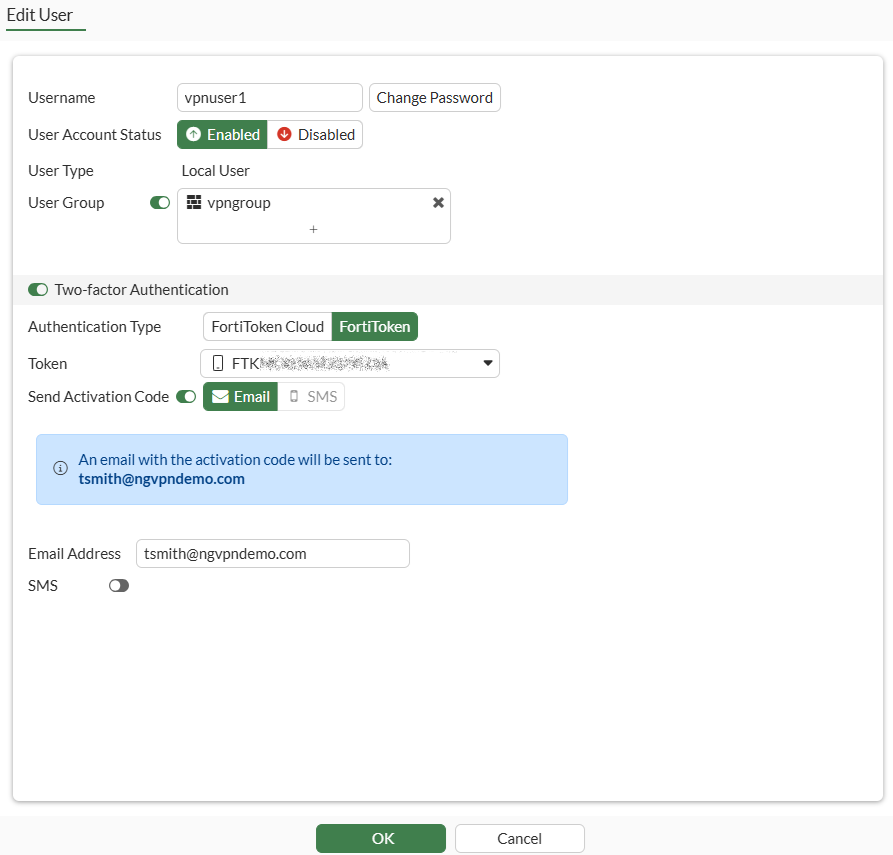
    6. Click OK.

  2. Activate the mobile token.

    When a FortiToken is added to user vpnuser1, an email is sent to the user's email address. Follow the instructions to install your FortiToken mobile application on your device and activate your token.

To configure MFA using the CLI:
  1. Edit the user and user group:

    config user local
        edit "vpnuser1"
            set type password
            set two-factor fortitoken
            set fortitoken <select mobile token for the option list>
            set email-to <user's email address>
            set passwd <user's password>
        next
    end
    
  2. Activate the mobile token.

    When a FortiToken is added to user vpnuser1, an email is sent to the user's email address. Follow the instructions to install your FortiToken mobile application on your device and activate your token.

To verify the connection:
  1. On the FortiClient, go to Remote Access and find the VPN tunnel to connect.

  2. Click Connect.

  3. When prompted, enter the username and password.

  4. On the next screen, when prompted for your FortiToken code, locate the code on your FortiToken Mobile app and enter the code.
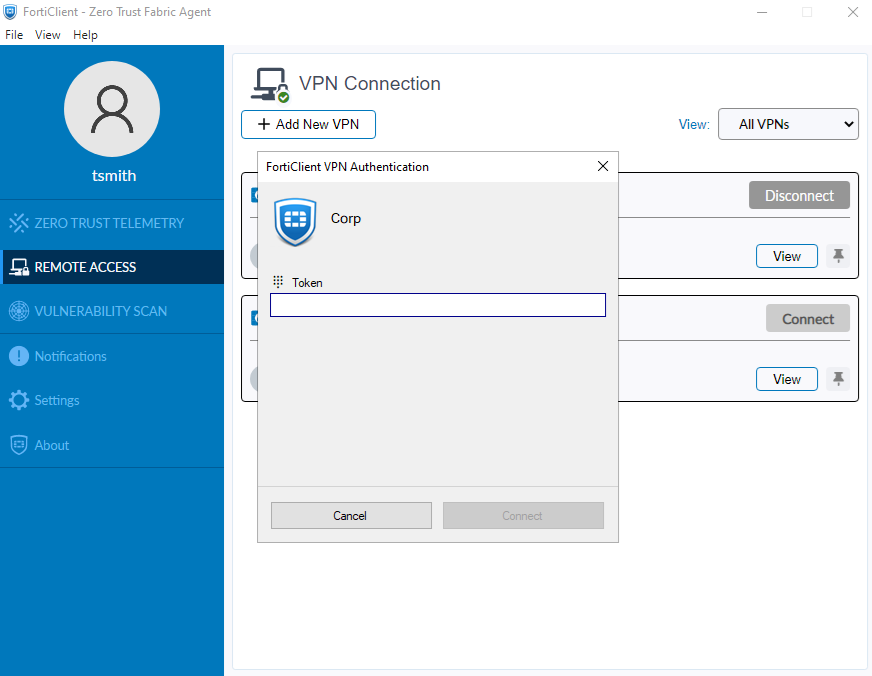
  5. Click Connect.

  6. Once connected, go to the FortiGate > Dashboard > Network Monitor > VPN.

    The user will be shown in the Member column. There will not be any warning icon indicating the need for 2FA.

  7. In the debug command diagnose vpn ike gateway list, confirm that the 2FA field displays Yes:

    # diagnose vpn ike gateway list
    
    vd: root/0
    name: remote_vpn_0
    version: 2
    interface: port3 5
    addr: 203.0.113.249:4500 -> 198.51.100.2:49720
    tun_id: 10.10.2.1/::10.0.0.5
    remote_location: 0.0.0.0
    network-id: 0
    transport: UDP
    created: 443s ago
    eap-user: vpnuser1
    2FA: yes
    peer-id: 198.51.100.2
    peer-id-auth: no
    FortiClient UID: 9A016B5A6E914B42AD4168C066EB04CA
    assigned IPv4 address: 10.10.2.1/255.255.255.255

    

Related Videos

sidebar video

Setting up IPSec VPN in FortiOS 7.2

  • 6,330 views
  • 3 years ago

Add FortiToken multi-factor authentication

Add FortiToken multi-factor authentication

This configuration adds multi-factor authentication (MFA) to the FortiClient dialup VPN configuration (FortiClient as dialup client). It uses one of the two free mobile FortiTokens that is already installed on the FortiGate.

For large number of users, it is recommended to use FortiAuthenticator for user and identity management. Also consider FortiIdentity Cloud for mass deployments of mobile tokens.

FortiGates with FortiCare Premium or FortiCare Elite has 3 free seats to FortiIdentity Cloud. See FortiCloud Subscriptions for details.

To configure MFA using the GUI:
  1. Edit the user:

    1. Go to User & Authentication > User Definition and edit local user vpnuser1.

    2. Enable Two-factor Authentication.

    3. For Authentication Type, click FortiToken and select one mobile Token from the list.

    4. Enter the user's Email Address.

    5. Enable Send Activation Code and select Email.

    6. Click OK.

  2. Activate the mobile token.

    When a FortiToken is added to user vpnuser1, an email is sent to the user's email address. Follow the instructions to install your FortiToken mobile application on your device and activate your token.

To configure MFA using the CLI:
  1. Edit the user and user group:

    config user local
        edit "vpnuser1"
            set type password
            set two-factor fortitoken
            set fortitoken <select mobile token for the option list>
            set email-to <user's email address>
            set passwd <user's password>
        next
    end
    
  2. Activate the mobile token.

    When a FortiToken is added to user vpnuser1, an email is sent to the user's email address. Follow the instructions to install your FortiToken mobile application on your device and activate your token.

To verify the connection:
  1. On the FortiClient, go to Remote Access and find the VPN tunnel to connect.

  2. Click Connect.

  3. When prompted, enter the username and password.

  4. On the next screen, when prompted for your FortiToken code, locate the code on your FortiToken Mobile app and enter the code.

  5. Click Connect.

  6. Once connected, go to the FortiGate > Dashboard > Network Monitor > VPN.

    The user will be shown in the Member column. There will not be any warning icon indicating the need for 2FA.

  7. In the debug command diagnose vpn ike gateway list, confirm that the 2FA field displays Yes:

    # diagnose vpn ike gateway list
    
    vd: root/0
    name: remote_vpn_0
    version: 2
    interface: port3 5
    addr: 203.0.113.249:4500 -> 198.51.100.2:49720
    tun_id: 10.10.2.1/::10.0.0.5
    remote_location: 0.0.0.0
    network-id: 0
    transport: UDP
    created: 443s ago
    eap-user: vpnuser1
    2FA: yes
    peer-id: 198.51.100.2
    peer-id-auth: no
    FortiClient UID: 9A016B5A6E914B42AD4168C066EB04CA
    assigned IPv4 address: 10.10.2.1/255.255.255.255