

Adding dashboards of widgets and monitors
You can create dashboards of widgets and monitor tabs.
To add a new dashboard:
-
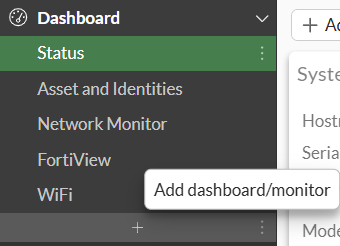
Under Dashboard, click the + Add Dashboard/monitor button.
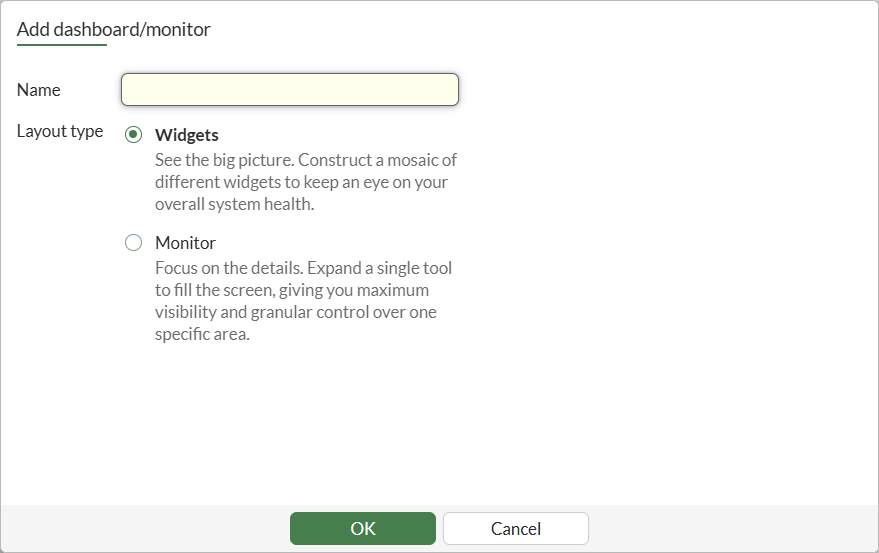
The Add Dashboard/monitor window opens.
-
Add widgets to the dashboard:
-
Enter a name for the dashboard of widgets.
-
Set Layout type to Widgets.
-
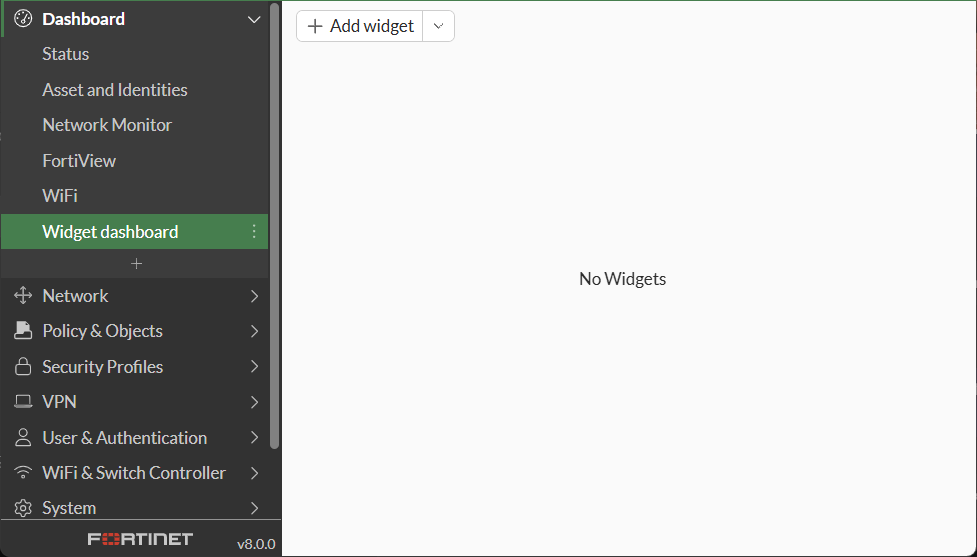
In the Name field, enter a name for the tab of widgets and click OK. The new dashboard opens.
-
Click + Add widget. The Add dashboard widget pane is displayed.
-
Select a widget. The Edit dashboard widget pane is displayed.
-
Set the options, and click OK. The widget is added to the dashboard.
-
Add additional widgets as needed.
-
Click Close. The dashboard displays the tab of widgets.
-
-
Add tabs of monitors to the dashboard:
-
Leave the Name field blank. It will be automatically populated with the name of the selected monitor.
-
Beside + Add widget, click the dropdown arrow, and select + Add tab. The Add dashboard tab pane is displayed.
-
In the Name field, enter a name for the monitor tab.
-
Set Layout type to Monitor, and click Choose monitor. The Add monitor pane is displayed.
-
Set the options, and click OK. The monitor name is displayed with a Settings button.
Click Settings to edit the settings.
-
Click OK. The monitor tab is added to the dashboard.
-
-
Select a tab of widgets and click + Add widget to add more widgets.
-
Click + Add tab to add more monitor tabs.