
Fortinet white logo
Fortinet white logo

Administration Guide

Editing dashboards of widgets and monitors

Editing dashboards of widgets and monitors

You can add widgets and monitor tabs to dashboards.

To add more widgets to a dashboard tab:
  1. Go to Dashboard and select a dashboard in the tree menu.

  2. Select a tab of widgets.

  3. Click +Add widget. The Add dashboard tab pane opens.

  4. Select a widget. The Edit dashboard widget pane is displayed.

  5. Set the options, and click OK. The widget is added to the dashboard.

  6. Add additional widgets as needed.

  7. When done, click Close. The new widgets are displayed on the tab.

  8. (Optional) Click and drag the widget to the desired location in the dashboard.

To add a new tab of widgets to a dashboard:
  1. Go to Dashboard and select a dashboard in the tree menu.

  2. In the banner, click +Add tab. The Add dashboard tab pane opens.

  3. In the Name field, enter a name for the tab of widgets.

  4. Set Layout type to Widgets and click OK. The new tab is displayed.

  5. Add widgets:

    1. Click + Add widget. The Add dashboard widget pane is displayed.

    2. Select a widget. The Edit dashboard widget pane is displayed.

    3. Set the options, and click OK. The widget is added to the dashboard.

    4. Add additional widgets as needed.

    5. Click Close. The widgets are displayed on the new tab.

  6. (Optional) Click and drag the widget to the desired location in the dashboard.

To add monitor tabs to a dashboard:
  1. Go to Dashboard and select a dashboard in the tree menu.

  2. Click + Add tab. The Add dashboard tab pane is displayed.

  3. Add tabs of monitors to the dashboard:

  4. Set Layout type to Monitor, and click Choose monitor. The Add monitor pane is displayed.

  5. Select a monitor. The Add <monitor name> as new tab pane is displayed.

  6. Set the options, and click OK. The monitor name is displayed with a Settings button.

  7. Click OK to add the monitor tab to the dashboard.

To manage tabs on a dashboard:
  1. Go to Dashboard and select a dashboard in the tree menu.

  2. Beside + Add tab, click the arrow and select Manage tabs. The Manage tabs pane displays the tab names for the dashboard.

  3. Beside a tab name, click X to delete the tab.

  4. Under the tab names, click + to add a new tab.

  5. Beside a tab name, click the Settings button to edit the tab settings:

    1. Change the layout between Widgets and Monitor.

    2. Edit the settings for the monitor.

    3. Click OK to save the settings.

  6. Click OK to save changes to the dashboard.

To delete a dashboard:
  1. Click the Actions menu next to the dashboard and select Delete Dashboard.
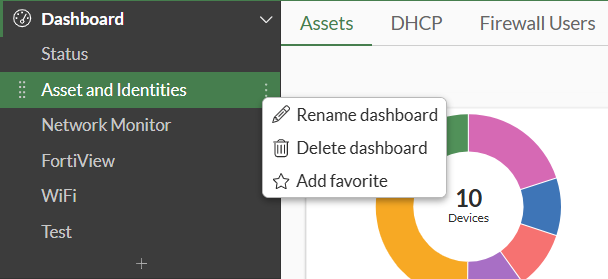
  2. Click Delete Dashboard . The Confirm dialog opens.

  3. Click OK.

You cannot delete the Status dashboard.

Editing dashboards of widgets and monitors

Editing dashboards of widgets and monitors

You can add widgets and monitor tabs to dashboards.

To add more widgets to a dashboard tab:
  1. Go to Dashboard and select a dashboard in the tree menu.

  2. Select a tab of widgets.

  3. Click +Add widget. The Add dashboard tab pane opens.

  4. Select a widget. The Edit dashboard widget pane is displayed.

  5. Set the options, and click OK. The widget is added to the dashboard.

  6. Add additional widgets as needed.

  7. When done, click Close. The new widgets are displayed on the tab.

  8. (Optional) Click and drag the widget to the desired location in the dashboard.

To add a new tab of widgets to a dashboard:
  1. Go to Dashboard and select a dashboard in the tree menu.

  2. In the banner, click +Add tab. The Add dashboard tab pane opens.

  3. In the Name field, enter a name for the tab of widgets.

  4. Set Layout type to Widgets and click OK. The new tab is displayed.

  5. Add widgets:

    1. Click + Add widget. The Add dashboard widget pane is displayed.

    2. Select a widget. The Edit dashboard widget pane is displayed.

    3. Set the options, and click OK. The widget is added to the dashboard.

    4. Add additional widgets as needed.

    5. Click Close. The widgets are displayed on the new tab.

  6. (Optional) Click and drag the widget to the desired location in the dashboard.

To add monitor tabs to a dashboard:
  1. Go to Dashboard and select a dashboard in the tree menu.

  2. Click + Add tab. The Add dashboard tab pane is displayed.

  3. Add tabs of monitors to the dashboard:

  4. Set Layout type to Monitor, and click Choose monitor. The Add monitor pane is displayed.

  5. Select a monitor. The Add <monitor name> as new tab pane is displayed.

  6. Set the options, and click OK. The monitor name is displayed with a Settings button.

  7. Click OK to add the monitor tab to the dashboard.

To manage tabs on a dashboard:
  1. Go to Dashboard and select a dashboard in the tree menu.

  2. Beside + Add tab, click the arrow and select Manage tabs. The Manage tabs pane displays the tab names for the dashboard.

  3. Beside a tab name, click X to delete the tab.

  4. Under the tab names, click + to add a new tab.

  5. Beside a tab name, click the Settings button to edit the tab settings:

    1. Change the layout between Widgets and Monitor.

    2. Edit the settings for the monitor.

    3. Click OK to save the settings.

  6. Click OK to save changes to the dashboard.

To delete a dashboard:
  1. Click the Actions menu next to the dashboard and select Delete Dashboard.

  2. Click Delete Dashboard . The Confirm dialog opens.

  3. Click OK.

You cannot delete the Status dashboard.