

Setting up an FQDN with Generic-Host connector
The Generic-Host type connector is a third party host system that cannot communicate with the cloud directly.
The administrator can add the host IP address on this server and specify the health check for the host. The cloud will automatically detect the remote host, after which the administrator can configure the pool and the GSLB service.
Configuration Steps
Perform the following steps to add an FQDN with generic-host connector.
- Navigate to GSLB > Virtual Server > Fabric Connector, and click Add Connector. For detailed configuration information, please see Create a Generic-Host type connector.
- Navigate to Service > FQDN and click Add FQDN. Enter FQDN information and save. For detailed configuration information, please see Creating an FQDN.
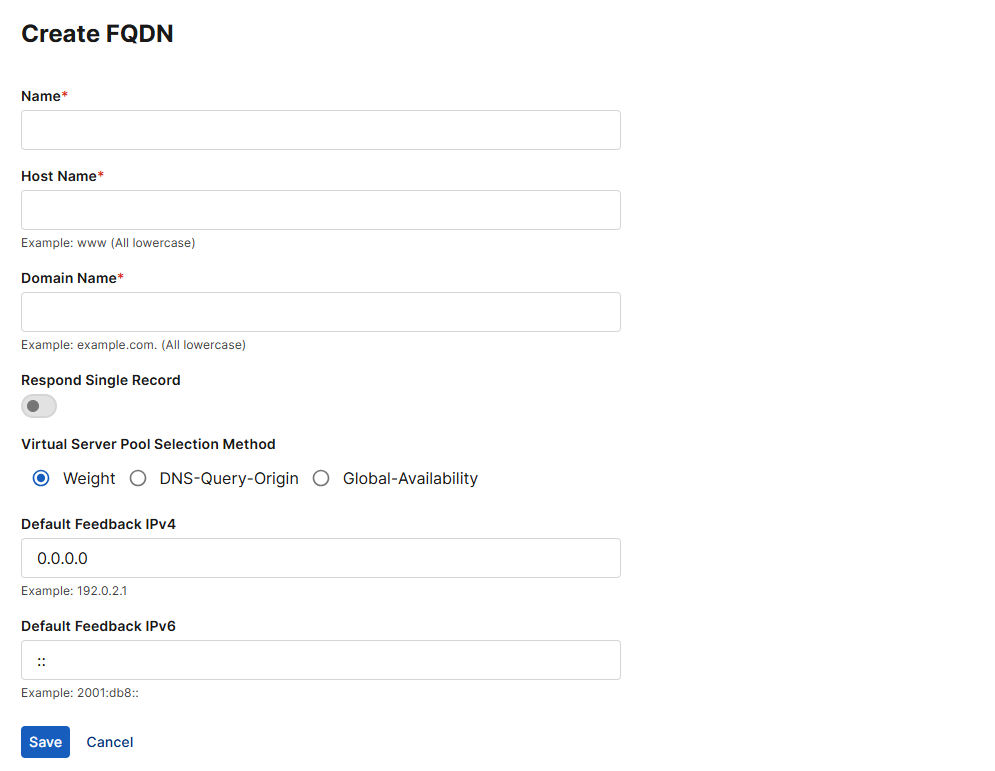
- Go to Server > Virtual Server Pool to create a new Virtual Server Pool. For detailed configuration instructions, please seeAdd Virtual Server Pool
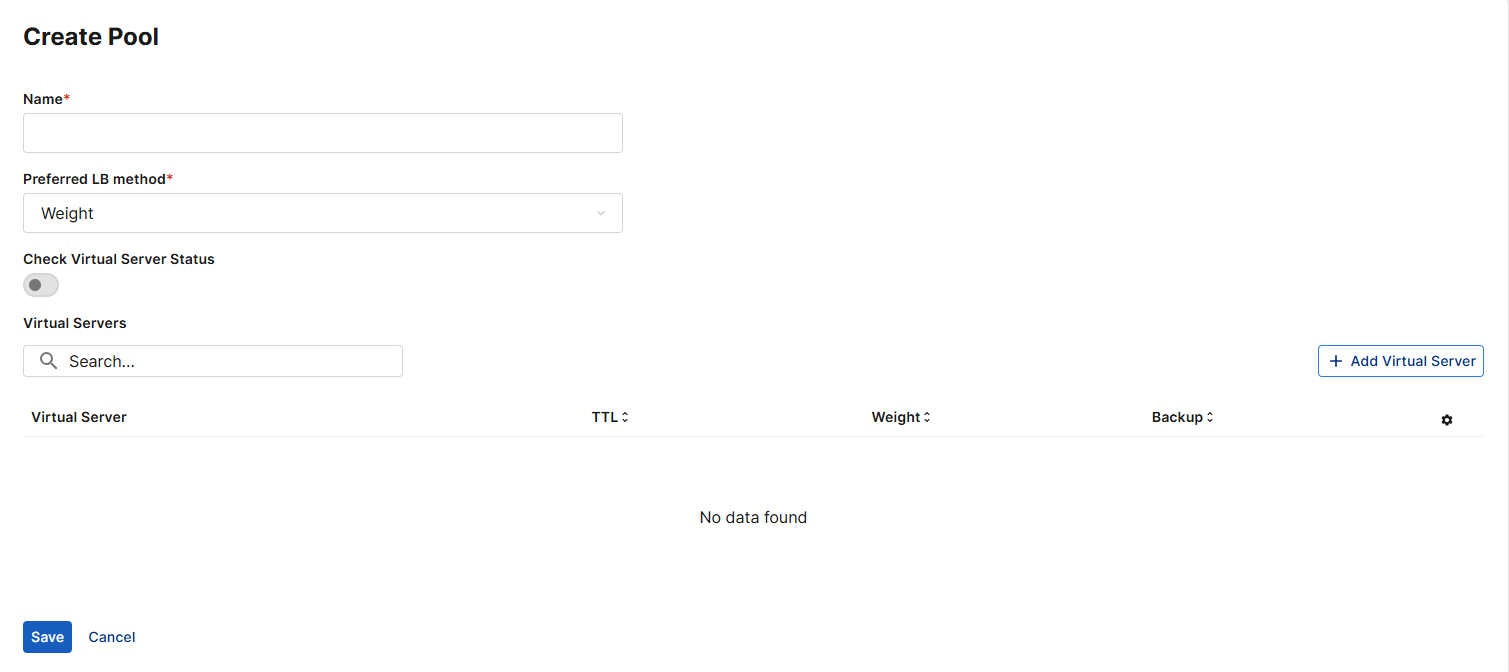
- After saving the Pool, create a member (virtual server) into Pool.
- Click Create Virtual Server.
- Under Virtual Server, select the connector you created in step 1.
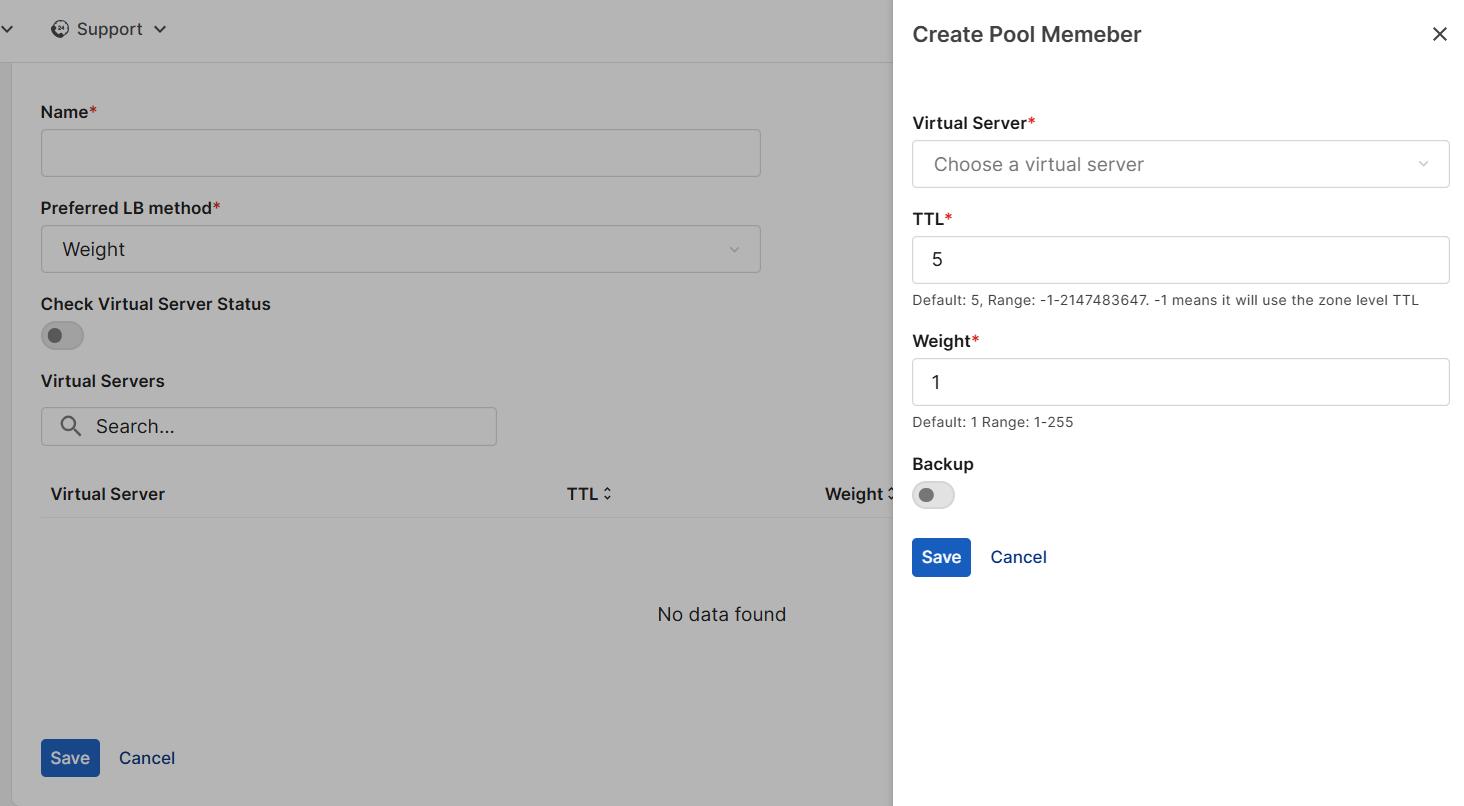
- The virtual server should be added successfully into Pool. Click Save. The Virtual Server Pool is also added successfully into FQDN.