Fortinet white logo
Fortinet white logo

User Guide

ABP Application

ABP Application

On the Application page, you can set up and manage settings for your Advanced Bot Protection (ABP) applications. This involves tasks like adding new applications, checking application details, changing the application's name, and setting up login protection.

Click into each application to view its traffic insights and configurations.

For onboarding information, please refer to ABP Setup.

Application Information

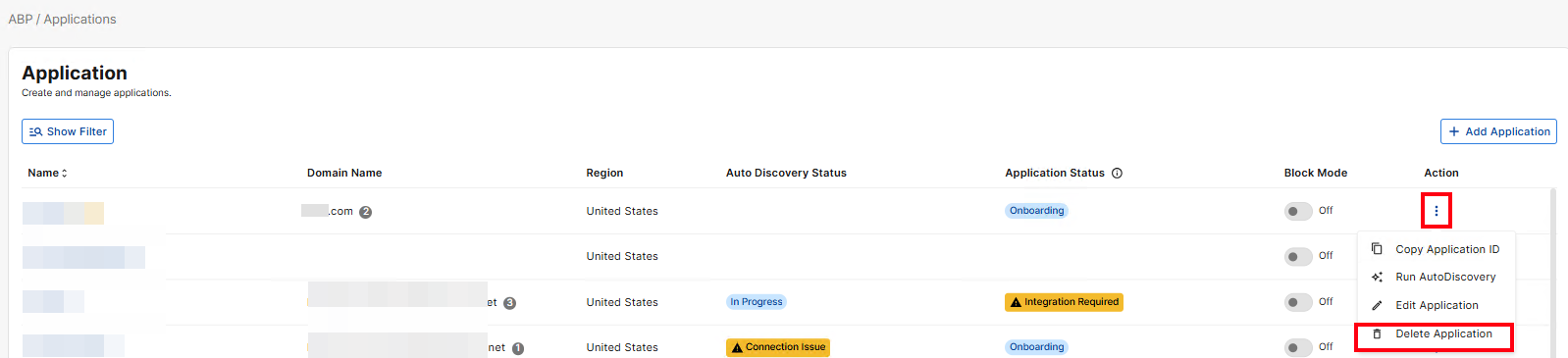
The table on the Application page displays all the applications currently under your FortiAppSec Cloud account.

Column

Description

Name

The internal name by which this application is displayed within the web portal GUI.

Click on the Name to access Traffic Insights and General modules.

Domain Name The domain name of your application. For example, www.fortinet.com. This field cannot be edited.
Region The region of the ABP service that processes the traffic of your application
Auto Discovery Status

The Auto Discovery Status indicates the current stage of the protection entry discovery process.

  • In Progress: Auto Discovery is still analyzing your application. No urgent action required.

  • Review Needed: Auto Discovery has suggested new protection entries. Please review and confirm the changes.
  • Connection Issue: Advanced Bot Protection could not connect to the entry points you provided. Potential causes for this include:
  • No Results: Auto Discovery has completed analyzing your application, and did not identify any protection entries.
    To proceed, either rerun Auto Discovery after confirming your entry points are configured correctly, or manually create protection entries under Configurations > Protection Entry.
  • No Updates: The Auto Discovery results match the current protection entries, with no changes detected.
Application Status

This field displays the protection status of the application.

  • Onboarding: The application has been created, and is now being analyzed. The duration of this process depends on the application's complexity, as well as the number of entry points and protection categories selected.

  • Integration Required: Advanced Bot Protection has not detected any attack queries targeting your protected entries from any connected WAF, FortiWeb, or FortiADC device. Possible reasons include:

  • Rule Adjustment: ABP tunes protection rules for two weeks based on real traffic to your application. During this time, please do not enable Block Mode.

  • Protected: The application's traffic is monitored and protected by ABP.

Action

Click to expand the available actions to be taken on the protection entry.

Edit Application

  1. Find the row containing the preferred application name.

  2. Click the Edit icon to open the Edit Application wizard.

    Changes to domain names or entry points require manually re-running Auto Discovery or adding a protection entry. Editing the application alone does not fully update the configuration.

    1. Basic Information: This page contains the same fields as those in the onboarding wizard.

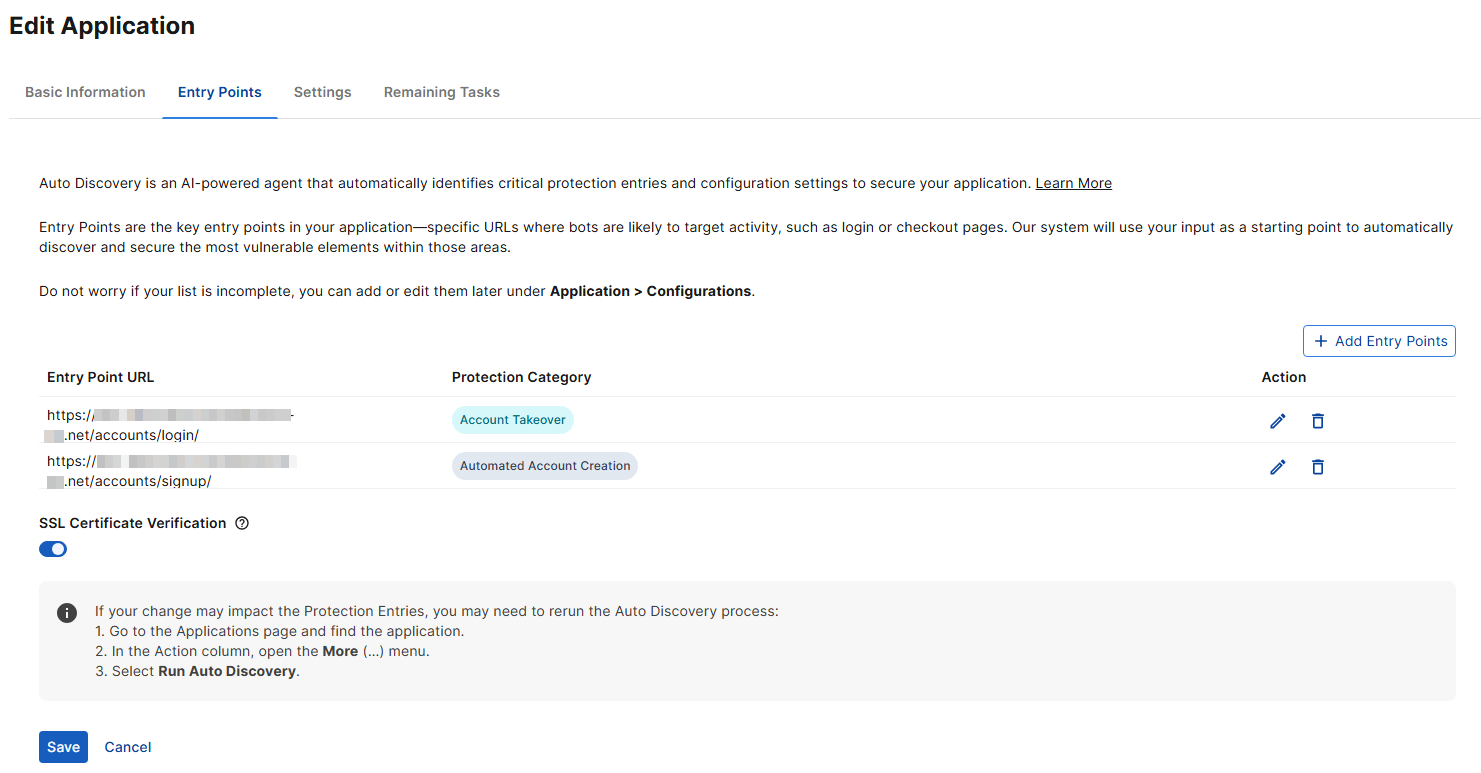
    2. Entry Points: This page contains the same fields as those in the onboarding wizard.
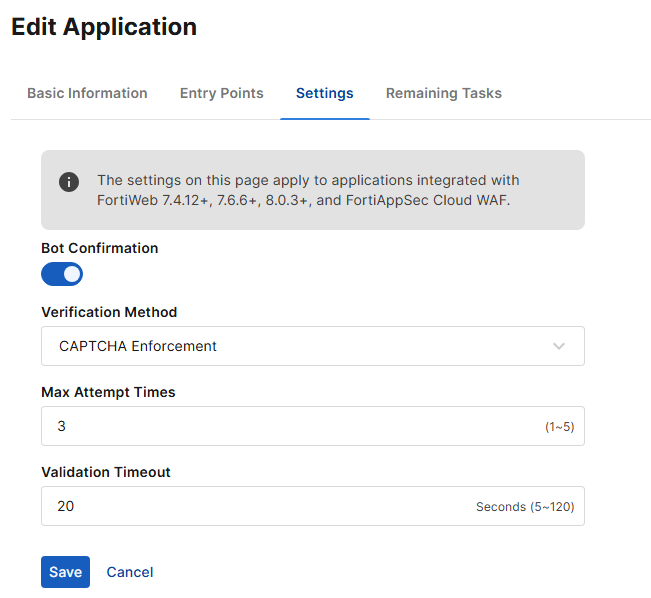
    3. Settings: this page includes configuration options for bot confirmation.

      Please note, the settings on this page apply to applications integrated with FortiWeb 7.4.12+, 7.6.6+, 8.0.3+, and FortiAppSec Cloud WAF.

      As of release 26.1.a, the Protective Action is configured per Entry Point rather than per application. For instructions on editing the Protective Action, see Configurations.
      Setting

      Description

      Bot Confirmation

      When enabled, the system displays a verification challenge to distinguish between human users and automated bots.

      • Verification Method: Currently, only CAPTCHA Enforcement is supported.

      • Max Attempt Times: Number of verification attempts allowed before the Protective Action is triggered.

      • Validation Timeout: The amount of time allowed for a user or client to complete the verification before the Protective Action is triggered.

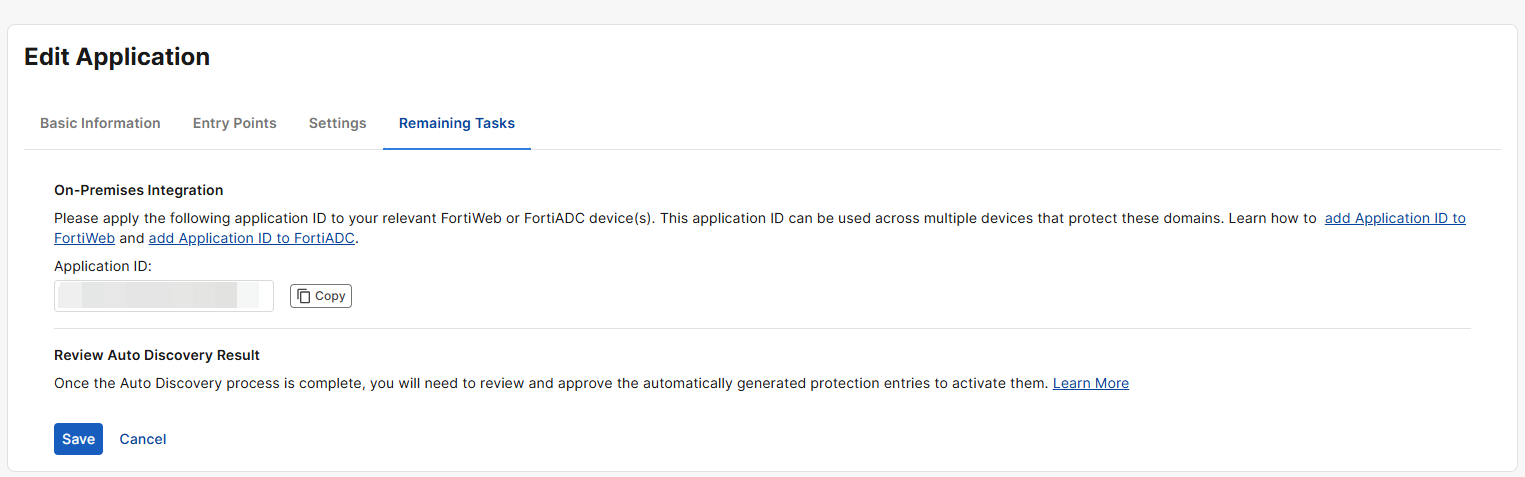
    4. Remaining Tasks: This page lists the outstanding actions that must be completed before your application can be fully connected and protected.
Delete Application

  1. Find the row containing the preferred application name.

  2. Click Delete Application.

ABP Application

ABP Application

On the Application page, you can set up and manage settings for your Advanced Bot Protection (ABP) applications. This involves tasks like adding new applications, checking application details, changing the application's name, and setting up login protection.

Click into each application to view its traffic insights and configurations.

For onboarding information, please refer to ABP Setup.

Application Information

The table on the Application page displays all the applications currently under your FortiAppSec Cloud account.

Column

Description

Name

The internal name by which this application is displayed within the web portal GUI.

Click on the Name to access Traffic Insights and General modules.

Domain Name The domain name of your application. For example, www.fortinet.com. This field cannot be edited.
Region The region of the ABP service that processes the traffic of your application
Auto Discovery Status

The Auto Discovery Status indicates the current stage of the protection entry discovery process.

  • In Progress: Auto Discovery is still analyzing your application. No urgent action required.

  • Review Needed: Auto Discovery has suggested new protection entries. Please review and confirm the changes.
  • Connection Issue: Advanced Bot Protection could not connect to the entry points you provided. Potential causes for this include:
  • No Results: Auto Discovery has completed analyzing your application, and did not identify any protection entries.
    To proceed, either rerun Auto Discovery after confirming your entry points are configured correctly, or manually create protection entries under Configurations > Protection Entry.
  • No Updates: The Auto Discovery results match the current protection entries, with no changes detected.
Application Status

This field displays the protection status of the application.

  • Onboarding: The application has been created, and is now being analyzed. The duration of this process depends on the application's complexity, as well as the number of entry points and protection categories selected.

  • Integration Required: Advanced Bot Protection has not detected any attack queries targeting your protected entries from any connected WAF, FortiWeb, or FortiADC device. Possible reasons include:

  • Rule Adjustment: ABP tunes protection rules for two weeks based on real traffic to your application. During this time, please do not enable Block Mode.

  • Protected: The application's traffic is monitored and protected by ABP.

Action

Click to expand the available actions to be taken on the protection entry.

Edit Application

  1. Find the row containing the preferred application name.

  2. Click the Edit icon to open the Edit Application wizard.

    Changes to domain names or entry points require manually re-running Auto Discovery or adding a protection entry. Editing the application alone does not fully update the configuration.

    1. Basic Information: This page contains the same fields as those in the onboarding wizard.

    2. Entry Points: This page contains the same fields as those in the onboarding wizard.

    3. Settings: this page includes configuration options for bot confirmation.

      Please note, the settings on this page apply to applications integrated with FortiWeb 7.4.12+, 7.6.6+, 8.0.3+, and FortiAppSec Cloud WAF.

      As of release 26.1.a, the Protective Action is configured per Entry Point rather than per application. For instructions on editing the Protective Action, see Configurations.

      Setting

      Description

      Bot Confirmation

      When enabled, the system displays a verification challenge to distinguish between human users and automated bots.

      • Verification Method: Currently, only CAPTCHA Enforcement is supported.

      • Max Attempt Times: Number of verification attempts allowed before the Protective Action is triggered.

      • Validation Timeout: The amount of time allowed for a user or client to complete the verification before the Protective Action is triggered.

    4. Remaining Tasks: This page lists the outstanding actions that must be completed before your application can be fully connected and protected.

Delete Application

  1. Find the row containing the preferred application name.

  2. Click Delete Application.