
Fortinet white logo
Fortinet white logo

User Guide

Attack logs

Attack logs

The Attack Logs display logs from all applications. You can click on an entry to view detailed threat information or use the Add Filter option to filter threats as needed. Click Reload to refresh the page and load any new logs recorded since the last time it was accessed.

Unlike FortiView, which organizes threat data into different categories, the Threat Analytics Attack Logs page lists all threats in a single table.

A maximum of 10,000 logs will be displayed per filter, and FortiAppSec Cloud retains attack logs for two months before they are deleted.

Please note that the number of attacks displayed in Attack Logs, FortiView Threat View , and Blocked Requests widget on Dashboard are slightly different.

  • Certain attack types such as Bot and DDoS attacks generate a large amount of requests in a short time. To prevent numerous identical attack logs flooding the UI, FortiAppSec Cloud only logs the first request in Attack Logs and FortiView Threat View , while it shows the actual count in Blocked Requests Widget so you can know how many actual attack requests were blocked.
  • To prevent Information Leakage, FortiAppSec Cloud may cloak the error pages or erase sensitive HTTP headers in response packets. Such items are logged only once per minute in Attack Logs and FortiView Threat View for you to know the Information Leakage rule took effect. In the meanwhile, the actual count is recorded in Blocked Requests Widget.
  • If you have set FortiAppSec Cloud to block attacks but not generate a log when certain violation occurs, such as Alert & Deny (no log), then the attacks will not be logged in Attack Logs and FortiView , but will be counted in the Blocked Requests widget.
    To identify the security feature blocking your request, map the Attack ID value to the corresponding description in the table below.
    Attack IDSecurity Rule
    20000001Allow Method
    20000002Protected Hostnames
    20000003Page Access
    20000004Start Pages
    20000005Parameter Validation
    20000006Black IP List
    20000007URL Access
    20000008Signature Detection
    20000009Custom Signature Detection

    20000010

    Brute Force Login

    20000011Hidden Fields
    20000012Site Publish

    20000013

    HTTP Parsing Error

    20000014DoS Protection
    20000015SYN Flood Protection
    20000016HTTPS Connection Failure
    20000017File Upload Restriction
    20000018GEO IP
    20000021Custom Access
    20000022IP Reputation
    20000023Padding Oracle
    20000024CSRF Protection
    20000025Quarantined IPs
    20000026

    HTTP Protocol Constraints

    20000027Credential Stuffing Defense
    20000028User Tracking
    20000029XML Validation Violation
    20000030Cookie Security
    20000031FTP Command Restriction
    20000033Timeout Session
    20000035FTP File Security
    20000036FTPS Connection Failure

    20000037

    Machine Learning

    20000038

    OpenAPI Validation Violation

    20000039

    WebSocket Security

    20000040

    MITB AJAX Security

    20000041

    Bot Detection

    20000042

    CORS Check Security

    20000043JSON Validation Security

    20000044

    Mobile API Protection

    20000045

    Bot Deception

    20000046

    Biometrics Based Detection

    20000047

    Threshold Based Detection

    20000048

    API Gateway

    20000049

    URL Encryption

    20000051

    Known Bots Detection

    20000052

    Client Management

    20000053

    Allow Only IP List

    20000054

    Web Shell Detection

    20000055

    Zero trust access

    20000056

    GRPC Security

Add Exception

If you know that a specific URL or parameter consistently triggers false positives by matching an attack signature during normal use, you can create an exception for that signature ID by clicking the three dots icon on the right side of any log entry, and clicking Add Exception. This prevents matching traffic from being flagged as an attack.

Please note, this feature is only available when the main type of an attack is Known Attack.

Request Host

Specify the host value (domain name) to match. For example, www.test.com or api.test.com.

  • If String Match is selected, is selected, enter the host name directly. Wildcards are supported (e.g., *.test.com).
  • If Regular Expression Match is selected, you can define a regex pattern to match one or more hostnames. For details, see Frequently used regular expressions.
Request URL

Specify a URL value to match. For example, /testpage.php, which match requests for http://www.test.com/testpage.php.

  • If String Match is selected, ensure the value starts with a forward slash ( / ) (for example, /testpage.php). You can enter a precise URL, such as /floder1/index.htm or use wildcards to match multiple URLs, such as /floder1/* ,or /floder1/*/index.htm.
  • If Regular Expression Match is selected, the value does not require a forward slash ( / ). However, ensure that it can match values that contain a forward slash. For details, see Frequently used regular expressions.

Do not include a domain name because it's by default the domain name of this application.

Parameter Name

Specify a parameter name to match. For example, http://www.test.com/testpage.php?a=1, the parameter name is "a".

To create a regular expression, see Frequently used regular expressions.

Cookie Name

Specify a cookie name to match. Both String Match and Regular Expression Match are supported.

JSON Elements

Specify the name of the JSON element to match. Both String Match and Regular Expression Match are supported.

Attack Category

Select an attack category in which you want to create an exception for its attacks therein.

Signature ID

The ID for the signature applied to the attack.

View Blocked Attack Details or Unblock

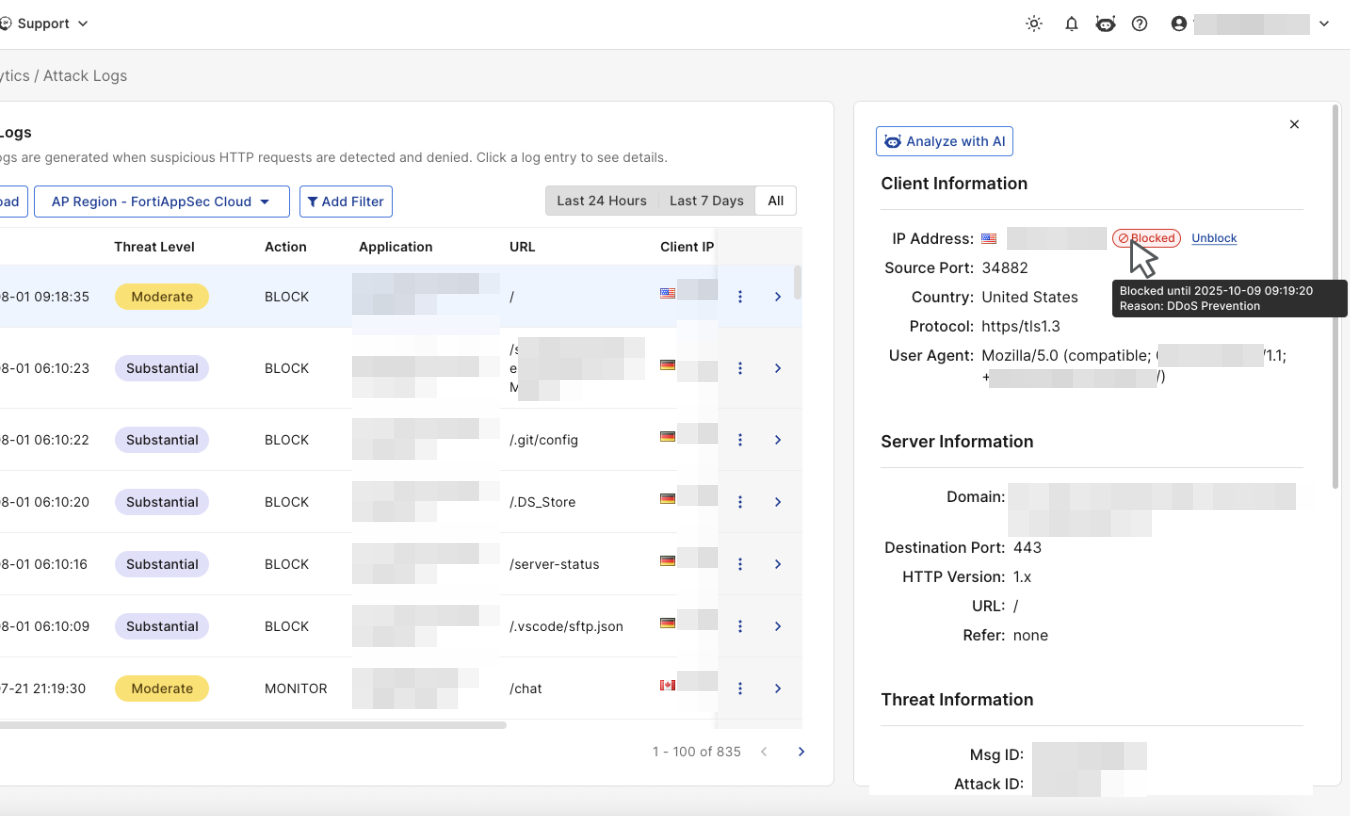
When an attack has been blocked, select the attack to open its details. Under Client Information, the Blocked tag and Unblock option are displayed.

  • View block details: Hover over the Blocked tag to see the block duration and reason.

  • Unblock the source IP: Click Unblock to allow the source IP to resume access to your application.
Attack logs

Attack logs

The Attack Logs display logs from all applications. You can click on an entry to view detailed threat information or use the Add Filter option to filter threats as needed. Click Reload to refresh the page and load any new logs recorded since the last time it was accessed.

Unlike FortiView, which organizes threat data into different categories, the Threat Analytics Attack Logs page lists all threats in a single table.

A maximum of 10,000 logs will be displayed per filter, and FortiAppSec Cloud retains attack logs for two months before they are deleted.

Please note that the number of attacks displayed in Attack Logs, FortiView Threat View , and Blocked Requests widget on Dashboard are slightly different.

  • Certain attack types such as Bot and DDoS attacks generate a large amount of requests in a short time. To prevent numerous identical attack logs flooding the UI, FortiAppSec Cloud only logs the first request in Attack Logs and FortiView Threat View , while it shows the actual count in Blocked Requests Widget so you can know how many actual attack requests were blocked.
  • To prevent Information Leakage, FortiAppSec Cloud may cloak the error pages or erase sensitive HTTP headers in response packets. Such items are logged only once per minute in Attack Logs and FortiView Threat View for you to know the Information Leakage rule took effect. In the meanwhile, the actual count is recorded in Blocked Requests Widget.
  • If you have set FortiAppSec Cloud to block attacks but not generate a log when certain violation occurs, such as Alert & Deny (no log), then the attacks will not be logged in Attack Logs and FortiView , but will be counted in the Blocked Requests widget.
    To identify the security feature blocking your request, map the Attack ID value to the corresponding description in the table below.
    Attack IDSecurity Rule
    20000001Allow Method
    20000002Protected Hostnames
    20000003Page Access
    20000004Start Pages
    20000005Parameter Validation
    20000006Black IP List
    20000007URL Access
    20000008Signature Detection
    20000009Custom Signature Detection

    20000010

    Brute Force Login

    20000011Hidden Fields
    20000012Site Publish

    20000013

    HTTP Parsing Error

    20000014DoS Protection
    20000015SYN Flood Protection
    20000016HTTPS Connection Failure
    20000017File Upload Restriction
    20000018GEO IP
    20000021Custom Access
    20000022IP Reputation
    20000023Padding Oracle
    20000024CSRF Protection
    20000025Quarantined IPs
    20000026

    HTTP Protocol Constraints

    20000027Credential Stuffing Defense
    20000028User Tracking
    20000029XML Validation Violation
    20000030Cookie Security
    20000031FTP Command Restriction
    20000033Timeout Session
    20000035FTP File Security
    20000036FTPS Connection Failure

    20000037

    Machine Learning

    20000038

    OpenAPI Validation Violation

    20000039

    WebSocket Security

    20000040

    MITB AJAX Security

    20000041

    Bot Detection

    20000042

    CORS Check Security

    20000043JSON Validation Security

    20000044

    Mobile API Protection

    20000045

    Bot Deception

    20000046

    Biometrics Based Detection

    20000047

    Threshold Based Detection

    20000048

    API Gateway

    20000049

    URL Encryption

    20000051

    Known Bots Detection

    20000052

    Client Management

    20000053

    Allow Only IP List

    20000054

    Web Shell Detection

    20000055

    Zero trust access

    20000056

    GRPC Security

Add Exception

If you know that a specific URL or parameter consistently triggers false positives by matching an attack signature during normal use, you can create an exception for that signature ID by clicking the three dots icon on the right side of any log entry, and clicking Add Exception. This prevents matching traffic from being flagged as an attack.

Please note, this feature is only available when the main type of an attack is Known Attack.

Request Host

Specify the host value (domain name) to match. For example, www.test.com or api.test.com.

  • If String Match is selected, is selected, enter the host name directly. Wildcards are supported (e.g., *.test.com).
  • If Regular Expression Match is selected, you can define a regex pattern to match one or more hostnames. For details, see Frequently used regular expressions.
Request URL

Specify a URL value to match. For example, /testpage.php, which match requests for http://www.test.com/testpage.php.

  • If String Match is selected, ensure the value starts with a forward slash ( / ) (for example, /testpage.php). You can enter a precise URL, such as /floder1/index.htm or use wildcards to match multiple URLs, such as /floder1/* ,or /floder1/*/index.htm.
  • If Regular Expression Match is selected, the value does not require a forward slash ( / ). However, ensure that it can match values that contain a forward slash. For details, see Frequently used regular expressions.

Do not include a domain name because it's by default the domain name of this application.

Parameter Name

Specify a parameter name to match. For example, http://www.test.com/testpage.php?a=1, the parameter name is "a".

To create a regular expression, see Frequently used regular expressions.

Cookie Name

Specify a cookie name to match. Both String Match and Regular Expression Match are supported.

JSON Elements

Specify the name of the JSON element to match. Both String Match and Regular Expression Match are supported.

Attack Category

Select an attack category in which you want to create an exception for its attacks therein.

Signature ID

The ID for the signature applied to the attack.

View Blocked Attack Details or Unblock

When an attack has been blocked, select the attack to open its details. Under Client Information, the Blocked tag and Unblock option are displayed.

  • View block details: Hover over the Blocked tag to see the block duration and reason.

  • Unblock the source IP: Click Unblock to allow the source IP to resume access to your application.