

ZTNA traffic forwarding proxy with FQDN example
When defining ZTNA connection rules on FortiClient for TCP forwarding, it is sometimes desirable to configure the destination host address as an FQDN address instead of an IP address. Since the real servers are often servers in the corporate network, this layer of obfuscation prevents internal IPs from easily leaking to the public, and also makes the destination more easily recognizable by the end users.
One obstacle to overcome is getting remote hosts to resolve an internal FQDN that is typically only resolvable by an internal DNS in the corporate network. This can be solved with the following:
-
When an FQDN address is added in FortiClient’s ZTNA Destination, FortiClient will intercept connections destined for the FQDN address and replace the destination with a special IP address (such as 10.235.0.1).
-
FortiClient listens to any traffic destined for the FQDN and its port and forwards the traffic using the TCP forwarding URL with FQDN to the ZTNA application gateway.
-
The ZTNA application gateway will resolve the FQDN, matching the traffic to the ZTNA real server configuration with the same domain and address.
-
If a valid ZTNA real server entry is found, traffic is forwarded to the real server.
Example
In this example, a FortiAnalyzer in the internal network is added to the FortiGate access proxy for TCP forwarding. A ZTNA Destination is configured on the FortiClient, with the destination host field pointing to the FQDN addresses of the internal servers. The FQDN address is also resolvable by the FortiGate and the same FQDN is used in the real server mapping.
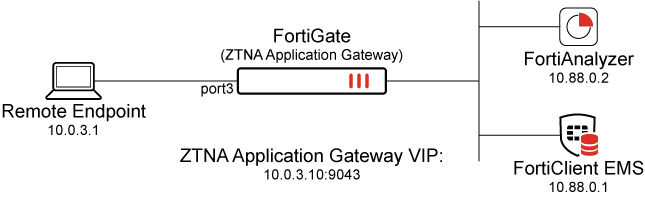
This example assumes that the FortiGate EMS Fabric connector is already successfully connected.
This features requires a minimum FortiClient and FortiClient EMS version of 7.0.3.
To configure the TCP forwarding proxy:
-
Go to Policy & Objects > ZTNA > Traffic Forwarding > Traffic Forwarding Server.
-
Click Create new.
-
Set Name to 10.0.3.11.
-
Set Host to 10.0.3.11.
This address must exactly match the Proxy Gateway configured on the FortiClient. It is not possible to use a FQDN or hostname that would resolve to the Proxy Gateway IP address.
-
Set ZTNA port to Create new and configure the port:
Option
Value
Interface
port3
IP address
10.0.3.11
Port
9043
Default certificate
This example uses a wildcard certificate with a Common Name (CN): *.ztnademo.com.
This certificate is trusted by the endpoints which will access the ZTNA port.
Name
10.0.3.11:9043
Verify that the IP address and port do not conflict with management access to the interface. Otherwise, change the IP address to another address on that subnet.
-
Click OK to save the traffic forwarding server.
-
Select the Destination view to define a destination.
-
Click Create new.
-
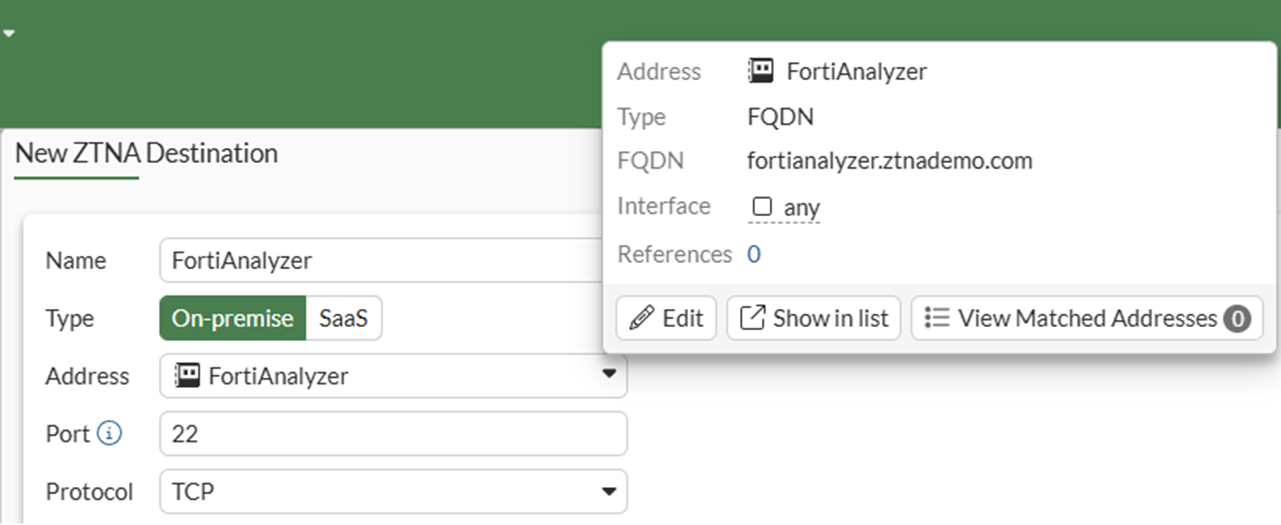
Configure the ZTNA destination:
Option
Value
Name
FortiAnalyzer
Type
On-premise
Address
Use the dropdown and then the + button to define a new address object:
-
Type: FQDN
-
FQDN: FortiAnalyzer
Port
22
Protocol
TCP
-
-
Click OK to save the ZTNA destination.
To configure the FQDN resolution:
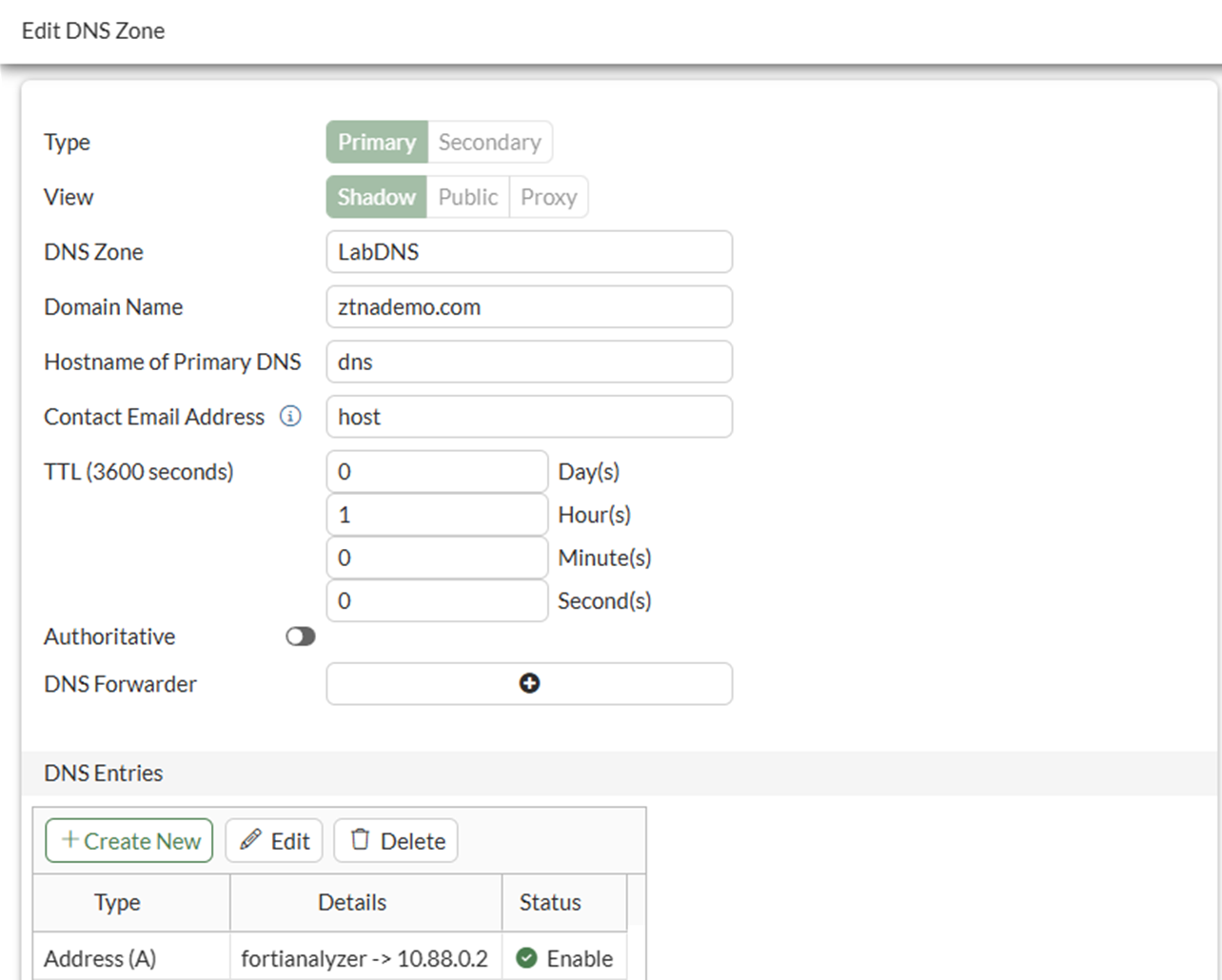
The FQDN fortianalyzer.ztnademo.com does not currently resolve to anything. A DNS entry is required for the FortiGate to resolve the FQDN to the FortiAnalyzer IP address of 10.88.0.2. In this example, the FortiGate itself is functioning as the DNS server and a DNS entry must be added to map the FQDN to an IP address.
-
Go to Network > DNS Servers.
-
Edit the ztnademo.com domain DNS database. If necessary, create a new database for the domain.
-
In the DNS Entries table click Create New.
-
Configure the DNS entry:
Option
Value
Type
Address (A)
Hostname
fortianalyzer
Fully Qualified Domain Name (FQDN)
(auto-populates)
IP Address
10.88.0.2
-
Click OK to save the DNS entry.
-
Click OK to save the DNS zone.
-
Verify the resolution using the CLI:
# execute ping fortianalyzer.ztnademo.com
PING fortianalyzer.ztnademo.com (10.88.0.2): 56 data bytes
64 bytes from 10.88.0.2: icmp_seq=0 ttl=64 time=0.5 ms
64 bytes from 10.88.0.2: icmp_seq=1 ttl=64 time=0.5 ms
^C
--- fortianalyzer.ztnademo.com ping statistics ---
2 packets transmitted, 2 packets received, 0% packet loss
round-trip min/avg/max = 0.5/0.5/0.5 ms
To configure the ZTNA rule:
-
Go to Policy & Objects > Firewall Policy and click Create new.
-
Set Name to ZTNA-Admin-Access.
-
Set Type to ZTNA.
-
Set Incoming Interface to WAN (port3).
-
Set Source to all.
-
Set ZTNA port to 10.0.3.11:9043.
-
Set ZTNA destination to FortiAnalyzer.
-
Set Log allowed traffic to All sessions.
-
Configure the remaining options as needed.
-
Click OK.
Testing the connection to the TCP forwarding access proxy
Before connecting, users must have a ZTNA Destination in FortiClient.
To create the ZTNA rules in EMS:
-
Go to Endpoint Profiles > ZTNA Destinations.
-
Select the required profile, or create a new one.
-
Set Name to the desired name.
-
In the Rules section click Add.
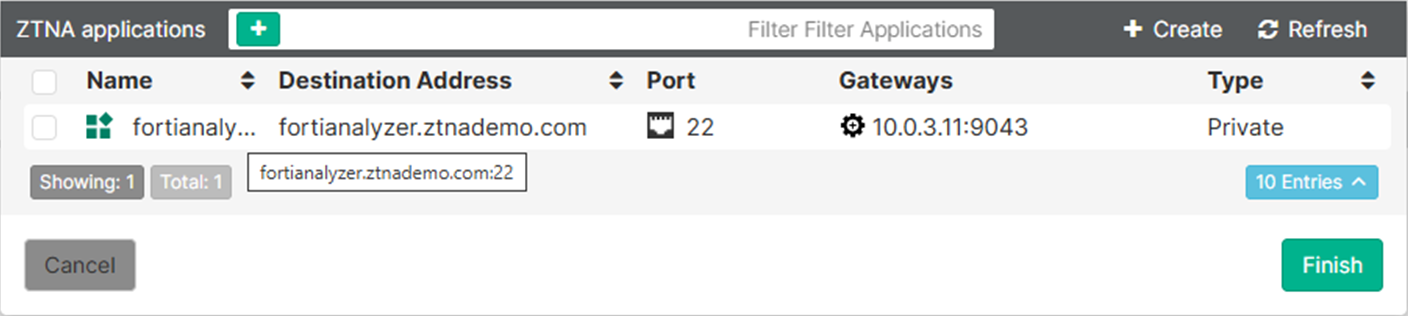
The ZTNA applications will display the fortianalyzer.ztnademo.com:22 destination created earlier on the FortiGate. You can hover over the name field to show the full name.
-
Select the entry and click Finish.
The destination now appears as a rule entry.
-
Click Save to save the ZTNA Destinations profile.
-
Ensure that this profile is applied to the endpoint policy assigned to the remote endpoint.
After some time, the FortiClient will receive the profile update and the configuration will appear under the ZTNA DESTINATION tab on FortiClient.
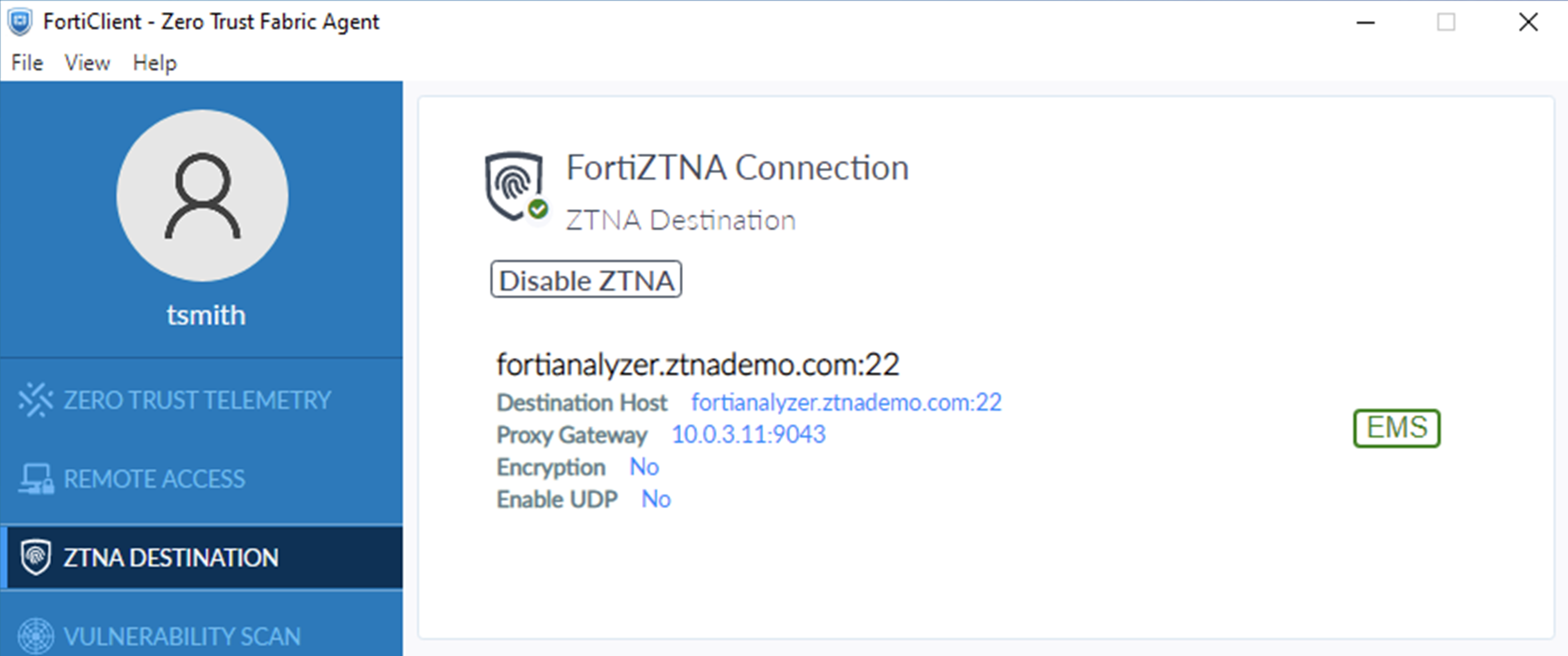
To test the access proxy:
-
Verify the resolution for fortianalyzer.ztnademo.com on the remote endpoint using ping:
>ping fortianalyzer.ztnademo.com

Pinging fortianalyzer.ztnademo.com [10.235.0.1] with 32 bytes of data:
Request timed out.
Request timed out.
Request timed out.
Request timed out.

Ping statistics for 10.235.0.1:
	Packets: Sent = 4, Received = 0, Lost = 4 (100% loss),
The FortiClient is resolving fortianalyzer.ztnademo.com to a special address, overriding any DNS resolution for this host. FortiClient will listen to the traffic to this FQDN and forward it to the Proxy Gateway.
-
Test SSH access from the remote endpoint using an SSH client, such as PowerShell:
ssh admin@fortianalyzer.ztnademo.com
-
Enter the password when prompted.
-
After successfully connecting, ensure that you end the session to generate a log on the FortiGate.
FortiGate logs
On the FortiGate, go to Log & Report > ZTNA Traffic to view the logs. Alternatively, use the CLI to display the most recent ZTNA logs:
# execute log filter category 0
# execute log filter field subtype ztna
# execute log display
Successful log
1: date=2026-03-06 time=11:04:00 eventtime=1772823839937353369 tz="-0800" logid="0005000024" type="traffic" subtype="ztna" level="notice" vd="root" srcip=10.0.3.2 srcport=20933 srcintf="port3" srcintfrole="wan" dstcountry="Reserved" srccountry="Reserved" dstip=10.88.0.2 dstport=22 dstintf="port2" dstintfrole="dmz" sessionid=61153 srcuuid="b458a65a-f759-51ea-d7df-ef2e750026d1" dstuuid="88ae5cb6-196d-51f1-c58c-322876d641bb" service="SSH" proxyapptype="ztna-proxy" proto=6 action="accept" policyid=1 policytype="policy" poluuid="6d795be4-1972-51f1-e6ab-ed4c5318bd15" policyname="ZTNA-Admin-Access" appcat="unscanned" duration=3 vip="10.0.3.11:9043" vipincomingip=10.0.3.11 accessproxy="ZTNA-10.0.3.11" ztnadestination="FortiAnalyzer" clientdevicemanageable="manageable" clientcert="yes" wanin=1629 rcvdbyte=1629 wanout=1693 lanin=3679 sentbyte=3679 lanout=4758
Failed log
This failure is as a result of setting the wrong host when configuring the TCP forwarding proxy. In this case, the host field was set to fortianalyzer instead of 10.0.3.11.
1: date=2026-03-06 time=11:13:48 eventtime=1772824427849248121 tz="-0800" logid="0005000024" type="traffic" subtype="ztna" level="notice" vd="root" srcip=10.0.3.2 srcport=20949 srcintf="port3" srcintfrole="wan" dstcountry="Reserved" srccountry="Reserved" dstip=10.0.3.11 dstport=9043 dstintf="root" dstintfrole="undefined" sessionid=61384 srcuuid="b458a65a-f759-51ea-d7df-ef2e750026d1" service="tcp/9043" proxyapptype="ztna-proxy" proto=6 action="deny" policyid=1 policytype="policy" poluuid="6d795be4-1972-51f1-e6ab-ed4c5318bd15" policyname="ZTNA-Admin-Access" appcat="unscanned" duration=0 vip="10.0.3.11:9043" vipincomingip=10.0.3.11 clientdevicemanageable="manageable" clientcert="yes" wanin=0 rcvdbyte=0 wanout=0 lanin=1970 sentbyte=1970 lanout=3014 msg="Traffic denied because HTTP url (https://10.0.3.11/tcp?address=fortianalyzer.ztnademo.com&port=22&tls=0) failed to match an API-gateway with vhost(name/hostname:_def_virtual_host_/_def_virtual_host_)" crscore=30 craction=131072 crlevel="high"
This log indicates that the FortiClient sends the request
https://10.0.3.11/tcp?address=fortianalyzer.ztnademo.com&port=22&tls=0, which does not match the configured virtual host (traffic forwarding server):
https://fortianalyzer/tcp?address=fortianalyzer.ztnademo.com&port=22&tls=0.
The FortiClient request is defined by the Gateway IP in the ZTNA Destinations Profile > Rules > Destinations > Gateway IP on EMS. In this case: 10.0.3.11.
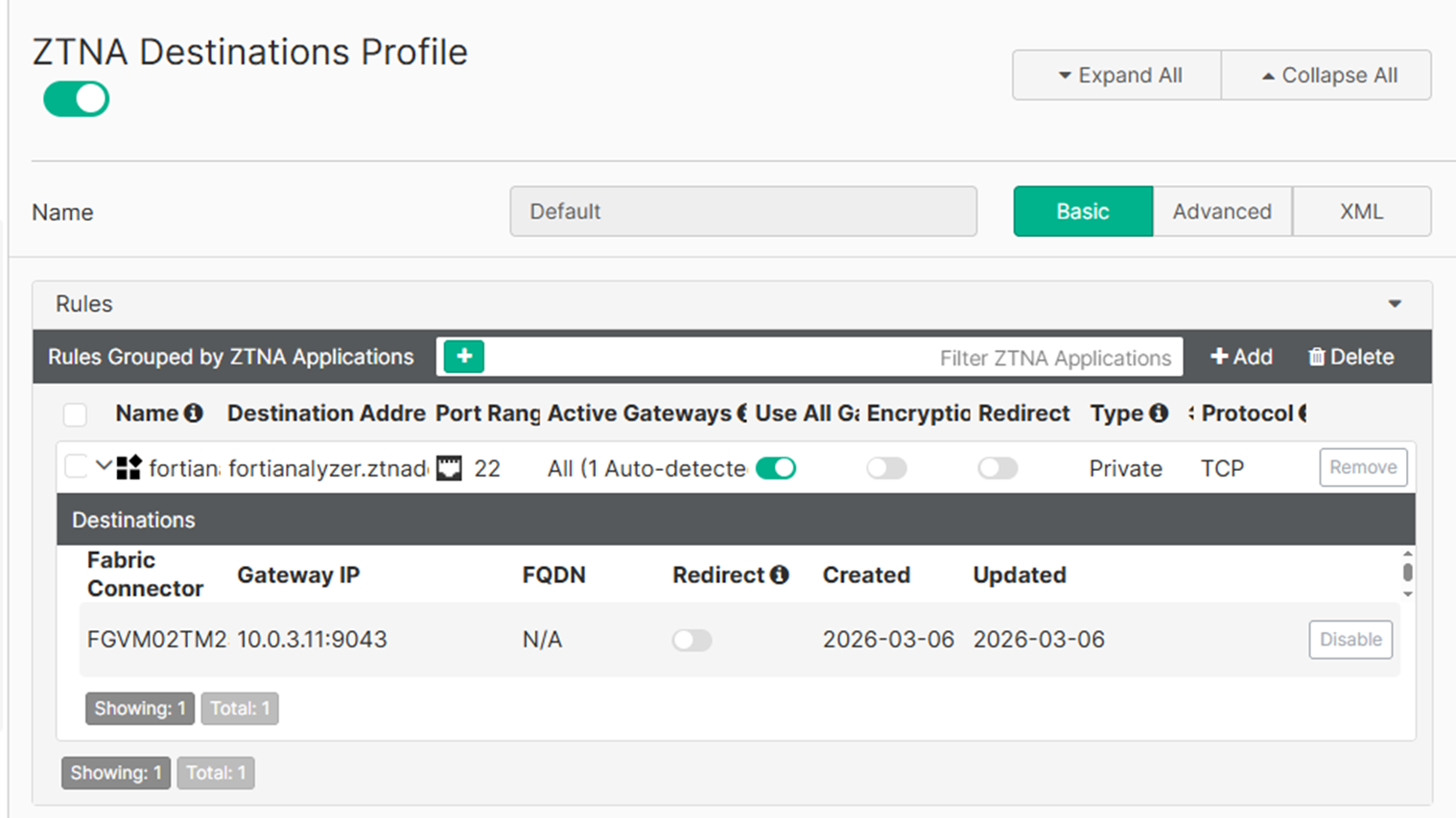
The Gateway IP is defined by the IP address and port combination as configured in the ZTNA port, ZTNA-10.0.3.11 on the FortiGate. The port must be used in a firewall policy before it is synchronized to the EMS with the fabric connector.