ZTNA application gateway with SAML and MFA using FortiAuthenticator example
ZTNA application gateway supports device verification using device certificates that are issued by EMS. To authenticate users, administrators can use either basic or SAML authentication. An advantage of SAML authentication is that multi-factor authentication (MFA) can be provided by the SAML Identity Provider (IdP).
In these examples, a FortiAuthenticator is used as the IdP, and MFA is applied to user authentication for remote users accessing the web, RDP, and SSH resources over the ZTNA application gateway. It is assumed that the FortiGate EMS fabric connector has already been successfully connected.
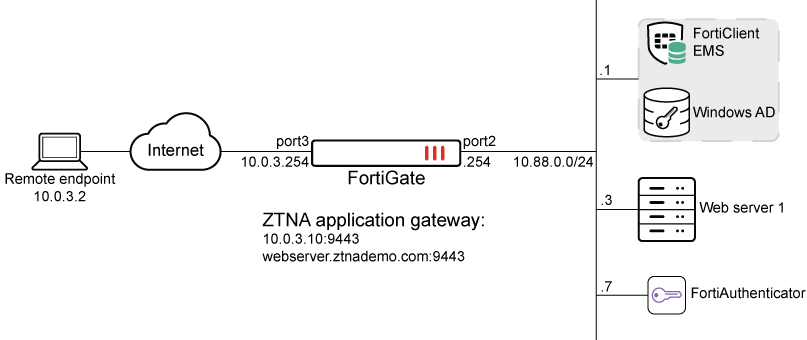
DNS resolutions:
-
webserver.ztnademo.com:9443 -> 10.0.3.10:9443
-
fac.ztnademo.com -> 10.0.3.7
The FortiAuthenticator (FAC) integrates with Active Directory (AD) on the Windows Domain Controller, which is also acting as the EMS server. Users are synchronized from the AD to the FAC, and remote users are configured with token-based authentication. SAML authentication is configured on the FortiGate, pointing to the FAC as the SAML IdP. The SAML server is applied to the ZTNA application gateway authentication scheme and rule, to provide the foundation for applying user authentication on individual ZTNA policies.
Configuring FortiAuthenticator
First configure FortiAuthenticator to synchronize users from AD using LDAP, apply MFA to individual remote users, and be the IdP.
To create a remote authentication server pointing to the Windows AD:
-
Go to Authentication > Remote Auth. Servers > LDAP and click Create New.
-
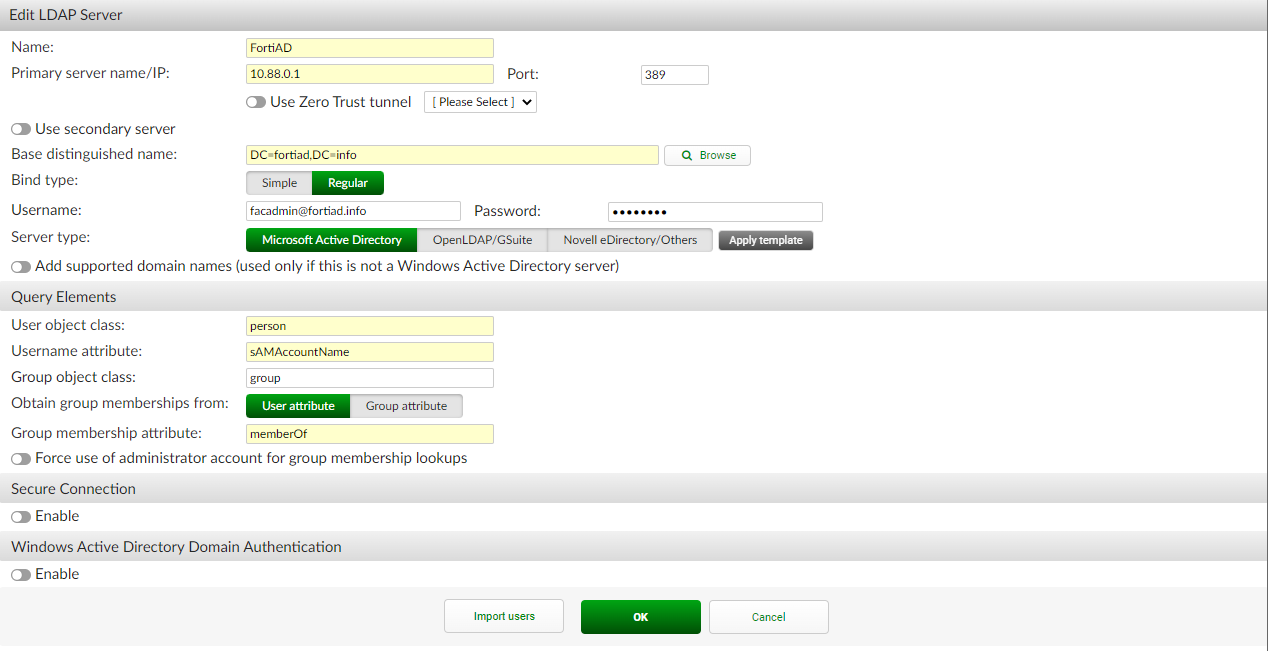
Configure the following:
Name
FortiAD
Primary server name / IP
10.88.0.1
Port
389 (or another port if using LDAPS)
Based distinguished name
DC=fortiad,DC=info
Bind type
Regular
Username
<user account used for LDAP bind>
Password
<password of user>
Server Type
Microsoft Active Directory
User object class
person (default)
Username attribute
sAMAccountName (default)
Group object class
group (default)
Obtain group membership from
User attribute
Group membership attribute
memberOf (default)
Secure connection
Enable if using LDAPS or STARTTLS
-
Click OK.
-
Edit the FortiAD entry.
-
At the bottom, click Import users.
-
On the Import Remote LDAP User screen, configure the following settings:
-
For Remote LDAP Server, select FortiAD.
-
For Action, select Import users.
-
Click Go.
-
Select the users to import.
-
Click OK.
-
The screen displays the users that are imported.

For more details, see LDAP in the FortiAuthenticator Administration Guide.
-
To configure a remote LDAP user to use MFA:
-
Go to Authentication > User Management > Remote Users, and edit a user.
-
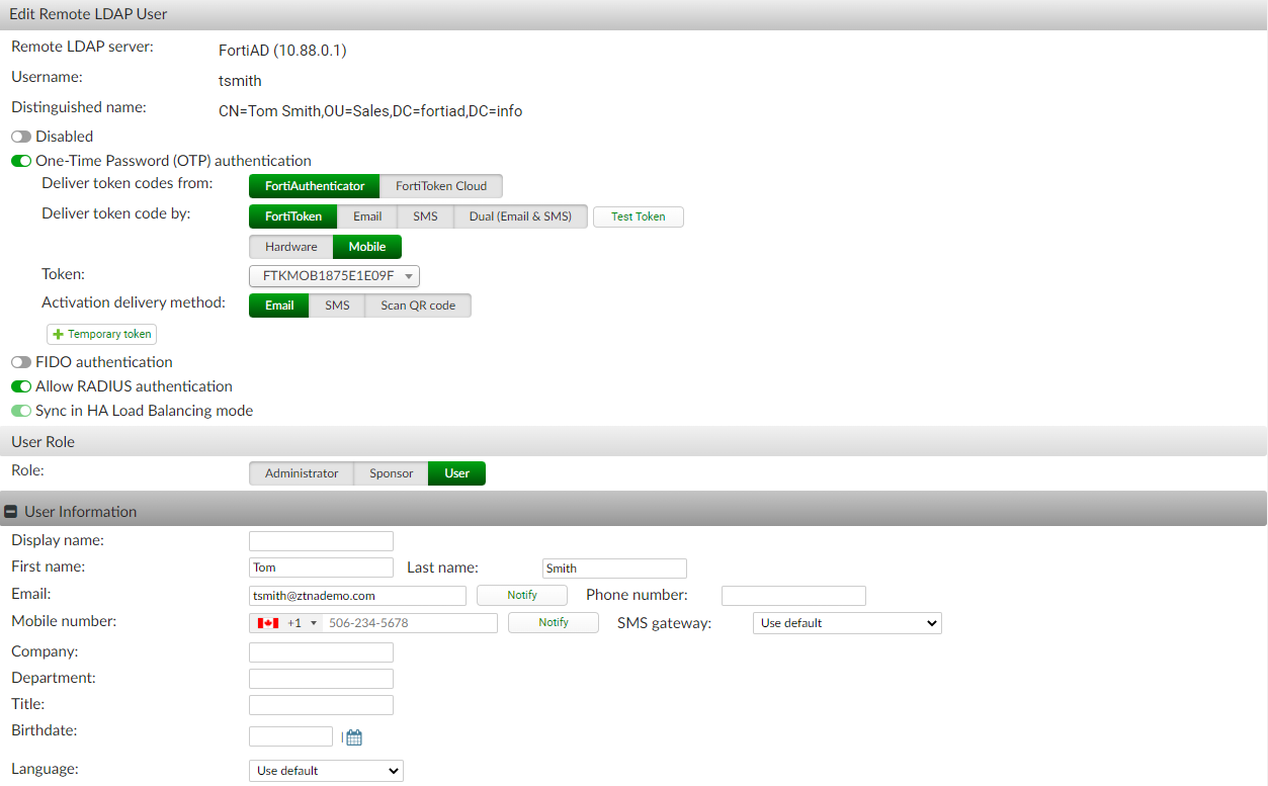
Enable One-Time Password (OTP) authentication.
-
Set Deliver token codes from to FortiAuthenticator.
-
Set Deliver token by:
-
Select FortiToken > Mobile.
-
Select Token from the drop-down list.
-
Set the Activation delivery method to email.
-
-
-
In the User Information section, add the email address that will be used for the FortiToken activation.
-
Click OK.
An activation email is sent to the user that they can use to install the token to their FortiToken Mobile app.
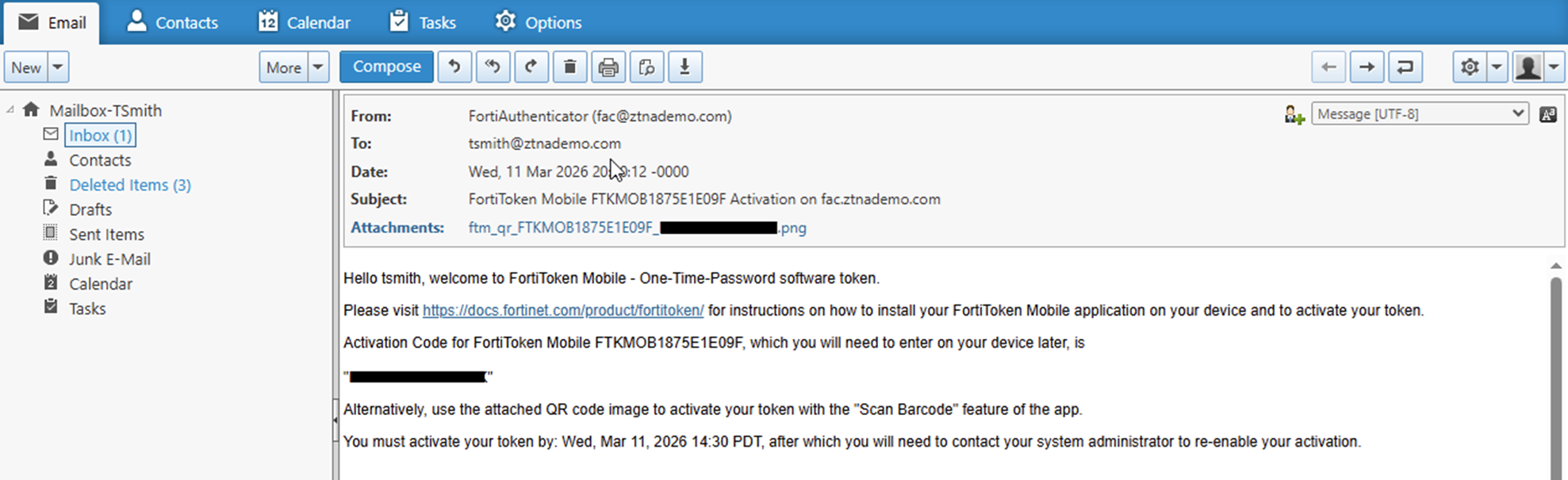
This guide assumes the token has been activated on a mobile device for user Tsmith.

For more details, see Remote users in the FortiAuthenticator Administration Guide.
To configure SAML IdP:
-
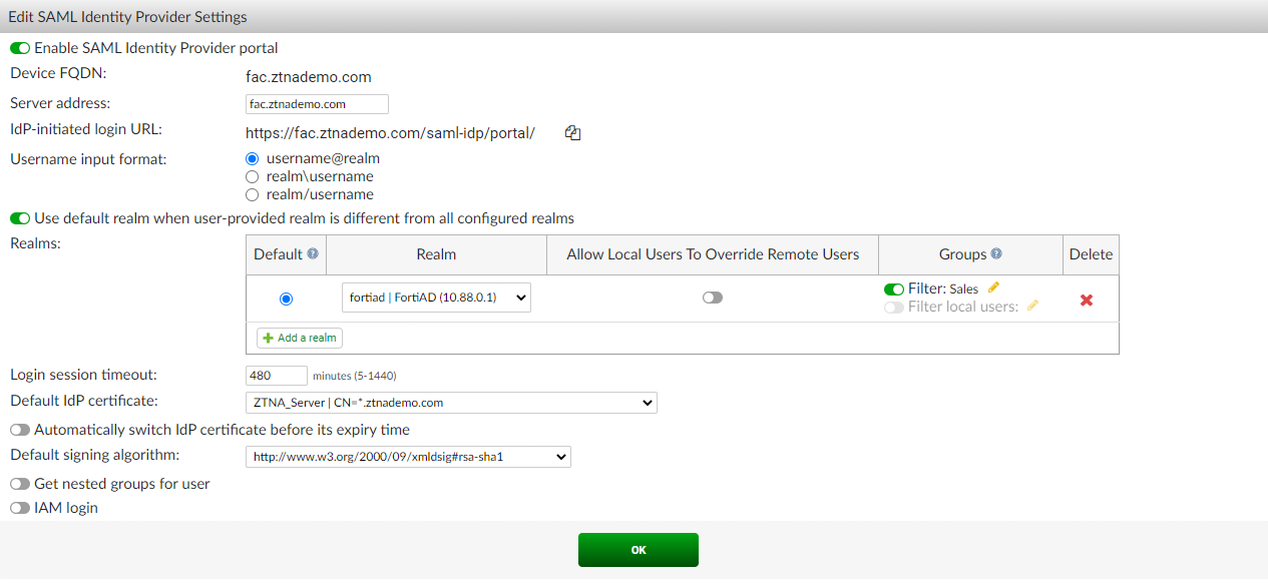
Go to Authentication > SAML IdP > General and enable Enable SAML Identity Provider portal.
-
The Server address is the device FQDN or IP address (configured in the System Information widget at System > Dashboard > Status). In this example, it is fac.ztnademo.com.
-
Set Username input format to username@realm.
-
Click Add a realm in the Realms table:
-
Set Realm to the just created LDAP realm (FortiAD).
-
Optionally, enable Filter and select the required users groups. In this example, Sales is configured.
-
-
Set Default IdP certificate to the certificate that will be used in the HTTPS connection to the IdP portal.
-
Click OK.
-
Go to Authentication > SAML IdP > Service Providers, and click Create New to create a service provider (SP) for the FortiGate SP.
-
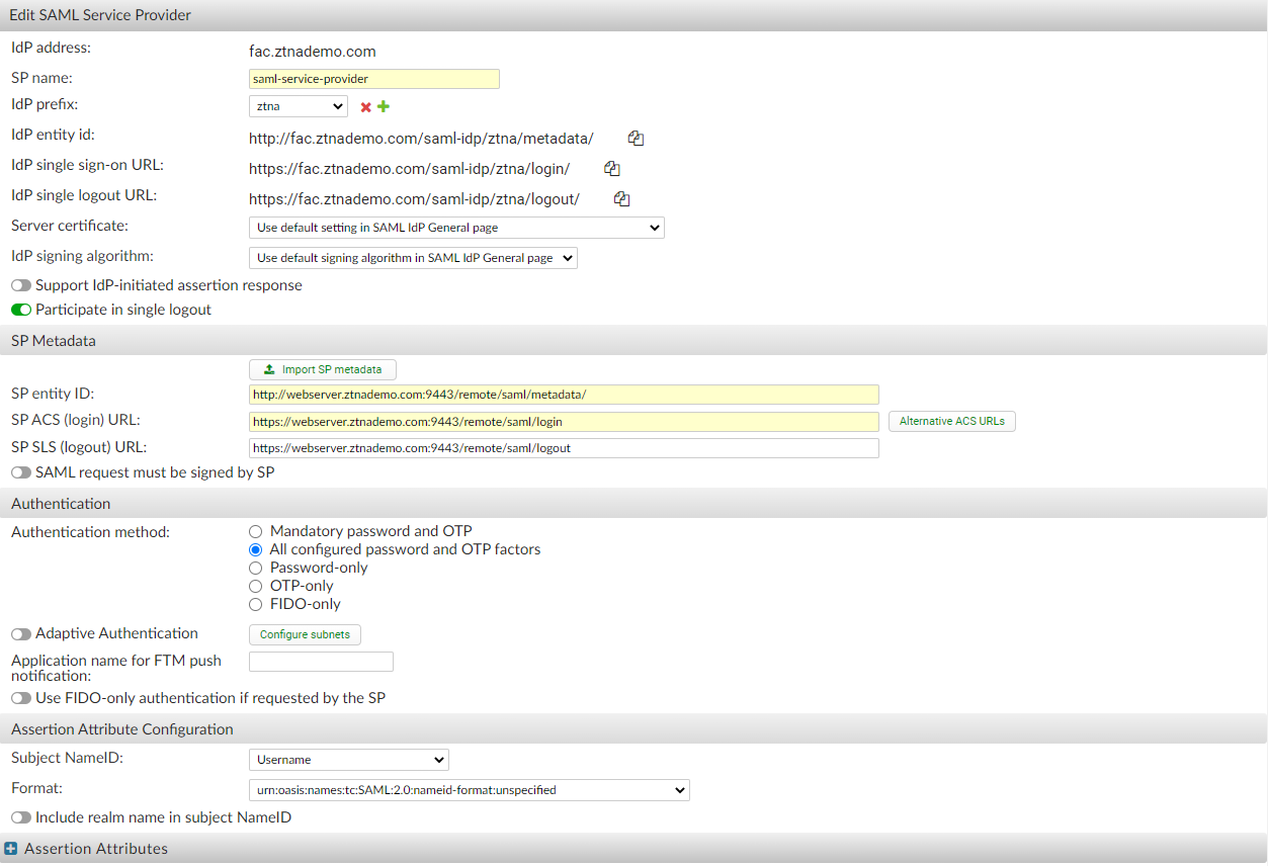
Configure the following, which must match what will be configured on the FortiGate:
SP name
saml-service-provider
IdP prefix
ztna
Server certificate
Use default setting in SAML IdP > General page.
SP entity ID
http://webserver.ztnademo.com:9443/remote/saml/metadata/
SP ACS (login) URL
https://webserver.ztnademo.com:9443/remote/saml/login
SP SLS (logout) URL
https://webserver.ztnademo.com:9443/remote/saml/logout
Participate in single logout
Enable
Where the SP entity ID, SP ACS (login) URL, and SP SLS (logout) URL break down as follows:
-
webserver.ztnademo.com - The FQDN that resolves to the FortiGate SP.
-
9443 - The port that is used to map to the FortiGate's SAML SP service.
-
/remote/saml - The custom, user defined fields.
-
/metadata, /login, and /logout - The standard convention used to identify the SP entity, log in portal, and log out portal.
-
-
Click OK.
-
Edit the just created SP object and, under Assertion Attribute, click Add Assertion Attribute.
-
Set SAML attribute to the username and set User attribute to Username, then click OK.
-
Click OK.
For more details, see Configuring SAML settings in the SAML Interoperability Guide.
Configuring the FortiGate SAML settings
On FortiGate, a SAML user is used to define the SAML SP and IdP settings. This user is then applied to the ZTNA proxy using an authentication scheme, rule, and settings. A ZTNA server is then created to allow access to the SAML SP server so that end users can reach the FortiGate SP's captive portal. The SAML user must then be added to a ZTNA policy to trigger authentication when accessing the ZTNA application gateway.
To create a new SAML user/server from the GUI:
-
On the FortiGate, go to User & Authentication > Single Sign-On.
-
Click Create New.
-
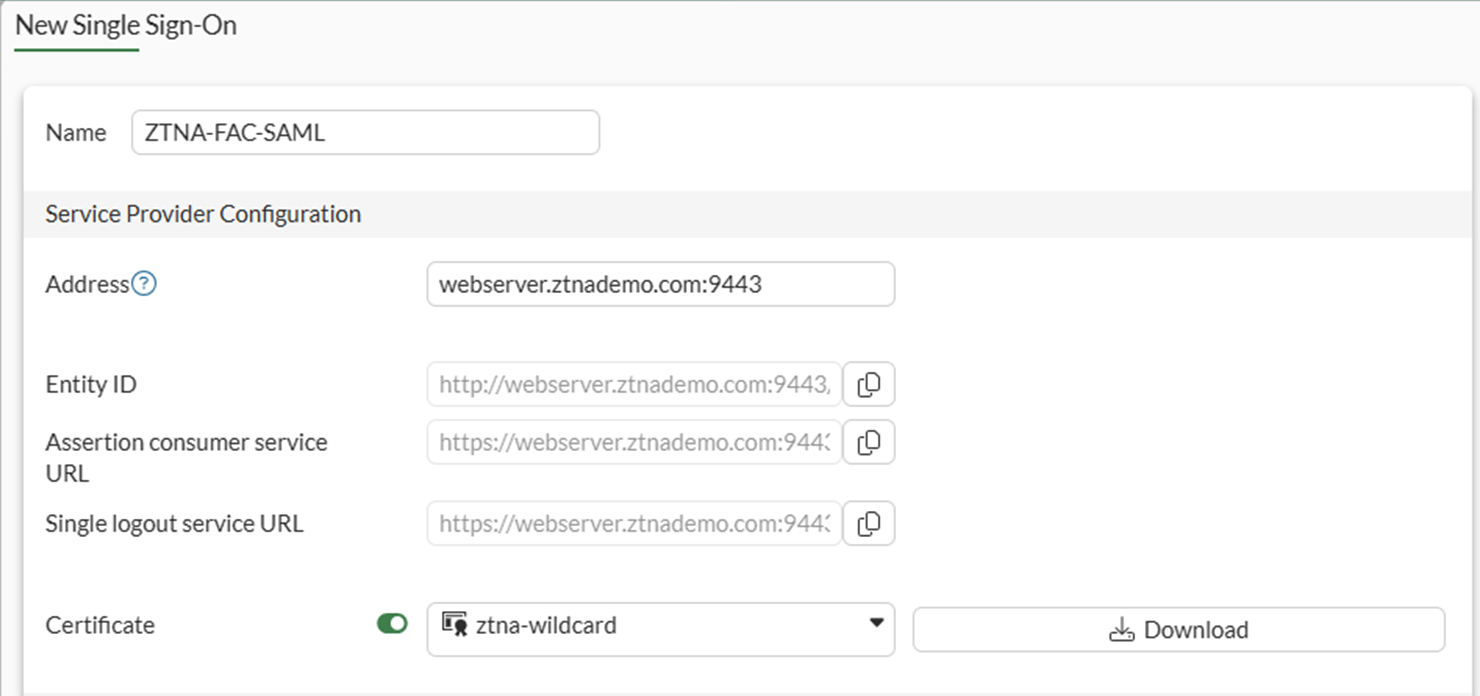
Set Name to ZTNA-FAC-SAML.
-
Set Address to webserver.ztnademo.com:9443.
The Entity ID, Assertion consumer service URL and Single logout service URL will be updated. These should be the same URLs you configured on FortiAuthenticator.
-
Enable Certificate, then select the certificate used for the client.
This example uses a wildcard certificate with a Common Name (CN):
*.ztnademo.com to sign SAML messages that are exchanged between the client and the FortiGate SP.
-
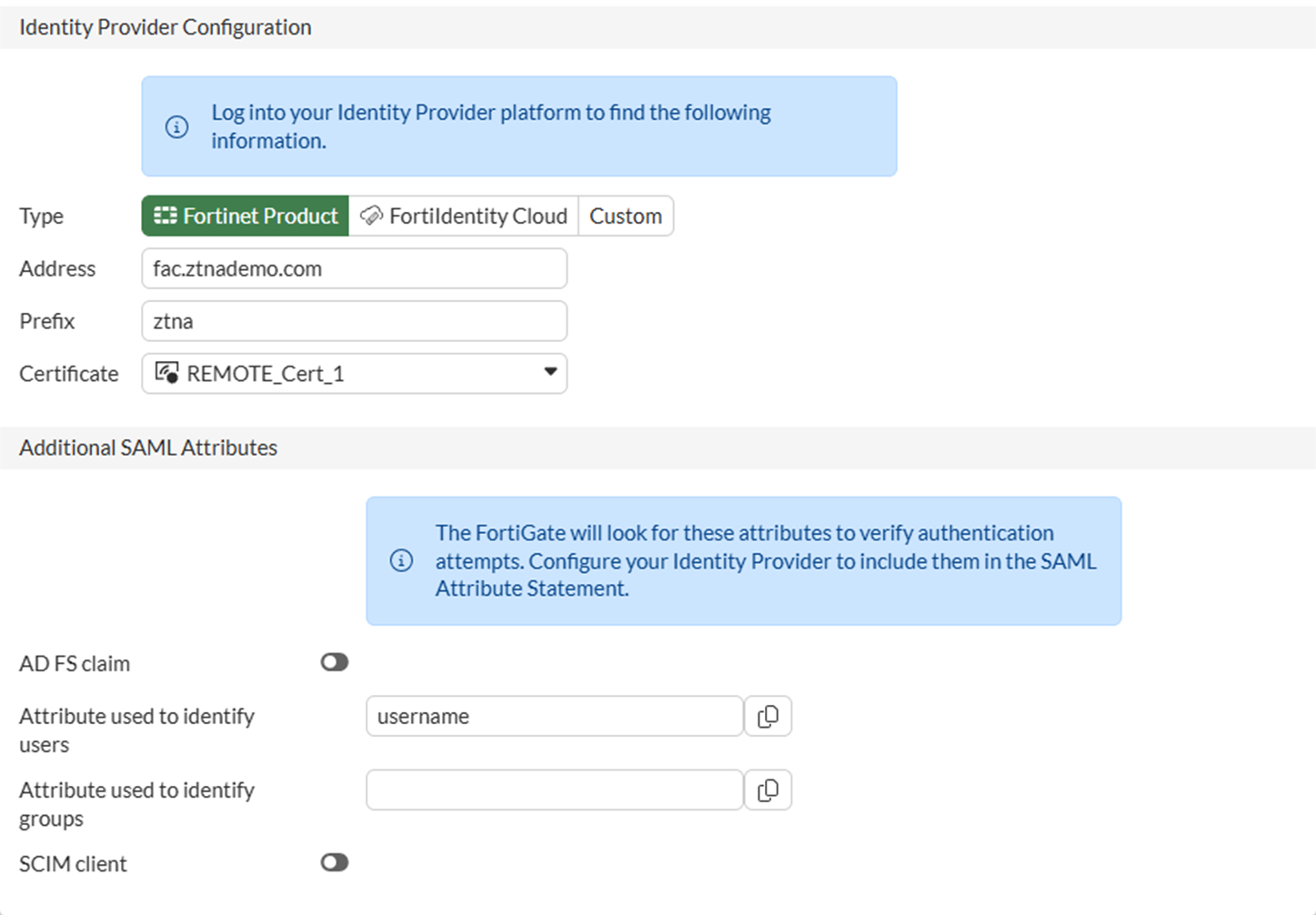
Use the settings from the Identity Provider to fill the custom Identity Provider Details. In this example, we select Fortinet Product, and fill in the fields as follows:
Address
fac.ztnademo.com
Prefix
ztna
IdP certificate
REMOTE_Cert_1
The certificate REMOTE_Cert_1 is the certificate used by the IdP (fac.ztnademo.com). In this example, a wildcard certificate is used.

-
Set Attribute used to identify users to username. Attributes to identify users and groups are case sensitive.
-
Click OK to save the settings.
To create a new SAML user/server from the CLI:
config user saml
    edit "ZTNA-FAC-SAML"
        set cert "ztna-wildcard"
        set idp-cert "REMOTE_Cert_1"
        set user-name "username"
        set digest-method sha256
        set entity-id "http://webserver.ztnademo.com:9443/remote/saml/metadata/"
        set single-sign-on-url "https://webserver.ztnademo.com:9443/remote/saml/login"
        set single-logout-url "https://webserver.ztnademo.com:9443/remote/saml/logout"
        set idp-entity-id "http://fac.ztnademo.com/saml-idp/ztna/metadata/"
        set idp-single-sign-on-url "https://fac.ztnademo.com/saml-idp/ztna/login/"
        set idp-single-logout-url "https://fac.ztnademo.com/saml-idp/ztna/logout/"
    next
end
To create a user group for the SAML user object:
-
Under User & Authentication > User Groups, click Create New.
-
Set Name to ztna-saml-users.
-
Under Remote Groups, click Add.
-
For Remote Server, select ZTNA-FAC-SAML.
-
Click OK.
-
Click OK again to save.
To apply the SAML server to proxy authentication from the GUI:
-
Go to Policy & Objects > Authentication.
-
Go to the Authentication Schemes tab and click Create New.
-
Set the name to ZTNA-SAML-scheme.
-
Set Method to SAML.
-
Set SAML SSO server to ZTNA-FAC-SAML.
-
Click OK.
-
Remaining in Policy & Objects > Authentication, select the Authentication Rules tab in the top menu.
-
Click Create New.
-
Set the Name to ZTNA-SAML-rule.
-
Set Source Address to all.
-
Set Incoming interface to port3.
-
Set Protocol to HTTP.
-
Enable Authentication Scheme and select ZTNA-SAML-scheme.
-
Set IP-based Authentication to Disable.
-
Click OK.
To apply the SAML server to proxy authentication from the CLI:
config authentication scheme
    edit "ZTNA-SAML-scheme"
        set method saml
        set saml-server "ZTNA-FAC-SAML"
    next
end
config authentication rule
    edit "ZTNA-SAML-rule"
        set srcintf "port3"
        set srcaddr "all"
        set ip-based disable
        set active-auth-method "ZTNA-SAML-scheme"
        set web-auth-cookie enable
    next
end
Assign an active authentication scheme and captive portal to serve the log in page for the SAML requests.
To configure the active authentication scheme and captive portal from the GUI:
-
Go to User & Authentication > Authentication Settings.
-
Enable Authentication scheme.
-
Select ZTNA-SAML-scheme.
-
Set Captive portal type to FQDN.
-
Enable Captive portal.
-
Select the firewall address webserver.ztnademo.com. If this has not be created, create this firewall address.
-
Click Apply to save.
To configure the active authentication scheme and captive portal from the CLI:
config firewall address
    edit "webserver.ztnademo.com"
        set type fqdn
        set fqdn "webserver.ztnademo.com"
    next
end
config authentication setting
    set active-auth-scheme "ZTNA-SAML-scheme"
    set captive-portal "webserver.ztnademo.com"
end
To configure a VIP and a firewall policy to forward IdP authentication traffic to the FortiAuthenticator:
Remote clients connect to the FortiAuthenticator IdP behind the FortiGate using a VIP. In this example, users connect to the FQDN fac.ztnademo.com that resolves to the VIP's external IP address.
-
Configure the VIP to forward traffic to the FortiAuthenticator:
-
Go to Policy & Objects > Virtual IPs and navigate to the Virtual IP tab.
-
Click Create new .
-
Configure the following:
Name
FAC-VIP
Interface
Any
External IP address/range
10.0.3.7
Map to > IPv4 address/range
10.88.0.7
-
Click OK.
-
-
Configure a firewall policy to allow VIP:
-
Go to Policy & Objects > Firewall Policy and click Create New.
-
Configure the following:
Name
WAN_to_FAC
Schedule
Always
Action
Accept
Type
Standard
Incoming Interface
port3
Outgoing Interface
port2
Source
All
ZTNA server
FAC-VIP
Service
HTTP. HTTPS
NAT
disabled
-
Click OK.
-
To configure a VIP and firewall policy to forward IdP authentication traffic to the FortiAuthenticator in the CLI:
config firewall vip
    edit "FAC-VIP"
        set extip 10.0.3.7
        set mappedip "10.88.0.7"
        set extintf "any"
    next
end
config firewall policy
edit 2
set name "WAN_to_FAC"
set srcintf "port3"
set dstintf "port2"
set action accept
set srcaddr "all"
set dstaddr "FAC-VIP"
set schedule "always"
set service "ALL"
set logtraffic all
next
end
Example 1 - Applying SAML and MFA to ZTNA HTTPS access proxy
In this HTTPS web proxy example, a web proxy is used to access a web server. The ZTNA rule verifies device identity and applies the SAML user group to enforce user authentication against the IdP (FortiAuthenticator).
To configure the ZTNA server for HTTPS access proxy:
-
Go to Policy & Objects > ZTNA and select the Servers & Portals tab.
-
Select Create New.
-
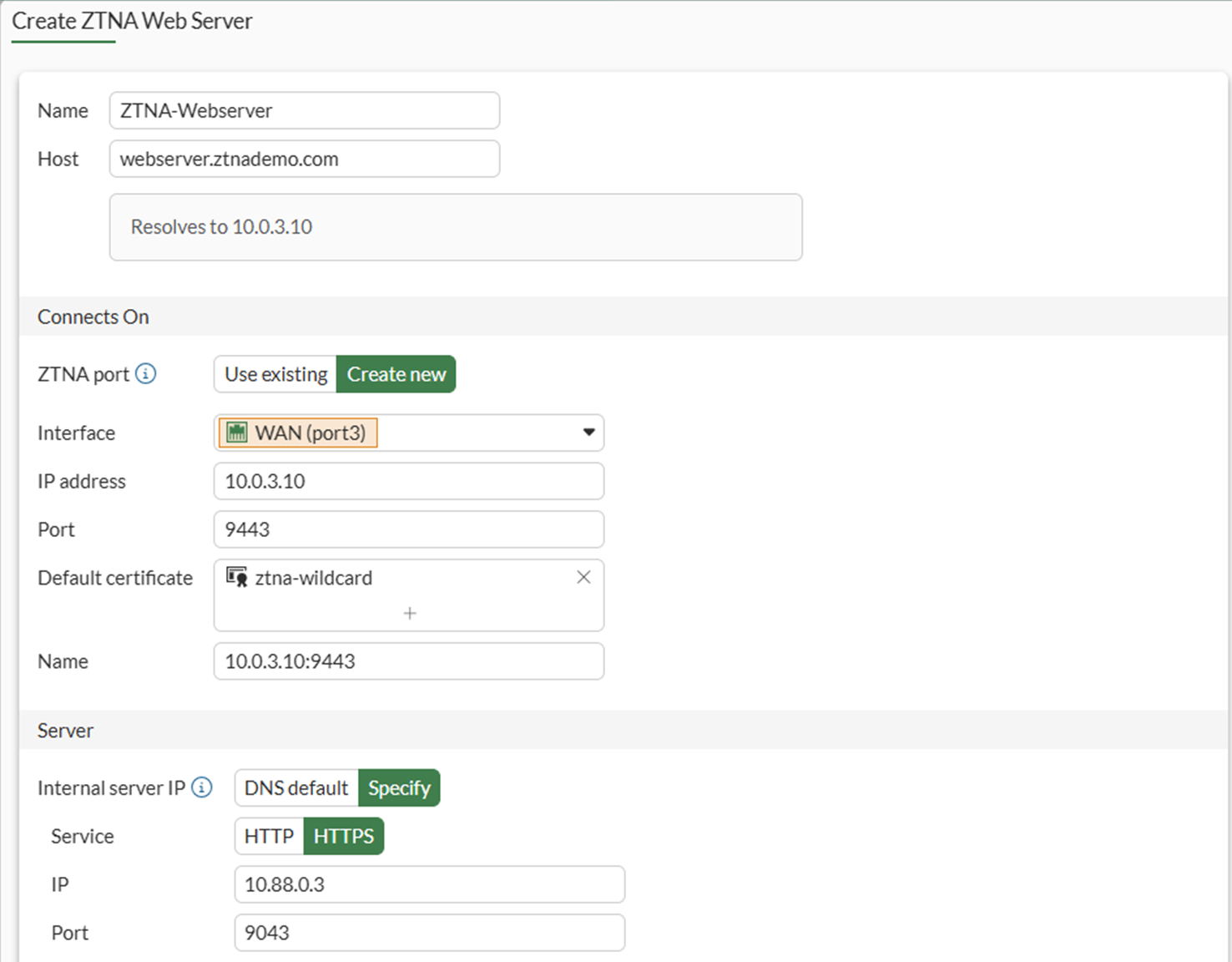
Set Name to ZTNA-Webserver.
-
Set Host to the IP address or FQDN that will be used to access the web server: webserver.ztnademo.com.
Endpoints accessing the web server must resolve this FQDN to the ZTNA Application Gateway address (10.0.3.10 in this example).
-
Under Connects on, select Create new for ZTNA port to provide the following details:
-
Set Interface to port3.
-
Set External IP to 10.0.3.10.
-
Set External port to 9443.
Verify that the IP address and port do not conflict with management access to the interface. Otherwise, change the IP address to another address on that subnet.
-
-
Select a certificate. Clients will be presented with this certificate when they connect to the ZTNA port.
This example uses a wildcard certificate with a Common Name (CN):
*.ztnademo.com. This certificate is trusted by the endpoints which will access the ZTNA port.
-
Provide a name for the ZTNA port, such as 10.0.3.10:9443.
-
In the Server section, configure the internal server settings as follows:
-
Switch the Internal server IP to Specify.
-
Set Service to HTTPS.
-
Set IP to the internal IP for the web server: 10.88.0.3.
-
Set Port to 9443.
The WebServer service is running on port 9043. This configuration will translate clients accessing TCP/9443 to TCP/9043.
-
-
Click OK to save the ZTNA web server.
To configure ZTNA for the web server in the CLI:
config firewall vip
    edit "10.0.3.10:9443"
        set type access-proxy
        set server-type https
        set extip 10.0.3.10
        set extintf "port3"
        set extport 9443
        set ssl-certificate "ztna-wildcard"
    next
end
config firewall access-proxy-virtual-host
edit "WebServer9443"
set ssl-certificate "ztna-wildcard"
set host "webserver.ztnademo.com"
next
endconfig ztna web-proxy
edit "ZTNA-Webserver"
set vip "10.0.3.10:9443"
set host " WebServer9443"
config api-gateway
edit 1
config realservers
edit 1
set ip 10.88.0.3
set port 9043
next
end
next
end
next
end
To enable user group authentication in a ZTNA firewall policy:
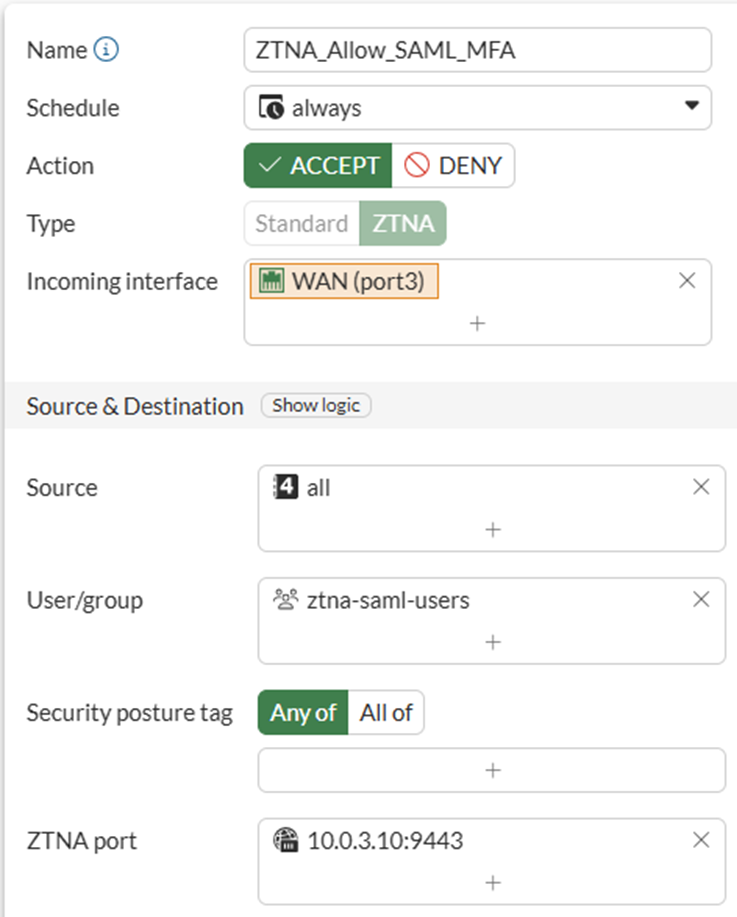
A simple ZTNA policy is created to apply the SAML authentication.
-
Go to Policy & Objects > Firewall Policy and select Create New.
-
Configure the following:
Name
ZTNA_Allow_SAML_MFA
Action
Accept
Type
ZTNA
Incoming Interface
port3
Source
All
User/group
ztna-saml-users
ZTNA port
10.0.3.10:9443
Log allowed traffic
All sessions
-
Click OK to save the policy.
To enable user group authentication in a ZTNA firewall policy in the CLI:
Config firewall policy
    edit 1
        set name "ZTNA_Allow_SAML_MFA"
        set srcintf "port3"
        set dstintf "any"
        set action accept
        set srcaddr "all"
        set dstaddr "10.0.3.10:9443"
        set ztna-destination "Webserver:9043"
        set schedule "always"
        set logtraffic all
        set nat enable
        set groups "ztna-saml-users"
    next
end
Testing and verification:
From the remote endpoint, user Tom Smith attempts to connect to the web server over ZTNA:
-
On the remote Windows computer, open FortiClient and register to the EMS server.
It is not necessary to configure a ZTNA Destination on the FortiClient for the HTTPS access proxy use case. In fact, configuring a ZTNA Destination rule for the website may interfere with its operation.
-
Open a browser and attempt to connect to the web server at https://webserver.ztnademo.com:9443.
-
Device authentication prompts the user for their device certificate. Select the certificate issued by EMS and click OK.
-
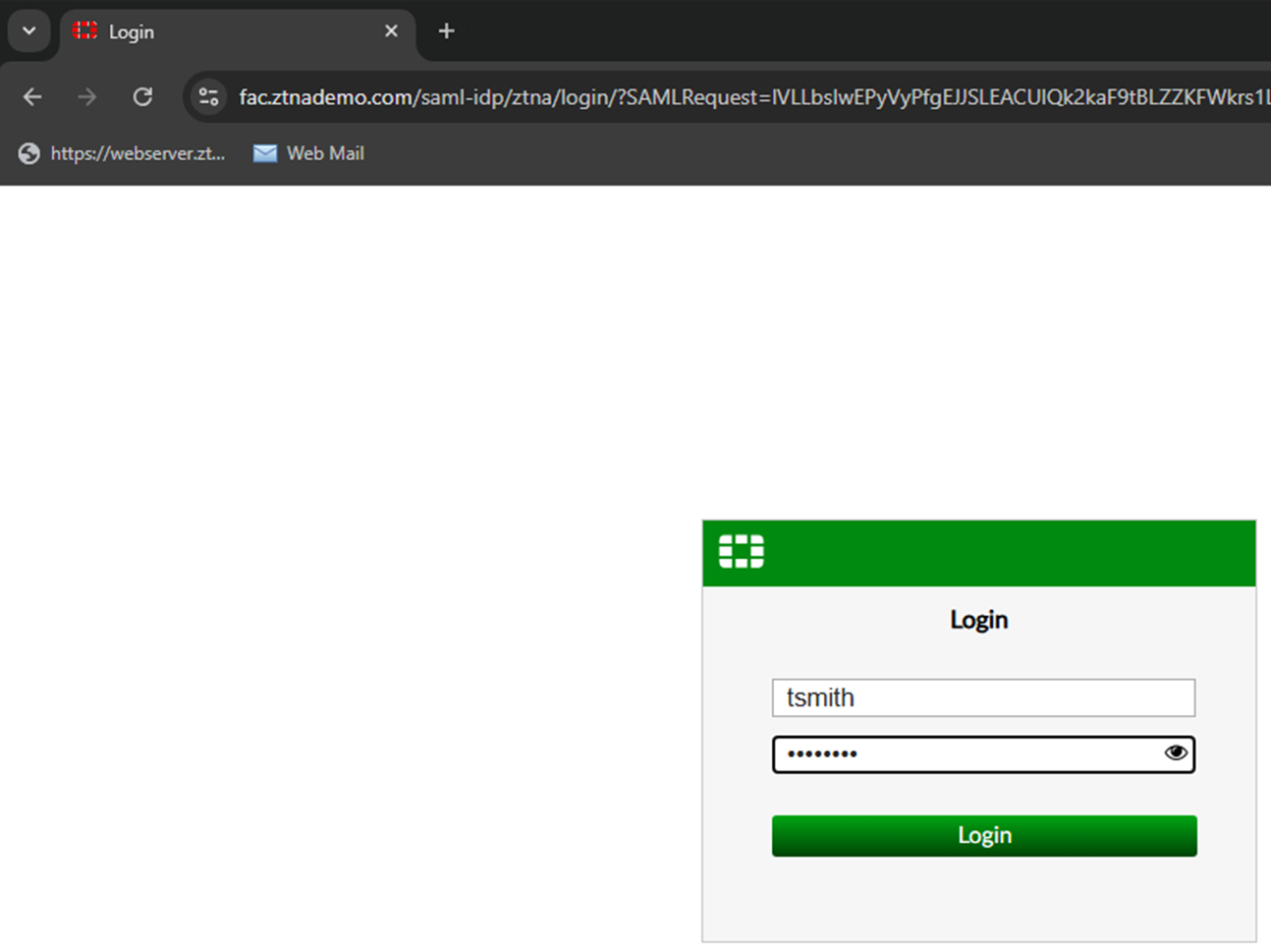
FortiGate receives the SAML request and redirects the user to the IdP login screen. Enter the username and password for Tom Smith and click Login.
-
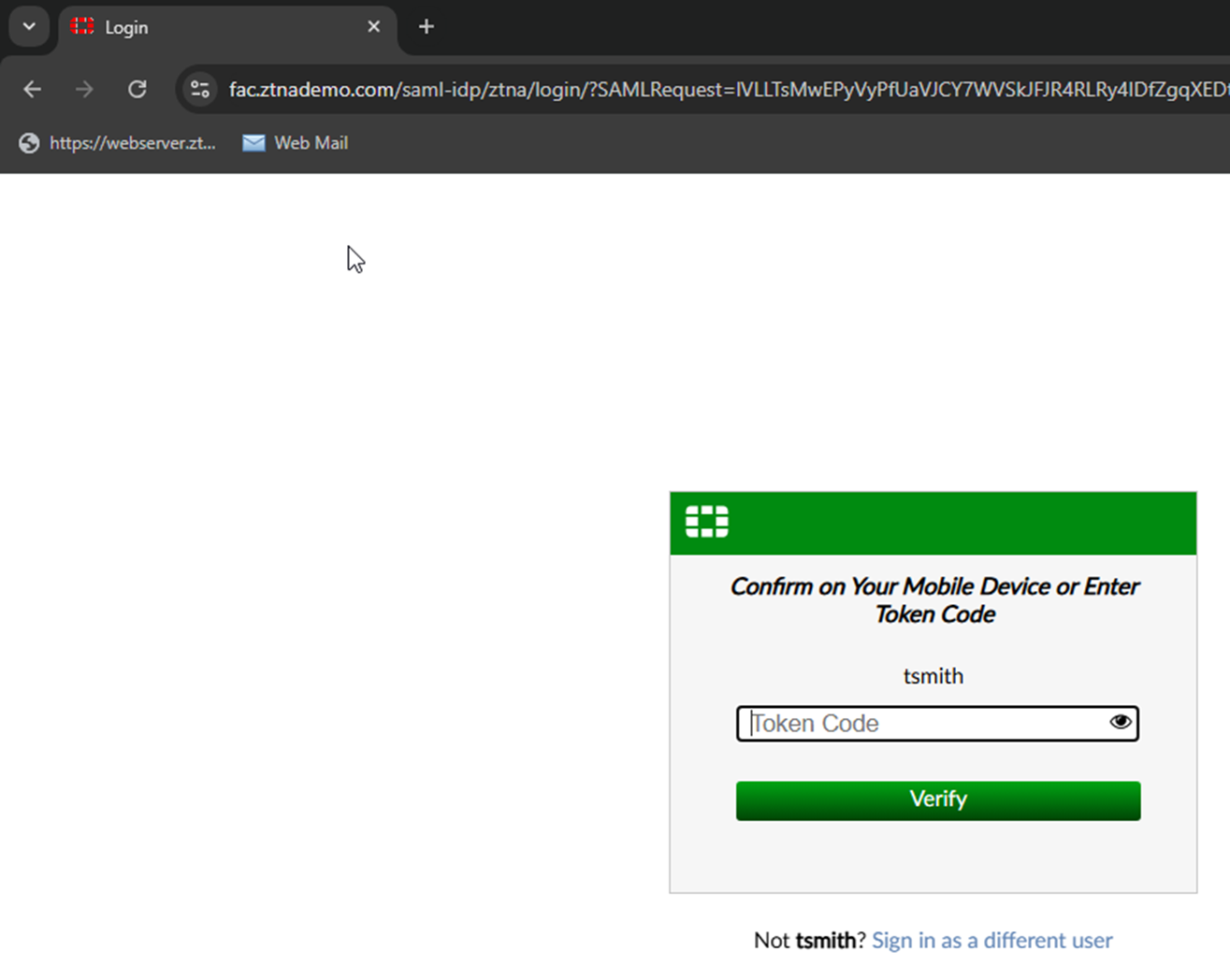
A second prompt opens asking for the Token Code. Enter the code then click Verify.
-
The FortiAuthenticator IdP verifies the login, then sends the SAML assertion back to the user.
-
The browser redirects the assertion to the FortiGate SP, which decides if the user is allowed access.
-
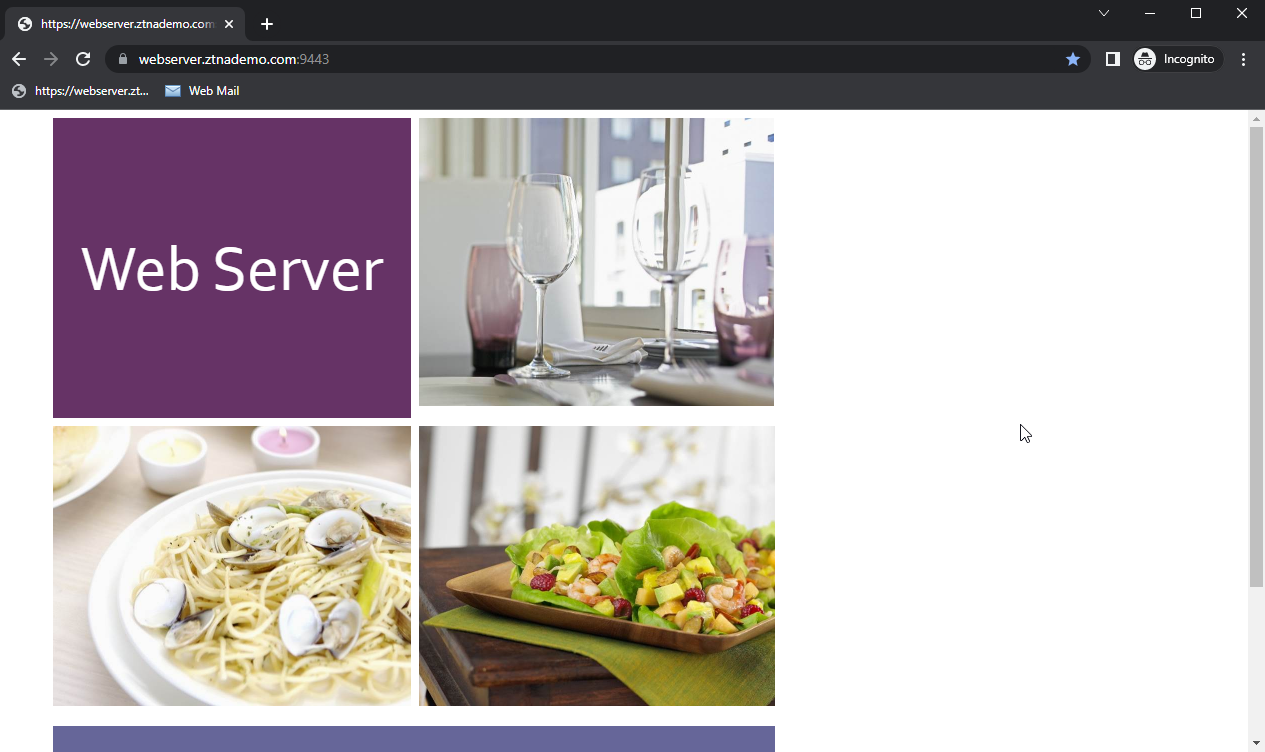
On a successful log in, FortiGate redirects the user to the web page that they are trying to access.
Logs and debugs:
On the FortiGate, a successful connection can be seen in Log & Report > Forward Traffic and Log & Report > ZTNA Traffic. The CLI can also be used:
# execute log filter category 0
# execute log filter field srcip 10.0.3.2
# execute log display

1: date=2026-03-12 time=08:03:36 eventtime=1773327816464678481 tz="-0700" logid="0005000024" type="traffic" subtype="ztna" level="notice" vd="root" srcip=10.0.3.2 srcport=12503 srcintf="port3" srcintfrole="wan" dstcountry="Reserved" srccountry="Reserved" dstip=10.88.0.3 dstport=9043 dstintf="port2" dstintfrole="dmz" sessionid=282912 srcuuid="b458a65a-f759-51ea-d7df-ef2e750026d1" dstuuid="0ffed9c4-1e1f-51f1-2bc7-7bff227fae3a" service="tcp/9043" proxyapptype="ztna-proxy" proto=6 action="accept" policyid=1 policytype="policy" poluuid="dfc01cba-1c88-51f1-cf94-b9c10b070486" policyname="ZTNA_Allow_SAML_MFA" appcat="unscanned" duration=188 user="tsmith" group="ztna-saml-users" authserver="ZTNA-FAC-SAML" gatewayid=1 realserverid=1 vip="10.0.3.10:9443" vipincomingip=10.0.3.10 accessproxy="ZTNA-Webserver" clientdevicemanageable="manageable" clientcert="yes" wanin=303009 rcvdbyte=303009 wanout=4474 lanin=16315 sentbyte=16315 lanout=307926

2: date=2026-03-12 time=08:02:11 eventtime=1773327731253532980 tz="-0700" logid="0000000013" type="traffic" subtype="forward" level="notice" vd="root" srcip=10.0.3.2 srcport=12511 srcintf="port3" srcintfrole="wan" dstip=10.0.3.7 dstport=443 dstintf="port2" dstintfrole="dmz" srcuuid="b458a65a-f759-51ea-d7df-ef2e750026d1" dstuuid="a43372f8-06af-51ec-8f86-30b451b2ebe0" srccountry="Reserved" dstcountry="Reserved" sessionid=282931 proto=6 action="client-rst" policyid=2 policytype="policy" poluuid="2e840d4e-1184-51ec-63b9-9b805a8b7344" policyname="WAN_to_FAC" service="HTTPS" trandisp="dnat" tranip=10.88.0.7 tranport=443 appcat="unscanned" duration=90 sentbyte=21479 rcvdbyte=14073 sentpkt=49 rcvdpkt=36

3: date=2026-03-12 time=08:00:28 eventtime=1773327628511837705 tz="-0700" logid="0000000010" type="traffic" subtype="forward" level="notice" vd="root" srcip=10.0.3.2 srcport=12503 srcintf="port3" srcintfrole="wan" dstcountry="Reserved" srccountry="Reserved" dstip=10.0.3.10 dstport=9443 dstintf="root" dstintfrole="undefined" sessionid=282912 srcuuid="b458a65a-f759-51ea-d7df-ef2e750026d1" service="tcp/9443" proxyapptype="web-proxy" proto=6 action="accept" policyid=1 policytype="proxy-policy" poluuid="dfc01cba-1c88-51f1-cf94-b9c10b070486" policyname="ZTNA_Allow_SAML_MFA" appcat="unscanned" duration=0 vip="10.0.3.10:9443" vipincomingip=10.0.3.10 clientdevicemanageable="manageable" clientcert="yes" wanin=0 rcvdbyte=0 wanout=0 lanin=3778 sentbyte=3778 lanout=4524 msg="Traffic is redirected to SAML authentication."

4: date=2026-03-12 time=08:00:25 eventtime=1773327625893533073 tz="-0700" logid="0005000024" type="traffic" subtype="ztna" level="notice" vd="root" srcip=10.0.3.2 srcport=12499 srcintf="port3" srcintfrole="wan" dstcountry="Reserved" srccountry="Reserved" dstip=10.0.3.10 dstport=9443 dstintf="root" dstintfrole="undefined" sessionid=282909 srcuuid="b458a65a-f759-51ea-d7df-ef2e750026d1" service="tcp/9443" proxyapptype="ztna-proxy" proto=6 action="pending" policyid=1 policytype="policy" poluuid="dfc01cba-1c88-51f1-cf94-b9c10b070486" policyname="ZTNA_Allow_SAML_MFA" appcat="unscanned" duration=0 vip="10.0.3.10:9443" vipincomingip=10.0.3.10 clientdevicemanageable="unknown" clientcert="no" wanin=0 rcvdbyte=0 wanout=0 lanin=1828 sentbyte=1828 lanout=4141
Log number four shows that authentication first hits the ZTNA policy and has an action of pending.
Log number three shows that the ZTNA policy redirects the traffic to SAML authentication.
Log number two shows that the WAN_to_FAC policy is hit, indicating the remote user is sending traffic to the FortiAuthenticator.
Log number one shows that the ZTNA policy accepts the traffic and the remote user is permitted to access the ZTNA destination. Notice how the dstip and dstport both change from the application gateway (10.0.3.10:9443) to the real destination (10.88.0.3:9043).
Use the following command to show if the FortiGate's WAD process has an active record of the SAML user login:
# diagnose wad user list
ID: 5, VDOM: root, IPv4: 10.0.3.2
  user name   : tsmith
  worker      : 0
  duration    : 6
  auth_type   : Session
  auth_method : SAML
  pol_id      : 17
  g_id        : 8
  user_based  : 0
  expire      : no
  LAN:
    bytes_in=16414 bytes_out=308116
  WAN:
    bytes_in=303036 bytes_out=4474
Example 2 - Applying SAML and MFA to a ZTNA TCP forwarding access proxy for RDP connections
In this TCP forwarding access proxy example, RDP connections are allowed to be forwarded to the Windows/EMS server. Traffic to TCP/3389 is allowed through the ZTNA proxy. There are 2 steps to this example: Configure the ZTNA server and Configure the ZTNA policy.
To configure the ZTNA server for TCP forwarding on TCP/3389:
-
Create a firewall address for the Windows/EMS server:
-
Go to Policy & Objects > Addresses and select Address.
-
Click Create new.
-
Configure the following:
Name
winserver
Interface
any
Type
Subnet
IP/Netmask
10.88.0.1/32
-
Click OK.
-
-
Go to Policy & Objects > ZTNA and select the Traffic Forwarding tab. Traffic Forwarding Server is selected by default.
-
Select Create New.
-
Set Name to ZTNA-TCP-SRV.
-
Set Host to 10.0.3.11.
-
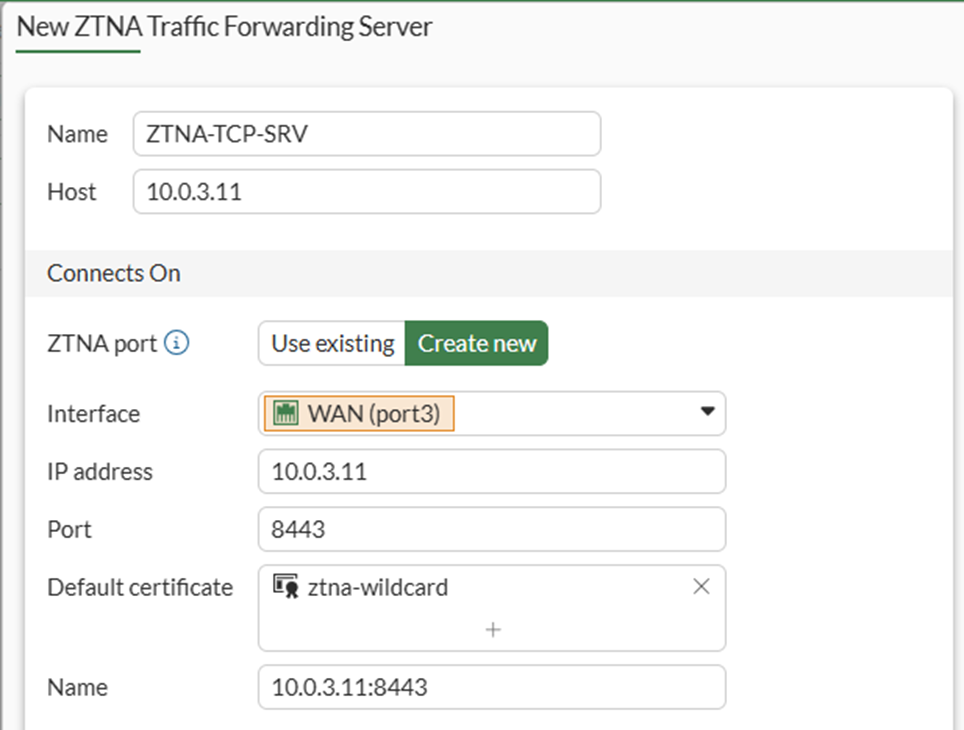
For ZTNA port, select Create New and enter the following details:
Interface
port3
IP address
10.0.3.11
Port
8443
Default certificate
This example uses a wildcard certificate with a Common Name (CN): *.ztnademo.com.
This certificate is trusted by the endpoints which will access the ZTNA port.
Name
10.0.3.11:8443
-
Click OK.
-
Define a destination for the winserver:
-
Remaining in the Traffic Forwarding section of ZTNA, select Destination from the top menu bar.
-
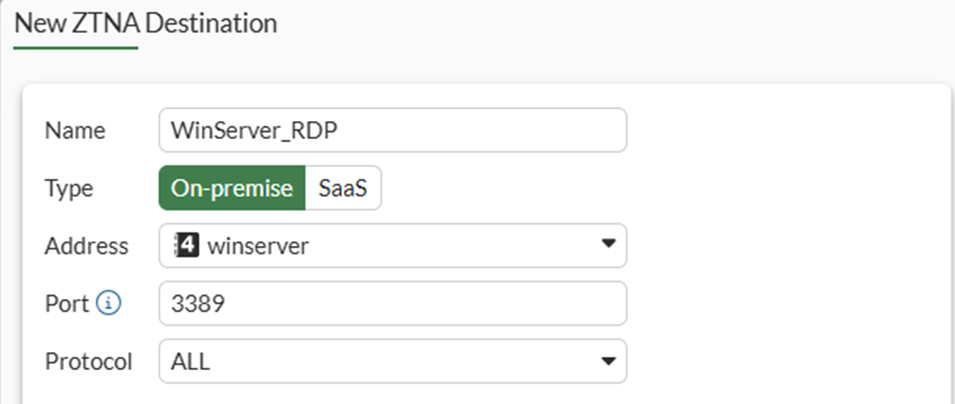
Select Create new to define a new Destination for winserver access:
Name
WinServer_RDP
Type
On-premise
Address
Select the previously created winserver address object
Port
3389
Protocol
TCP[CK1]
-
Click OK to save the destination.
-
To configure the ZTNA server for TCP forwarding on TCP/3389 in the CLI:
-
Configure the access proxy VIP:
config firewall vip edit "10.0.3.11:8443" set type access-proxy set server-type https set extip 10.0.3.11 set extintf "port3" set extport 8443 set ssl-certificate "ztna-wildcard" next end -
Configure the destination:
config ztna destination edit "WinServer_RDP" set address "winserver" set mappedport 3389 next end -
Configure the virtual host:
config firewall access-proxy-virtual-host edit "10.0.3.11_host" set ssl-certificate "ztna-wildcard" set host "10.0.3.11" next end -
Configure the traffic forward proxy:
config ztna traffic-forward-proxy
    edit "ZTNA-TCP-SRV"
        set vip "10.0.3.11:8443"
        set host "10.0.3.11_host"
    next
end
To configure the ZTNA policy for TCP forwarding on TCP/3389:
-
Go to Policy & Objects > Firewall Policy, and click Create New.
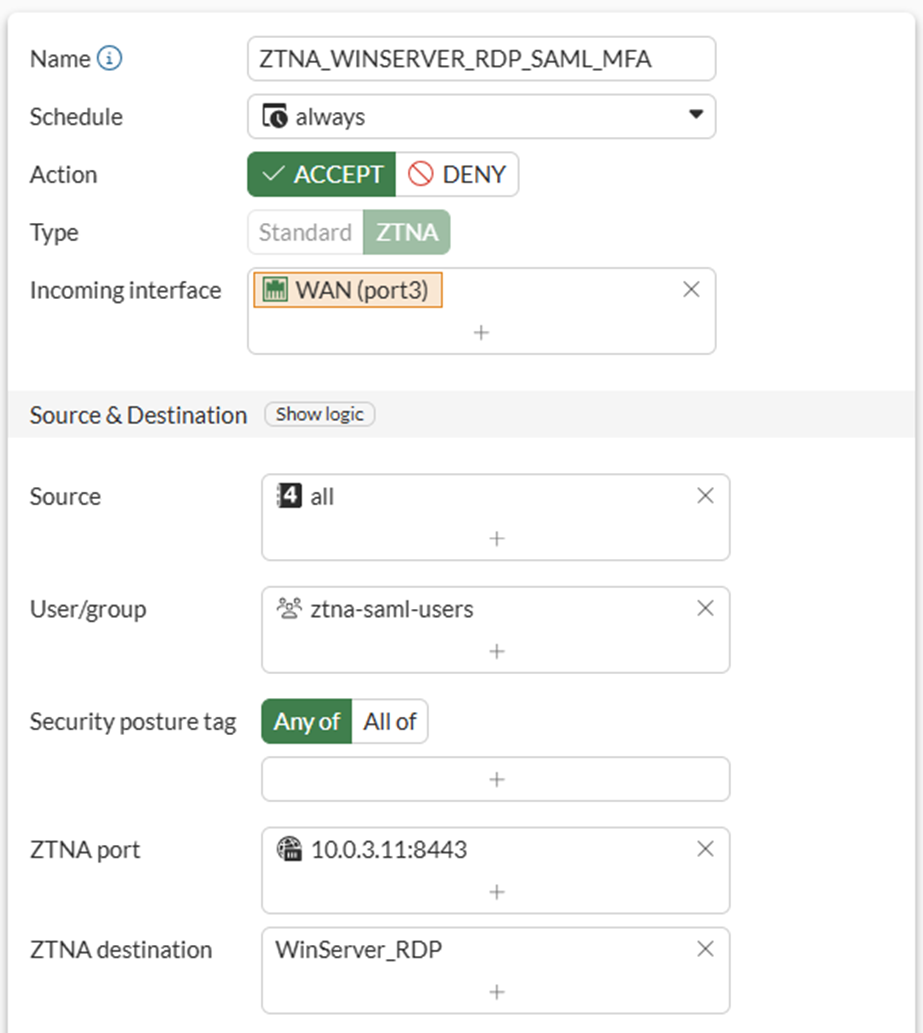
-
Set Name to ZTNA_WINSERVER_RDP_SAML_MFA.
-
Set Type to ZTNA.
-
Set Incoming Interface to port3.
-
Set Source to all.
-
Set the User/group to ztna-saml-users.
-
Set the ZTNA port: 10.0.3.11:8443.
-
Set the ZTNA destination: WinServer_RDP
-
Configure Log allowed traffic to log All sessions.
-
Configure the remaining settings as necessary.
-
Click OK.
To configure the ZTNA policy for TCP forwarding on TCP/3389 using the CLI:
config firewall policy
    edit 1
        set name "ZTNA_WINSERVER_RDP_SAML_MFA"
        set srcintf "port3"
        set dstintf "any"
        set action accept
        set srcaddr "all"
        set dstaddr "10.0.3.11:8443"
        set ztna-destination "WinServer_RDP"
        set schedule "always"
        set logtraffic all
        set nat enable
        set groups "ztna-saml-users"
    next
end
Testing and verification:
Before connecting, users must have a ZTNA connection rule in FortiClient. This will be configured using Enterprise Management Server (EMS).
To create a ZTNA Destination in EMS:
-
Go to Endpoint Profiles > ZTNA Destinations. Select the desired profile or create a new one.
-
In the Name field, enter the desired name.
-
In the Rules section, click Add.
-
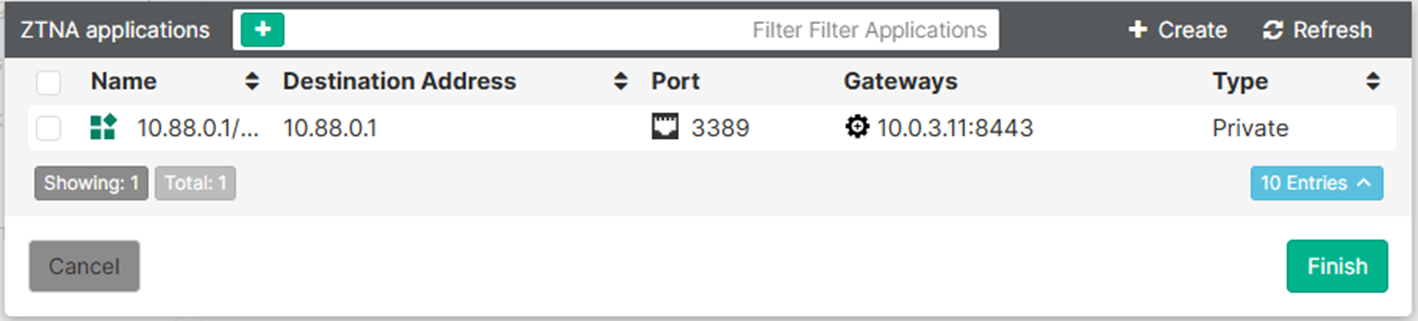
The ZTNA applications is populated with the destination configured on the FortiGate.
-
Select the application, then click Finish.
-
The destination now appears as a rule entry.
-
Click Save to save the ZTNA Destinations profile.
-
Ensure this profile is applied to the endpoint policy assigned to the remote endpoint.
-
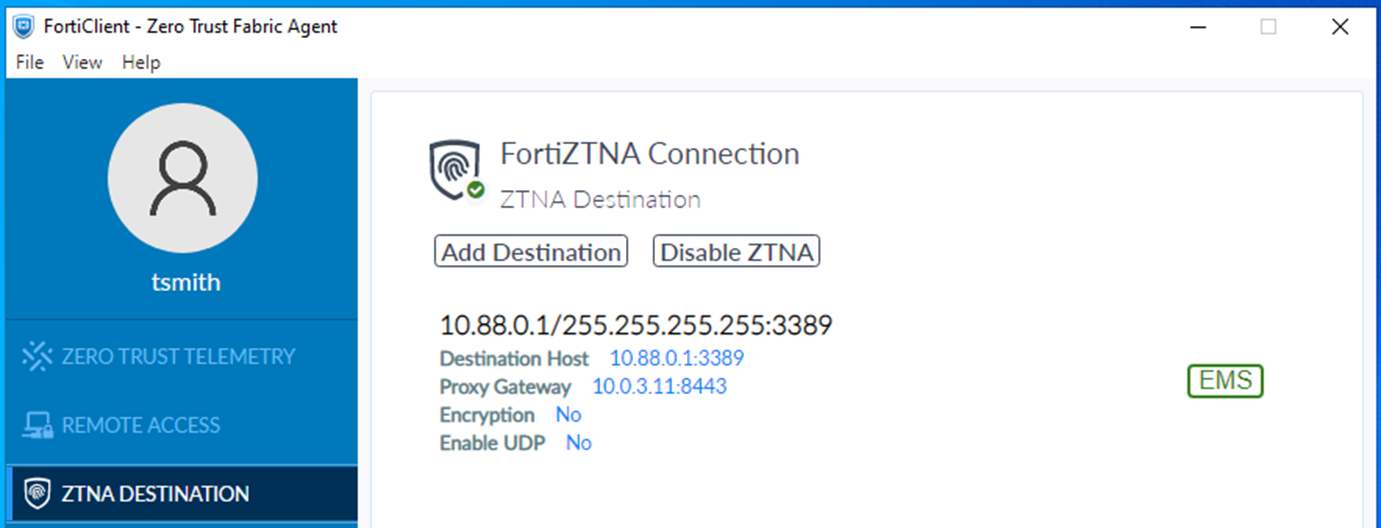
After some time, the FortiClient will receive the profile update and the configuration will appear under the ZTNA DESTINATION tab on FortiClient.
To test the RDP access:
-
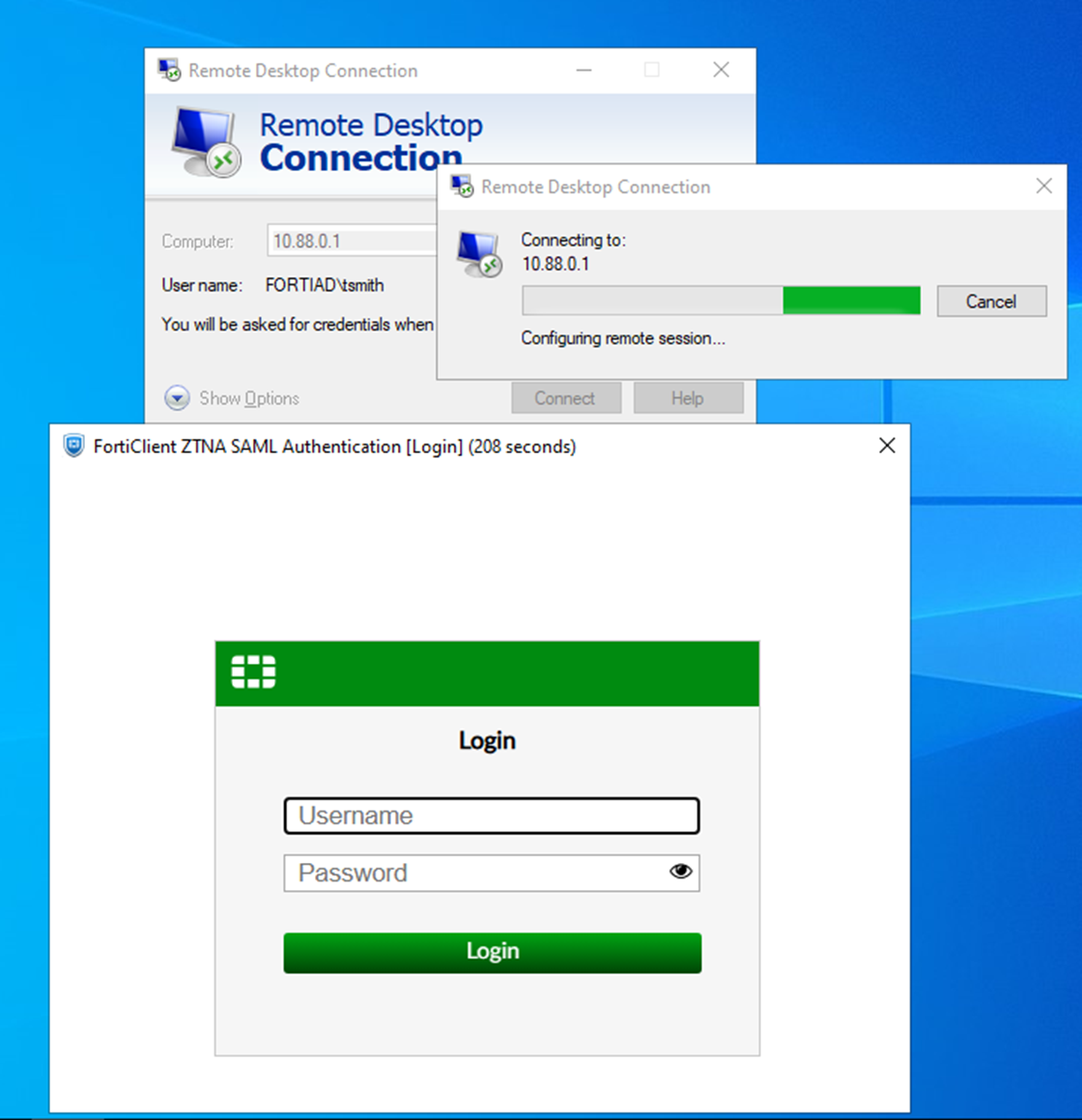
On the remote PC, open a new RDP connection.
-
Enter the IP address 10.88.0.1. By default, RDP session use port 3389.
When the connection to the ZTNA application gateway is established, FortiGate will redirect the SAML login request to the FortiAuthenticator IdP.
A FortiClient prompt will open with the FortiAuthenticator login screen.
-
Enter the username and password then click Login.
-
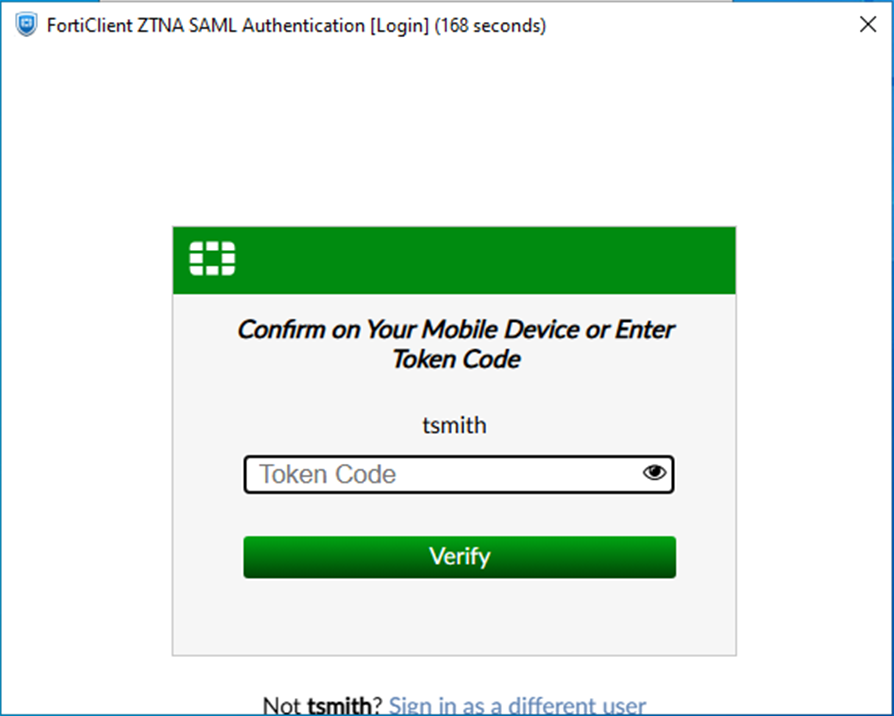
A second prompt opens asking for the Token Code. Enter the code from your FortiToken app, then click Verify.
-
FortiAuthenticator verifies the token code, determines if the login is successful, then sends the SAML assertion back to the client.
-
The client redirects the response back to the FortiGate SP.
-
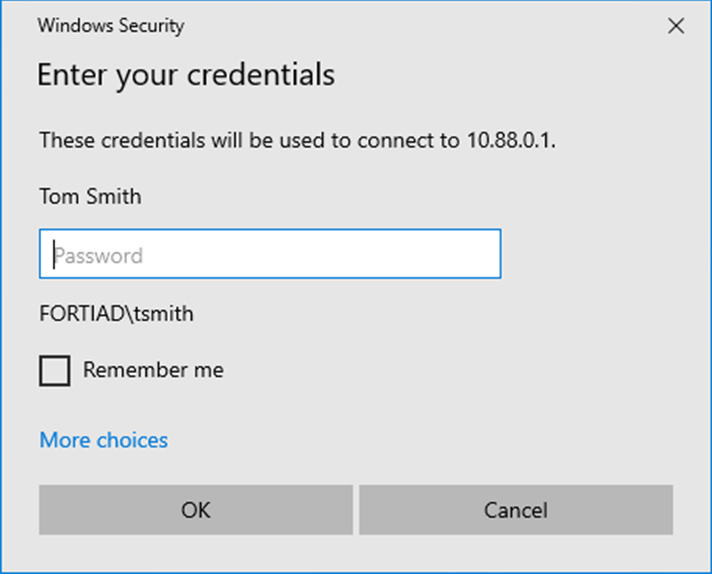
If the log in was successful, the user can now log on to the RDP session.
Logs and debugs:
On the FortiGate, a successful connection can be seen in Log & Report > Forward Traffic and Log & Report > ZTNA Traffic. The CLI can also be used:
# execute log filter category 0
# execute log filter field srcip 10.0.3.2
# execute log display

1: date=2026-03-12 time=11:06:49 eventtime=1773338809031245180 tz="-0700" logid="0005000024" type="traffic" subtype="ztna" level="notice" vd="root" srcip=10.0.3.2 srcport=13002 srcintf="port3" srcintfrole="wan" dstcountry="Reserved" srccountry="Reserved" dstip=10.88.0.1 dstport=3389 dstintf="port2" dstintfrole="dmz" sessionid=287556 srcuuid="b458a65a-f759-51ea-d7df-ef2e750026d1" dstuuid="cbf3c8b0-1e33-51f1-8d38-aad44938f061" service="RDP" proxyapptype="ztna-proxy" proto=6 action="accept" policyid=1 policytype="policy" poluuid="dfc01cba-1c88-51f1-cf94-b9c10b070486" policyname="ZTNA_WINSERVER_RDP_SAML_MFA" appcat="unscanned" duration=23 user="tsmith" group="ztna-saml-users" authserver="ZTNA-FAC-SAML" vip="10.0.3.11:8443" vipincomingip=10.0.3.11 accessproxy="ZTNA-TCP-SRV" ztnadestination="WinServer_RDP" clientdevicemanageable="manageable" clientcert="yes" wanin=0 rcvdbyte=0 wanout=0 lanin=4234 sentbyte=4234 lanout=5459

2: date=2026-03-12 time=11:06:44 eventtime=1773338803583557253 tz="-0700" logid="0000000013" type="traffic" subtype="forward" level="notice" vd="root" srcip=10.0.3.2 srcport=13004 srcintf="port3" srcintfrole="wan" dstip=10.0.3.7 dstport=443 dstintf="port2" dstintfrole="dmz" srcuuid="b458a65a-f759-51ea-d7df-ef2e750026d1" dstuuid="a43372f8-06af-51ec-8f86-30b451b2ebe0" srccountry="Reserved" dstcountry="Reserved" sessionid=287559 proto=6 action="client-rst" policyid=2 policytype="policy" poluuid="2e840d4e-1184-51ec-63b9-9b805a8b7344" policyname="WAN_to_FAC" service="HTTPS" trandisp="dnat" tranip=10.88.0.7 tranport=443 appcat="unscanned" duration=10 sentbyte=4873 rcvdbyte=4373 sentpkt=13 rcvdpkt=13

3: date=2026-03-12 time=11:06:26 eventtime=1773338786165014542 tz="-0700" logid="0000000010" type="traffic" subtype="forward" level="notice" vd="root" srcip=10.0.3.2 srcport=13002 srcintf="port3" srcintfrole="wan" dstcountry="Reserved" srccountry="Reserved" dstip=10.0.3.11 dstport=8443 dstintf="root" dstintfrole="undefined" sessionid=287556 srcuuid="b458a65a-f759-51ea-d7df-ef2e750026d1" service="tcp/8443" proxyapptype="web-proxy" proto=6 action="accept" policyid=1 policytype="proxy-policy" poluuid="dfc01cba-1c88-51f1-cf94-b9c10b070486" policyname="ZTNA_WINSERVER_RDP_SAML_MFA" appcat="unscanned" duration=0 vip="10.0.3.11:8443" vipincomingip=10.0.3.11 clientdevicemanageable="manageable" clientcert="yes" wanin=0 rcvdbyte=0 wanout=0 lanin=3910 sentbyte=3910 lanout=4582 msg="Traffic is redirected to SAML authentication."

4: date=2026-03-12 time=11:06:26 eventtime=1773338786073230647 tz="-0700" logid="0005000024" type="traffic" subtype="ztna" level="notice" vd="root" srcip=10.0.3.2 srcport=12998 srcintf="port3" srcintfrole="wan" dstcountry="Reserved" srccountry="Reserved" dstip=10.0.3.11 dstport=8443 dstintf="root" dstintfrole="undefined" sessionid=287552 srcuuid="b458a65a-f759-51ea-d7df-ef2e750026d1" service="tcp/8443" proxyapptype="ztna-proxy" proto=6 action="pending" policyid=1 policytype="policy" poluuid="dfc01cba-1c88-51f1-cf94-b9c10b070486" policyname="ZTNA_WINSERVER_RDP_SAML_MFA" appcat="unscanned" duration=0 vip="10.0.3.11:8443" vipincomingip=10.0.3.11 clientdevicemanageable="unknown" clientcert="no" wanin=0 rcvdbyte=0 wanout=0 lanin=1827 sentbyte=1827 lanout=4141
Log number four shows that authentication first hits the ZTNA policy and has an action of pending.
Log number three shows that the ZTNA policy redirects the traffic to SAML authentication.
Log number two shows that the WAN_to_FAC policy is hit, indicating the remote user is sending traffic to the FortiAuthenticator.
Log number one shows that the ZTNA policy accepts the traffic and the remote user is permitted to access the ZTNA destination. Notice how the dstip and dstport both change from the application gateway (10.0.3.11:8443) to the real destination (10.88.0.1:3389).
Use the following command to show if the FortiGate's WAD process has an active record of the SAML user login:
# diagnose wad user list

ID: 6, VDOM: root, IPv4: 10.0.3.2
  user name   : tsmith
  worker      : 0
  duration    : 192
  auth_type   : Session
  auth_method : SAML
  pol_id      : 17
  g_id        : 8
  user_based  : 0
  expire      : no
  LAN:
    bytes_in=95081 bytes_out=317409
  WAN:
    bytes_in=303552 bytes_out=72039