

ZTNA application gateway with SAML authentication example
SAML can be used with ZTNA as an authentication method. In this setup, user credentials are stored in Active Directory, which is accessed by the Identity Provider (IdP). FortiAuthenticator serves as the IdP, retrieving user identity information from Active Directory, while FortiGate acts as the Service Provider (SP) delivering ZTNA services alongside its security functions. When a user attempts to access a protected resource, the FortiGate redirects them to FortiAuthenticator for authentication. After the user successfully authenticates, FortiAuthenticator returns a SAML assertion to the FortiGate, which then acts as the trust broker to enforce policies and authorize access based on the validated identity and attributes.
For a basic configuration:
-
Configure ZTNA for web server access.
-
Configure a SAML SSO object on the FortiGate.
-
Update the IdP to reflect the SP settings.
-
Apply the SAML SSO object to an authentication scheme.
-
Create a user group that uses the SAML SSO object as its remote authentication server.
-
Create a ZTNA policy that uses the web server ZTNA configuration and SAML user group.
Example
In this example, an HTTPS access proxy is configured, and SAML authentication is applied to authenticate the client. The FortiGate acts as the SAML SP and a SAML authenticator serves as the IdP. In addition to verifying the user and device identity with the client certificate, the user is also authorized based on user credentials to establish a trust context before granting access to the protected resource. A VIP and Firewall policy is created to enable the Remote Endpoint to access the FortiAuthenticator for IdP authentication.
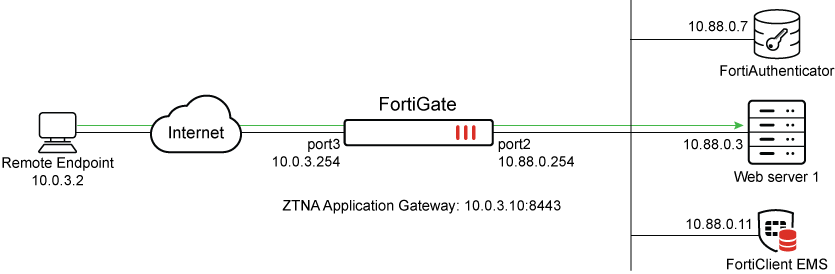
This example assumes that the FortiGate EMS fabric connector is already successfully connected.
Configure ZTNA for the web server
These steps will create a ZTNA application gateway of 10.0.3.10:8443 to proxy connections to 10.88.0.3:9043.
To configure ZTNA for the web server in the GUI:
-
Go to Policy & Objects > ZTNA and select the Servers and Portals tab. Web Server is selected by default.
-
Click Create New.
-
Set Name to ZTNA-Webserver.
-
Set Host to the IP address or FQDN that will be used to access the web server: webserver.ztnademo.com.
Endpoints accessing the web server must resolve this FQDN to the ZTNA Application Gateway address (10.0.3.10 in this example).
-
Under Connects On, select Create new for ZTNA port to provide the following details:
-
Set Interface to port3.
-
Set External IP to 10.0.3.10.
-
Set External port to 8443.
Verify that the IP address and port do not conflict with management access to the interface. Otherwise, change the IP address to another address on that subnet.
-
-
Select a certificate. Clients will be presented with this certificate when they connect to the ZTNA port.
This example uses a wildcard certificate with a Common Name (CN):
*.ztnademo.com. This certificate is trusted by the endpoints which will access the ZTNA port.
-
Provide a name for the ZTNA port, such as WebServer:8443.
-
In the Server section, configure the internal server settings as follows:
-
Switch the Internal server IP to Specify.
-
Set Service to HTTPS.
-
Set IP to the internal IP for the web server: 10.88.0.3.
-
Set Port to 9043.
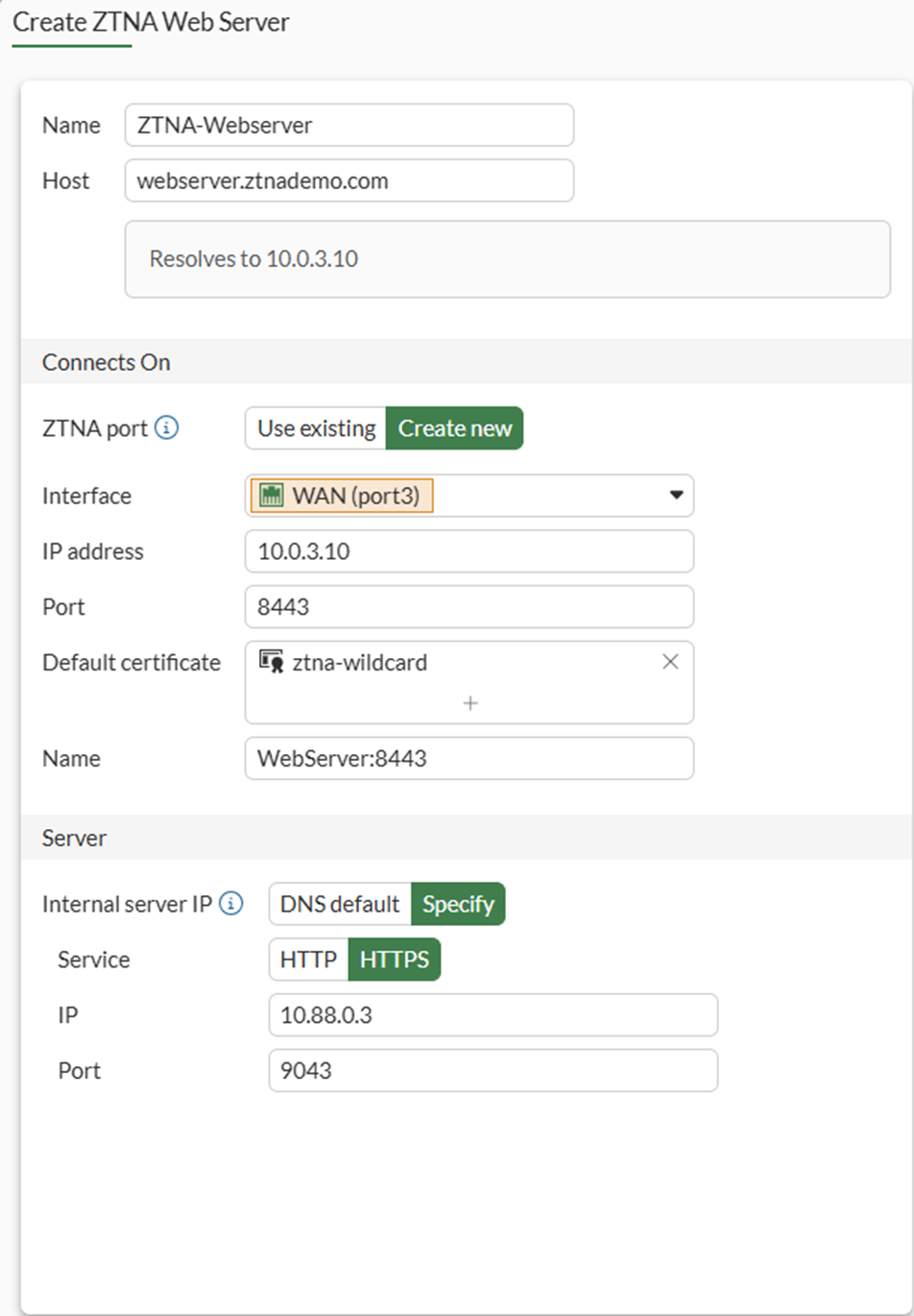
The WebServer service is running on port 9043. This configuration will translate clients accessing TCP/9443 to TCP/9043.
-
Click OK. The Web Server object is listed.
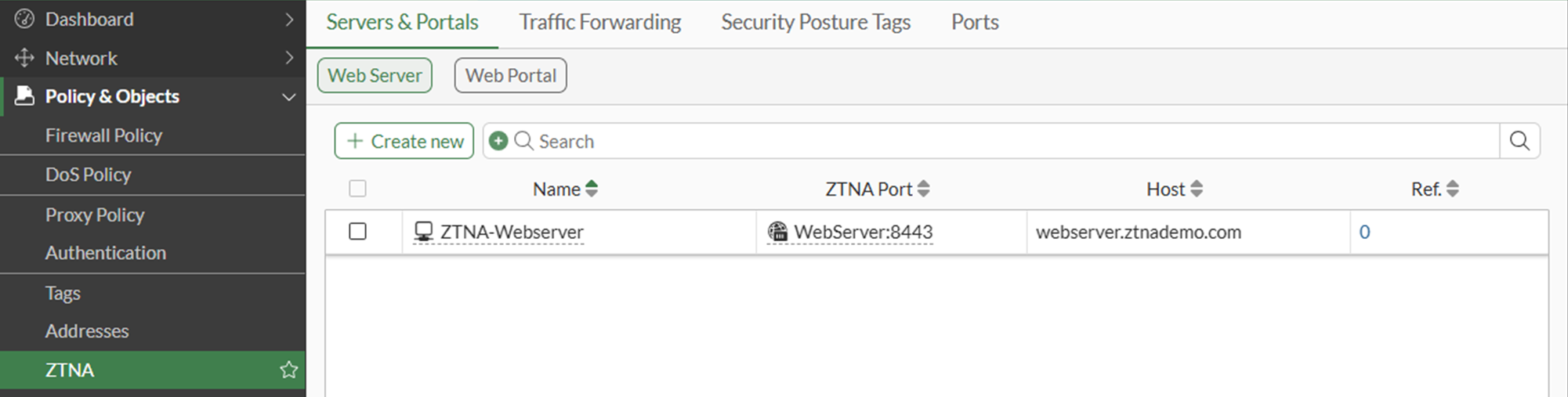
-
To configure ZTNA for the web server in the CLI:
config firewall vip
        edit "WebServer:8443"
        set uuid 55f5f710-1d56-51f1-f6cb-1be820301ca5
        set type access-proxy
        set server-type https
        set extip 10.0.3.10
        set extintf "port3"
        set extport 8443
        set ssl-certificate "ztna-wildcard"
    next
end
config ztna web-proxy
edit "ZTNA-Webserver"
set vip "WebServer:9443"
set host " WebServer9443"
config api-gateway
edit 1
config realservers
edit 1
set ip 10.88.0.3
set port 9043
next
end
next
end
next
end
Configuring SAML server
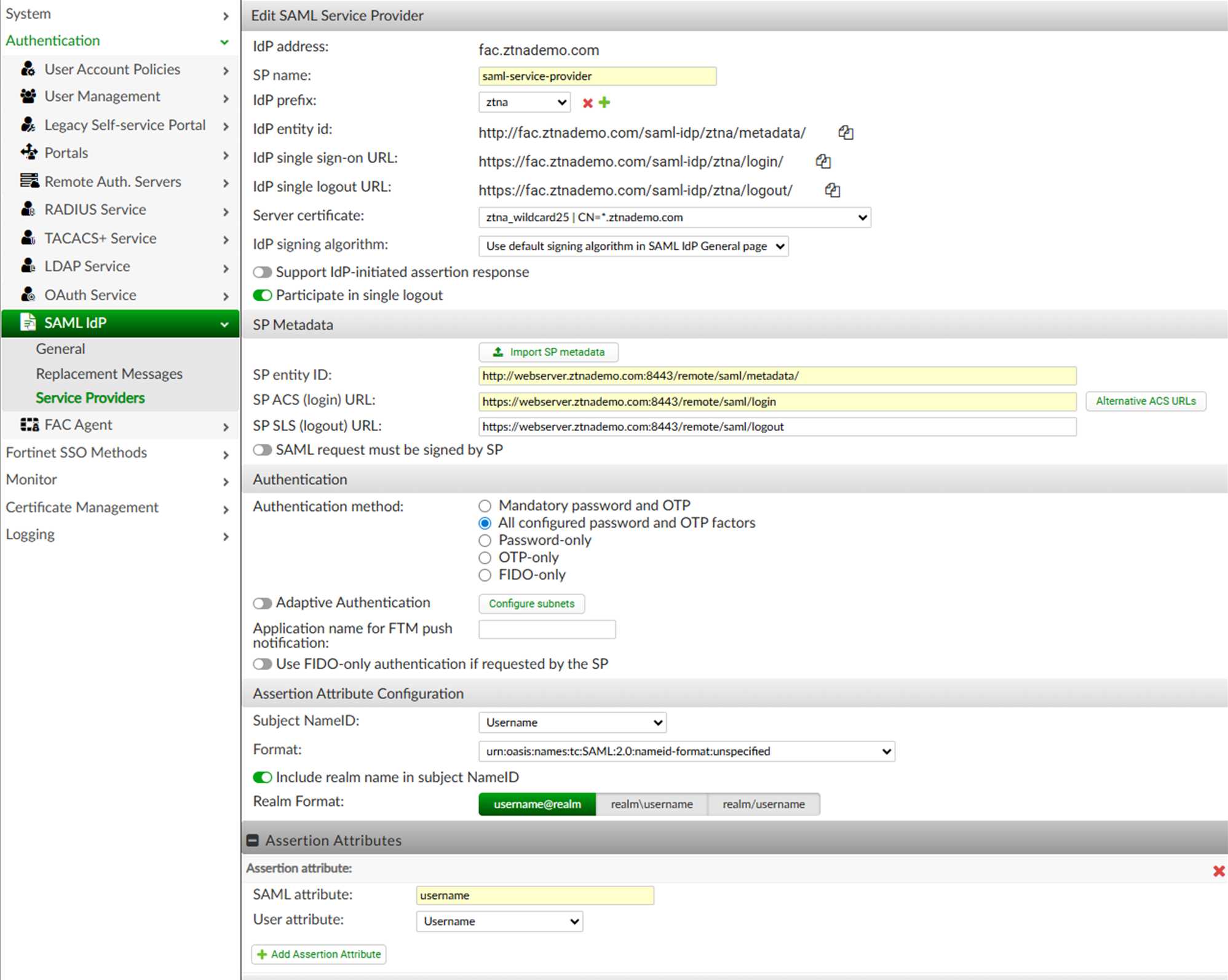
This must match the settings on the IdP. For this example, the FortiAuthenticator (IdP) has been configured as follows:
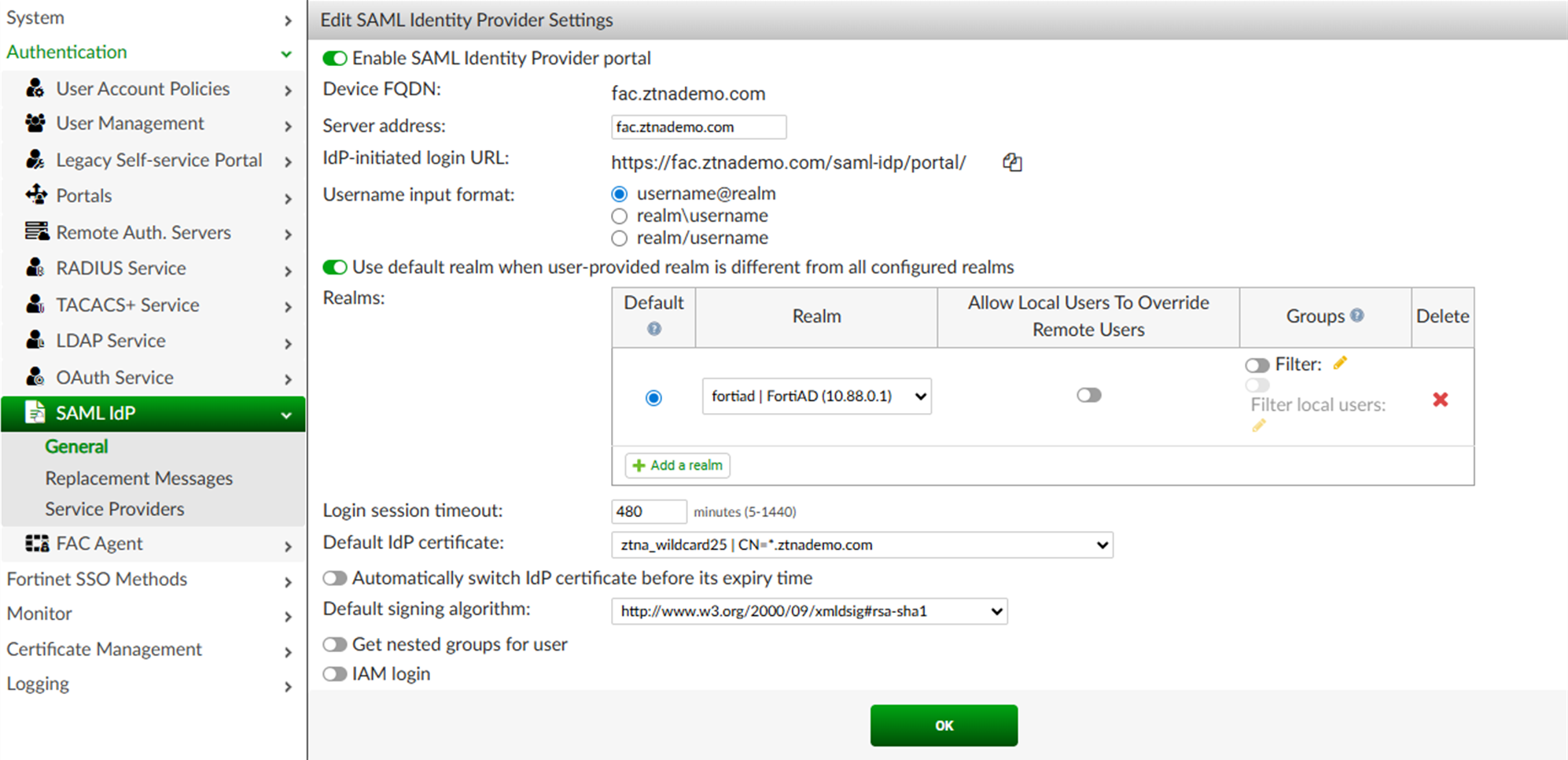
To configure FortiGate as the Service Provider:
-
Go to User & Authentication > Single Sign-On and select Create New.
-
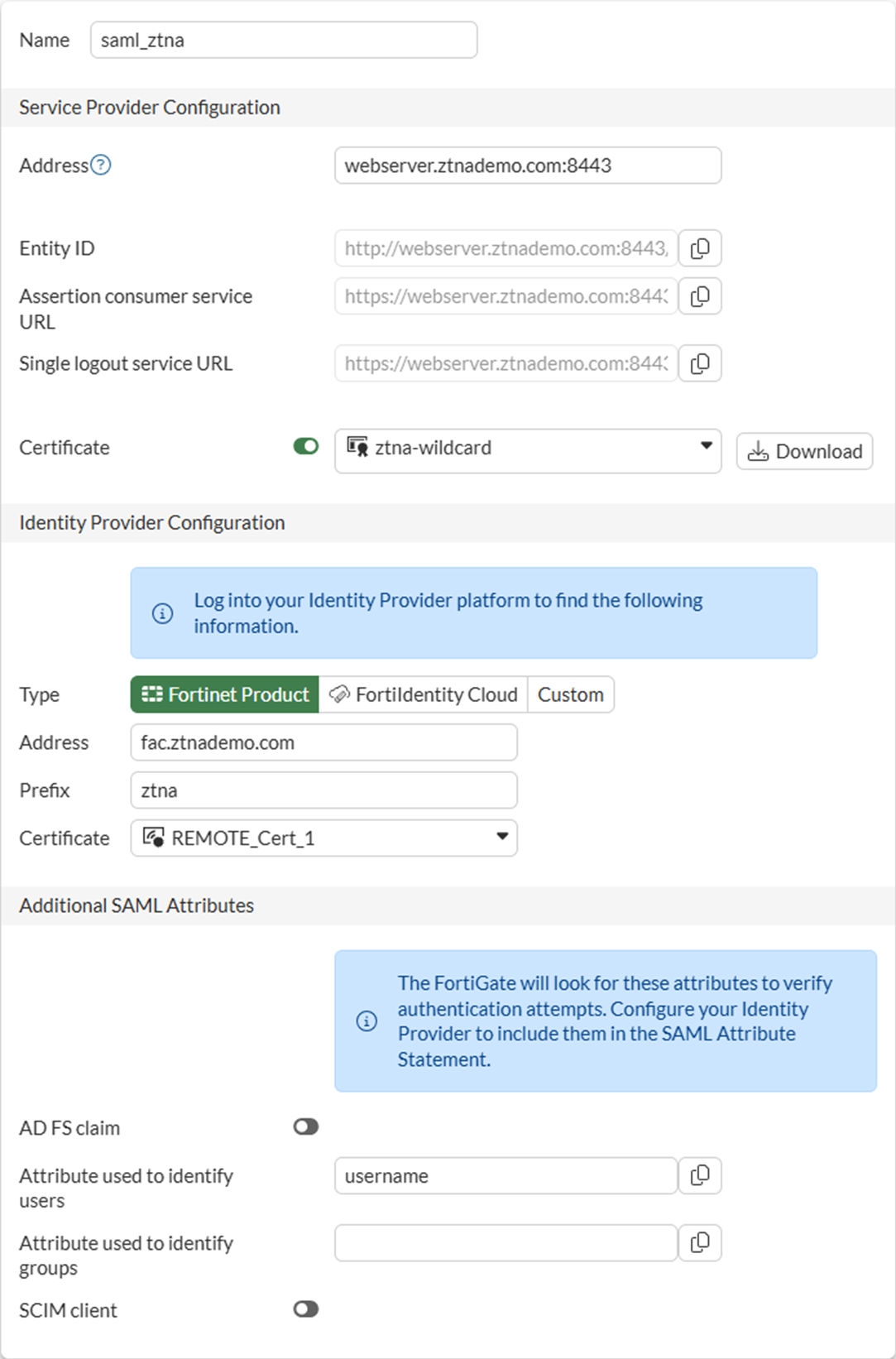
Set Name to saml_ztna.
-
Set Address to webserver.ztnademo.com:8443.
The Entity ID, Assertion consumer service URL and Single logout service URL will be updated. You will need to enter these URLs into FAC in a later step.
-
Enable Certificate, then select the certificate used for the client.
In this example, the ztna-wildcard certificate is a local certificate that is used to sign SAML messages that are exchanged between the client and the FortiGate SP.
-
Use the settings from the FortiAuthenticator to fill the custom Identity Provider Details. In this example, we select Fortinet Product and fill in the following fields:
Address
fac.ztnademo.com
Prefix
ztna
IdP certificate
REMOTE_Cert_1
The certificate REMOTE_Cert_1 is the certificate used by the IdP (fac.ztnademo.com). In this example, a wildcard certificate is used.

-
Set Attribute used to identify users to username. Attributes to identify users and groups are case sensitive.
-
Click OK to save the settings
To configure a SAML server in the CLI:
config user saml
    edit "saml_ztna"
        set cert "ztna-wildcard"
        set idp-cert "REMOTE_Cert_1"
        set user-name "username"
        set digest-method sha256
        set entity-id "http://webserver.ztnademo.com:8443/remote/saml/metadata/"
        set single-sign-on-url "https://webserver.ztnademo.com:8443/remote/saml/login"
        set single-logout-url "https://webserver.ztnademo.com:8443/remote/saml/logout"
        set idp-entity-id "http://fac.ztnademo.com/saml-idp/ztna/metadata/"
        set idp-single-sign-on-url "https://fac.ztnademo.com/saml-idp/ztna/login/"
        set idp-single-logout-url "https://fac.ztnademo.com/saml-idp/ztna/logout/"
    next
end
Apply the SP settings in the IdP
The settings configured on the SP must be added to the IdP.
To apply the SAML server to proxy authentication in the GUI:
-
Go to Policy & Objects > Authentication.
-
Create a new authentication scheme:
-
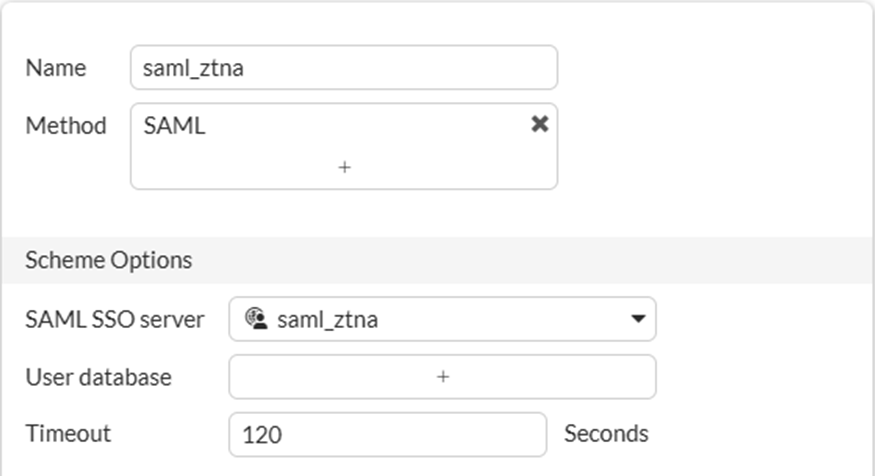
Go to the Authentication Scheme tab and click Create New.
-
Set the Name to saml_ztna.
-
Set the Method to SAML.
-
Set SAML SSO server to saml_ztna.
-
Click OK.
-
-
Create a new authentication rule:
-
Select Authentication Rules from the top menu bar.
-
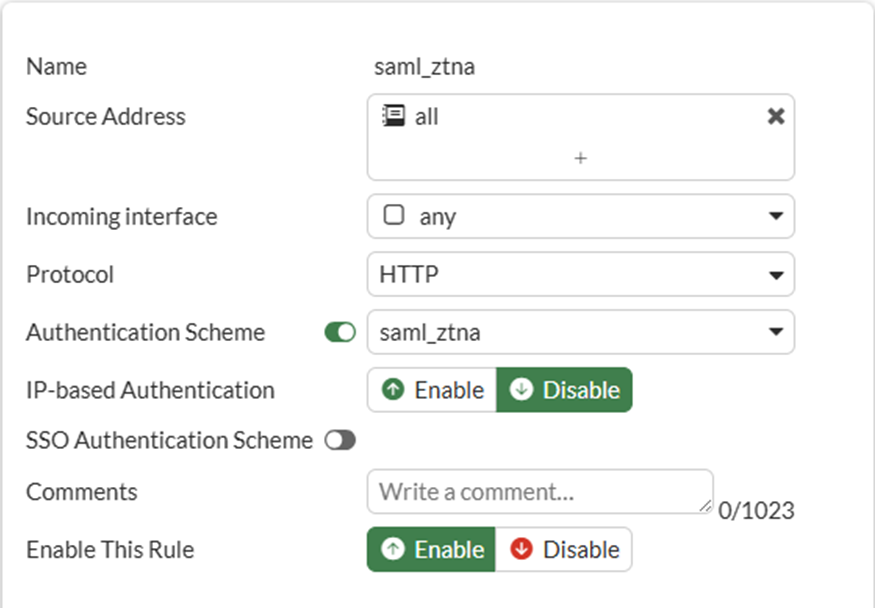
Click Create New.
-
Set the Name to saml_ztna.
-
Set the Source address to all.
-
Set Incoming interface to port3.
-
Set Protocol to HTTP.
-
Enable Authentication Scheme, and select saml_ztna.
-
Set IP-based Authentication to Disable.
-
Click OK to save the rule.
-
To apply the SAML server to proxy authentication from the CLI:
config authentication scheme
     edit "saml_ztna"
         set method saml
         set saml-server "saml_ztna"
     next
end
config authentication rule
edit "saml_ztna"
set srcintf "port3"
set srcaddr "all"
set ip-based disable
set active-auth-method "saml_ztna"
set web-auth-cookie enable
next
end
To create a user group for the SAML user object:
-
Go to User & Authentication > User Groups, and click Create New.
-
Set Name to saml_group.
-
Under Remote Groups, click Add.
-
For Remote Server, select the SAML user object: saml_ztna and click OK.
-
Click OK again to save the user group.
To create a user group for the SAML user object in the CLI:
config user group
    edit "saml_group"
        set member "saml_ztna"
    next
end
To enable user group authentication in a ZTNA firewall policy:
A simple ZTNA policy is created to apply the SAML authentication.
-
Go to Policy & Objects > Firewall Policy and select Create New.
-
Configure the following:
Name
ZTNA_Allow_Simple
Action
Accept
Type
ZTNA
Incoming Interface
port3
Source
All
User/group
saml_group
ZTNA port
WebServer:8443
Log allowed traffic
All sessions
-
Click OK to save the policy.
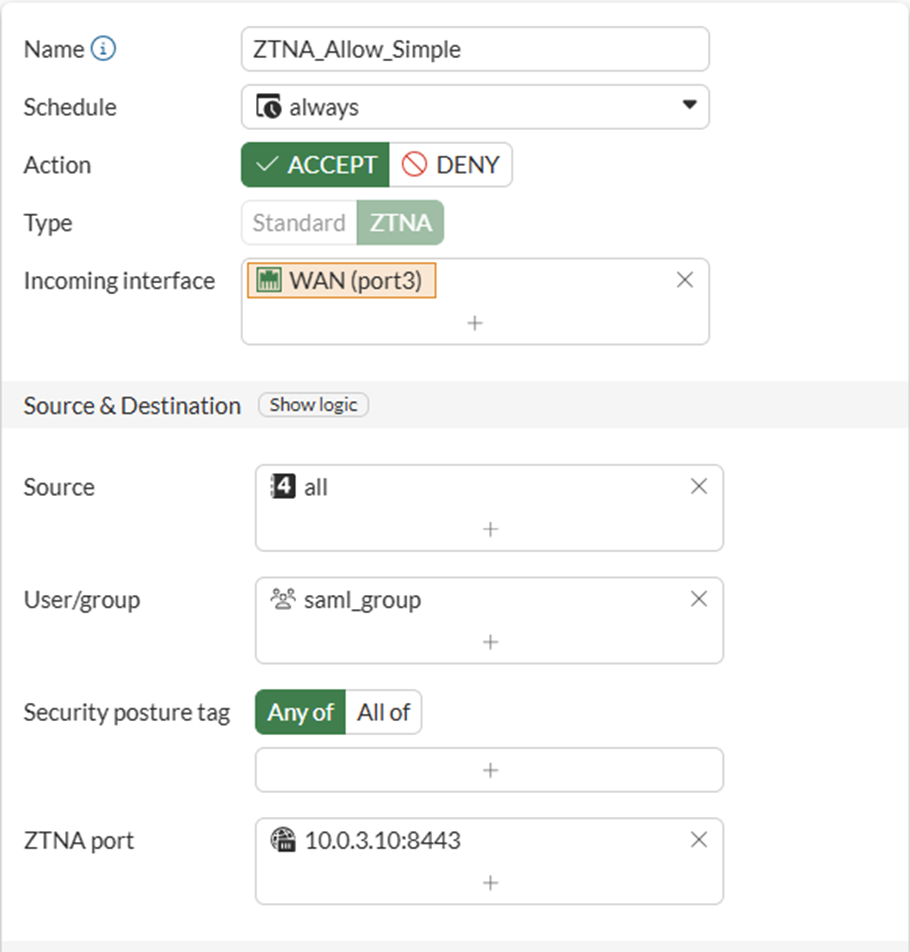
To enable user group authentication in a ZTNA firewall policy in the CLI:
config firewall policy
    edit 1
        set name "ZTNA_Allow_Simple"
        set srcintf "port3"
        set dstintf "any"
        set action accept
        set srcaddr "all"
        set dstaddr "WebServer:8443"
        set ztna-destination "Webserver:9043"
        set schedule "always"
        set logtraffic all
        set nat enable
        set groups "saml_group"
    next
end
To configure a VIP and firewall policy to forward IdP authentication traffic to the FortiAuthenticator
Remote clients connect to the FortiAuthenticator IdP behind the FortiGate using a VIP. In this example, users connect to the FQDN fac.ztnademo.com which resolves to the VIP's external IP address.
-
Configure the VIP to forward traffic to the FortiAuthenticator:
-
Go to Policy & Objects > Virtual IPs. The Virtual IP tab is selected.
-
Click Create New to define the following:
Name
FAC-VIP
Interface
any
External IP address/range
10.0.3.7
Map to > IPv4 address/range
10.88.0.7
Additional settings may be configured to limit traffic to TCP/443.
-
Click OK to save the VIP.
-
-
Configure a firewall policy to allow the VIP traffic:
-
Go to Policy & Objects > Firewall Policy and click Create New.
-
Configure the following:
Name
WAN_to_FAC
Action
Accept
Type
Standard
Incoming Interface
port3
Outgoing Interface
port2
Source
All
Destination
FAC-VIP
Service
All
NAT
Disabled
-
Click OK to save the policy
-
To configure a VIP and firewall policy to forward IdP authentication traffic to FortiAuthenticator in the CLI:
config firewall vip
    edit "FAC-VIP"
        set uuid a43372f8-06af-51ec-8f86-30b451b2ebe0
        set extip 10.0.3.7
        set mappedip "10.88.0.7"
        set extintf "any"
    next
end
config firewall policy
edit 2
set name "WAN_to_FAC"
set srcintf "port3"
set dstintf "port2"
set action accept
set srcaddr "all"
set dstaddr "FAC-VIP"
set schedule "always"
set service "ALL"
set logtraffic all
next
end
Testing the connection
To test the connection:
It is not necessary to configure a ZTNA Destination on the FortiClient for the HTTPS access proxy use case. In fact, configuring a ZTNA Destination rule for the website may interfere with its operation.
-
On the remote Windows computer, open FortiClient and register to the EMS server.
-
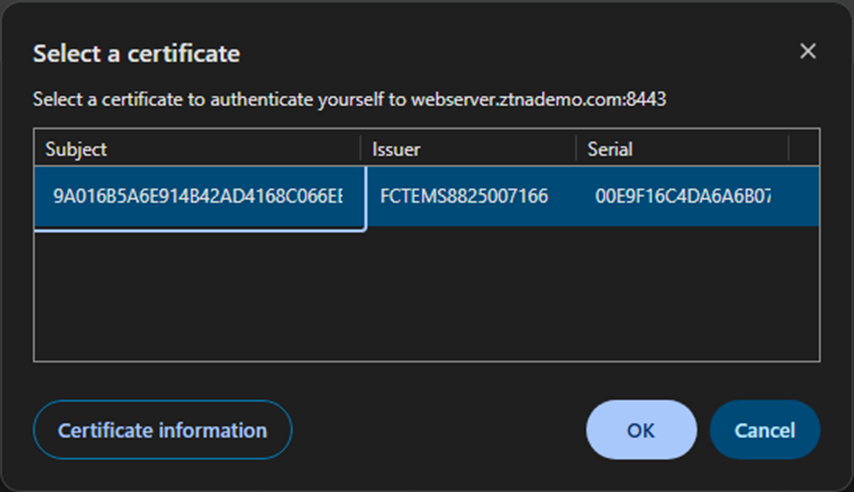
Device authentication prompts the user for their device certificate. Select the certificate issued by EMS and click OK.
-
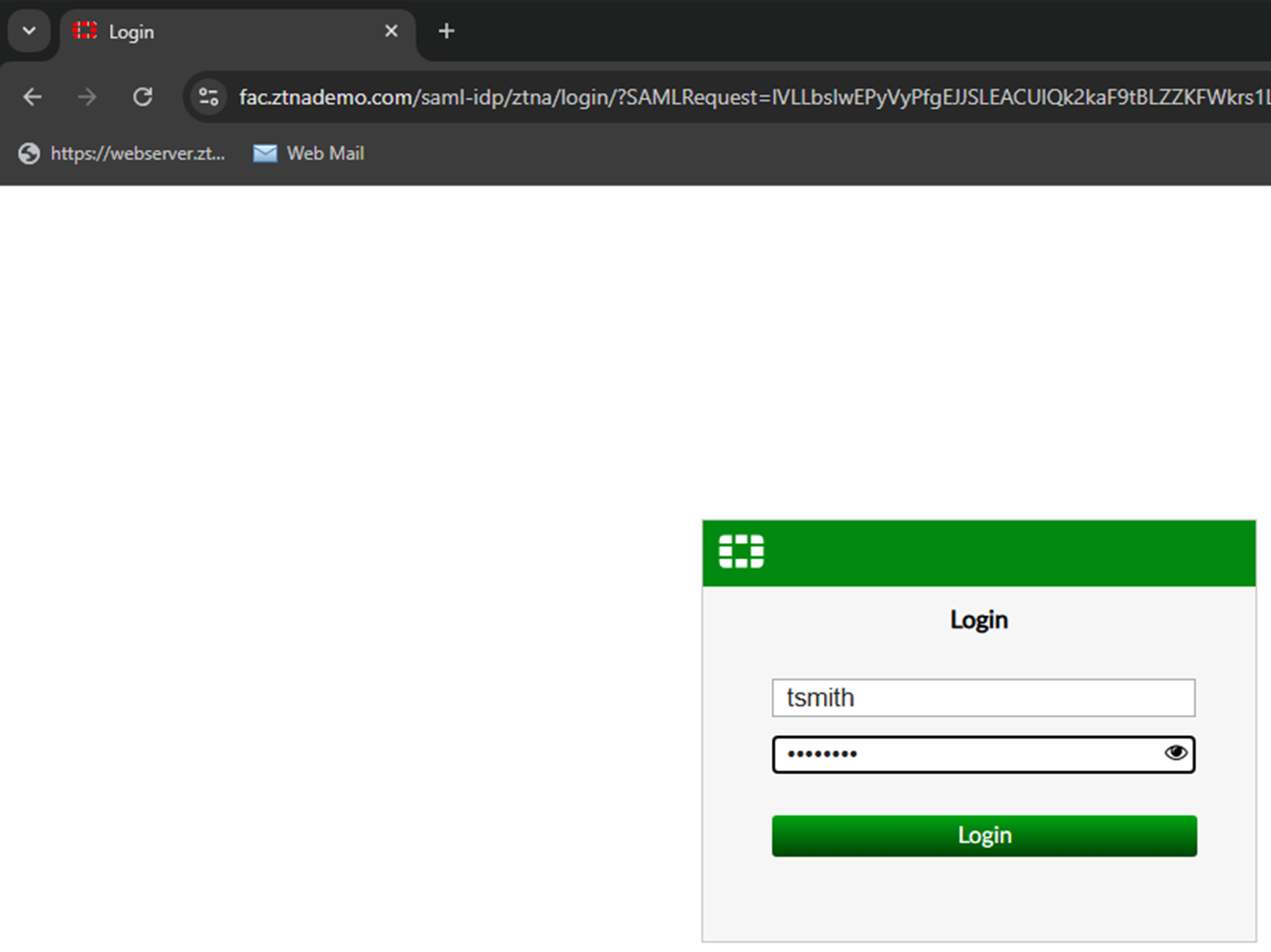
The user traffic matches the ZTNA policy and the user is redirected to the IdP for authentication.
-
Enter your user credentials. The SAML server authenticates and sends a SAML assertion response message to the FortiGate.
-
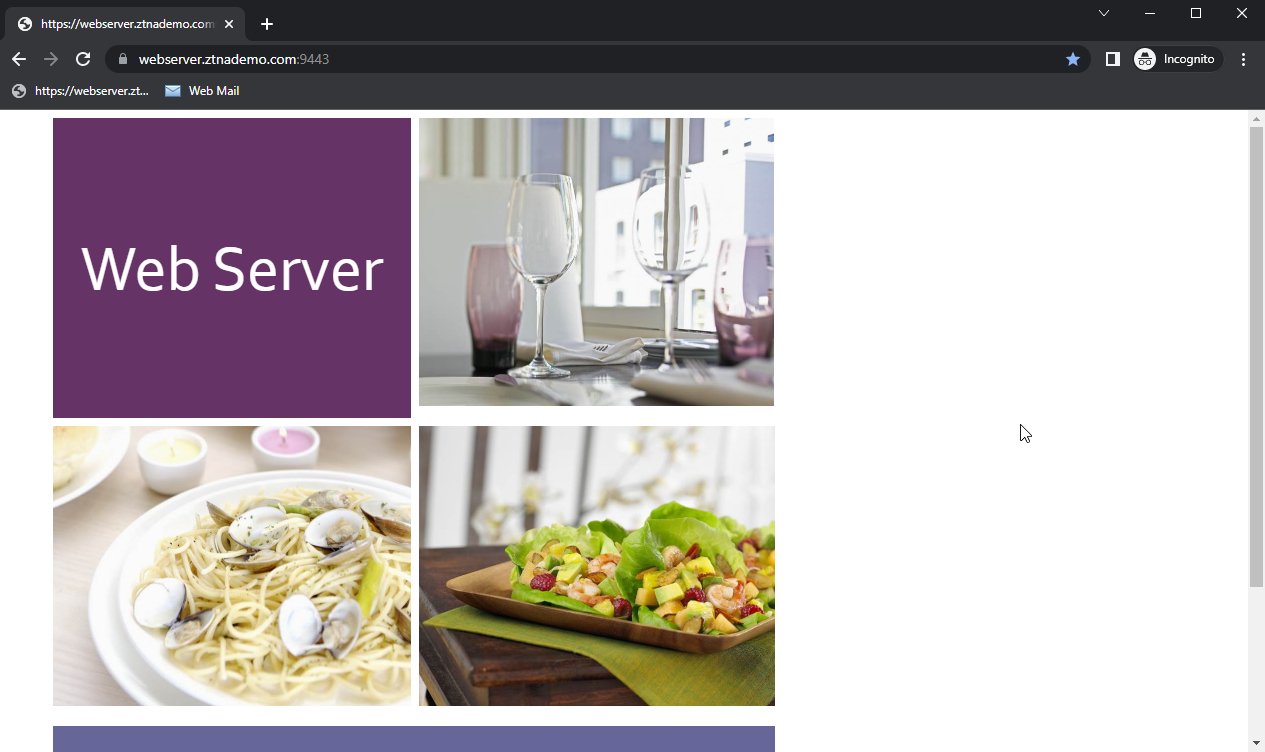
The user is proxied to the webpage on the real web server.
Logs and debugs
Use the following command to check the user information after the user has been authenticated:
# diagnose wad user list
ID: 3, VDOM: root, IPv4: 10.0.3.2
  user name   : tsmith
  worker      : 0
  duration    : 69
  auth_type   : Session
  auth_method : SAML
  pol_id      : 17
  g_id        : 8
  user_based  : 0
  expire      : no
  LAN:
    bytes_in=28146 bytes_out=309763
  WAN:
    bytes_in=303009 bytes_out=4474
ZTNA traffic log
# execute log filter category 0
# execute log filter field subtype ztna
# execute log display
1: date=2026-03-11 time=08:49:50 eventtime=1773244190067470581 tz="-0700" logid="0005000024" type="traffic" subtype="ztna" level="notice" vd="root" srcip=10.0.3.2 srcport=9417 srcintf="port3" srcintfrole="wan" dstcountry="Reserved" srccountry="Reserved" dstip=10.88.0.3 dstport=9043 dstintf="port2" dstintfrole="dmz" sessionid=97173 srcuuid="b458a65a-f759-51ea-d7df-ef2e750026d1" dstuuid="55f5f710-1d56-51f1-f6cb-1be820301ca5" service="tcp/9043" proxyapptype="ztna-proxy" proto=6 action="accept" policyid=1 policytype="policy" poluuid="dfc01cba-1c88-51f1-cf94-b9c10b070486" policyname="ZTNA_Allow_Simple" appcat="unscanned" duration=250 user="tsmith" group="saml_group" authserver="saml_ztna" gatewayid=1 realserverid=1 vip="WebServer:8443" vipincomingip=10.0.3.10 accessproxy="ZTNA-Webserver" clientdevicemanageable="manageable" clientcert="yes" wanin=303009 rcvdbyte=303009 wanout=4474 lanin=28146 sentbyte=28146 lanout=309787
2: date=2026-03-11 time=08:44:09 eventtime=1773243849152689824 tz="-0700" logid="0005000024" type="traffic" subtype="ztna" level="notice" vd="root" srcip=10.0.3.2 srcport=9399 srcintf="port3" srcintfrole="wan" dstcountry="Reserved" srccountry="Reserved" dstip=10.0.3.10 dstport=8443 dstintf="root" dstintfrole="undefined" sessionid=96814 srcuuid="b458a65a-f759-51ea-d7df-ef2e750026d1" service="tcp/8443" proxyapptype="ztna-proxy" proto=6 action="pending" policyid=1 policytype="policy" poluuid="dfc01cba-1c88-51f1-cf94-b9c10b070486" policyname="ZTNA_Allow_Simple" appcat="unscanned" duration=0 vip="WebServer:8443" vipincomingip=10.0.3.10 clientdevicemanageable="unknown" clientcert="no" wanin=0 rcvdbyte=0 wanout=0 lanin=1764 sentbyte=1764 lanout=4141
Forward traffic log
# execute log filter category 0
# execute log filter field policyid 1
# execute log filter field subtype forward
# execute log display
1: date=2026-03-11 time=08:45:40 eventtime=1773243940074849332 tz="-0700" logid="0000000010" type="traffic" subtype="forward" level="notice" vd="root" srcip=10.0.3.2 srcport=9417 srcintf="port3" srcintfrole="wan" dstcountry="Reserved" srccountry="Reserved" dstip=10.0.3.10 dstport=8443 dstintf="root" dstintfrole="undefined" sessionid=97173 srcuuid="b458a65a-f759-51ea-d7df-ef2e750026d1" service="tcp/8443" proxyapptype="web-proxy" proto=6 action="accept" policyid=1 policytype="proxy-policy" poluuid="dfc01cba-1c88-51f1-cf94-b9c10b070486" policyname="ZTNA_Allow_Simple" appcat="unscanned" duration=0 vip="WebServer:8443" vipincomingip=10.0.3.10 clientdevicemanageable="manageable" clientcert="yes" wanin=0 rcvdbyte=0 wanout=0 lanin=3810 sentbyte=3810 lanout=4582 msg="Traffic is redirected to SAML authentication."