

Health check
View, create, and manage your health check configurations.
In Global Server Load Balance (GSLB) deployments, health checks are used to poll virtual servers to determine their availability. A health check profile can include results from multiple checks. For example, you can configure an HTTP health check test and a TCP health check test.
Predefined health check configuration objects
Predefined health check configuration objects are available to help you get started. These can be used as-is or serve as templates for creating custom health check objects.
|
Predefined |
Description |
|---|---|
|
Default_HLTHCK_HTTP
|
Sends a HEAD request to the server port 80. Expects the server to return an HTTP 200. |
|
Default_HLTHCK_HTTPS
|
Sends a HEAD request to the server port 443. Expects the server to return an HTTP 200. |
|
Default_HLTHCK_ICMP |
Pings the server. |
|
Default_HLTHCK_TCP_ECHO
|
Sends a TCP echo to server port 7. Expects the server to respond with the corresponding TCP echo. |
Before you begin
-
You should have a solid understanding of TCP/IP and global load balancing concepts.
-
You must know the IP address, port, and configuration details of the local load balancing servers.
-
-
For certain protocol checks, valid user credentials are required.
-
You must have Read-Write permission for Load Balance settings.
-
-
Health checks will be performed from the following IP addresses. To avoid disruptions caused by misidentification as DDoS attacks, please add the following IPs to your application's allowlist:
-
USA: 44.231.37.61
-
Europe: 18.195.172.168 (new)
-
Asia Pacific: 52.77.144.83 (new)
-
Configure health check
- Go to Health Check, click Create New to display the configuration editor.
- Select one of the following options:
- ICMP
- TCP Echo
- TCP
- HTTP
- HTTPS
- UDP
- DNS
|
Setting |
Guidelines |
|---|---|
|
Name |
Configuration name. Valid characters are A-Z, a-z, 0-9, _, and -. No spaces. After you initially save the configuration, you cannot edit the name. |
|
Type |
Select a type of health check. |
|
General |
|
|
Destination Address Type |
IPv4 |
|
IPv4 Address |
The IPv4 address to send health check traffic. If you do not specify an IPv4 address, the virtual server IPv4 address is used. |
|
Interval |
Seconds between each health check. Should be more than the timeout to prevent overlapping health checks. The default is 30. |
|
Timeout |
Seconds to wait for a reply before assuming that the health check has failed. The default is 10. |
|
Area |
Select the geographical areas(s) where the health check will be performed. |
|
Healthy Area Threshold |
Specifies the number of areas that must be healthy for the health check to be considered a pass. |
|
Up Retry |
Attempts to retry the health check to see if a down server has become available. The default is 1. |
|
Down Retry |
Attempts to retry the health check to see if an up server has become unavailable. The default is 3. |
|
Specifics |
|
|
TCP / UDP |
|
|
Port |
Listening port number of the virtual server. |
|
HTTP / HTTPS
|
|
|
Port |
Listening port number of the virtual server. Usually HTTP is 80, HTTPS is 443. If testing an HTTP proxy server, specify the proxy port. |
|
SSL Ciphers
|
For HTTPS only. Default selections are recommended. |
|
Local Cert |
For HTTPS only. Paste the local SSL Health Check Client certificate into the blank. |
|
HTTP CONNECT |
Specify an HTTP CONNECT option:
The HTTP CONNECT option is useful to test the availability of proxy servers only. |
|
Remote Host |
If you use HTTP CONNECT to test proxy servers, specify the remote server IP address.
|
|
Remote Port |
If you use HTTP CONNECT to test proxy servers, specify the remote server port. |
|
Method Type |
HTTP method for the test traffic:
|
|
Send String |
The request URL, such as /contact.php. |
|
Receive String |
A string expected in return when the HTTP GET request is successful. |
|
Status Code |
The health check sends an HTTP request to the server. Specify the HTTP status code in the server reply that indicates a successful test. Typically, you use status code 200 (OK). Other status codes indicate errors. |
|
Match Type |
What determines a failed health check?
Not applicable when using HTTP HEAD. HTTP HEAD requests test status code only. |
|
DNS |
|
|
Domain Name |
The FQDN, such as www.example.com, to use in the DNS A/AAAA record health check.
|
|
Address Type |
IPv4 |
|
Host Address |
IP address that matches the FQDN, indicating a successful health check. |
Add Health Check to a Virtual Server
There are two methods to add health checks to virtual servers:
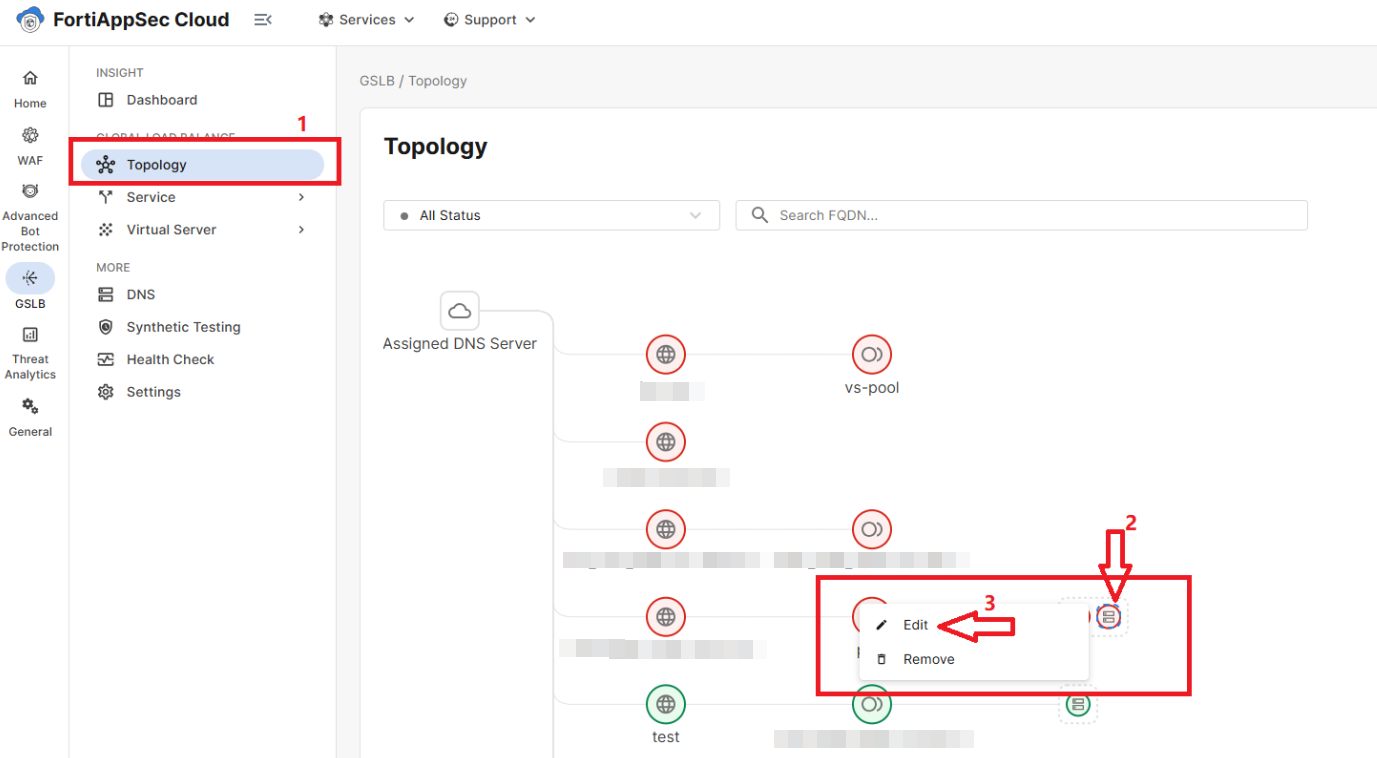
Add Health Check to Virtual Server via Topology Page
-
Navigate to GSLB >Topology.
-
Right-click the virtual server and select Edit. This opens the Edit Virtual Server side panel.
-
Enable Health Check, then select the Health Check Relationship and applicable health checks from the Health Check list.
Health Check Relationship:
-
AND — All of the specified health checks must pass for the virtual server to be considered available.
-
OR — One of the specified health checks must pass for the virtual server to be considered available.
-
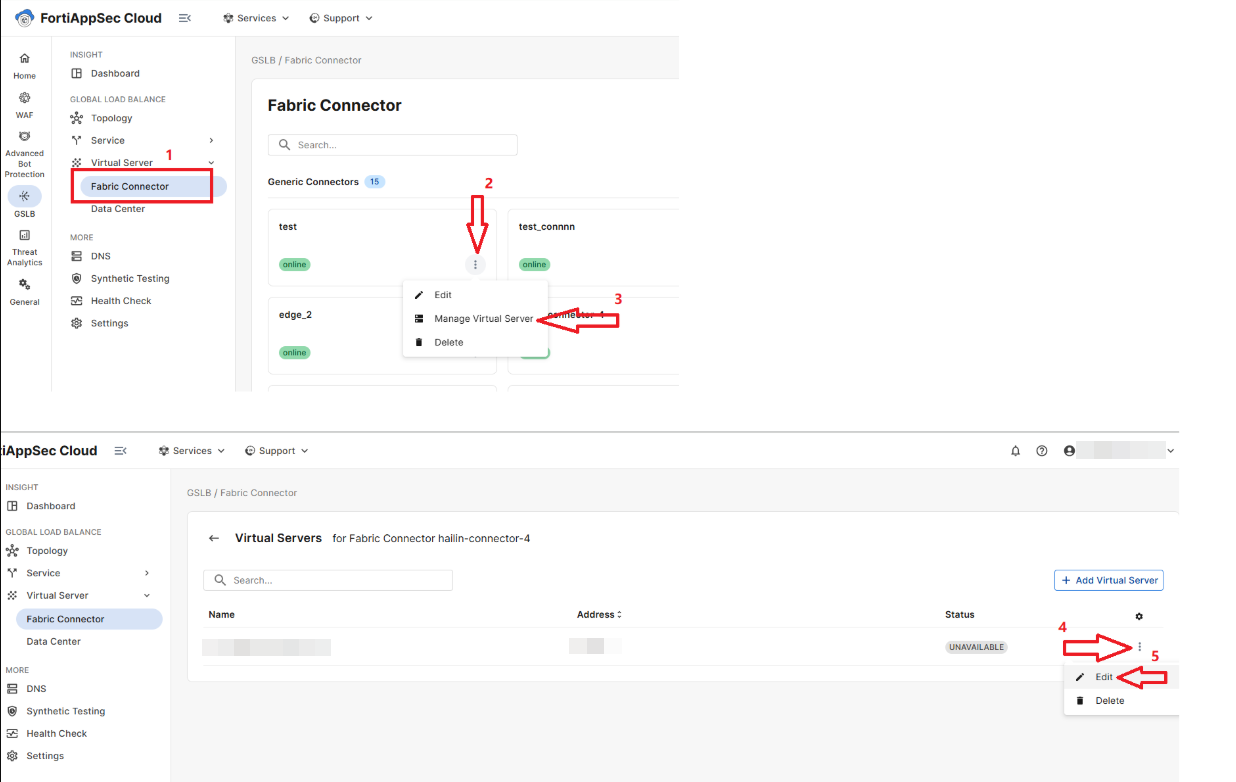
Add Health Check to Virtual Server via Fabric Connector page
-
Navigate to GSLB > Virtual Server > Fabric Connector.
-
Click the three-dot menu on the connector card and select Manage Virtual Server. This opens the Edit Virtual Server side panel.
-
-
Enable Health Check, then select the Health Check Relationship and applicable health checks from the Health Check list.
Health Check Relationship:
-
AND — All of the specified health checks must pass for the virtual server to be considered available.
-
OR — One of the specified health checks must pass for the virtual server to be considered available.
-
-