
Fortinet white logo
Fortinet white logo

User Guide

Synthetic testing

Synthetic testing

Synthetic testing checks applications availability by sending probes to applications from GSLB. It can be used to monitor application website services or application endpoints at various network layer, and the results of these tests can provide valuable information on application up/down time, availability, and regional performance issues.

Synthetic testing types

Synthetic testing supports ICMP, HTTP, HTTPS, DNS, TCP, UDP and TCP Echo testing. It utilizes the health check object configured under Profiles > Health Check.

Configuring application

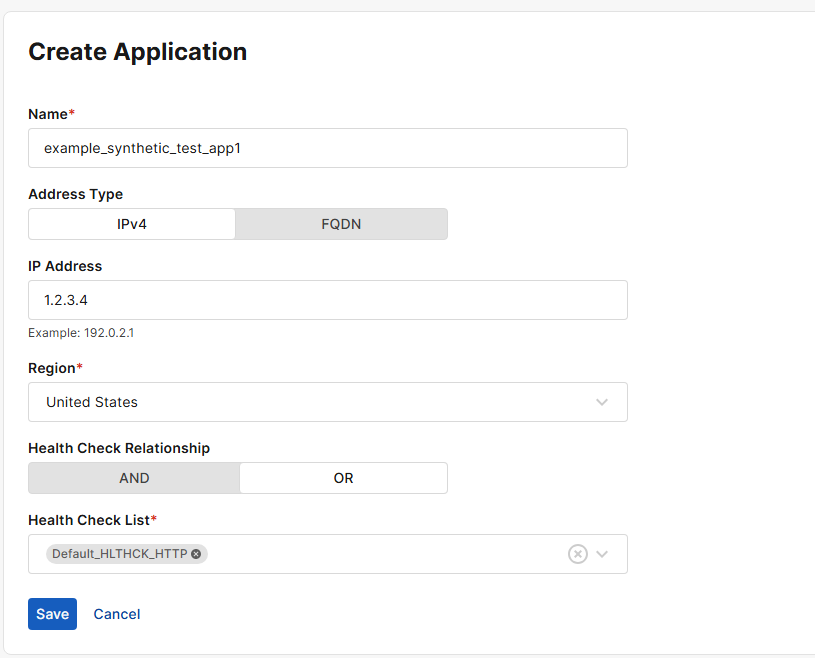
Go to Synthetic testing and click Create New. Create an application according to the following configuration settings:

Setting

Description

Name

Application name

Address Type

IPv4 or FQDN

IP Address

Application IP address

Address

FQDN address

Region

The physical location of the application

Health Check Control

Enable health checking for the application.

Note: you must enable this option to configure the Health Check Relationship and Health Check List fields below.

Health Check Relationship

AND—All of the specified health checks must pass for the application to be considered available.

OR—One of the specified health checks must pass for the application to be considered available.

Health Check List

Specify one or more health check configuration objects.

Viewing testing results

Synthetic testing is activated within 1 minute after the testing is setup. The time needed for results to become available depends on your health check configures (for instance, Up Retry, Down Retry, Timeout and Interval). You can refresh and view Synthetic testing results in the GUI as a Map or as a List by selecting the desired view at the top left. You can also view testing related activities and logs in Recent Activities.

In Map view, get detailed application info for specific regions by hovering over the region or clicking the region icon.

How to set up synthetic testing for multisite applications

Scenario: The client has web service applications located in several different regions (United States, Arizona; Italy, Enna; etc). The client wants to proactively monitor the web services in all these regions and check whether the web services are responding to requests. They also want to manage the web services reachability issue from a region perspective. To achieve this goal, the client can set up HTTP synthetic testing on their applications.

Steps
  1. Go to Profile > Health Check and create a HTTP type health check.
  2. From Synthetic Testing, click Create New to create an application. Specify the name, IP address of the application, and region. Enable health check and then select the health check configured in step 1. Applications in other regions can be created in similar steps.
  3. You can view the testing result as a Map or as a List by selecting the desired view at the top left. Region location and status data can be conveniently viewed from Map view. You can get testing activities and logs from Recent Activities.

Synthetic testing

Synthetic testing

Synthetic testing checks applications availability by sending probes to applications from GSLB. It can be used to monitor application website services or application endpoints at various network layer, and the results of these tests can provide valuable information on application up/down time, availability, and regional performance issues.

Synthetic testing types

Synthetic testing supports ICMP, HTTP, HTTPS, DNS, TCP, UDP and TCP Echo testing. It utilizes the health check object configured under Profiles > Health Check.

Configuring application

Go to Synthetic testing and click Create New. Create an application according to the following configuration settings:

Setting

Description

Name

Application name

Address Type

IPv4 or FQDN

IP Address

Application IP address

Address

FQDN address

Region

The physical location of the application

Health Check Control

Enable health checking for the application.

Note: you must enable this option to configure the Health Check Relationship and Health Check List fields below.

Health Check Relationship

AND—All of the specified health checks must pass for the application to be considered available.

OR—One of the specified health checks must pass for the application to be considered available.

Health Check List

Specify one or more health check configuration objects.

Viewing testing results

Synthetic testing is activated within 1 minute after the testing is setup. The time needed for results to become available depends on your health check configures (for instance, Up Retry, Down Retry, Timeout and Interval). You can refresh and view Synthetic testing results in the GUI as a Map or as a List by selecting the desired view at the top left. You can also view testing related activities and logs in Recent Activities.

In Map view, get detailed application info for specific regions by hovering over the region or clicking the region icon.

How to set up synthetic testing for multisite applications

Scenario: The client has web service applications located in several different regions (United States, Arizona; Italy, Enna; etc). The client wants to proactively monitor the web services in all these regions and check whether the web services are responding to requests. They also want to manage the web services reachability issue from a region perspective. To achieve this goal, the client can set up HTTP synthetic testing on their applications.

Steps
  1. Go to Profile > Health Check and create a HTTP type health check.
  2. From Synthetic Testing, click Create New to create an application. Specify the name, IP address of the application, and region. Enable health check and then select the health check configured in step 1. Applications in other regions can be created in similar steps.

  3. You can view the testing result as a Map or as a List by selecting the desired view at the top left. Region location and status data can be conveniently viewed from Map view. You can get testing activities and logs from Recent Activities.