Fortinet white logo
Fortinet white logo

User Guide

FortiCloud IAM

FortiCloud IAM

IAM (Identity and Access Management) users are assigned permission types and permission profiles, facilitating controlled access to FortiCloud resources and services.

Before creating an IAM user to use with FortiAppSec Cloud, you must first create a FortiAppSec Cloud portal Permission Profile.

IAM User Permission Types

Permission Type is assigned when creating a permission profile or an IAM user. It defines the scope of access a user has in terms of asset folders or OU hierarchy.

  • Local

    • The default permission type.

    • Only IAM users with Local permission type can be assigned to Asset Groups.

    • Access is limited to the selected account’s asset folders.

  • Organization

    • Advanced settings for assigning IAM users, user groups, and permissions to OUs and member accounts.

    • Organization-type users have full visibility and management access across all assets in the account.

    • Organization-type users are not restricted by Asset Groups and cannot be assigned to them.

    • Only IAM users with this type can be assigned as an OU admin.

Assigning IAM users with a local type to an organization on the GSLB organization page will no longer be effective if the organization is associated with a member or root account.

IAM users from the member or root account will always be able to manage resources under the account, provided their permission profile allows it.

Permission scope can be defined as Local or Organization when a permission profile is being created. The Local type is automatically assigned to all permission profiles when OU access is not enabled. However, if a login user does have OU access enabled, the scope can be set to either the Local or Organization type. Once selected, permission scope can then be based on hierarchical OU (Organization type) or asset folder (Local type) paths in the Organization portal and Asset Management portal, respectively.

IAM permission profiles

Permission profiles define the scope of access that users have across different Fortinet services. Each permission profile includes Portals for the various Fortinet services. Within each Portal, you can specify which features or modules the profile grants access to.
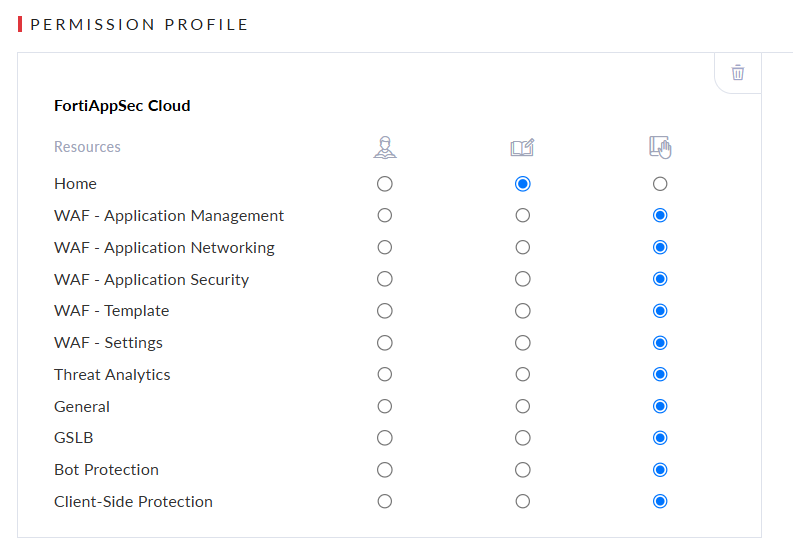
The FortiAppSec Cloud portal displays information on each page according to the user’s access level.

  • Read Only

  • Read & Write

  • No Access

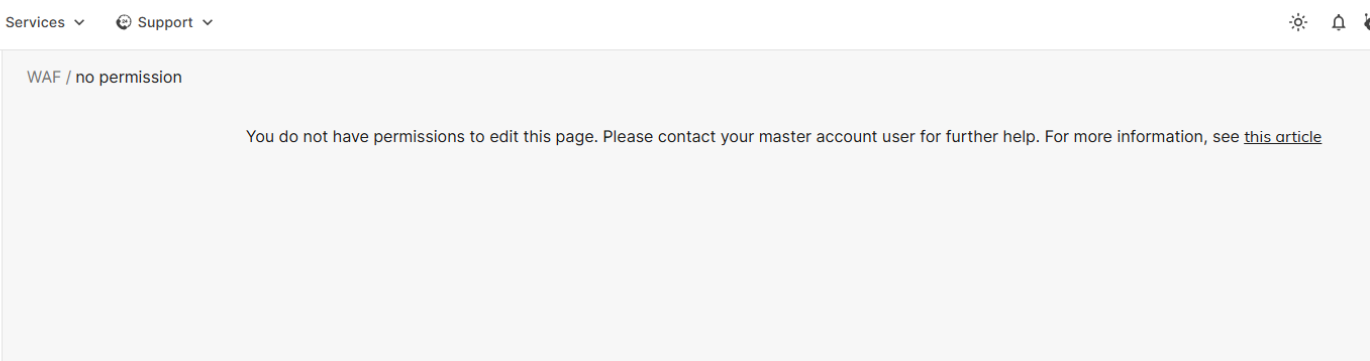
When a permission profile has a resource set to No Access, an IAM user assigned to that profile will see a No Permission page when attempting to access the corresponding resource. When set to Read Only, the user can view the page but cannot edit any of its settings.
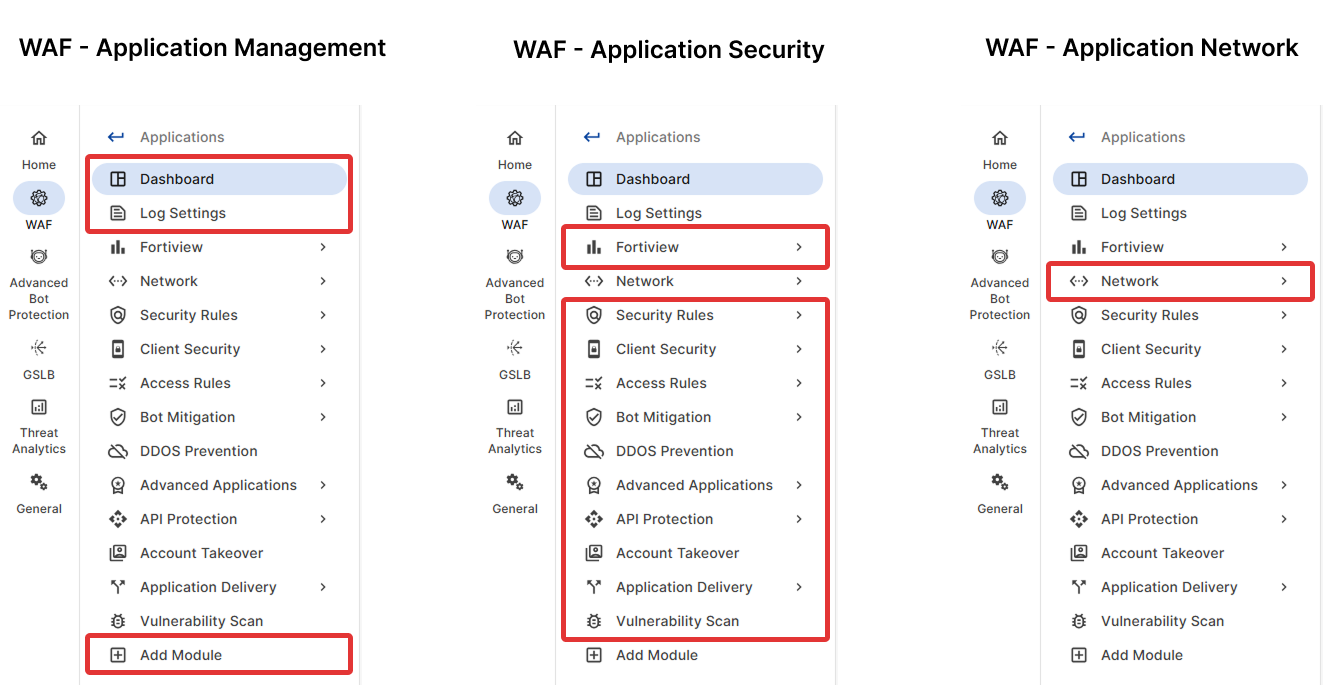
WAF - Application Management, WAF - Application Network, and WAF - Application Security

In the version 25.4 update, the WAF - Application resource is split into WAF - Application Management, WAF - Application Network, and WAF - Application Security.

For all existing Permission Profiles that were created prior to this change, the permissions for WAF - Application will be automatically cloned into each new resource to maintain backward compatibility.

WAF - Application Management

Manages the application lifecycle, dashboard, and monitoring:

  • List Applications

  • Create or Delete Applications

  • Modify basic application information (name, region, block/monitor mode)

  • View Application Dashboard

  • Configure Application Log Settings

  • Add Modules to Applications

WAF - Application Network

Manages application network configuration:

  • Endpoints

    • Origin Servers

    • Content Routing

    • Diagnostics

WAF - Application Security

Manages application FortiView and security module configuration:

Create a new FortiAppSec Cloud portal permission profile

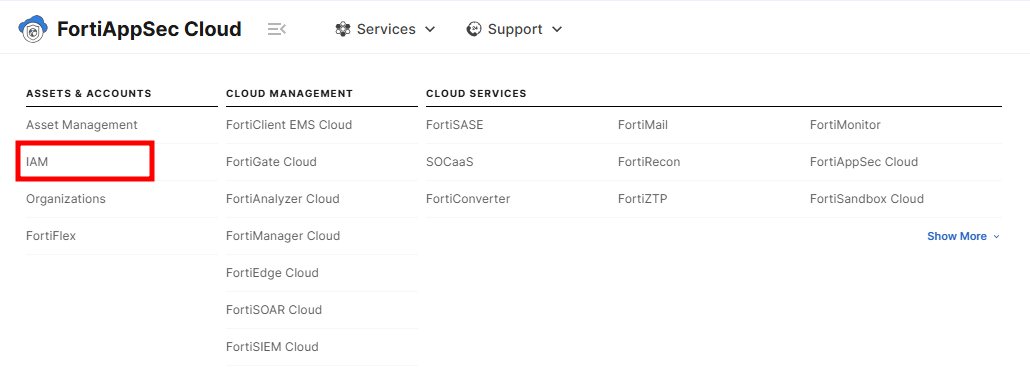
  1. On the admin home page, go to Services > Assets&Accounts > IAM in the top navigation bar.
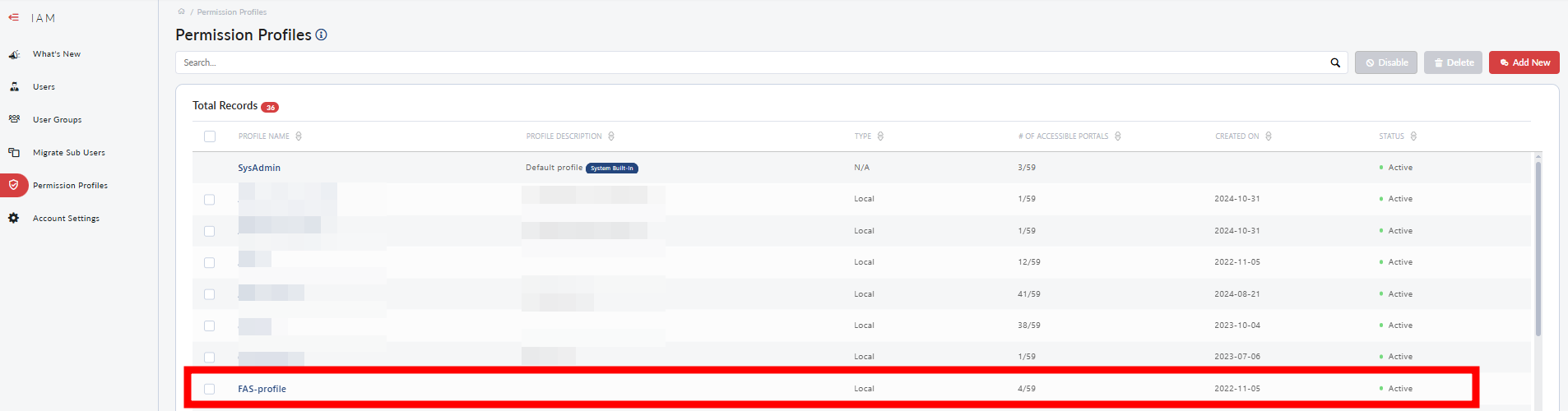
  2. Click on Permission Profiles in the left-hand navigation bar.

  3. Click Add New to create a new Permission profile.
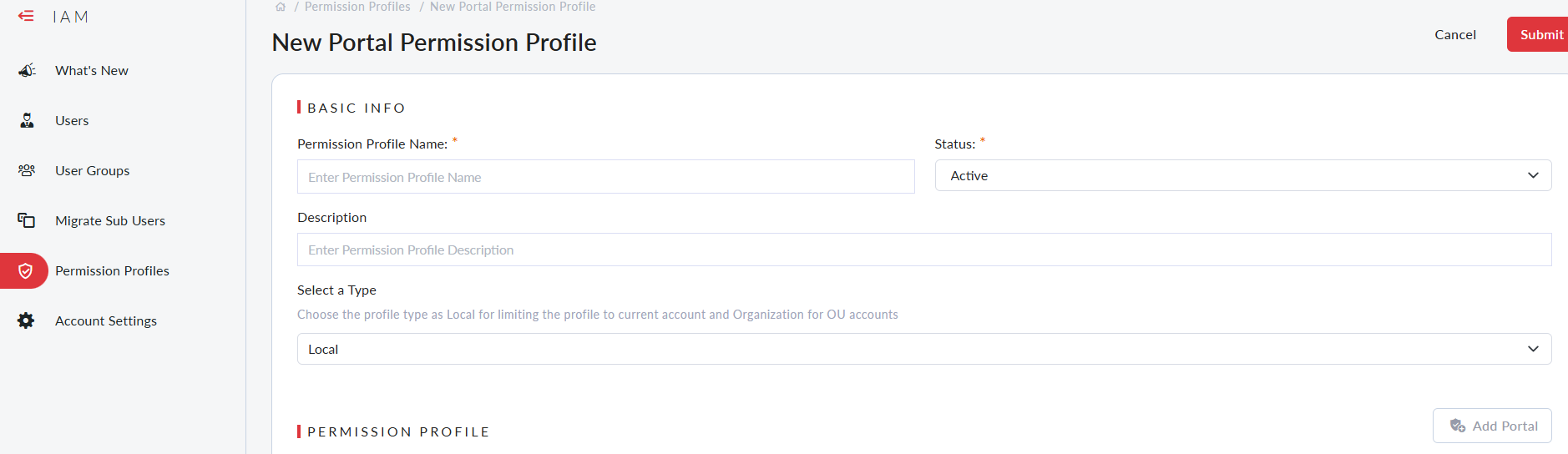
    1. Enter a name for the profile in the Permission Profile Name field.

    2. Set the Status to Active.

    3. Enter a description of the portal permissions in the Description field.

  4. Click Add Portal. A list of available portals is displayed.
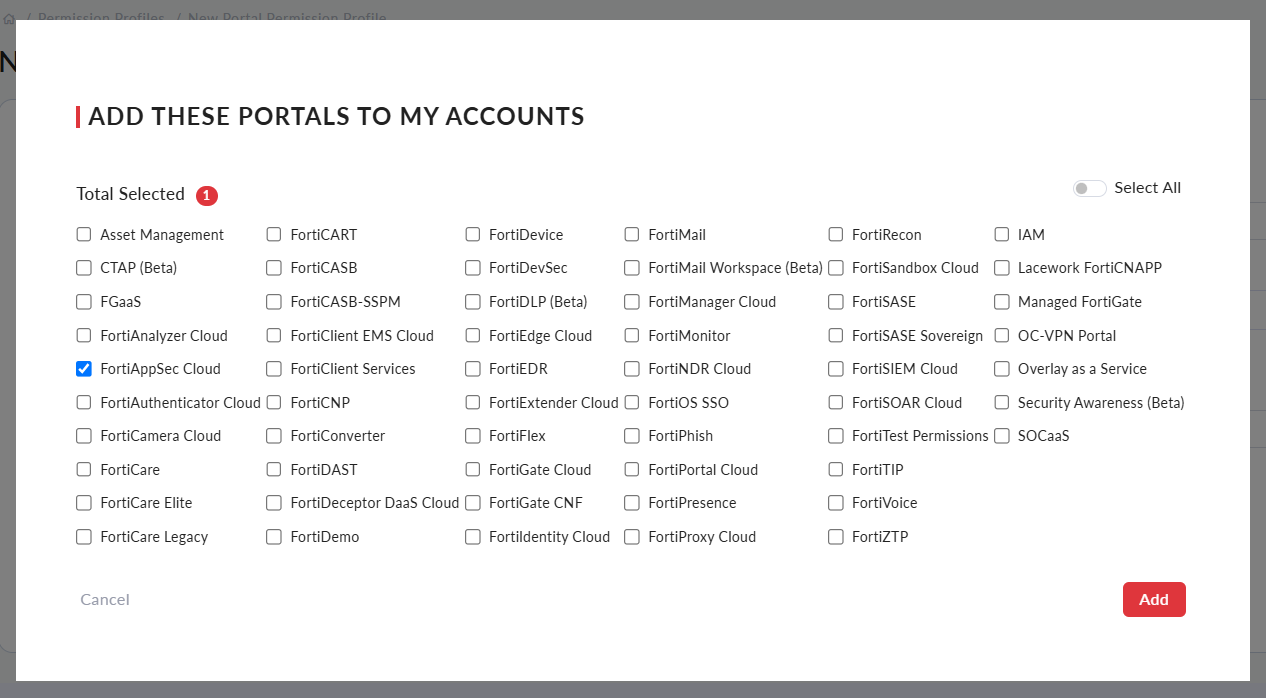
  5. To use this Permission Profile with FortiAppSec Cloud, select the FortiAppSec Cloud portal.

  6. Click Add. The new FortiAppSec Cloud portal displays as a card under Permission Profile

    • Click the switch under Access to enable the portal, then select your desired access settings for this profile. For details on the various WAF resources, please refer to

    • For other portals with role-based permissions, enable access and specify the portal Access Type and any Additional Permissions.

  7. Click Save. The permission profile is now available to be assigned to users.
Add an IAM User to FortiAppSec Cloud

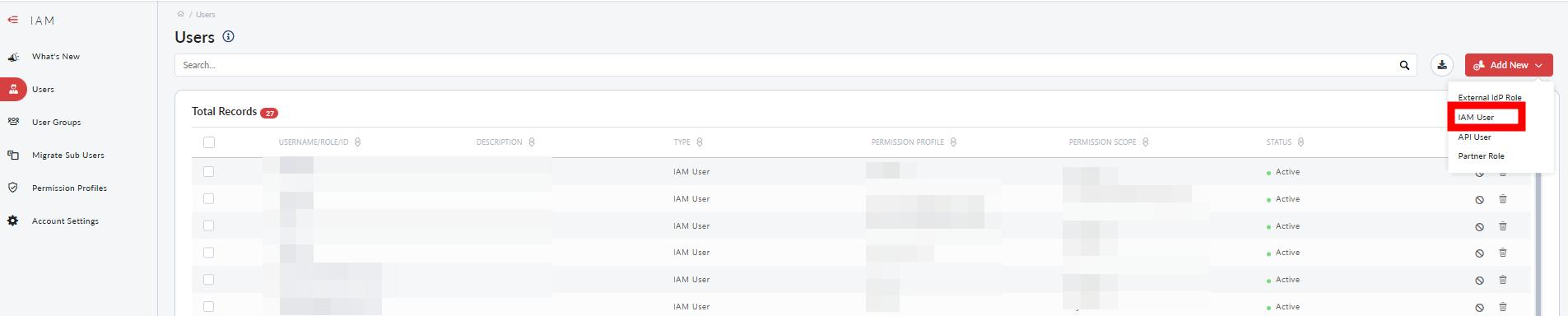
  1. Go to the Users page, click the Add New button, and click IAM User.
    1. Step 1: User Details - Fill in the basic fields and click Next.
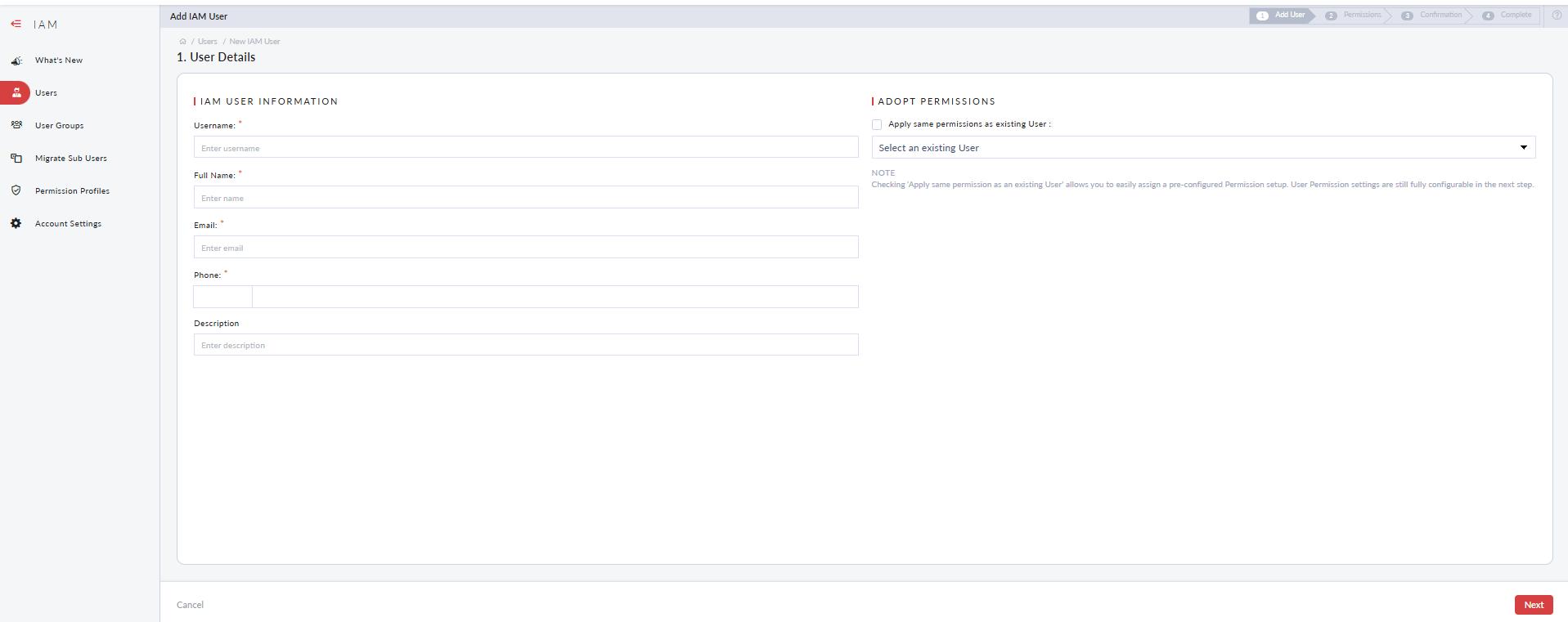
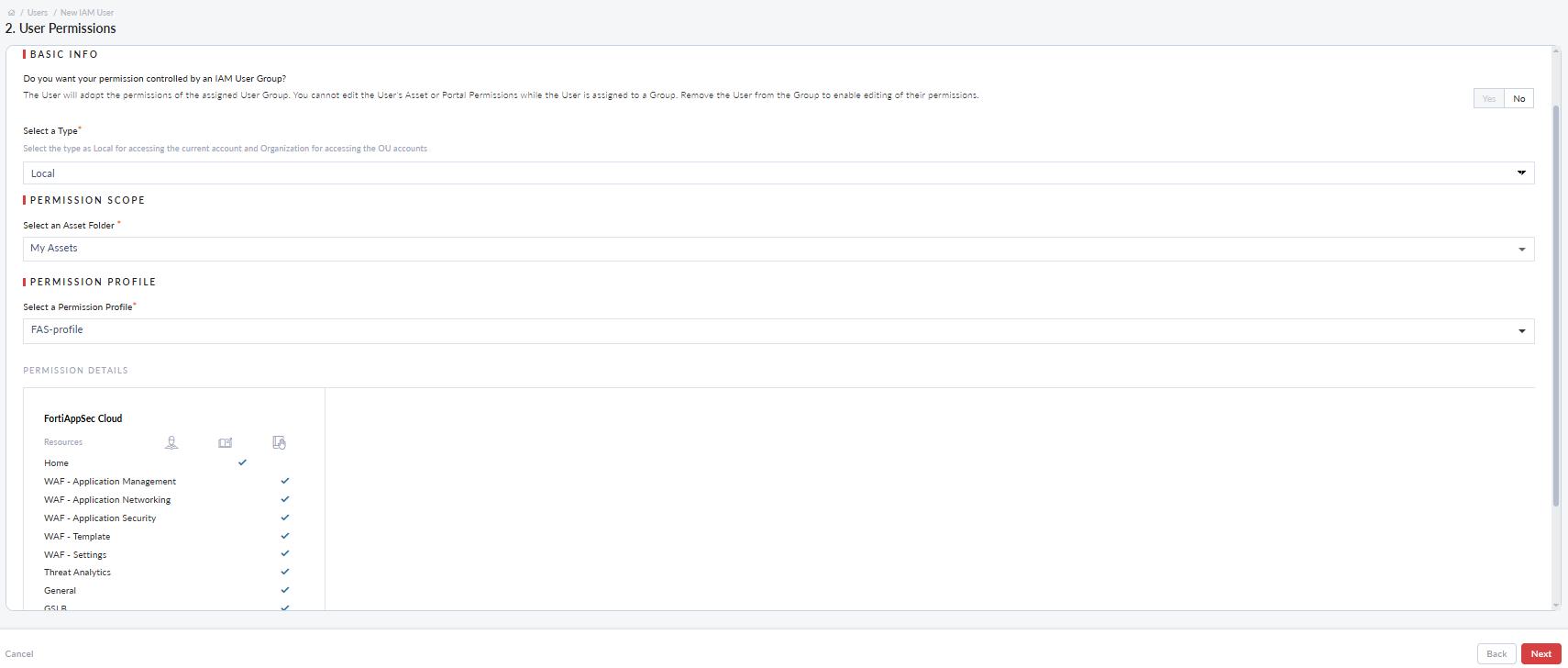
    2. Step 2: User Permissions
      1. Select any Asset Folder of your choice.
      2. Under the Permission Profile subsection, select a permission profile with a FortiAppSec Cloud portal. Click Next.
    3. Review the user information, and click Confirm. The user's details are displayed.
      1. Account credentials must be shared with the user. The account password can be configured using Generate Password. See Generating Password Reset Link for instructions on how to configure the account password and share user credentials.
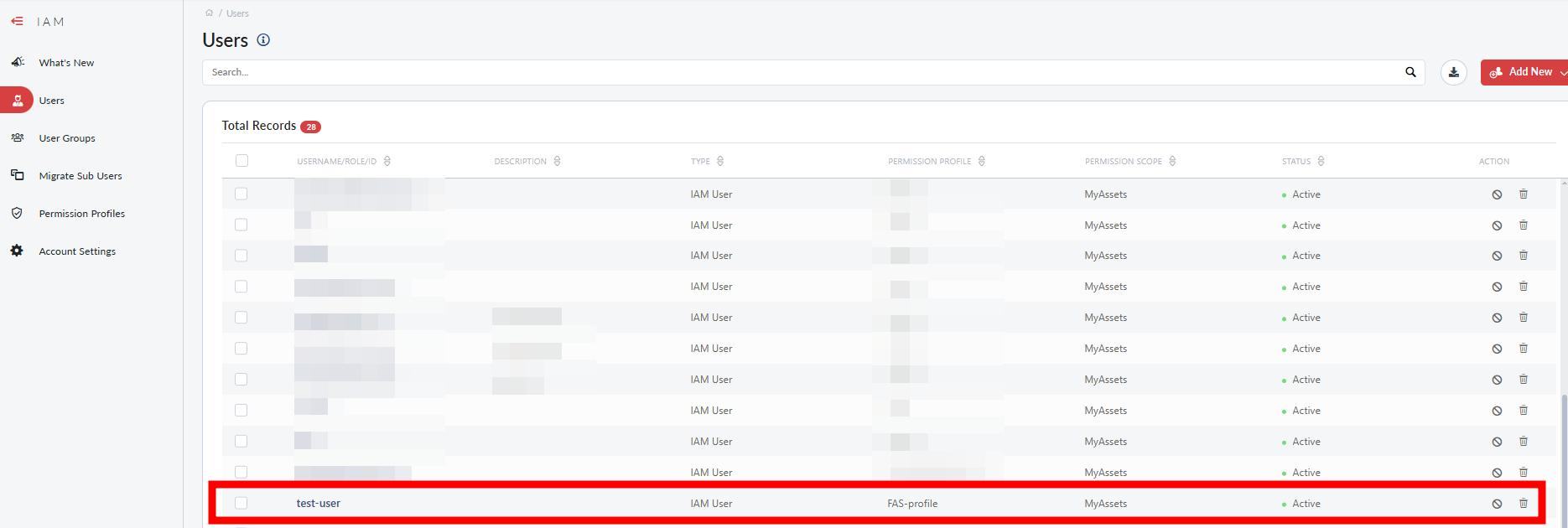
  2. Return to the IAM Users page and find the newly added user listed.
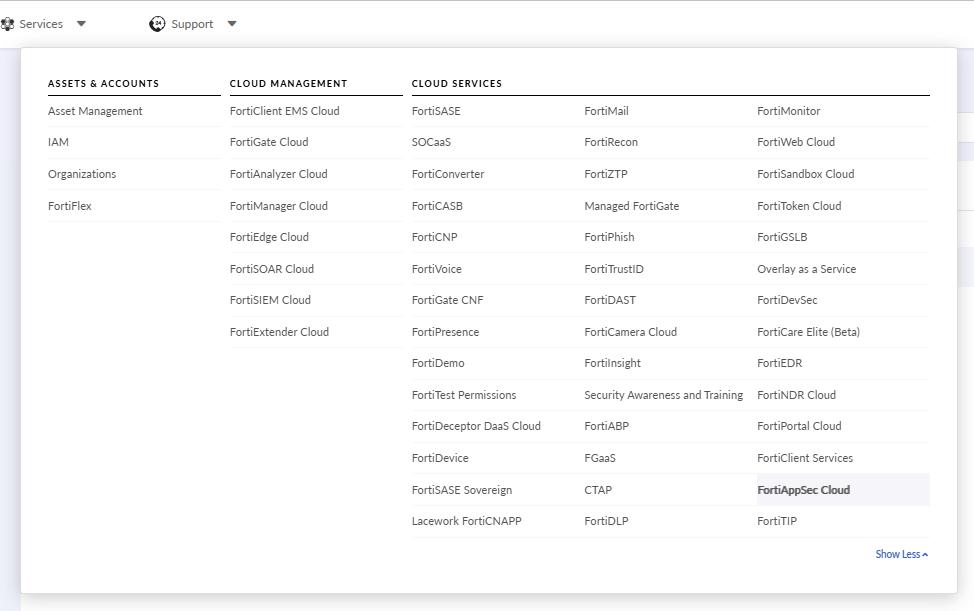
  3. Navigate to the top menu bar and click Services > FortiAppSec Cloud. You may need to click Show More to access this option.

    Please note, you must access FortiAppSec Cloud from here in order to see the newly added user.
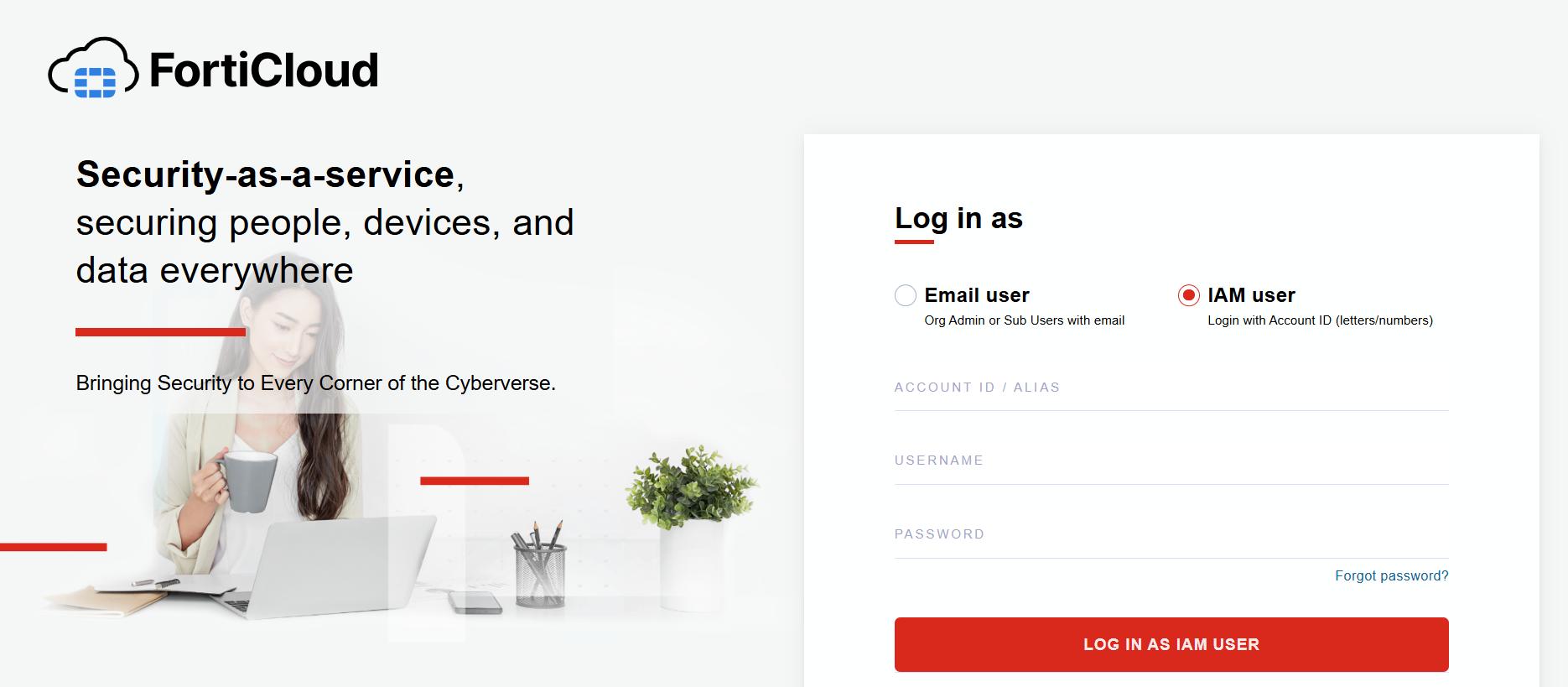
  4. The IAM user can log in by clicking Sign in as IAM user on the login page.
Manage IAM users

For updated information on managing IAM users, please refer to the latest FortiCloud documentation.

FortiCloud IAM

FortiCloud IAM

IAM (Identity and Access Management) users are assigned permission types and permission profiles, facilitating controlled access to FortiCloud resources and services.

Before creating an IAM user to use with FortiAppSec Cloud, you must first create a FortiAppSec Cloud portal Permission Profile.

IAM User Permission Types

Permission Type is assigned when creating a permission profile or an IAM user. It defines the scope of access a user has in terms of asset folders or OU hierarchy.

  • Local

    • The default permission type.

    • Only IAM users with Local permission type can be assigned to Asset Groups.

    • Access is limited to the selected account’s asset folders.

  • Organization

    • Advanced settings for assigning IAM users, user groups, and permissions to OUs and member accounts.

    • Organization-type users have full visibility and management access across all assets in the account.

    • Organization-type users are not restricted by Asset Groups and cannot be assigned to them.

    • Only IAM users with this type can be assigned as an OU admin.

Assigning IAM users with a local type to an organization on the GSLB organization page will no longer be effective if the organization is associated with a member or root account.

IAM users from the member or root account will always be able to manage resources under the account, provided their permission profile allows it.

Permission scope can be defined as Local or Organization when a permission profile is being created. The Local type is automatically assigned to all permission profiles when OU access is not enabled. However, if a login user does have OU access enabled, the scope can be set to either the Local or Organization type. Once selected, permission scope can then be based on hierarchical OU (Organization type) or asset folder (Local type) paths in the Organization portal and Asset Management portal, respectively.

IAM permission profiles

Permission profiles define the scope of access that users have across different Fortinet services. Each permission profile includes Portals for the various Fortinet services. Within each Portal, you can specify which features or modules the profile grants access to.

The FortiAppSec Cloud portal displays information on each page according to the user’s access level.

  • Read Only

  • Read & Write

  • No Access

When a permission profile has a resource set to No Access, an IAM user assigned to that profile will see a No Permission page when attempting to access the corresponding resource. When set to Read Only, the user can view the page but cannot edit any of its settings.

WAF - Application Management, WAF - Application Network, and WAF - Application Security

In the version 25.4 update, the WAF - Application resource is split into WAF - Application Management, WAF - Application Network, and WAF - Application Security.

For all existing Permission Profiles that were created prior to this change, the permissions for WAF - Application will be automatically cloned into each new resource to maintain backward compatibility.

WAF - Application Management

Manages the application lifecycle, dashboard, and monitoring:

  • List Applications

  • Create or Delete Applications

  • Modify basic application information (name, region, block/monitor mode)

  • View Application Dashboard

  • Configure Application Log Settings

  • Add Modules to Applications

WAF - Application Network

Manages application network configuration:

  • Endpoints

    • Origin Servers

    • Content Routing

    • Diagnostics

WAF - Application Security

Manages application FortiView and security module configuration:

Create a new FortiAppSec Cloud portal permission profile

  1. On the admin home page, go to Services > Assets&Accounts > IAM in the top navigation bar.

  2. Click on Permission Profiles in the left-hand navigation bar.

  3. Click Add New to create a new Permission profile.

    1. Enter a name for the profile in the Permission Profile Name field.

    2. Set the Status to Active.

    3. Enter a description of the portal permissions in the Description field.

  4. Click Add Portal. A list of available portals is displayed.

  5. To use this Permission Profile with FortiAppSec Cloud, select the FortiAppSec Cloud portal.

  6. Click Add. The new FortiAppSec Cloud portal displays as a card under Permission Profile

    • Click the switch under Access to enable the portal, then select your desired access settings for this profile. For details on the various WAF resources, please refer to

    • For other portals with role-based permissions, enable access and specify the portal Access Type and any Additional Permissions.

  7. Click Save. The permission profile is now available to be assigned to users.

Add an IAM User to FortiAppSec Cloud

  1. Go to the Users page, click the Add New button, and click IAM User.
    1. Step 1: User Details - Fill in the basic fields and click Next.
    2. Step 2: User Permissions
      1. Select any Asset Folder of your choice.
      2. Under the Permission Profile subsection, select a permission profile with a FortiAppSec Cloud portal. Click Next.
    3. Review the user information, and click Confirm. The user's details are displayed.
      1. Account credentials must be shared with the user. The account password can be configured using Generate Password. See Generating Password Reset Link for instructions on how to configure the account password and share user credentials.
  2. Return to the IAM Users page and find the newly added user listed.
  3. Navigate to the top menu bar and click Services > FortiAppSec Cloud. You may need to click Show More to access this option.

    Please note, you must access FortiAppSec Cloud from here in order to see the newly added user.

  4. The IAM user can log in by clicking Sign in as IAM user on the login page.

Manage IAM users

For updated information on managing IAM users, please refer to the latest FortiCloud documentation.