
Fortinet white logo
Fortinet white logo

User Guide

Cloud Connectors

Cloud Connectors

When an application server's IP address changes dynamically, a Cloud Connector can be configured to automatically retrieve the latest origin IP addresses instead of requiring manual updates.

How Cloud Connectors work

Cloud Connectors for WAF automate the discovery and configuration of origin server IPs in auto-scaling environments. A cloud provider — such as AWS, Azure, or GCP — is a platform that hosts your infrastructure, including virtual machines, load balancers, and IP addresses, each providing a management API that Cloud Connectors use to discover resources. Cloud Connectors integrate directly with these providers through a backend process that continuously syncs with their APIs, ensuring accurate security rules during scaling without manual updates.
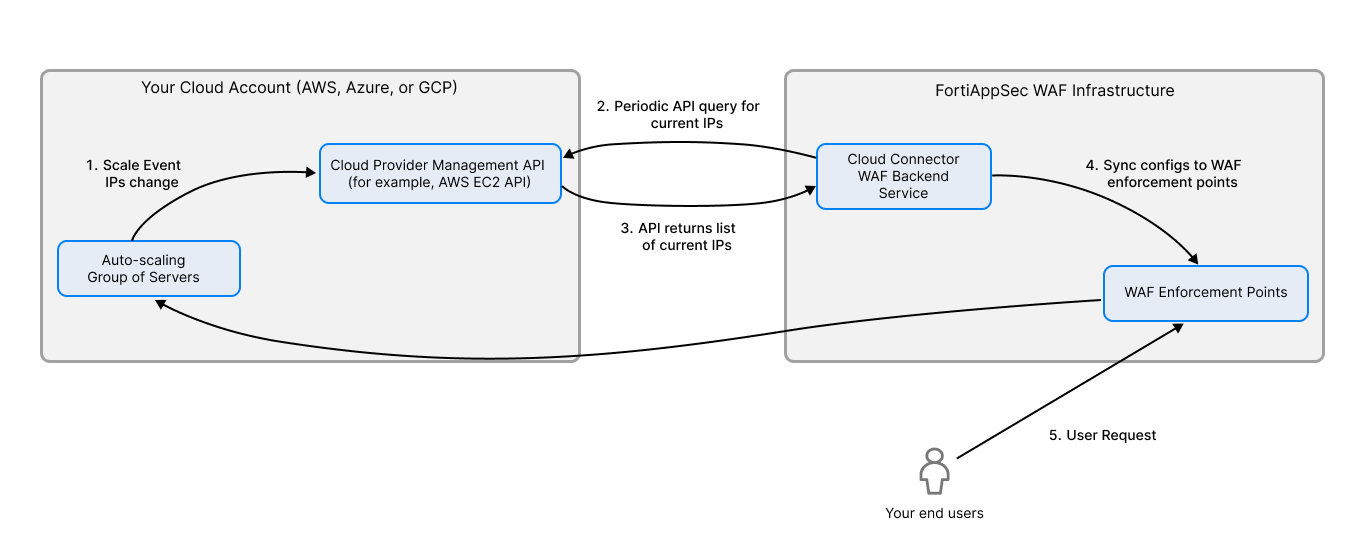
A diagram describing the flow of how WAF queries the cloud connector for the current IP in a dynamic IP configuration.

How IP changes in the cloud provider are propagated to WAF via the Cloud Connector:

  1. Scale Event IPs change: An auto-scaling event (scale-out/in) or a server restart occurs in your cloud account (AWS/Azure/GCP). The cloud provider's infrastructure automatically updates its own internal inventory (e.g., the EC2 service knows the new IPs of your instances).

  2. Periodic API query for current IPs: The Cloud Connector (configured with an IAM Role or Service Principal) does not directly query your servers. Instead, the WAF's backend service uses the Connector's credentials to query the cloud provider's management API.

  3. API returns list of current IPs: The cloud API responds with the real-time list of resources (instances, load balancers, IP addresses) associated with your account/ subscription/ project.

  4. Sync configurations to WAF enforcement points:The WAF backend receives this list, processes it, and automatically updates the relevant WAF security policy (e.g., the "Allow" rule for the origin IPs) in its configuration database.

  5. User Request: User traffic to your application now passes through the WAF, which forwards allowed traffic to the current, active origin server IPs.

To create a Cloud Connector:
  1. Go to WAF > System Settings > Cloud Connectors.
  2. Click Create Connector.
  3. Configure the following settings.
  4. Setting

    Description

    Name Enter a name for the Cloud Connector.
    Status Turn on or off the Cloud Connector.
    Type Select the public cloud platform where your application server is deployed.
  5. If the selected type is AWS, configure the following.
    An access key on AWS grants programmatic access to your resources. If you have security considerations, it's recommended to create an IAM role specially for FortiAppSec Cloud and grant read-only access. For how to create an access key, see this article.
  6. Setting

    Description

    Region The region where your application server is deployed.
    Access Key ID The Access Key ID.
    Secret Access Key Secret Access Key.
    VPC ID The ID of the VPC where your application server is deployed.
  7. If the selected type is Azure, configure the following.
    You must create an Azure AD application to generate the Azure client ID and corresponding Azure client secret. This application must be a service principal. Otherwise, the Fabric connector cannot read the inventory. You can find the complete instructions at Use portal to create an Azure Active Directory application and service principal that can access resources.
    Keep the following in mind when you get to the part about making a new application registration:
    • The Application type has two options. Choose Web app/API.
    • The Sign-on URL has the asterisk commonly associated with a required field, but this is not applicable in this case. Put in any valid URL in the field to complete the form and enable the Create button.

      Setting

      Description

      Server RegionThe region where your application server is deployed.
      Tenant IDSee instructions above for how to find the Tenant ID.
      Client IDSee instructions above for how to find the Client ID.
      Client SecretSee instructions above for how to find the Client Secret.
      Subscription IDThe ID of the subscription where your application server is deployed.
      Resource GroupThe name of the resource group where your application server is deployed. Make sure that the service principal (app registration) is granted for the network contributor and VM contributor roles for the target resource group.
  8. If the selected type is GCP, configure the following.
    A service account is a special type of Google account intended to represent a non-human user that needs to authenticate and be authorized to access data in Google APIs. See Understanding service accounts for how to create a service account and authenticate with private key.

    Setting

    Description

    Project IDThe ID of the project where your application server is deployed.
    Service Account EmailThe Service Account Email that FortiAppSec Cloud uses to access your application server.
    Private KeyThe Private Key to for authentication.
    ZoneThe zone where your application server is deployed.
  9. Click Test to verify whether FortiAppSec Cloud can access the resources with the provided information. If the test succeeds, click OK to save the settings.

If you want to edit the settings or delete a Cloud Connector, click the Edit or Delete icon in the Cloud Connector row.

After the Cloud Connector is created, you can go to Network > Origin Servers to configure the dynamic server settings so that FortiAppSec Cloud can use the specified conditions to find the right VMs in our account and obtain their IP addresses. See Origin Servers.

Cloud Connectors

Cloud Connectors

When an application server's IP address changes dynamically, a Cloud Connector can be configured to automatically retrieve the latest origin IP addresses instead of requiring manual updates.

How Cloud Connectors work

Cloud Connectors for WAF automate the discovery and configuration of origin server IPs in auto-scaling environments. A cloud provider — such as AWS, Azure, or GCP — is a platform that hosts your infrastructure, including virtual machines, load balancers, and IP addresses, each providing a management API that Cloud Connectors use to discover resources. Cloud Connectors integrate directly with these providers through a backend process that continuously syncs with their APIs, ensuring accurate security rules during scaling without manual updates.

A diagram describing the flow of how WAF queries the cloud connector for the current IP in a dynamic IP configuration.

How IP changes in the cloud provider are propagated to WAF via the Cloud Connector:

  1. Scale Event IPs change: An auto-scaling event (scale-out/in) or a server restart occurs in your cloud account (AWS/Azure/GCP). The cloud provider's infrastructure automatically updates its own internal inventory (e.g., the EC2 service knows the new IPs of your instances).

  2. Periodic API query for current IPs: The Cloud Connector (configured with an IAM Role or Service Principal) does not directly query your servers. Instead, the WAF's backend service uses the Connector's credentials to query the cloud provider's management API.

  3. API returns list of current IPs: The cloud API responds with the real-time list of resources (instances, load balancers, IP addresses) associated with your account/ subscription/ project.

  4. Sync configurations to WAF enforcement points:The WAF backend receives this list, processes it, and automatically updates the relevant WAF security policy (e.g., the "Allow" rule for the origin IPs) in its configuration database.

  5. User Request: User traffic to your application now passes through the WAF, which forwards allowed traffic to the current, active origin server IPs.

To create a Cloud Connector:
  1. Go to WAF > System Settings > Cloud Connectors.
  2. Click Create Connector.
  3. Configure the following settings.
  4. Setting

    Description

    Name Enter a name for the Cloud Connector.
    Status Turn on or off the Cloud Connector.
    Type Select the public cloud platform where your application server is deployed.
  5. If the selected type is AWS, configure the following.
    An access key on AWS grants programmatic access to your resources. If you have security considerations, it's recommended to create an IAM role specially for FortiAppSec Cloud and grant read-only access. For how to create an access key, see this article.
  6. Setting

    Description

    Region The region where your application server is deployed.
    Access Key ID The Access Key ID.
    Secret Access Key Secret Access Key.
    VPC ID The ID of the VPC where your application server is deployed.
  7. If the selected type is Azure, configure the following.
    You must create an Azure AD application to generate the Azure client ID and corresponding Azure client secret. This application must be a service principal. Otherwise, the Fabric connector cannot read the inventory. You can find the complete instructions at Use portal to create an Azure Active Directory application and service principal that can access resources.
    Keep the following in mind when you get to the part about making a new application registration:
    • The Application type has two options. Choose Web app/API.
    • The Sign-on URL has the asterisk commonly associated with a required field, but this is not applicable in this case. Put in any valid URL in the field to complete the form and enable the Create button.

      Setting

      Description

      Server RegionThe region where your application server is deployed.
      Tenant IDSee instructions above for how to find the Tenant ID.
      Client IDSee instructions above for how to find the Client ID.
      Client SecretSee instructions above for how to find the Client Secret.
      Subscription IDThe ID of the subscription where your application server is deployed.
      Resource GroupThe name of the resource group where your application server is deployed. Make sure that the service principal (app registration) is granted for the network contributor and VM contributor roles for the target resource group.
  8. If the selected type is GCP, configure the following.
    A service account is a special type of Google account intended to represent a non-human user that needs to authenticate and be authorized to access data in Google APIs. See Understanding service accounts for how to create a service account and authenticate with private key.

    Setting

    Description

    Project IDThe ID of the project where your application server is deployed.
    Service Account EmailThe Service Account Email that FortiAppSec Cloud uses to access your application server.
    Private KeyThe Private Key to for authentication.
    ZoneThe zone where your application server is deployed.
  9. Click Test to verify whether FortiAppSec Cloud can access the resources with the provided information. If the test succeeds, click OK to save the settings.

If you want to edit the settings or delete a Cloud Connector, click the Edit or Delete icon in the Cloud Connector row.

After the Cloud Connector is created, you can go to Network > Origin Servers to configure the dynamic server settings so that FortiAppSec Cloud can use the specified conditions to find the right VMs in our account and obtain their IP addresses. See Origin Servers.