

Location
The Location List object is a group of GeoIP regions. When assigned to a virtual server pool on an FQDN, traffic originating from those regions is routed to that pool.
GSLB is able to detect requests from all countries and regions in the world and is accurate to the city level of G20 countries. Each location object must contain at least one location record, with a maximum of 50 location records supported per location object.
When configuring multiple location records, ensure that each record specifies distinct GeoIP regions that do not overlap, otherwise it results in an invalid configuration. For example, if one record specifies the continent as Asia, and another record specifies the country as Japan; these two GeoIP regions would overlap as Japan is already a part of Asia, resulting in an invalid Location configuration.
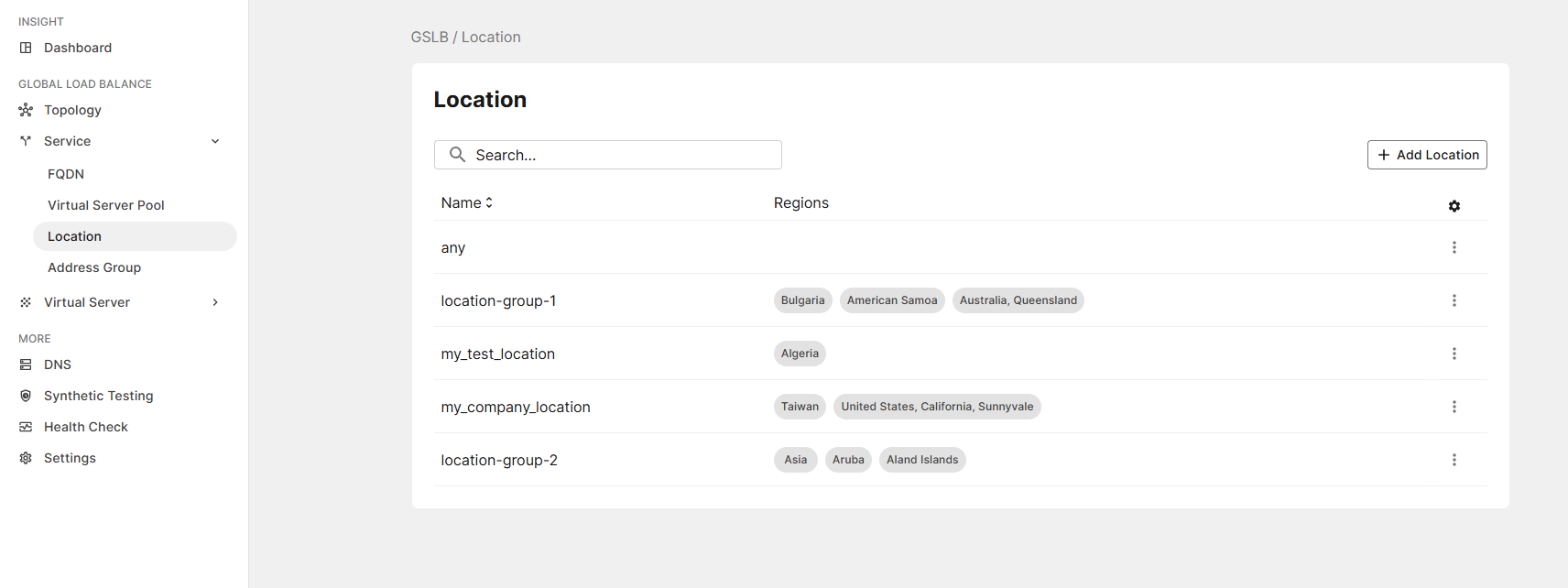
Note: any is a predefined location object that includes all regions in the database by default.
How to create a location object
- Go to GSLB > Service > Location.
- Click Add Location to display the configuration editor.
- In the Name field, specify a unique name for the location configuration.
Valid characters areA-Z,a-z,0-9,_, and-. No spaces. After you initially save the configuration, you cannot edit the name. - Click Add Region to add a location record.
At least one Region must be added for a location object.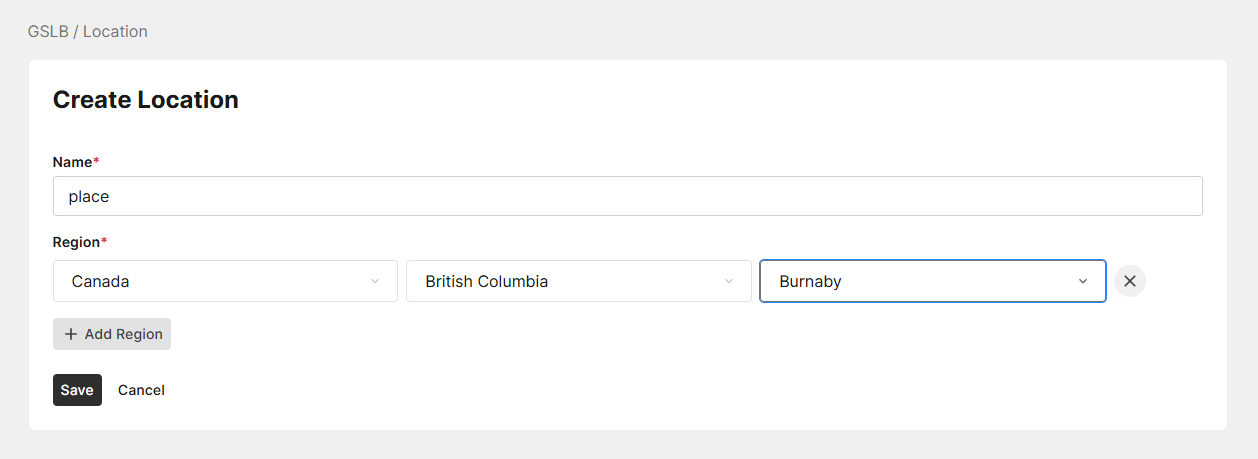
- Configure the following Location settings:
Setting
Description
Continent/Country
Specify the continent or country to include in the GeoIP region. The Continent/Country selection determines the availability of the State and City options.
ALL is the default option, which specifies that all continents/countries is included in this GeoIP region.
Note: At minimum, a continent or country must be selected for a location record to be valid.
State/Province
Specify the state to include in the GeoIP region. The availability of State options is dependent on the selected Continent/Country.
ALL is the default option, which specifies that all states under the specified continent/country is included in this GeoIP region.
City Specify the city to include in the GeoIP region. The availability of City options is dependent on the selected Continent/Country and State.
ALL is the default option, which specifies that all cities under the specified state is included in this GeoIP region.
- Optionally, you can add multiple location records under the same location object, with up to 50 location records supported per single location object. However, a Location configuration becomes invalid if multiple location records share the same GeoIP region specification.
Beware of the following scenarios that can result in this type of configuration conflict:- When separate location records specify regions that overlap, such as when both Asia and Japan are selected as the Continent/Country. As Japan is a part of Asia, the two GeoIP regions overlap.
- When one of the location records is set as ALL for Continent/Country, State, and City levels. If the Continent/Country is set to ALL, then it would naturally overlap with any other location record that specifies a continent or country. However, by default, a location record is already invalid if ALL is set for Continent/Country.
- Click Save.
The new location object will be listed on the Location page.
Assign Location to Virtual Server Pool
After you have configured the location object, you can assign it to an FQDN's virtual server pool.
-
Navigate to GSLB > FQDN.
-
Click the three dots in the top-right corner of a configured FQDN object to expand the actions menu.
-
Click Manage Virtual Server Pool. This navigates to a page displaying all virtual server pools mapped to the FQDN.
-
In the row of the desired virtual sever server pool, click the three dots under the gear icon to expand the actions menu.
-
Click Edit.
-
Under Location List, select the desired location list object.
-
Click Save to apply changes.