

Disk Encryption
Use the Profiles > Disk Encryption page to configure disk encryption policies to enforce disk encryption on Windows 7 or later (using BitLocker, TPM required) and macOS (using FileVault) endpoints to ensure consistent security configurations and compliance with regulatory requirements. You can also configure disk decryption policies to allow users to decrypt an encrypted disk.
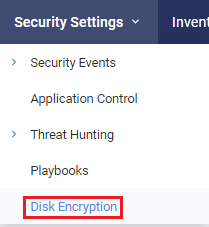

To configure a disk encryption policy to enforce disk encryption on specific Collector groups:
-
In the Profiles > Disk Encryption page, click the Add button at the top left corner.
-
Specify a name for the policy.
-
Enable the policy if you want to enforce the policy immediately after creation. You can also choose to enable it later.
-
Select the OS and configure the relevant options:
Windows
macOS
- Under Action, select Encrypt all disks or Encrypt only used disk.
- Under Method, select an encryption method for Windows 10 or later.
- Under Action, select Encrypt.
- Under Method, select the number of allowed user logins with an unencrypted disk. For example, if 3 is selected, the user will not be able to log in on the third attempt without confirming the disk encryption.
- Upload the FileVaultMaster certificate.
-
Click Save.
The policy appears in the disk encryption policies table.
-
Enable or disable the policy by toggling the button in the State column.
-
Add or remove Collector groups for the policy in the Collector Group column.
-
(macOS) To verify the disk encryption status, run
sudo fdesetup statuson the endpoint. You can run the command multiple times to see the progress. When the encryption is complete, the status will show that FileVault is on. Encryption speed depends on HD size and Mac model.
To configure a disk decryption policy to allow users of specific Collector groups to decrypt an encrypted disk:
-
In the Profiles > Disk Encryption page, click the Add button at the top left corner.
-
Specify a name for the policy.
-
Enable the policy if you want to enforce the policy immediately after creation. You can also choose to enable it later.
-
Select the OS and select Decrypt under Action.
-
Click Save.
The policy appears in the disk encryption policies table.
-
Enable or disable the policy by toggling the button in the State column.
-
Add or remove Collector groups for the policy in the Collector Group column.
(macOS) Users from those Collector groups can then manually disable FileVault (user credentials required) from Setting > FileVault > Disable FileVault. If the Collector is not assigned to the decrypt policy, the disk will be automatically encrypted again even after the user manually disables FileVault.
-
(macOS) To verify the disk decryption status, run
sudo fdesetup statuson the endpoint. You can run the command multiple times to see the progress. When the decryption is complete, the status will show that FileVault is off. Decryption speed depends on HD size and Mac model.