Fortinet white logo
Fortinet white logo

Administration Guide

Troubleshooting

Troubleshooting

EMS collects time-correlated IPsec VPN and ZTNA-related logs from FortiGate and FortiClient to help troubleshoot ZTNA and IPsec VPN integration issues between FortiGate and EMS.

The Fabric & Connectors >Troubleshooting page includes the following troubleshooting options:

  • Live Debug Log Collection—Collect real-time IPsec VPN or ZTNA log.

  • Historical Log Collection—Collect IPsec VPN or ZTNA log within a specific historical period.

Live Debug Log Collection

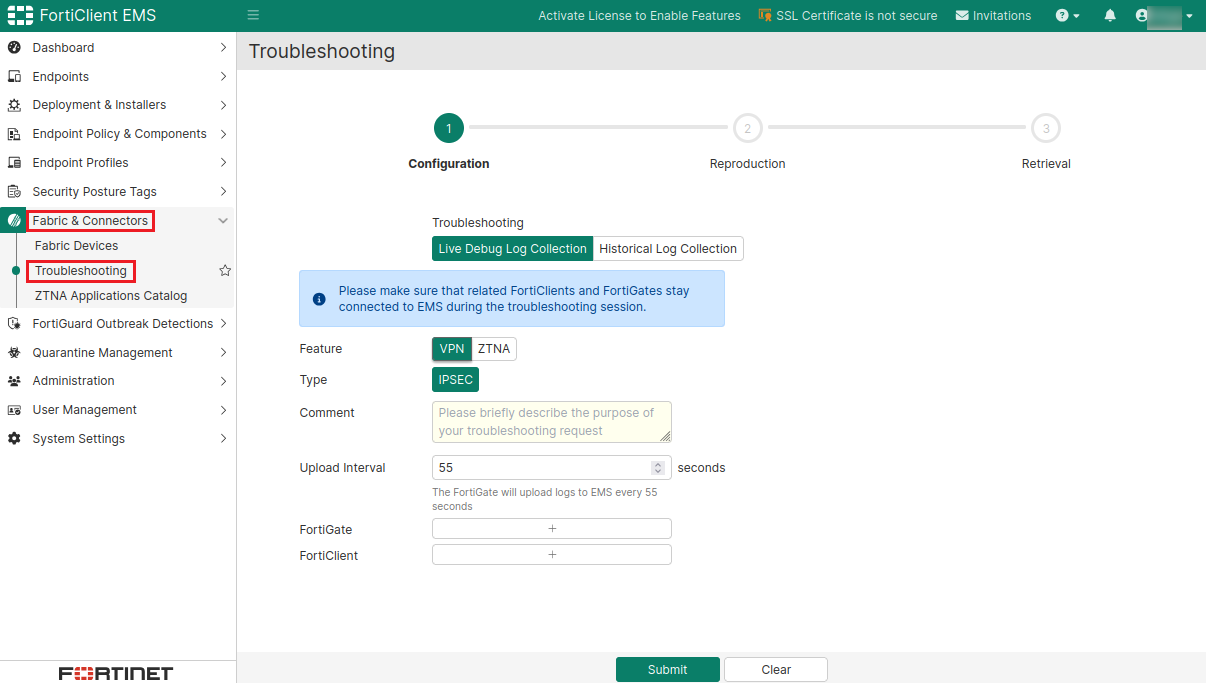
You can configure the feature (VPN or ZTNA) and log type to be collected. The following is an example of Live Debug Log Collection for IPsec VPN.
You can also select Live Debug Log Collection for ZTNA, which provides two types: IP/MAC Filtering and Access Proxy, depending on your log collection requirement.
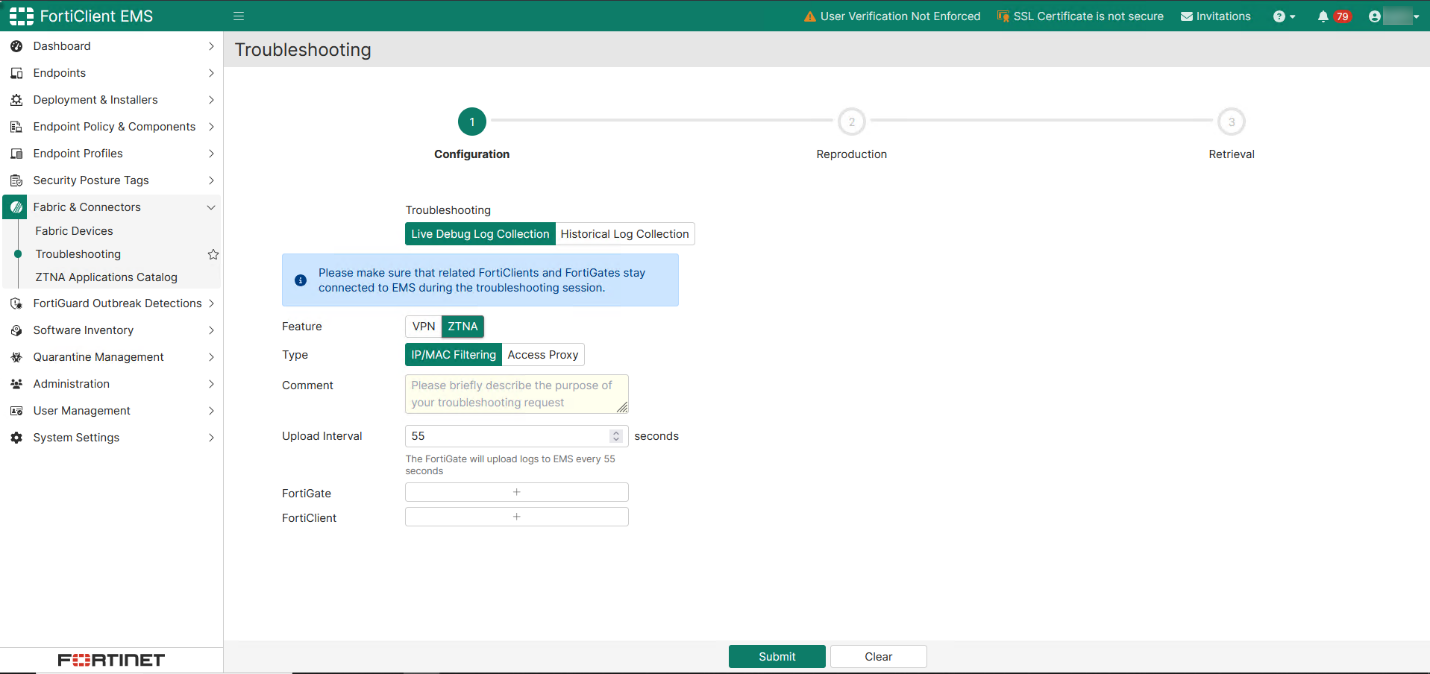
Specify the upload interval within a range (between 20 to 86,400 seconds) at which the FortiGate device uploads logs to EMS.

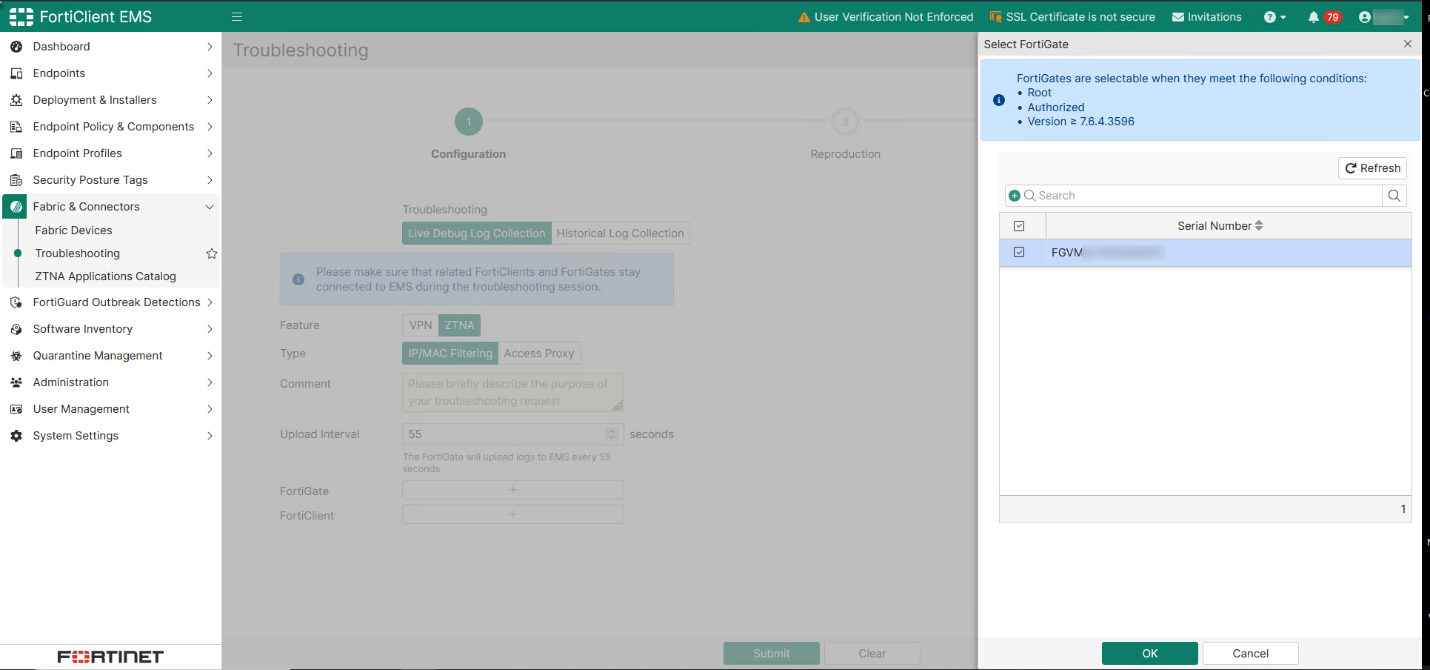
Use the FortiGate (+) and FortiClient (+) options to add FortiGate and FortiClient devices to collect logs from. Filter or search for specific FortiGate or FortiClient devices within the slide-out panel to refine the selection.
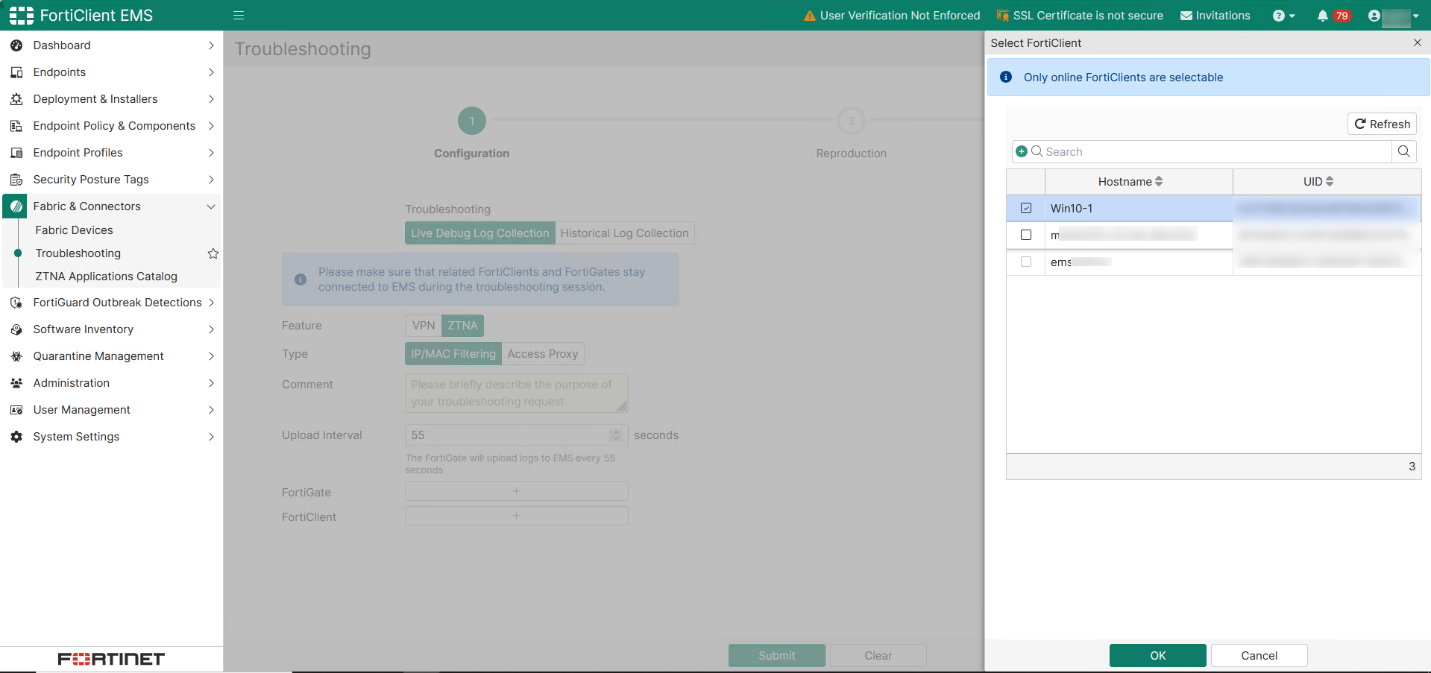
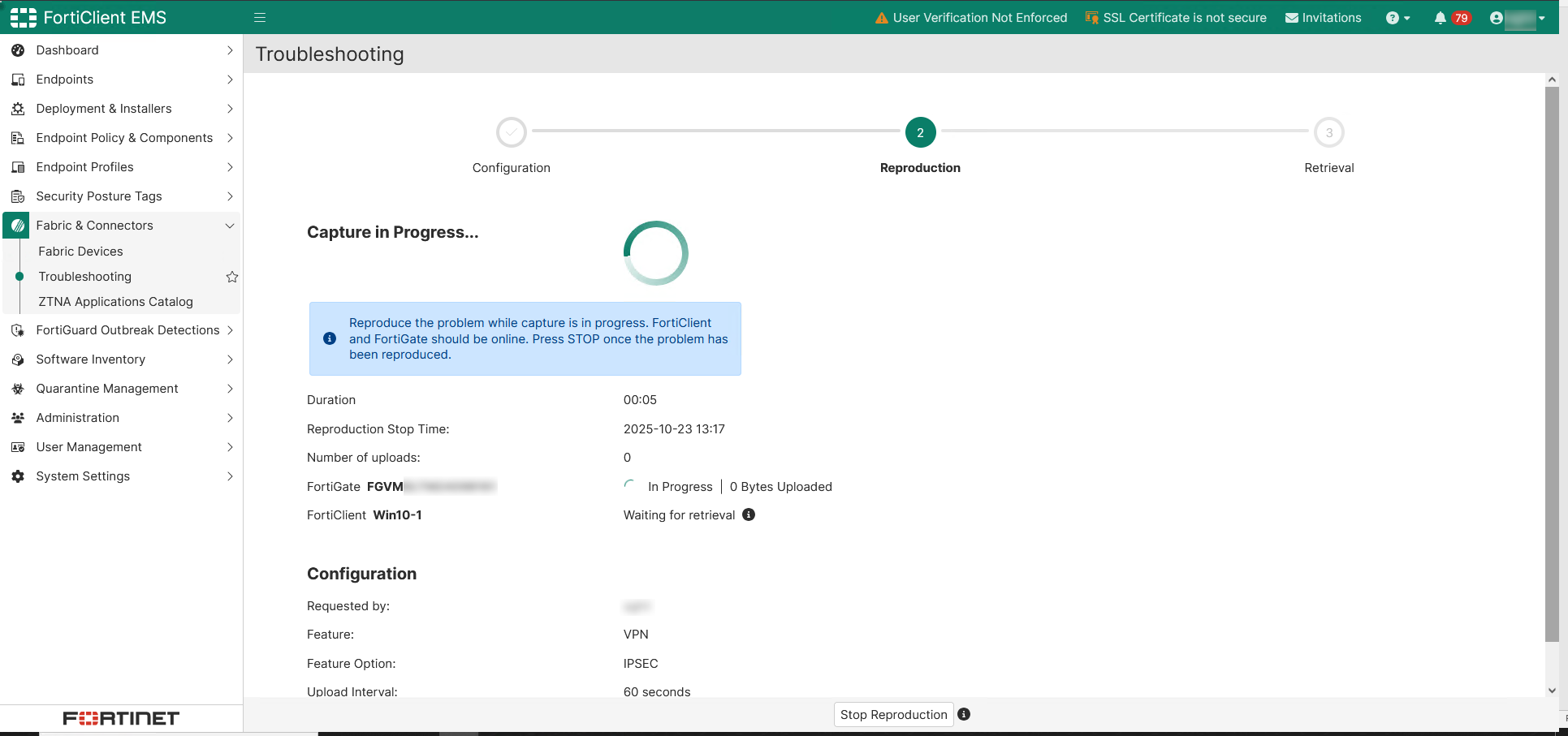
Click Submit and EMS will initiate the log collection request from the selected FortiGate and FortiClient devices on theReproduction page.

Related FortiGate and FortiClient devices must stay connected to EMS during the troubleshooting session to ensure that logs are captured during the active occurrence of the issue for accurate troubleshooting.

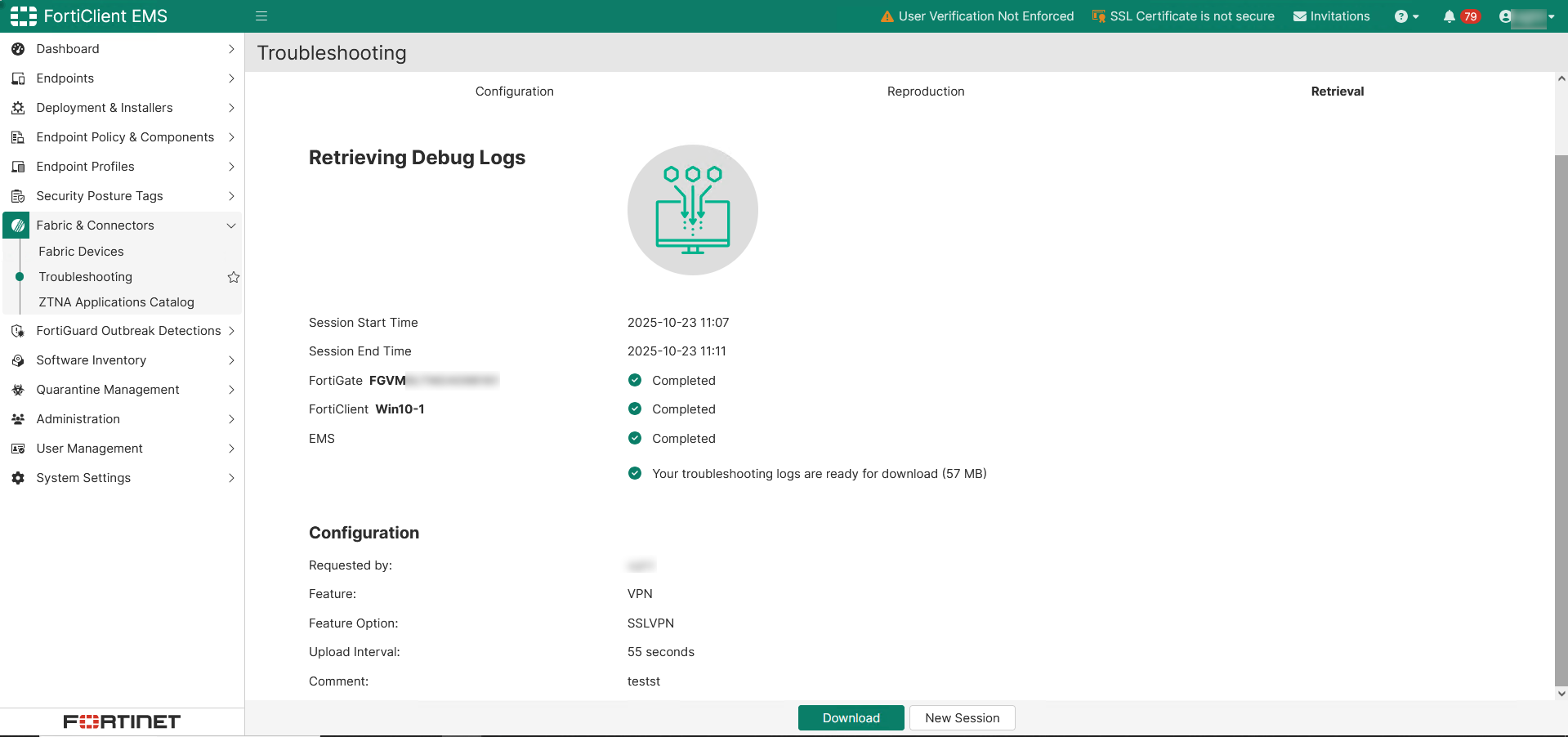
After the logs have been captured or when you click Stop Reproduction, EMS proceeds to the Retrieval page where you can download the captured logs as a .zip file for troubleshooting or further analysis.

To start a new troubleshooting session, click New Session.
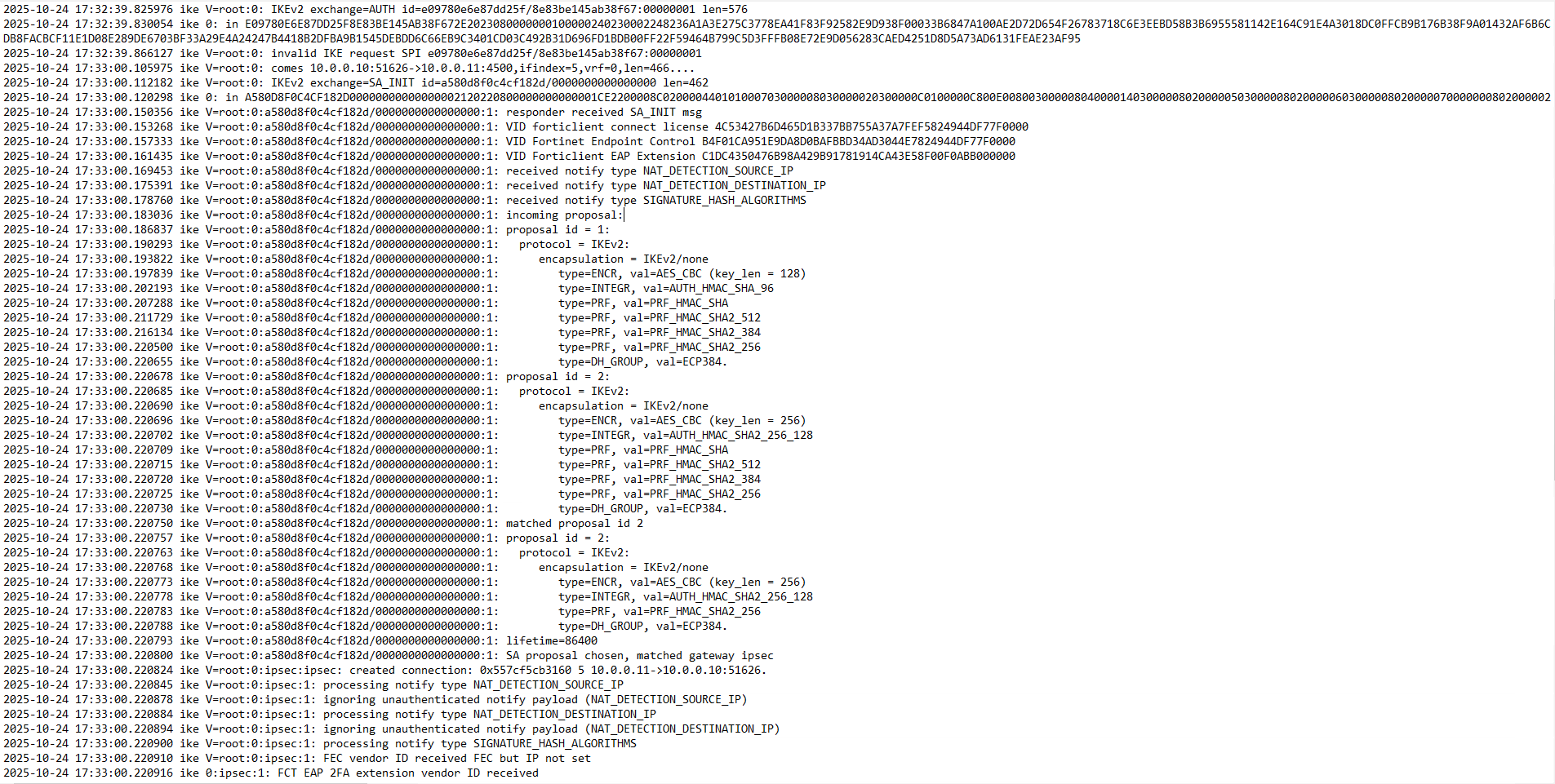
The following is a debug log snippet indicating that an endpoint attempts to establish a connection to the IPsec VPN on this FortiGate device. The log shows the negotiation steps involved in the process, which were collected by EMS during troubleshooting.
Historical Log Collection

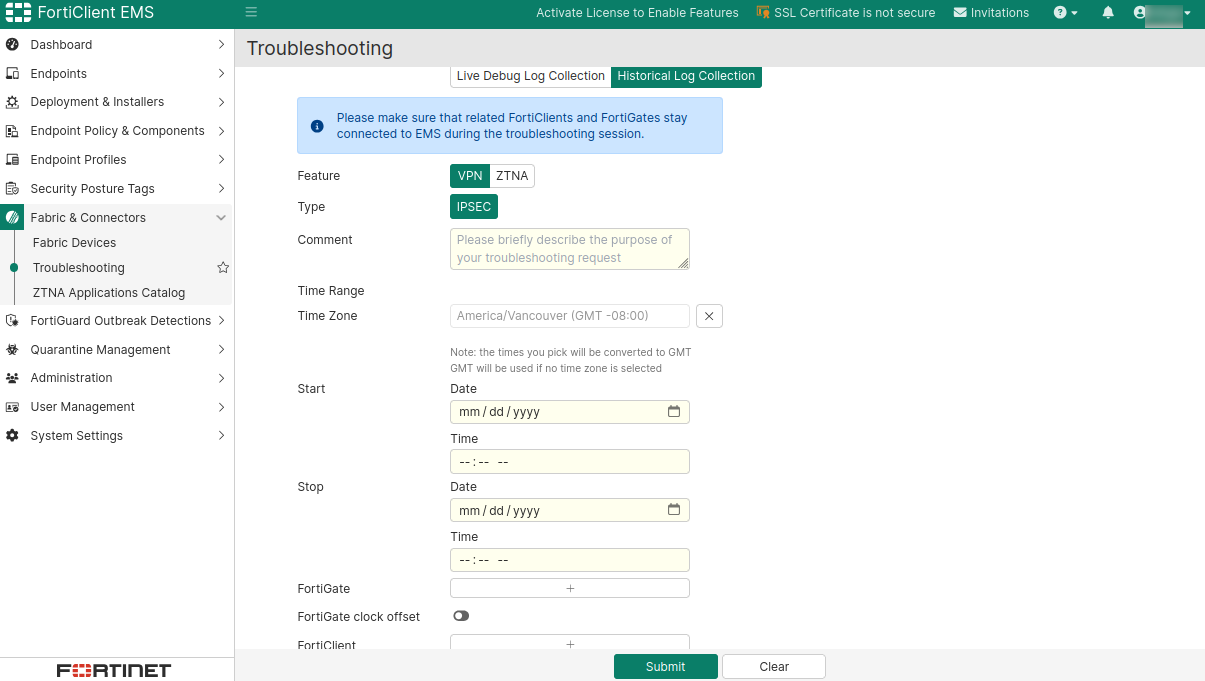
In Historical Log Collection mode, users must specify a start and stop time, which can be set to a period in the past. Additionally, the Time Zone can be selected to ensure the log collection aligns with the desired temporal context.
Troubleshooting

Troubleshooting

EMS collects time-correlated IPsec VPN and ZTNA-related logs from FortiGate and FortiClient to help troubleshoot ZTNA and IPsec VPN integration issues between FortiGate and EMS.

The Fabric & Connectors >Troubleshooting page includes the following troubleshooting options:

  • Live Debug Log Collection—Collect real-time IPsec VPN or ZTNA log.

  • Historical Log Collection—Collect IPsec VPN or ZTNA log within a specific historical period.

Live Debug Log Collection

You can configure the feature (VPN or ZTNA) and log type to be collected. The following is an example of Live Debug Log Collection for IPsec VPN.

You can also select Live Debug Log Collection for ZTNA, which provides two types: IP/MAC Filtering and Access Proxy, depending on your log collection requirement.

Specify the upload interval within a range (between 20 to 86,400 seconds) at which the FortiGate device uploads logs to EMS.

Use the FortiGate (+) and FortiClient (+) options to add FortiGate and FortiClient devices to collect logs from. Filter or search for specific FortiGate or FortiClient devices within the slide-out panel to refine the selection.

Click Submit and EMS will initiate the log collection request from the selected FortiGate and FortiClient devices on theReproduction page.

Related FortiGate and FortiClient devices must stay connected to EMS during the troubleshooting session to ensure that logs are captured during the active occurrence of the issue for accurate troubleshooting.

After the logs have been captured or when you click Stop Reproduction, EMS proceeds to the Retrieval page where you can download the captured logs as a .zip file for troubleshooting or further analysis.

To start a new troubleshooting session, click New Session.

The following is a debug log snippet indicating that an endpoint attempts to establish a connection to the IPsec VPN on this FortiGate device. The log shows the negotiation steps involved in the process, which were collected by EMS during troubleshooting.

Historical Log Collection

In Historical Log Collection mode, users must specify a start and stop time, which can be set to a period in the past. Additionally, the Time Zone can be selected to ensure the log collection aligns with the desired temporal context.