Secure Browser

|
The secure browser feature is disabled by default and will be gradually rolled out. To be considered as an early adopter, please contact Fortinet Support. The feature supports the following OSes only:
|
Use the Profiles > Security > Secure Browser pages to secure browsing in Google Chrome on the endpoint:
- Approve or protect for file upload/download for specific domains.
- Protect data in specific domains by preventing pasting content from those domains.
- Block traffic to specific website categories.
- Block specific third-party extensions.
To configure secure browsing:
-
Create a list of domains and URLs to allow file upload/download or data transfer as needed:
-
Go to the Profiles > Security > Secure Browser > Domain Groups page and click Add Group.
-
Specify a name for the domain group. For example, Allow file upload. The domain group name is case-sensitive.
-
Optionally, provide a description.
-
Click Add Domain and specify the exact URL of the website to approve or protect. For example,
www.abc.com. Wildcard is unsupported.Repeat this step to add more URLs to the group as needed.
-
Click Save.
-
Repeat the procedure to add more domain group as needed.
You can also edit, clone, or delete a domain group using the following options:

-
- Create a secure browser policy and connect the domain groups to it:
Go to the Profiles > Security > Secure Browser > Policies page and click Add Policy.
Specify a name for the policy. The policy name is case-sensitive.
Select the Collector groups that the policy applies to.
Click Save to save the policy.
The policy appears in the list.
(Optional) Add or remove Collector groups for the policy in the Collector group column.
A Collector group can only be added to one secure browser policy.
Expand the row of the policy in the table and configure the rules to associate with the policy.
FortiEndpoint EDR provides the following built-in rules, which are all enabled by default. Click the Enable button to disable it. To edit a rule, click the Edit button to the right of the rule.
Rule
Description
Prevent upload By default, all file uploads are blocked in the policy.
To allow upload from specific websites, edit the rule and click Add Domain Group to select the relevant domain groups, such as Allow file upload.
Prevent download By default, all file downloads are blocked in the policy.
To allow download from specific websites, edit the rule and click Add Domain Group to select the relevant domain groups, such as Allow file download.
Prevent data transfer By default, all data transfers are allowed in the policy, which means you can copy content from any website and paste it to another website.
To prevent pasting content copied from specific websites, edit the rule and click Add Domain Group to select the relevant domain groups to the protected domain groups list. Content copied from the protected domains will then only be allowed to be pasted into the same domain or another protected domain.
URL reputation By default, all website categories are allowed in the policy.
To block or log traffic to specific website categories, edit the rule and click Add category to select the relevant categories and configure the block or log action.
Block Prevent user access to the website category. Log Allow user access to the website category but a notification will be sent about the activity. Prevent Third-party extension monitoring By default, all third-party extensions are allowed by the policy.
To block or log specific third-party extensions:
- Edit the rule by clicking the Edit button to the right of the rule.
Configure the block or log action, which applies to all third-party extensions in the block list.
Block Disable the block list of third-party extensions. Log Allow user access to the block list of third-party extensions but a notification will be sent about the activity. - Click Add Extension to define a list of third-party extensions to block using the extension ID. You can retrieve the extension ID by turning on Developer mode in
chrome://extensions/.
-
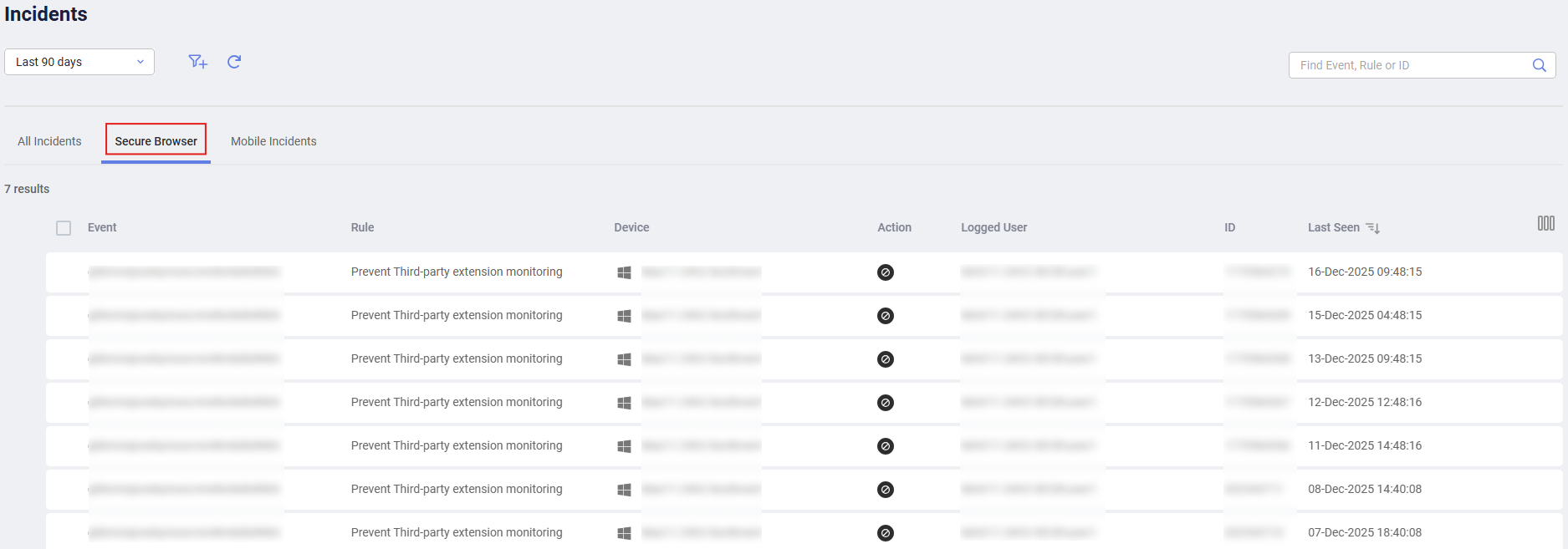
Check incidents for secure browser in the Secure Browser tab of the Incidents view.