Fortinet white logo
Fortinet white logo

Administration Guide

Stack view

Stack view

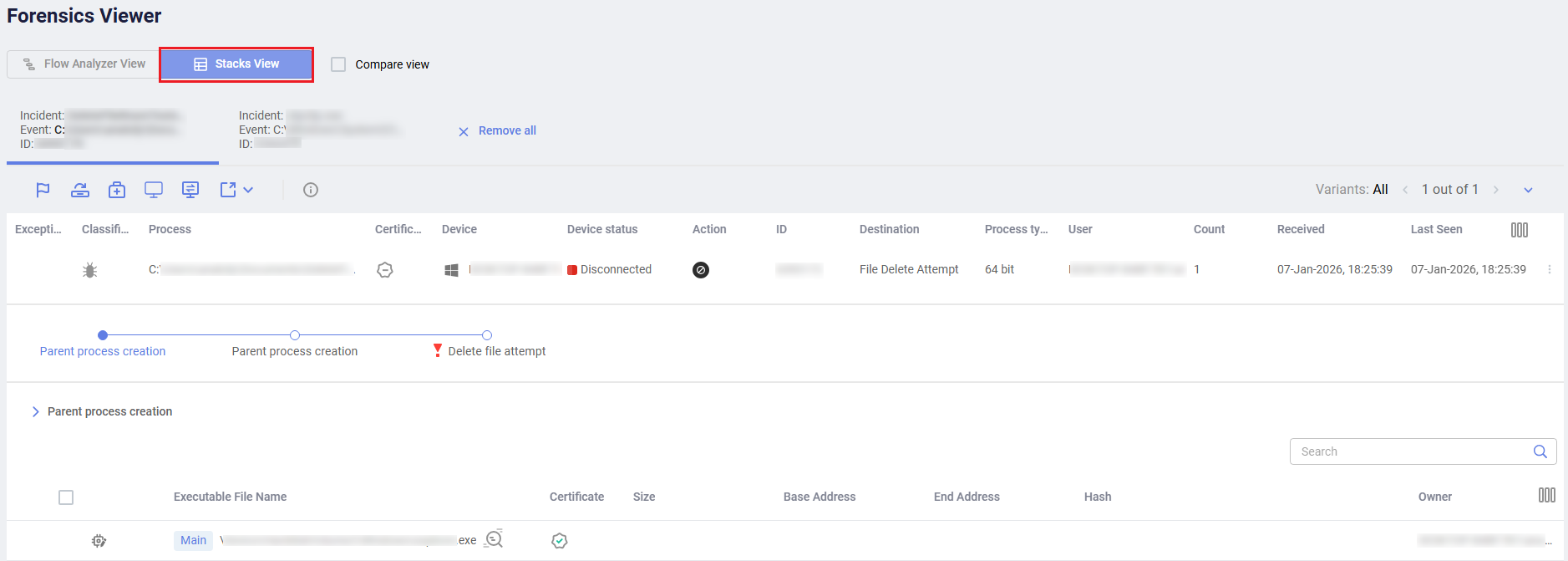
The Stack view displays the following sections of information:

Field

Description

Incident Shows the same information as in the Incidents.
Stacks A control toolbar that depicts the stacks that were collected in each step prior to the connection establishment requester file access. A red exclamation mark means that a rule violation was observed in this stack. You can click the different stack names to see the collected stack data.
Stack Content Details

The bottom of the window displays each stack in the flow of the selected step. The stack entries represent the executable files that resided in the stack upon collecting the stack data. Click the stack node to filter the display to show that stack.

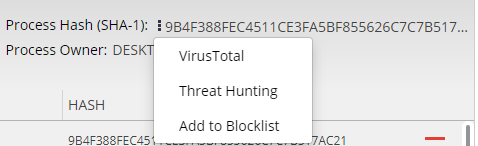
Click the Process Hash link to display a dropdown menu with the following options:

  • VirusTotal: Checks whether this hash was seen elsewhere. This involves searching another external website (VirusTotal). Clicking the link runs the query in VirusTotal. Alternatively, you can go to www.virustotal.com, click the Search tab, paste the hash from EDR and then click Search It.
  • Threat Hunting: Checks the activity events that are relevant to this hash. Clicking this option takes you to the Threat Hunting page.
  • Add to Blocklist: Adds this hash to the Application Control block list, as described in Application Control. Clicking this option opens up the Add Application Window with this hash specified.

For each executable, you can see the following information:

  • Executable File Name
  • Writable: Specifies whether the executable code can be modified.
  • Certificate: Specifies whether or not the certificate was signed.
  • Repetitions: Specifies how many times this executable was detected in the stack.
  • Base Address of this entry in memory.
  • End Address of this entry in memory.
  • Hash: Specifies the file hash.

The row of the executable that triggered the EDR security event is highlighted with a red exclamation mark . This indicates the row that you may want to investigate further. You can expand an executable row to display an even deeper level of information describing that process.

Stack view

Stack view

The Stack view displays the following sections of information:

Field

Description

Incident Shows the same information as in the Incidents.
Stacks A control toolbar that depicts the stacks that were collected in each step prior to the connection establishment requester file access. A red exclamation mark means that a rule violation was observed in this stack. You can click the different stack names to see the collected stack data.
Stack Content Details

The bottom of the window displays each stack in the flow of the selected step. The stack entries represent the executable files that resided in the stack upon collecting the stack data. Click the stack node to filter the display to show that stack.

Click the Process Hash link to display a dropdown menu with the following options:

  • VirusTotal: Checks whether this hash was seen elsewhere. This involves searching another external website (VirusTotal). Clicking the link runs the query in VirusTotal. Alternatively, you can go to www.virustotal.com, click the Search tab, paste the hash from EDR and then click Search It.
  • Threat Hunting: Checks the activity events that are relevant to this hash. Clicking this option takes you to the Threat Hunting page.
  • Add to Blocklist: Adds this hash to the Application Control block list, as described in Application Control. Clicking this option opens up the Add Application Window with this hash specified.

For each executable, you can see the following information:

  • Executable File Name
  • Writable: Specifies whether the executable code can be modified.
  • Certificate: Specifies whether or not the certificate was signed.
  • Repetitions: Specifies how many times this executable was detected in the stack.
  • Base Address of this entry in memory.
  • End Address of this entry in memory.
  • Hash: Specifies the file hash.

The row of the executable that triggered the EDR security event is highlighted with a red exclamation mark . This indicates the row that you may want to investigate further. You can expand an executable row to display an even deeper level of information describing that process.