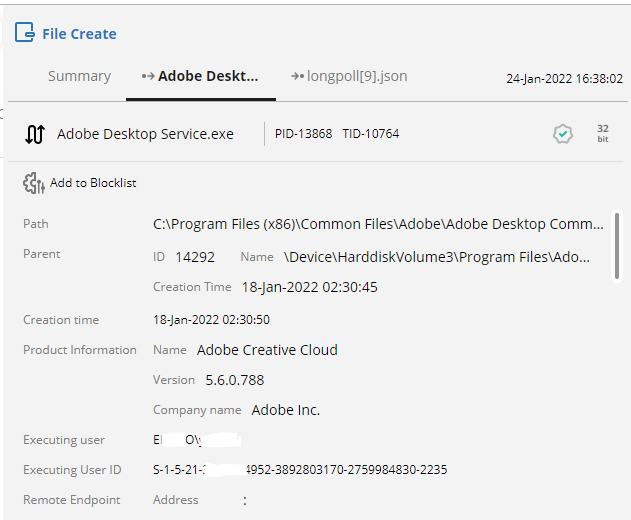
Details pane
You can click anywhere in a row in any of the Activity Events tables to display more details about the specific activity event in a Details pane on the right. The selected row is marked by a green border on its left.
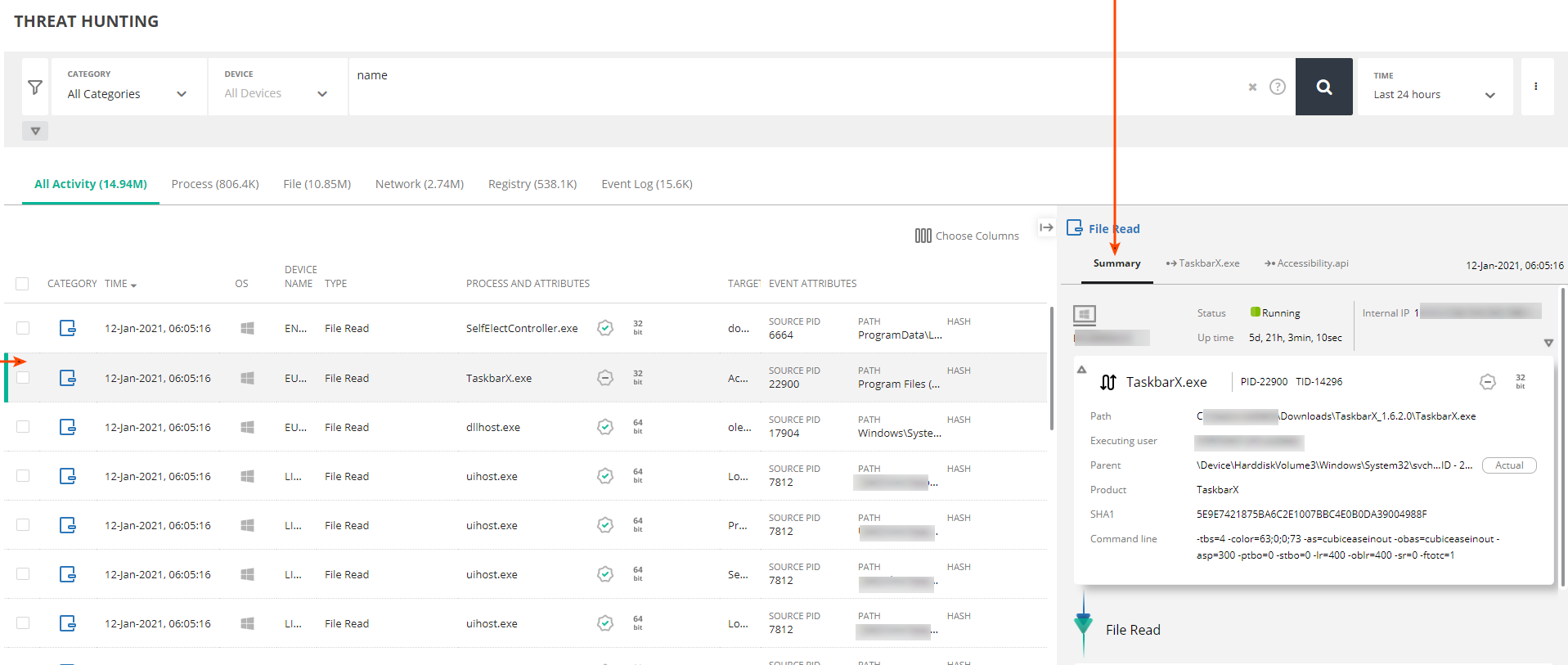
The Details pane for an activity event contains a Summary tab, one or two other tabs, and the Investigation View ( ) button, as follows:
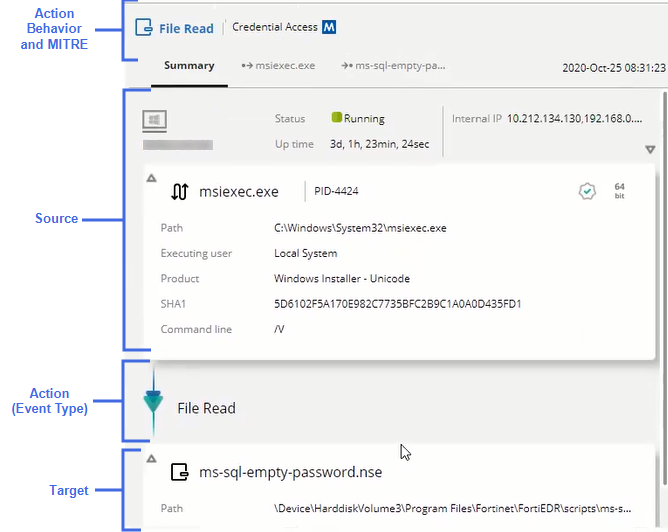
- Summary tab: This tab specifies a summary of the activity event. At the top of the tab, it shows details about the endpoint, including the endpoint and its IP, path, operating system, and so on. The area below the endpoint section shows the source process and its detail. The area below the source graphically shows the action again, which is the activity event type, as well as some additional data regarding the action, if any. The area at the bottom of the pane shows the target and its details. You can click the Expand (
 ) or Collapse (
 ) arrows in an area of this pane to show or hide additional relevant details, respectively.
 - Process tab: This tab shows additional details about the source process.
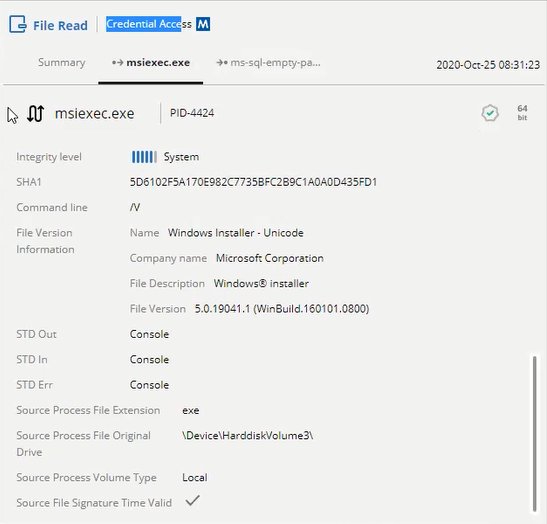
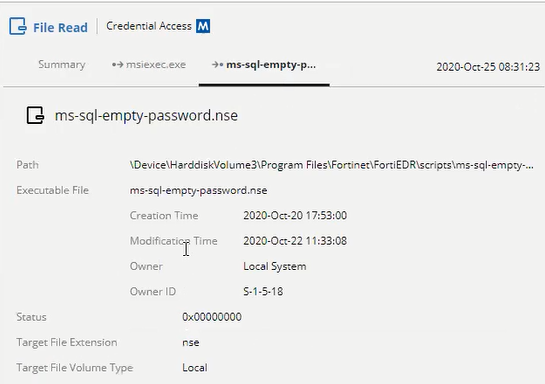
- Target tab: This tab only displays if the target is of type Process or File, and details additional data regarding such.
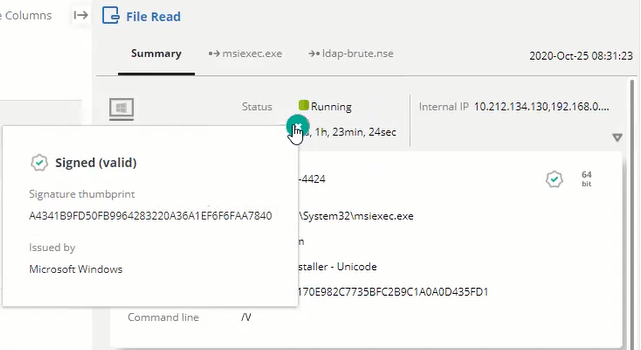
You can click an icon in the Details pane to display additional details, as shown below:
-
Investigation View (
) button: This button opens a graphical Investigation View of the activity events details: source, action and target. The graphical view provides the ability to add more activity events to the graph and show the relationship and timeline of the occurrence of those activities for better understanding of the flow of activity events.
Event Log Details pane
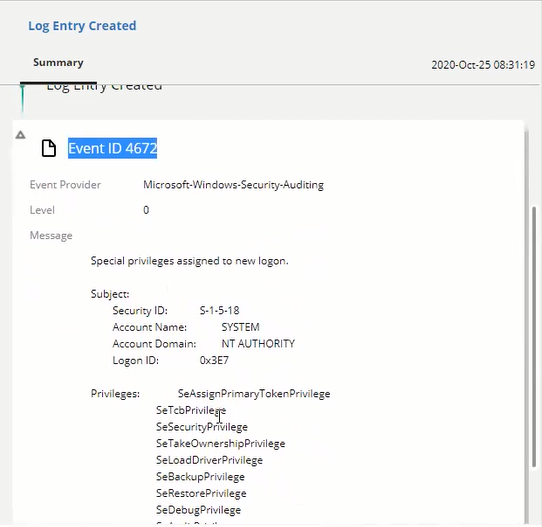
The Details pane for an activity event of type Event Log Created appears somewhat differently, as shown below. In this case, the action is always Log Entry Created and the target is always the event ID.
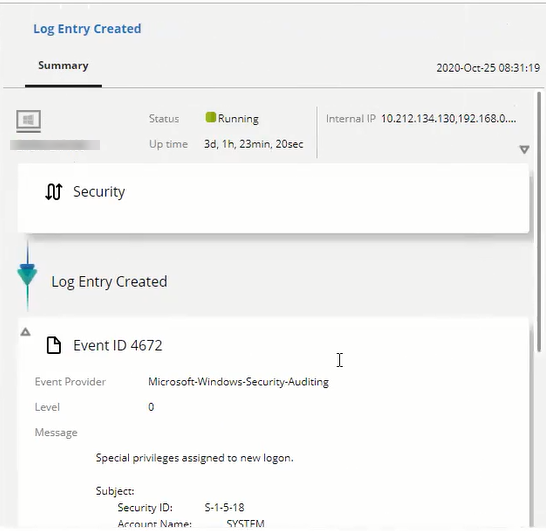
You can scroll down in the Target area to view the actual log entry.
Retrieving a file / Remediating devices upon malware detection
You can remediate any file that is a target of an activity event. You can also download a copy of any file (Retrieve action) that is a target of an activity event.
To retrieve a file or remediate the process:
- Select the relevant activity event and open its Details Pane.
- When hovering over the filename, you can select either of the following options:
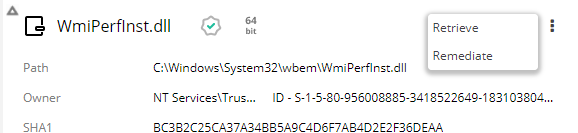
In the Summary pane, select the three dot dropdown menu and then select Retrieve of Remediate the file, as shown below:
– OR –
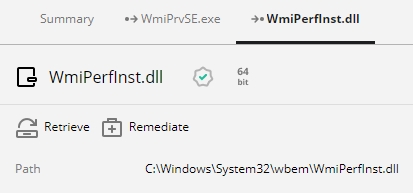
In the Details pane, click the Retrieve or Remediate button, as shown below:
Adding an application to the Application Control policy blocklist
You can add any process that is either the source or the target of an activity event to the Application Control Policy blocklist such that this process won’t launch on the devices that are assigned to that Application Control policy.
To add a process to an Application Control policy:
- Select the relevant activity event and open its Details Pane.
- In the Summary page, click the More (
 ) option next to the process name and select Add to Blocklist, as shown below: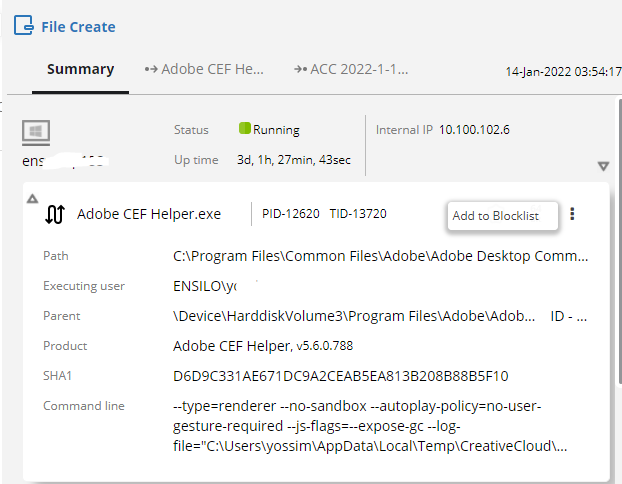
OR
Go to either the Source or the Target tab of type process and click the Add to Blocklist button, as shown below: