

Investigation View
The Investigation View window is accessible from the Details Pane using the Investigation View button ( ) of an event under Threat Hunting. It helps understand the flow of activity events during Threat Hunting with a dynamic and interactive graphical view of the activity events details: source, action and target.
The graphical view provides the ability to add more activity events to the graph and show the relationship and timeline of the occurrence of those activities, such as the following:
-
All actions performed by a given process
-
All files the process has created or updated
-
All IPs the process has initiated communication with
It also allows you to interactively view a chain of activity events in the following ways:
-
Browse between the various processes involved in the chain
-
See all activity events related to one node and decide which nodes to add to the graph

|
The view adds visualization and interaction of existing data that is already available in other non-graphical and non-interactive forms without creating or generating any additional data. |
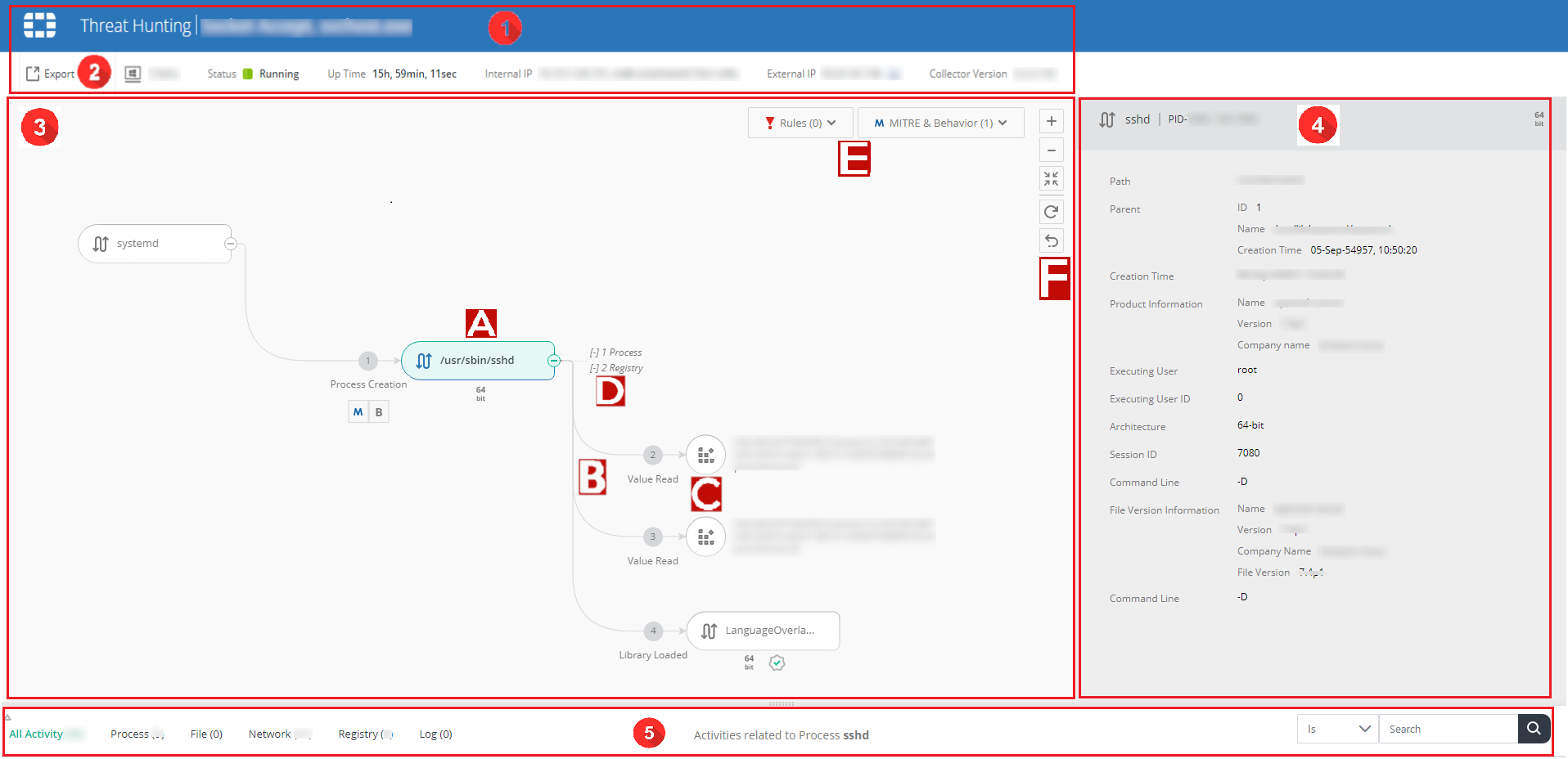
The following figure illustrates the various components of an Investigation View window launched from the Details Pane under Threat Hunting, which has the window title "Threat Hunting + activity name.
|
|
Compared with the Investigation View window launched from the Incidents view, this view has the following limitations:
|
|
Component |
Description |
||||||||||||||
|---|---|---|---|---|---|---|---|---|---|---|---|---|---|---|---|
| 1 |
General details about the device that generated the event, such as Collector status, process name, and IP address. |
||||||||||||||
| 2 |
Use the Export button ( This is the only option to save a graph that includes dynamic changes based on the default graph view, such as adding processes. |
||||||||||||||
| 3 |
|
||||||||||||||
| 4 |
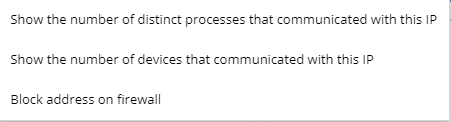
Details pane for the selected node, edge, or leaf where you can view details of the activity, action, or target, and perform common actions on a node or leaf, such as retrieving a file, remediating devices upon malware detection, or adding an application to the Application Control policy blocklist. The actions can also be performed by right-clicking a node or leaf and selecting the option from the menu. For specific leaf types, this pane also includes an Insights tab which allows you to run queries to retrieve analytics data, such as the number of communicating processes or devices of a certain IP. The Insights options are also available from the right-click menu of those leaf types.
|
||||||||||||||
| 5 |
Contextual Activity events tables for the selected node or leaf organized by tabs of activity types. Drag the top edge of the table up for a fuller view of the table. Activities with a number at the front of the row are already in the graph and the number matches the one in the graph.
|
||||||||||||||
 ) to export the Investigation View window as an SVG file to share with others or for record reasons.
 ) or Expand (
 ) icon in the right of a node icon to show or hide all the downstream nodes, edges, and leaves.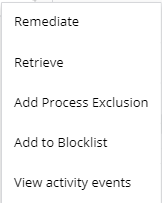
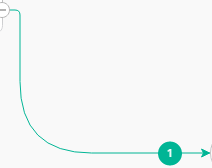
 ).
).

 ) or Collapse (
 ) icon near a leaf hint to show or hide the node or leaf list of that type.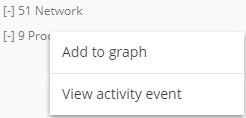

 ), Zoom Out (
 ), and Zoom To Fit (
 ) buttons to adjust the graph window size.
 ) button to restore the graph to the default view.
 ) button to cancel an operation.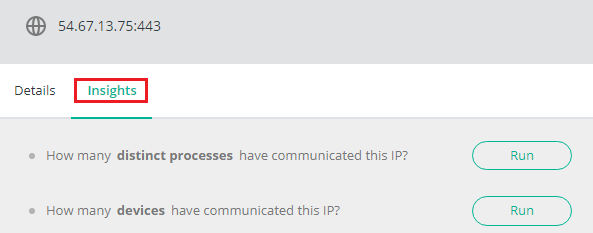

 ).
). ).
). ).
). ) and red minus (
 ) icons that appear when you hover over the value. Multiple filters are supported. To delete a filter, click the cancel icon that appear when you hover over the filter on the top-left of the table.